
Overview
CheatSheet
| Protocol | Server | Port | Username | Password | Encryption |
|---|---|---|---|---|---|
| IMAP | mail.math.uzh.ch | 993 | SSL | ||
| SMTP | mail.math.uzh.ch | 587 or 2525, for Microsoft Outlook use 465 | STARTTLS, Password | ||
| Address book UZH | ldap.connect.uzh.ch | 636 | UZH Full Name, z.B. cn=hans muster,ou=at,o=uzh | Collaboration-Passwort | SSL |
- Note: Standard SMTP Ports are 25 or 587 (Wikipedia)
- Many organizations / universities block outgoing traffic to port 25 by their firewall. This means you can't send mails from your notebook / mobile phone by using such a network (LAN or WLAN).
- To avoid this problem: configure port 587 or 2525.
- If you are unsure whether your username and password match, please try to log in on the Webmail https://mail.math.uzh.ch.
Configuring an Account
Thunderbird
IMAP: I-MATH / general
- Go to
File > New > Email Account...
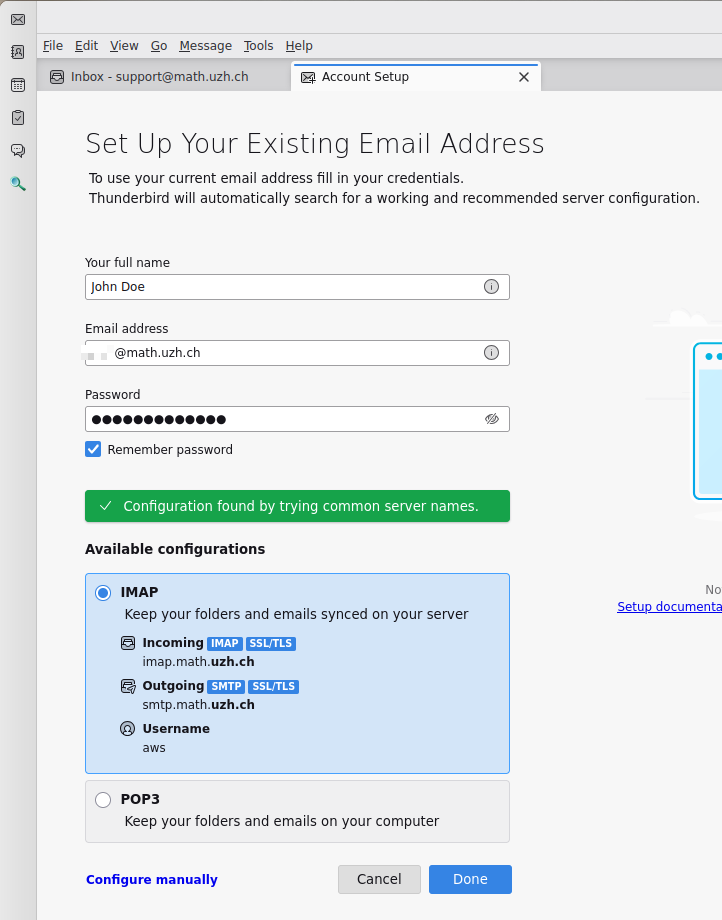
1.#2 Enter your name, mail address and password.
- Press
Done... wait ...Done...Finish
Apple Mail
Configuration for IMAP-Konto
- Click '+' to create a new email account
- Choose account type (IMAP)
- Enter the needed data (Reference Card)
- Save and exit
Now all the folders from your mail account should appear.
To change the behaviour of the default folders of Apple Mail, do the following:
- Select the folder you want to edit (f.e.
Sent)
Different 'Sent' folder: merge them!
- First verify that the IMAP protocol is configured. The wrong alternative is POP, which does not support shared mail folders.
- Especially under MacOS X and iOS, it happens that the individual devices and email applications use different 'Sent'-folder names like 'Sent', 'Sent Messages', 'sent-mail', 'sent_messages', ...
- Best is to configure all devices/email-applications to use 'Sent' as the sent folder. The majority of all email applications use this name as the sent folder.
- If there are already multiple folders named 'sent...':
- Configure all of your email applications (=every device by it's own!) to use 'Sent' as the sent folder.
- Move (best via https://mail.math.uzh.ch) all mails from the different 'sent...' folders to 'Sent'.
- Delete all empty 'sent...' folders. This last step is important for future configuration of email applications/devices: during the setup of a new email applicaton/account, the app looks for existing 'sent' named folders. If there is only one, it will choose the right one as 'Sent' folder by default.
Forwarding email
- Log onto the webmail interface mail.math.uzh.ch
Preferences > Mail > Receiving Messages > When a message arrives: Forward a copy to ...
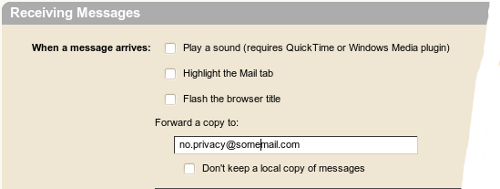
1.#3 Press Save
Show Zimbra Calendar in Thunderbird
Show Google/Zimbra Calendar in Thunderbird
https://wiki.math.uzh.ch/public/calendar
Private Calendar: email reminder
The standard institute calendar (=Zimbra) generates reminders, in the current Zimbra version, only via pop up Windows, if you logged into the webmail interface. Often you need a more independent way to receive a reminder.
Until Zimbra is more flexible, please use the following workaround to generate personal reminder emails to a specific date and time:
- Create a date
- Insert
!Remindsomewhere in the title or the body - Save and close the date
You will receive an email once the date arrives.
Optional Arguments::
:: Time before !Remind:xxdyyhzzm (f.e. 1d12h35m)
:: Other email addresses !Remind:name@domain.com
:: Can be combined !Remind:1h20m:name@domain.com
General Events: email reminder
- research seminars
- colloquia
- conferences
- Dissertationsvorträge
- general events.
The mailing lists are divided into two parts:
- automatically assigned e-mail addresses
- personal e-mail subscription
Persons who are automatically assigned to a mailing list (only members of our institute)
research seminars: all organizers, all assistants of the organizers
colloquia: whole institute
conferences: whole institute
Dissertationsvorträge: whole institute
general events: whole institute
Every institute member is free to enable/disable these 5 categories seperately. Every e-mail contains a personalized URL to subscribe / unsubscribe.
Personal e-mail subscription:
On every page of the given events, there is a link 'e-mail reminder subscription' which points to an e-mail address form (if the service is not disabled for the given event). After subscribing, an e-mail will be returned to the subscriber's e-mail. The e-mail provides a personalized link, which the subscriber must open in a webbrowser to activate the subscription.
Subscription period:
The e-mail subscription to a research seminar or a colloquium is semester independent. The e-mail subscription is active as long as the seminar exists.
All other events occur only one time.
Sending reminder e-mails:
The Organizers of any event are free to choose between 0-7 days or to disable the reminder feature completely. This could be specified for all events of the current semester or on a per event basis. The default setting is 0 days, which means that the e-mails are sent very early in the morning on the day of the event.
The content of the reminder email is either generic or specific on a per event basis.
Mail Merge: generate serial mails to multiple recipients
Mail: [IT@MATH] Lotus Mail Authentication Error
- will be sent by I-MATH to you, if our mailserver can not access your mails at the ID for you.
- Typically this indicates:
a. There is a general problem at the ID mail server, or
b. You've changed your Lotus Passwort via ITIM, but our Mailserver does not know the new password (please contact I-MATH Support).
- The I-MATH IT Support also gets this warning email and checks the recent situation and will contact you in case something can be improved.
Mobile Web Interface
Sending attachments
- (ZCS 8.6.0/13.6.2015) It is not possible to compose emails and adding attachments to it, in the Zimbra Mobile Webclient interface.
- Workaround 1: use your email program on your mobile device.
- Workaround 2: before you log in to the webclient, switch to 'Standard (HTML)' or 'Advanced (Ajax)', but not 'Mobile'.
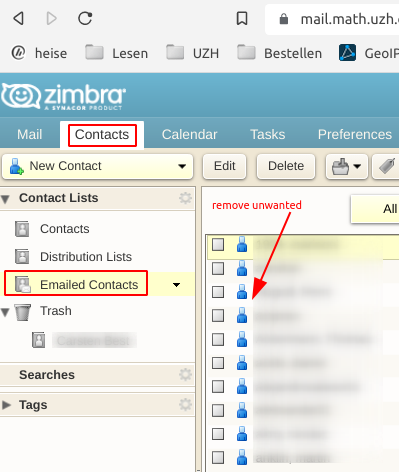
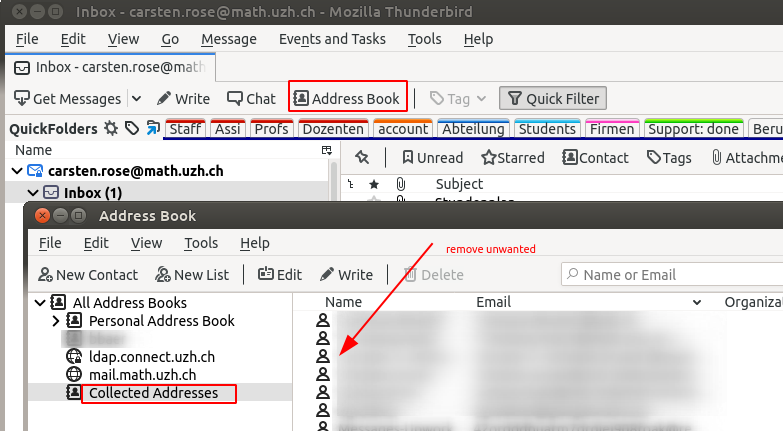
Address Book / auto complete: outdated / wrong / unwanted adresses
- Most email programs collects adresses to help user to just partially type an address, called 'auto complete'.
- Sometimes it's necessary to clean up the list of collected addresses. E.g. a person writes from a private adress but you'll like to use only the official one.
Zimbra
Thunderbird
No comments to display
No comments to display