
linux
Printing via UZHPrintPlus
Offical ZI Page: UZH Print Plus
Recommended for students.
Printing is possible via WLAN UZH, but not via WLAN EduRoam.
Printing via MATH/DM3L-Print server
Recommended for institute members.
To use the printer in Y27, you need a LAN connection (not WLAN)
Adding Printers
Institute
- Info: Insitute Printers are the ones named after certain rooms (where the printer is located) e.g k30, h52 etc.
- Setup: Open a Terminal and type the following command:
- Make sure to insert the real printer name (e.g "k30") in the place holder <printer-name>
lpadmin -p <printer-name> -E -v ipp://print-mac.math.uzh.ch:631/printers/<printer-name> -m everywhere
- Make sure to insert the real printer name (e.g "k30") in the place holder <printer-name>
UPP
- Info: UPP Printers are the ones located on k and j floor (public) e.g k, j, kcolor, jcolor (they support booklet printing)
- Setup: Open a Terminal and type the following command:
- Make sure to insert the real printer name (e.g "kcolor") in the place holder <printer-name>
sudo lpadmin -p <printer-name> -E \
  -v ipp://print-mac.math.uzh.ch:631/printers/<printer-name> \
  -m raw \
  -o auth-info-required=username,password
- Make sure to insert the real printer name (e.g "kcolor") in the place holder <printer-name>
Authentication
- Info: Both Institute & UPP Printers require LDAP-Authentication in order to print. (IMATH-Credentials)
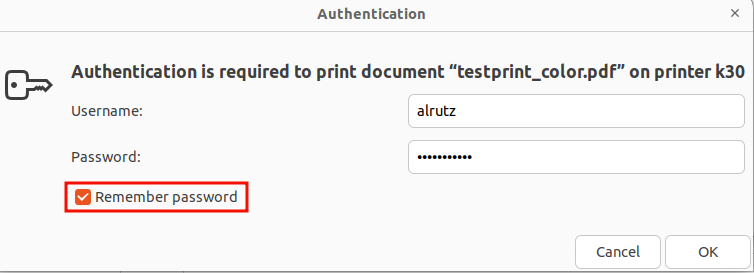
- Setup: After adding a printer, the first print-job will not ask to authenticate (won't print), just print it again and. On the second attempt, you will be prompted for your IMATH-Credentials (same as for MY, MADE, Thinlinc)
- Make sure to tick the box "Remember password", so you will never be prompted for credentials on this printer again.
Booklet Printing
This option is only available on UPP Printers (k, kcolor, j, jcolor)
- In the Print-Dialog go to "Advanced", then set the following settings
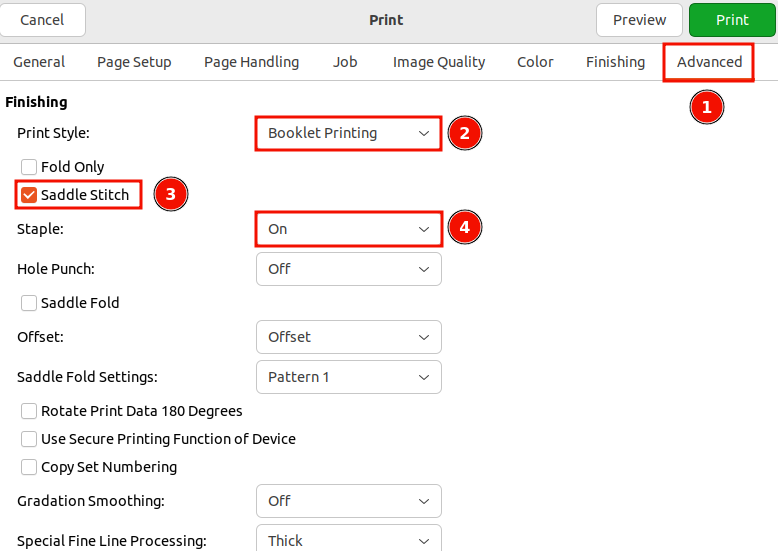
- Print Style: "Booklet Printing"
- Saddle Stich: On
- Staple: On
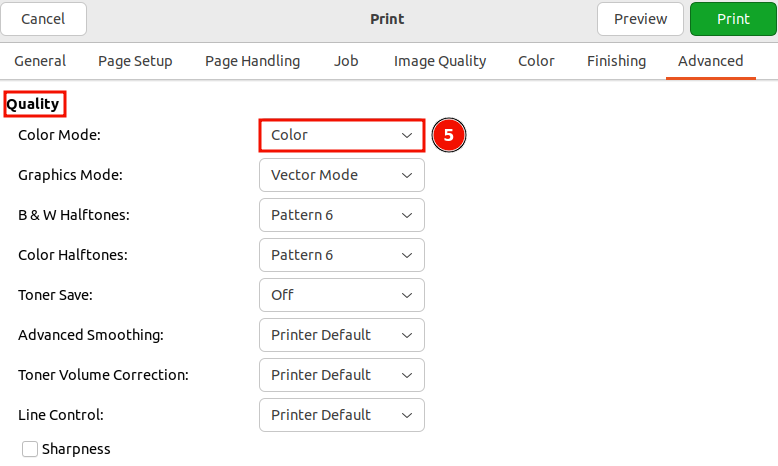
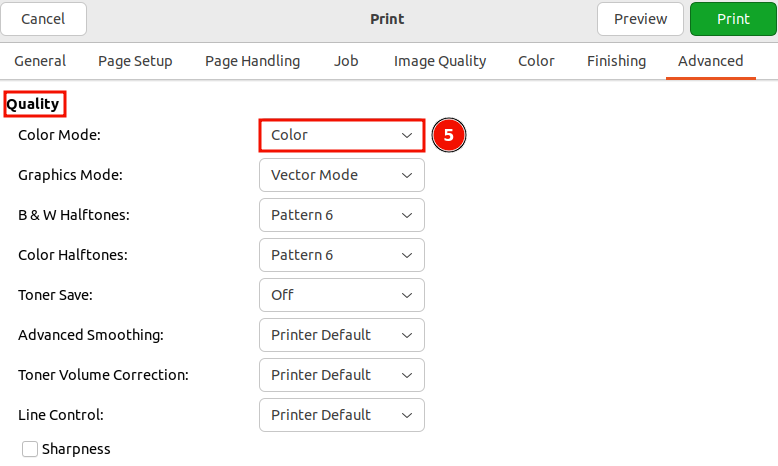
- For colored booklets scroll down to the "Quality" section and set the Color Mode: "Color"
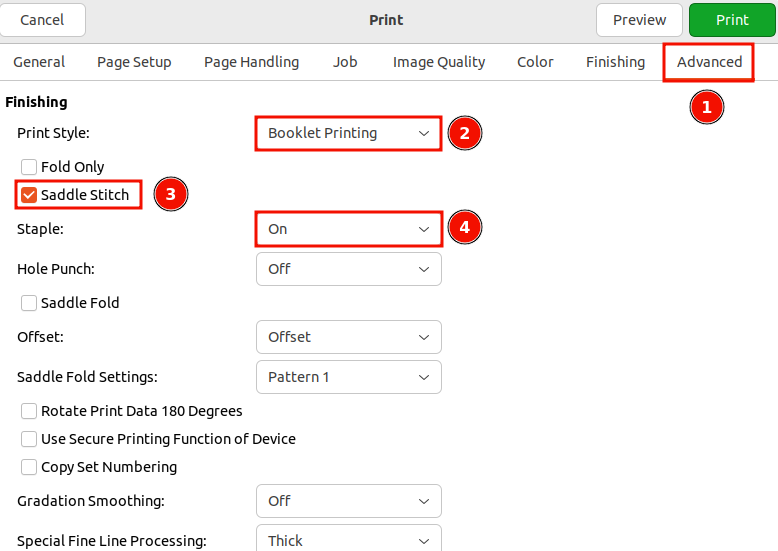
- Click "Print" in the top right corner.
Troubleshooting
- You may have discovered that all the Insitute Printers are listed in the print-dialog "General"- Tab, even if you haven't added them.
- Printing on them will not work, since there is no way to authenticate!
No comments to display
No comments to display