
screenShare
| Service | Use | shadow | control | scale | clipboard | multiple user |
| #VNC: shadow | thinlinc, imath flips | x | x | - | - | x |
| hello.math.uzh.ch | all OS | x | - | - | - | x |
| iPad | iOS | x | - | - | - | - |
VNC: shadow
shadow allows for simplified VNC Screensharing between Thinlinc sessions and flips.
- Start "Shadow Screenshare" from the applications menu, a system tray icon will appear. (Bottom right on Thinlinc, top right on laptops & flips.)
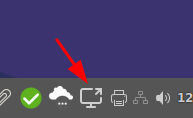
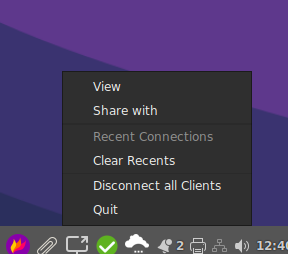
- Left click on the icon and choose either 'View' or 'Share with', a text box will appear where you can enter an ID. Real world examples:
- Click 'View', enter
croseto shadow a colleague with that username. They get a popup asking for permission. - Click 'Share', enter 'enured' to share your screen with a colleague with that username. They'll get a popup asking if they want to see your screen. If they accept, it'll again ask you if you actually want to share your screen with them.
- Click 'Share', enter a room number like
k11ork30to project your screen to a flip nuc. These are configured to accept shares by default, so you'll get a view request right back.
- Click 'View', enter
- A list of all your recent actions is kept, so you don't have to type your colleagues name each time. Simply select an action from the tray icon's menu.
- To disconnect all connected clients, there's a button above the
Quitmenu in the tray icon's menu.
There is currently no clipboard or scaling support. It's planned for version 2.
hello.math.uzh.ch / RocketChat
- Install https://rocket.chat/install App - or just visit the URL with your browser.
- Server: hello.math.uzh.ch
- Account: I-MATH username/password
- Only shadow, no remote control.
Start:
- Start a voice call via !RocketChat.
- Click on 'screen share'
iPad
- Overview: 1, 2
- Native !AirPlay: https://support.apple.com/en-us/HT204289
- Quicktime
- Commercial:
iPad > Linux
[user@ubuntu20.04]
$ sudo apt-get install cmake libavahi-compat-libdnssd-dev libplist-dev libssl-dev libgstreamer1.0-dev libgstreamer-plugins-base1.0-dev gstreamer1.0-libav gstreamer1.0-vaapi gstreamer1.0-plugins-bad

$ git clone https://github.com/FD-/RPiPlay.git
$ cd RPiPlay
$ mkdir build; cd build; cmake ..
$ make
$ sudo make install

# On problems it might help to install:
$ sudo apt install ubuntu-restricted-extras vlc

# Start
$ rpiplay

No comments to display
No comments to display