
LibreOffice
Restore Missing Icons
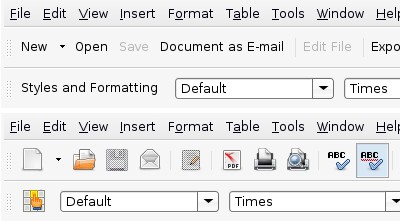
Sometimes, it may happen that OpenOffice's toolbar icons have disappeared. There is an easy fix for this:
- Launch OpenOffice and open the menu
Tools -> Options. - Select
Viewfrom the list on the left. - Open the icon theme drop down box under the label
Icon style and sizeand selectHuman. - Click
Ok.
Now, the icons should be displayed again.
Human readable Matrikelnummern
- Open a new Spreadsheet file in !LibreOffice Calc
- Copy and paste the data (Matr.Nummer, Vorname, Nachname).
- Select the column Matr.Nummer, use Format > Cells...
- Select in the box Category the item Number
- Down in the Format-Code box write: 00--000--000
- Hit okay (nothing will change yet)
- This column still selected use Edit > Find & Replace...
- In Search For give the two characters "^." and in replace with give just an ampersand "&".
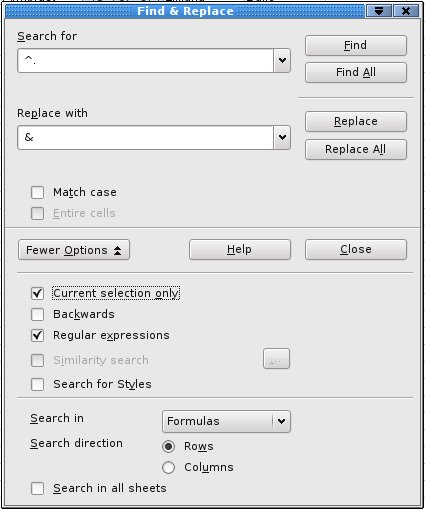
- Then make sure the options "Current Selection Only" and "Regular Expression" are selected and hit "Replace all"
- Now the Numbers should be formatted okay.
- Now in a unused column on the row as the first student paste there the formula:
=CONCATENATE("\exam{";B2;"}{";TEXT(C2,"00--000--000");"}{";D2,"}{";E2;"}{}")
- Change the cell references according to your data!
- Hit Enter, select this cell and drag the lower right corner downwards so that every students line gets its copy of that formula.
- Save the file.
- Select the Column with the formulas and copy it.
No comments to display
No comments to display