
SwitchCast
Switch Cast allows you to cut and publish videos to switch tube.
Login with AAI: https://cast.switch.ch
Create a Series
Every video has to be part of a series. Usually the Series would be a module or seminar, each with multiple lectures / talks.
- Switch to Series and click on New Series
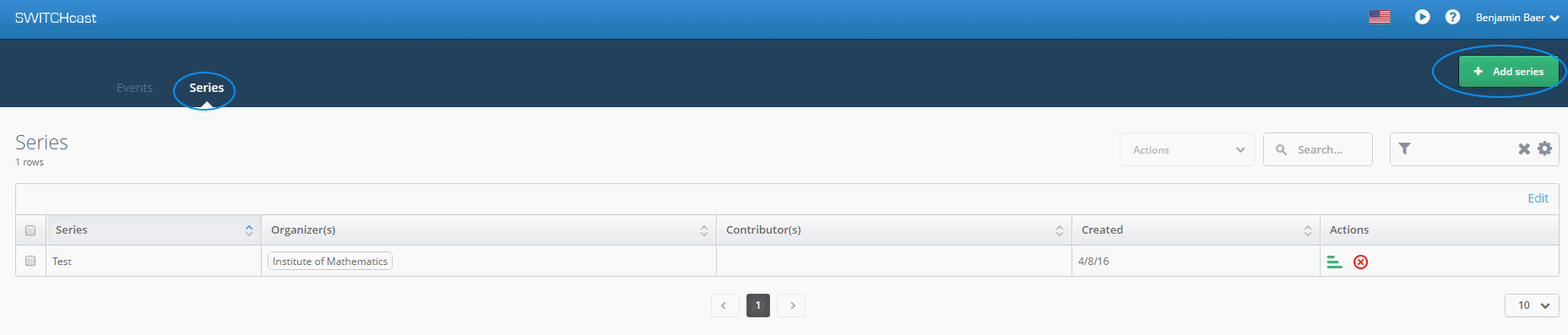
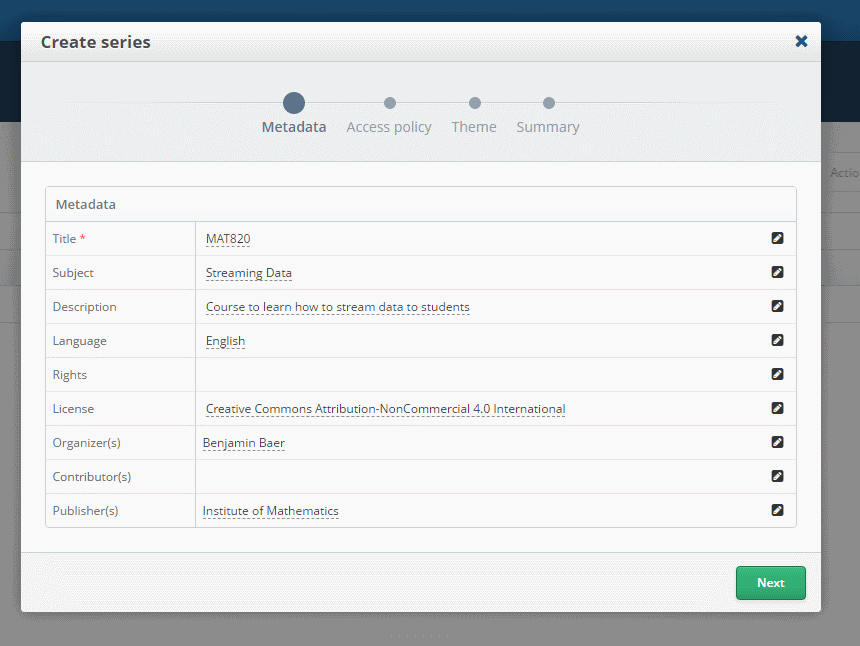
- Fill out the Meta Information and choose a license
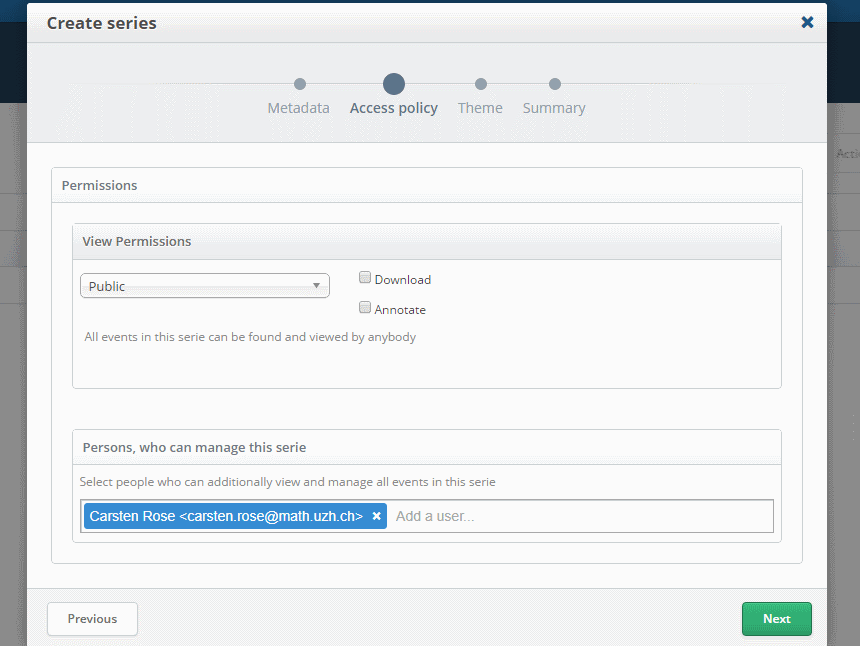
- Set Permission of who can view and who can add / edit videos in this Series.
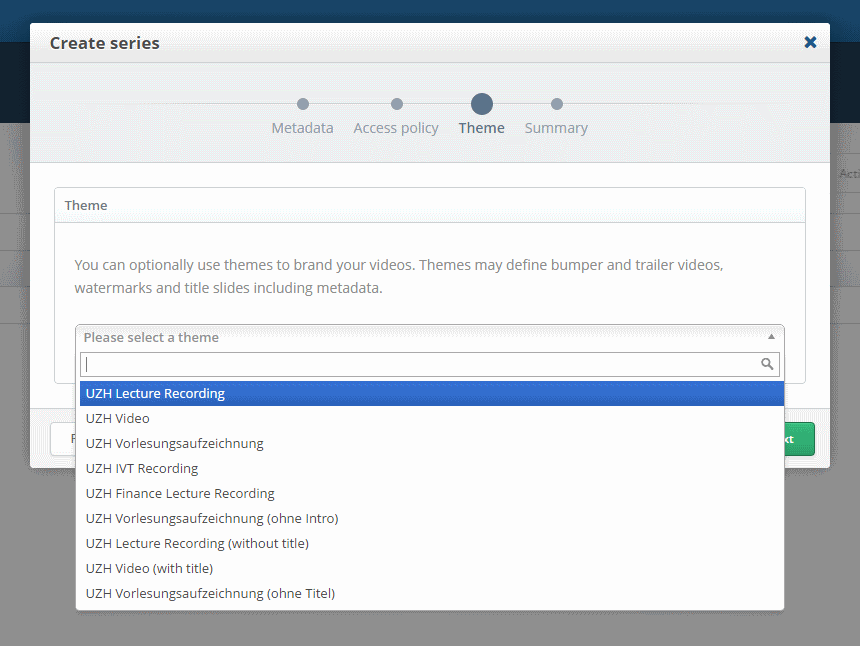
- Select the Theme of the Series
- Click on Finish if everything is correct.
Create an Event
Events are the actual videos, each Series can have multiple Events.
- Switch to the Events Tab and click on Add Event
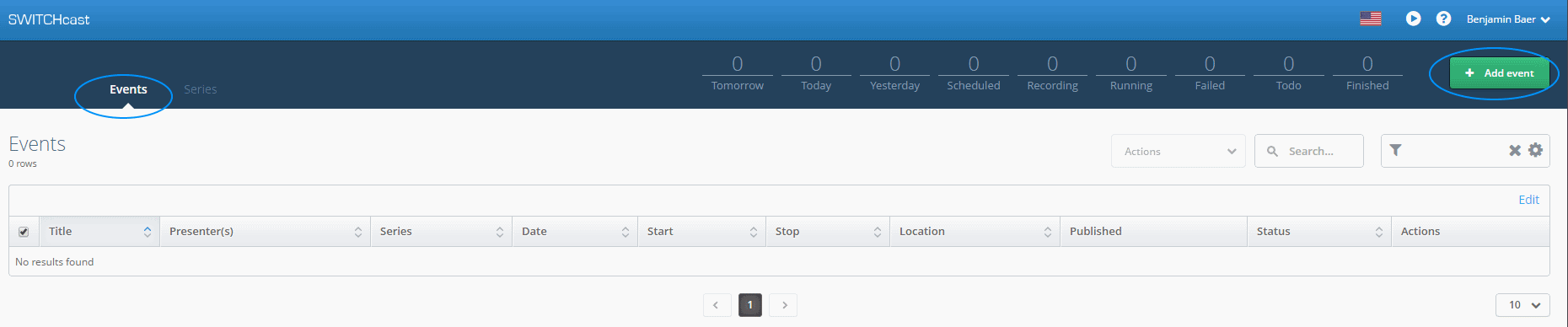
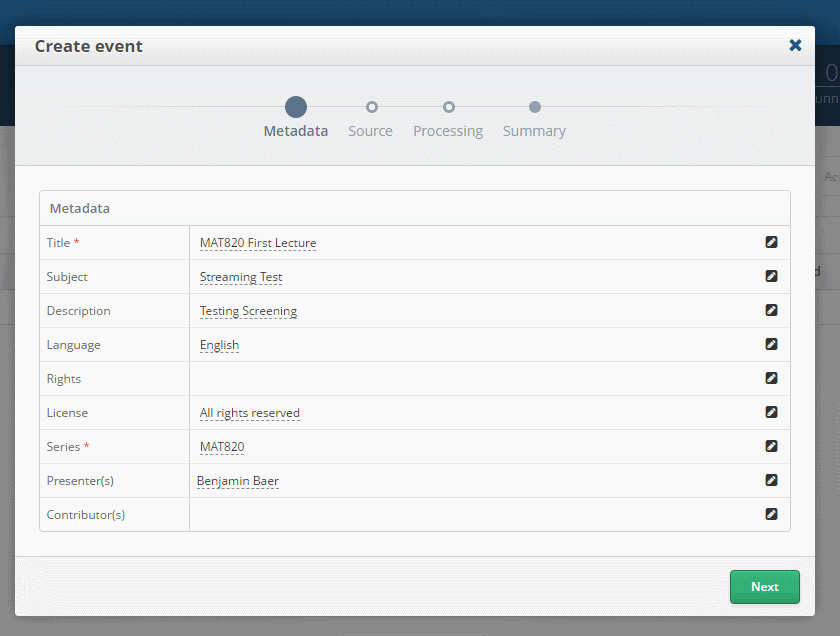
- Fill out the Meta Data and choose the correct Series
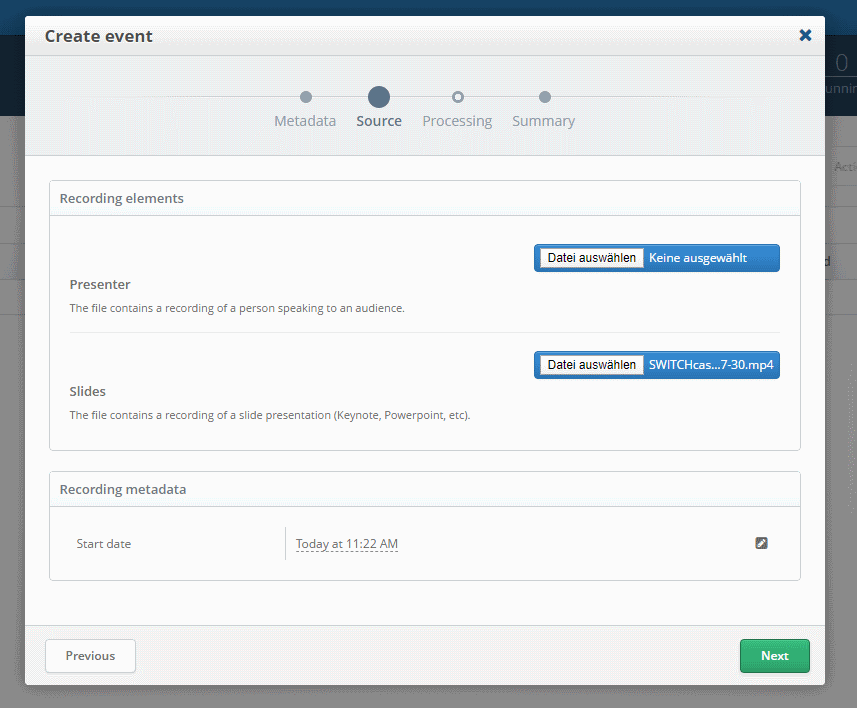
- Upload your Videos, at least one Video needs to be provided. Slides would be the Desktop Recording.
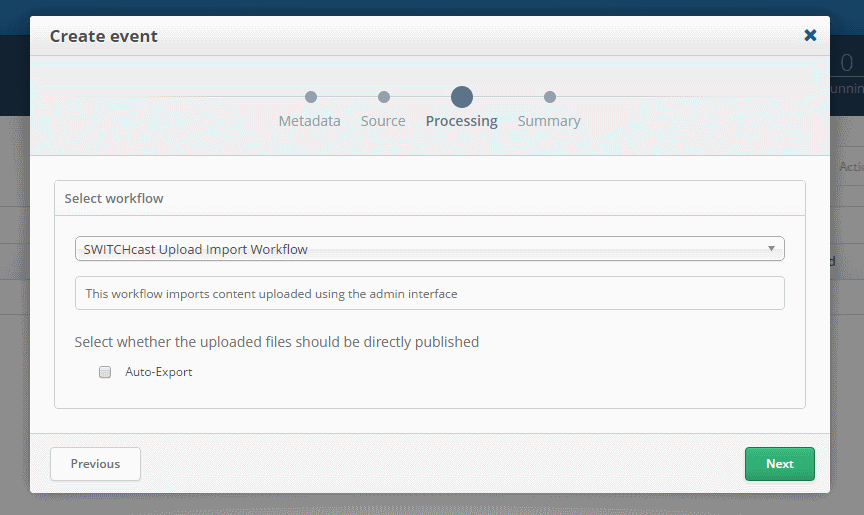
- Here you can select if you want to publish it directly or cut before publishing.
- Click on Create if everything is correct.
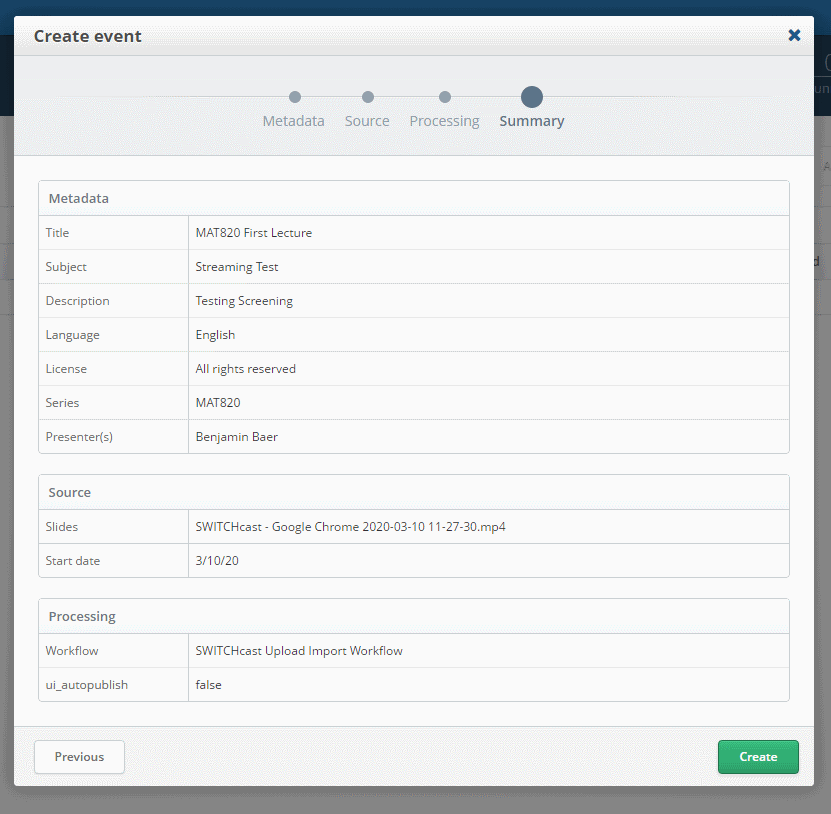
- You will see a processing Event in the Overview.

Cutting
If you didn't choose to publish your video directly, you can cut it inside cast. Wait for the Import to finish and start cutting.
- Start by clicking on the Scissors with the red dot.

- This should display a preview of the video with some tools underneath
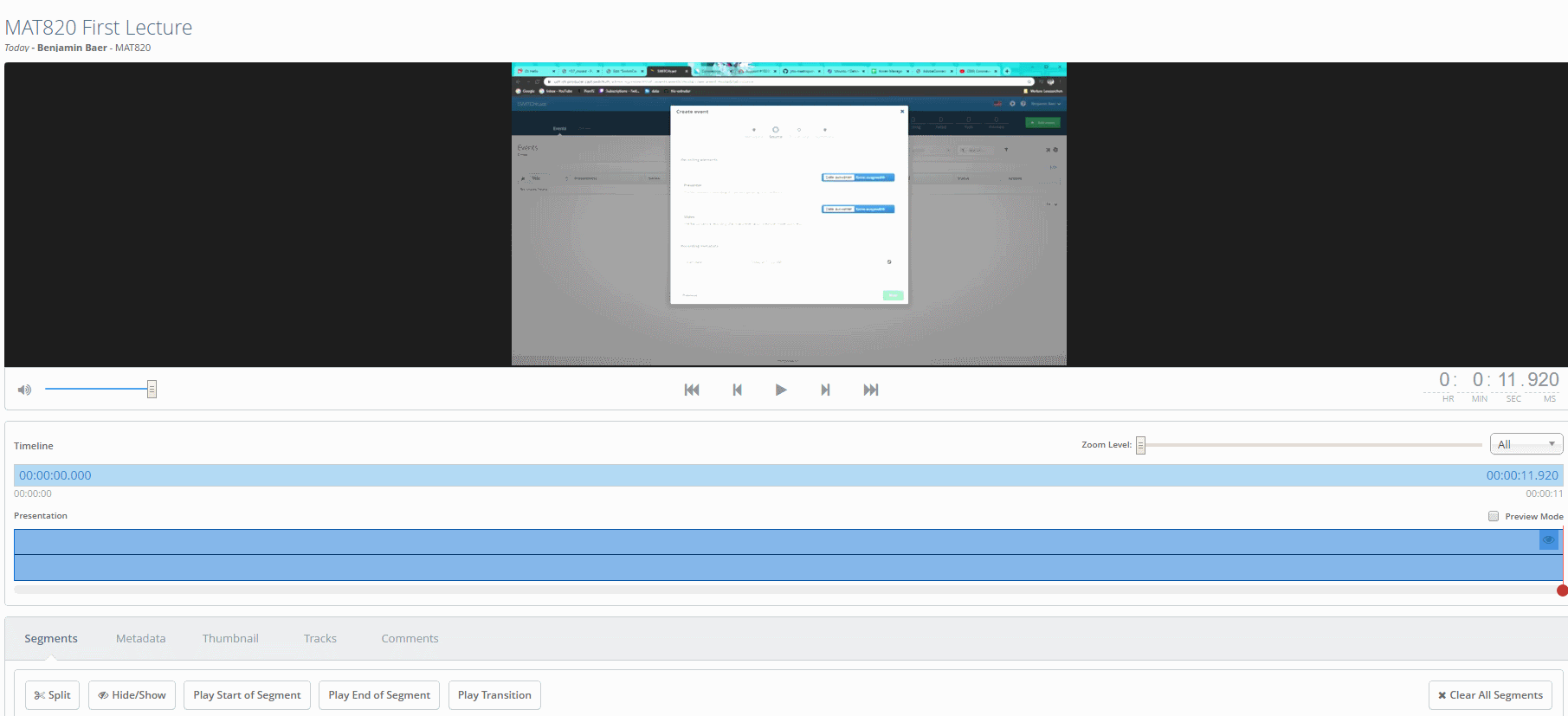
- Play the video, pause at the place you want a cut, click on the Split button bellow.
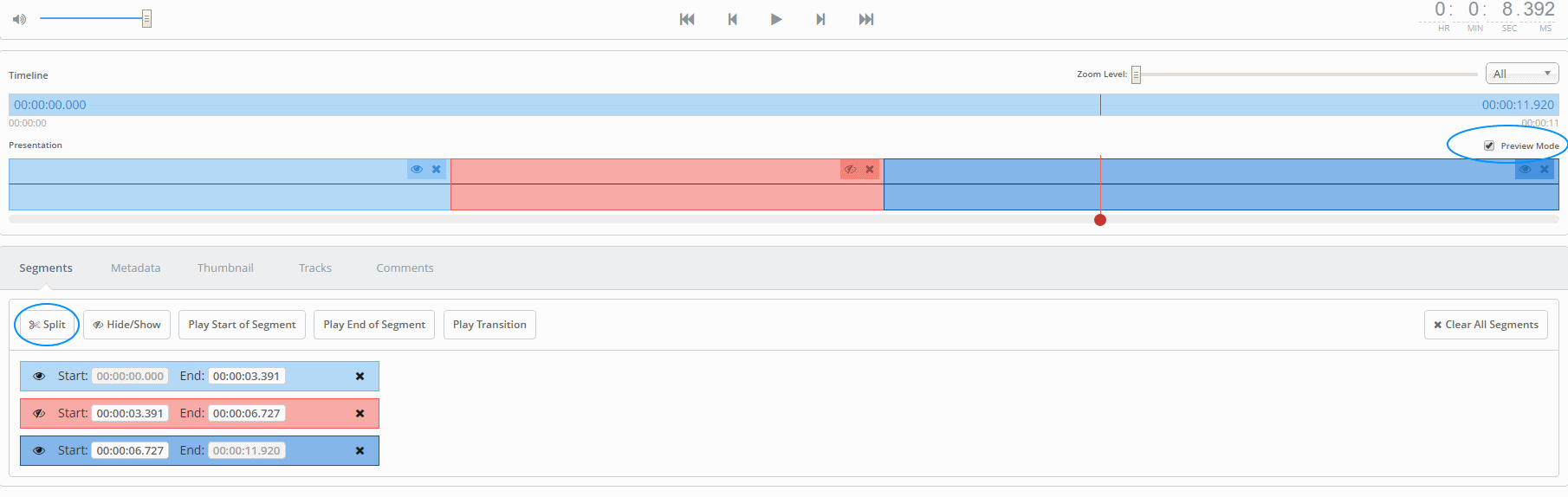
- Click on the Eye next to each Segment to hide or show the clip
- If you activate the Preview Mode on the right hand side, you will only see the visible Segments when you click play.
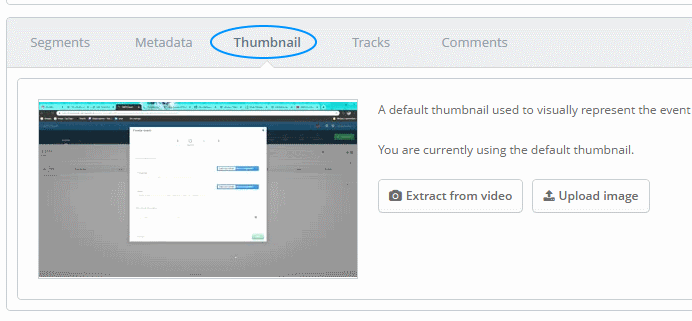
- Select a fitting Thumbnail for the Video or Upload an Image.
- Edit which Audio Tracks should be played by clicking on them.
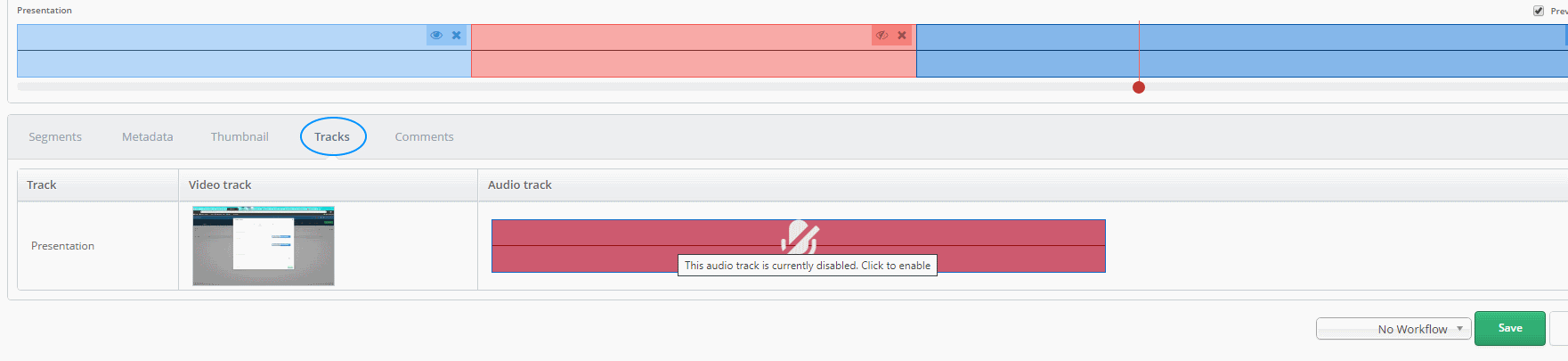
- Save with "No Workflow" for in between saves - save with "Publish" when you are finished
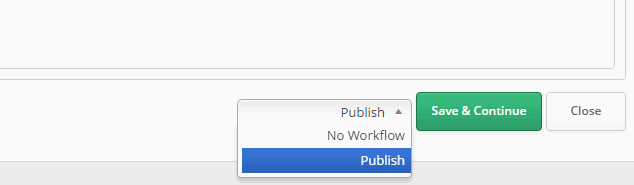
- The details of the Events should now be on Publishing

Publish to Switch Tube
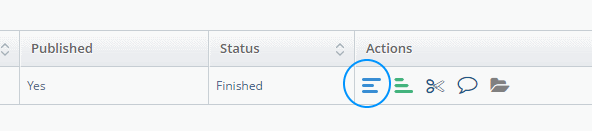
- When the Status is finished, click on the blue 3 bars.
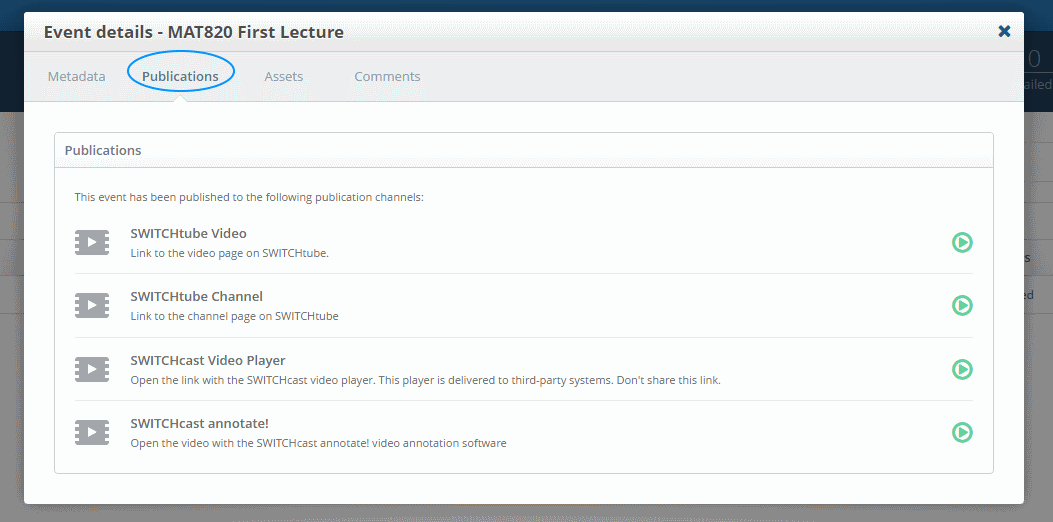
- Switch to the tab Publications to see all the relevant links.
No comments to display
No comments to display