linux
Printing via UZHPrintPlus
Offical ZI Page: UZH Print Plus
Recommended for students.
Printing is possible via WLAN UZH, but not via WLAN EduRoam.
Printing via MATH/DM3L-Print server
Recommended for institute members.
Printing is possible via LAN aswell as WLAN UZH & EduRoam
IMATH-Account required. Create I-MATH Account
Adding Printers
Institute
- Info: Insitute Printers are the ones named after certain rooms (where the printer is located) e.g k30, j11 etc.
- Add Printer: Open a Terminal and type the following command:
- Make sure to insert the real printer name (e.g "k30") in the place holder <printer-name>
sudo lpadmin -p <printer-name> -E -v ipps://print-mac.math.uzh.ch:443/printers/<printer-name> -m everywhere
- Make sure to insert the real printer name (e.g "k30") in the place holder <printer-name>
UPP
- Info: UPP Printers are the ones located on k and j floor (public) e.g k, j, kcolor, jcolor
- Add Printer: Open a Terminal and type the following command:
- Make sure to insert the real printer name (e.g "kcolor") in the place holder <printer-name>
sudo lpadmin -p <printer-name> -E \
  -v ipps://print-mac.math.uzh.ch:443/printers/<printer-name> \
  -m raw \
  -o auth-info-required=username,password
- Make sure to insert the real printer name (e.g "kcolor") in the place holder <printer-name>
Authentication
- Info: Both Institute & UPP Printers require LDAP-Authentication in order to print. (IMATH-Credentials)
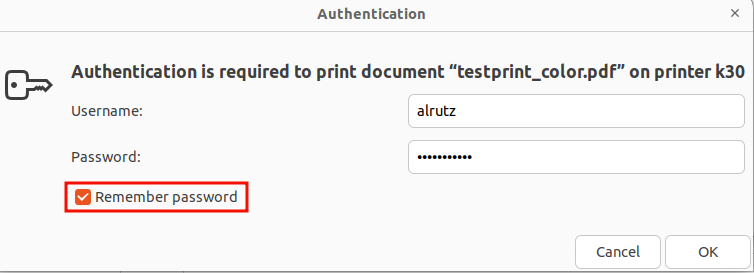
- Authenticate: After adding a printer, the first print-job will not ask to authenticate (won't print), just print it again. On the second attempt, you will be prompted for your IMATH-Credentials (shortname+password: same as for MY, MADE, Thinlinc)
- Make sure to tick the box "Remember password", so you will never be prompted for credentials on this printer again.
Booklet Printing
Only available on specific UPP Printer-Queues (jcolor_booklet & kcolor_booklet)
- 1.) Add the following printer:
jcolor_bookletorkcolor_booklet(Adding UPP Printers)- Important: jcolor or kcolor will not work, it has to be the booklet queue!
- 2.) After the printer is added and you are in the Print Dialog, make sure you set the following:
- Paper Setup: A4
- Do NOT select "Booklet" under Handling - Print it as if it was a regular File.
- Paper Setup: A4
Troubleshooting
- You may have discovered that all the Institute Printers are listed in the print-dialog "General"- Tab, even if you haven't added them.
- Printing on them will not work, since there is no way to authenticate!