
|
Size: 12077
Comment:
|
Size: 13634
Comment:
|
| Deletions are marked like this. | Additions are marked like this. |
| Line 58: | Line 58: |
| * Printer are named after the room they are in. * Public printers are: * h52 * jcolor and jcolor_booklet (same as jcolor, but works better if stamps are used) * j11 * kcolor and kcolor_booklet (same as kcolor, but works better if stamps are used) * k49 * k49color * Public color printers are available in K49 and on the J floor. * jcolor * kcolor * k49color |
* Printers are named after the room they are in. * For the big printers on corridors of J and K floors several virtual printers with various configurations are provided . == Public printers == ||<rowbgcolor="#dddddd">'''Printer'''||'''Location'''||'''Color'''||'''Remarks''' || || h52 ||<:> Y27 H52 ||<:> No || || || j11 ||<:> Y27 J11 ||<:> No || || || k49 ||<|2> Y27 K49 ||<:> No || || || k49color ||<:> Yes || || || j ||<|4> J floor ||<:> No || Stapling, booklet print, A3 format || || jcolor ||<:> Yes || Stapling, booklet print, A3 format || || jcolor_booklet ||<:> Yes || Only booklet print || || j-ps ||<:> Yes || Advanced options (!PostScript printer), A3 format || || k ||<|4> K floor ||<:> No || Stapling, booklet print, A3 format || || kcolor ||<:> Yes || Stapling, booklet print, A3 format || || kcolor_booklet ||<:> Yes || Only booklet print || || k-ps ||<:> Yes || Advanced options (!PostScript printer), A3 format || |
| Line 124: | Line 131: |
| || Printing with stapling (see note 1) - only `jcolor` and `kcolor` || `lp -d jcolor -o StapleType=StapleON -o StaplePos=(1PLU|1PRU|1PLB|1PRB|2PL|2PR|2PU|2PB) <file>`<<BR>>Ex: `lp -d jcolor -o Duplex=None -o StapleType=StapleON -o StaplePos=1PLU -o sides=one-sided <file>` || || Printing booklet: `jcolor` and `kcolor` || `lp -d <printer> -o StaplePos=SDL -o OptFIN=BkltFinAB1 -o Duplex=None -o Booklet=Left -o print-color-mode=Color <file>`<<BR>>Ex: `lp -d jcolor -o StaplePos=SDL -o OptFIN=BkltFinAB1 -o Duplex=None -o Booklet=Left -o print-color-mode=Color -o PageSize=A5 paper.pdf` || || Printing booklet: `jcolor_booklet` and `kcolor_booklet` || `lp -d <printer> -o BindMode=SaddleStitch -o Duplex=None -o Booklet=Left -o print-color-mode=Color <file>`<<BR>>Ex: `lp -d jcolor -o PageSize=A5 -o BindMode=SaddleStitch -o Duplex=None -o Booklet=Left -o Finishing=Col -o print-color-mode=Color paper.pdf` || |
|| Printing with stapling (see note 1) - only `j`, `jcolor`, `k`, `kcolor` || `lp -d jcolor -o StapleType=StapleON -o StaplePos=(1PLU|1PRU|1PLB|1PRB|2PL|2PR|2PU|2PB) <file>`<<BR>>Ex: `lp -d jcolor -o Duplex=None -o StapleType=StapleON -o StaplePos=1PLU -o sides=one-sided <file>` || || Printing booklet via `jcolor_booklet` and `kcolor_booklet` || `lp -d <printer> -o print-color-mode=Color|Grayscale <file>`<<BR>>Ex: `lp -d jcolor_booklet -o print-color-mode=Color -o PageSize=A5 paper.pdf` || || Printing booklet via `j-ps` and `k-ps` || `lp -d <printer> -o BindMode=SaddleStitch -o Duplex=None -o Booklet=Left -o print-color-mode=Color <file>`<<BR>>Ex: `lp -d jcolor -o PageSize=A5 -o BindMode=SaddleStitch -o Duplex=None -o Booklet=Left -o Finishing=Col -o print-color-mode=Color paper.pdf` || |
| Line 157: | Line 164: |
| == Stapling (kcolor, jcolor) == In the system print dialog select jcolor or kcolor and go to tab 'Advanced' to activate stapling. |
== Stapling == In the print preview dialog select j, jcolor, k, or kcolor and go to tab 'Advanced' to activate stapling. |
| Line 165: | Line 172: |
| == Booklet (jcolor_booklet, kcolor_booklet) == 1. In the system print dialog select jcolor or kcolor, go to tab 'Finishing' and select a booklet type {{attachment:booklet-1.png}} 2. Go to tab 'Advanced' and activate Fold + Saddle Stitch {{attachment:booklet-2.png}} |
== Booklet == In the print preview dialog select ''jcolor_booklet'' or ''kcolor_booklet'' - these printers are already configured for booklet printing. Alternatively, select ''j'', ''jcolor'', ''k'', or ''kcolor' and choose the following options: 1. ''Left binding'' for ''Booklet Printing'' on the tab ''Finishing'' 1. ''Saddle Stitch'' for ''Staple Position'' on the tab ''Advanced'' {{attachment:print-booklet-pcl-finishing.png}}{{attachment:print-booklet-pcl-advanced.png}} '''Note''': booklet printing requires A4 or A5 format. |
| Line 188: | Line 198: |
| * ''<printer>'': a printer name like `k`, `jcolor` or `jcolor`. * ''<pages per exam>'': If you have an exam pdf with 200 pages (one big file, 25 students, 8 pages per exam) the whole file will be splitted in jobs as <pages per exam> and such part will be printed. |
* ''<printer>'': a printer name like `k`, `kcolor`, `j`, or `jcolor`. * ''<pages per exam>'': If you have an exam pdf with 200 pages (one big file, 25 students, 8 pages per exam) the whole file will be split in jobs as <pages per exam> and such part will be printed. |
| Line 197: | Line 207: |
| $ pdfPrintSequential -o Duplex=None -o StaplePos=1PLU -o StapleType=StapleON -o sides=one-sided -o print-color-mode=Color <file.pdf> jcolor_booklet <pages per exam> <start page to print from> <delay in seconds> | $ pdfPrintSequential -o Duplex=None -o StaplePos=1PLU -o StapleType=StapleON -o sides=one-sided -o print-color-mode=Color <file.pdf> jcolor <pages per exam> <start page to print from> <delay in seconds> |
Printing at the institute
Via Notebook / Desktop
- UZH Printplus (UPP)
Overview
Contents
- Printing at the institute
- Overview
- Printing 'I-MATH' vs. 'UZH Printplus (UPP)'
- Check your current print credit
- Charging Credit
- Printer Names
- Printing from your notebook
- Printing on Group-Accounts
- Create own printer instances
- Printing with Command Line
- Printing with graphical interface (evince PDF viewer)
- Printing exams - pdfPrintSequential
- Poster Printing (large)
All printers of the institute are connected to a central print server, which logs and counts all print jobs. Before a print is sent to a printer, the system gets the page number and job settings, calculates the costs and checks permissions and credits for the sender. After a successful printing, the credits will be subtracted.
Credits and free printing |
black and white |
color |
members of the institute* |
free |
free** |
students*** |
costs |
costs |
* Members of the institute are: Professors, Staff, Assistants (PostDocs and PhDs), Guests.
** Assistants need to refill the credit (for free) after printing 100 colored pages per semester.
*** Students with 'Hauptfach Mathematik' or "Hauptfach Bio Statistic" get free credits worth 20 SFr. per semester. An I-MATH account is required to print.
A printjob is counted based on page number, page format (A4 or A3), simplex or duplex and black/white or color. Special settings like A3, color or stapling are only available on some special printers like jcolor, k.
Prices for all printers with different settings!
Printing 'I-MATH' vs. 'UZH Printplus (UPP)'
At the institute there are two printing solutions available: 'I-MATH'-based and 'UZH Printplus (UPP)'-based.
|
I-MATH |
UPP |
Printer |
All printers & copiers |
Copiers 'kcolor' and 'jcolor'. Thinlinc Print Dialog: UZHPrintPlus |
UZH wide |
- |
yes |
Cost |
Low. I-MATH pays the infrastructure |
High. UZH |
Scan |
Only a few dedicated rooms (not public) |
'kcolor', 'jcolor' - use your UZH badge, free |
Paying |
see below |
Check your current print credit
log in to http://www.math.uzh.ch/my
- Switch to the printing tab
- You will see the current amount of credit you have left and your own print history.
Charging Credit
You can view your credit, your settings and your last 50 print jobs in your account admin panel: My Math.
Users can charge credits at the office Y27K30. The credit can be used immediately.
Assistants can also write an email to the system support, but in this case probably have to wait some time until the credit is loaded up.
Printer Names
- Printers are named after the room they are in.
- For the big printers on corridors of J and K floors several virtual printers with various configurations are provided .
Public printers
Printer |
Location |
Color |
Remarks |
h52 |
Y27 H52 |
No |
|
j11 |
Y27 J11 |
No |
|
k49 |
Y27 K49 |
No |
|
k49color |
Yes |
|
|
j |
J floor |
No |
Stapling, booklet print, A3 format |
jcolor |
Yes |
Stapling, booklet print, A3 format |
|
jcolor_booklet |
Yes |
Only booklet print |
|
j-ps |
Yes |
Advanced options (PostScript printer), A3 format |
|
k |
K floor |
No |
Stapling, booklet print, A3 format |
kcolor |
Yes |
Stapling, booklet print, A3 format |
|
kcolor_booklet |
Yes |
Only booklet print |
|
k-ps |
Yes |
Advanced options (PostScript printer), A3 format |
Printing from your notebook
Please review the specific page:
You can also use our thinlinc client to connect to our enviroment where everything is set up already.
For additional information about how to connect to our servers from your computer or how to transfer data from your device to our thinlinc servers go to https://wiki.math.uzh.ch/public/thinlinc
Printing on Group-Accounts
People, who are assigned to a group (made by the IT), can print on this group account. All members of the group have a link on the myMath Homepage, where they can see the Print-History of the group.
For printing on a group account, a job-billing information has to be sent with the print job. In many print dialogs (for example: Firefox) you have in the tab 'Job' in the section 'Job Details' a field 'Billing info'. There you must enter the group name (all lowercase) to print on the group account. In other print dialogs (especially the gtklp dialog) you have in the tab 'Special' the field 'Extra Options'. There you must type: job-billing=<group> where '<group>' is again the lowercase group name you wish to print on. On a console (with lp command) you can use the option -o job-billing=<group> for printing on a group account.
If you have problems with printing on a group account, please come to J11 or J40.
Create own printer instances
Create own printer instances with personal settings. Such instances are only available via command line.
[user@host
# Create an instance 'jcolor/bw', which prints to 'jcolor', but always in b/w:
$ lpoptions -p jcolor/bw -o ColorModel=Gray

# To use the new instance:
$ lp -d jcolor/bw output.pdf

# Show all printer, incl. instances:
$ lpstat -t

# The local instances are saved under
~/.cups/lpoptions
Printing with Command Line
Description |
Syntax / Example |
List all printers |
lpstat -a |
Show default printer |
lpstat -d |
Set default printer |
lpoptions -d <printer> |
lp [-d <printer>] <file> |
|
Printing n copies (see note 1) |
lp -n <number> [-d <printer>] <file> |
Printing n copies (see note 1) in the order 1,2,3... |
lp -o Collate=True -n <number> <file> |
Print 2 pages on one site |
lp -o number-up=2 <file> |
Printing one sided on a duplex printer |
lp -o duplex=None <file> |
Printing duplex with turning on short edge |
lp -o duplex=DuplexTumble <file> |
Printing transparencies |
lp -o media=Transparency <file> |
Printing with stapling (see note 1) - only j, jcolor, k, kcolor |
lp -d jcolor -o StapleType=StapleON -o StaplePos=(1PLU|1PRU|1PLB|1PRB|2PL|2PR|2PU|2PB) <file> |
Printing booklet via jcolor_booklet and kcolor_booklet |
lp -d <printer> -o print-color-mode=Color|Grayscale <file> |
Printing booklet via j-ps and k-ps |
lp -d <printer> -o BindMode=SaddleStitch -o Duplex=None -o Booklet=Left -o print-color-mode=Color <file> |
Note 1: Pay attention on combining copies and stapling. If you like to print a PDF (e.g. 4 pages) 10 times, do NOT use the -n <number> parameter. The whole printjob, 4 pages * 10 copies, will be stapled together (only one)!
Solution: Use the 'Repeat Job' option in the advanced tab of the print dialog.
Option values
Duplex: one/two sided print
Value |
Meaning |
None |
One sided |
DuplexTumble |
Two sided along long edge |
DuplexNoTumble |
Two sided along short edge |
StaplePos: staple position
Value |
Portrait mode |
Landscape mode |
PosNone |
No staple |
No staple |
1PLU |
Upper left |
Upper right |
1PRU |
Upper right |
Bottom right |
1PLB |
Bottom left |
Upper left |
1PRB |
Bottom right |
Bottom left |
2PL |
Left x2 |
Upper x2 |
2PR |
Right x2 |
Bottom x2 |
2PU |
Upper x2 |
Right x2 |
2PB |
Bottom x2 |
Left x2 |
SDL |
Middle x2 |
Middle x2 |
Printing with graphical interface (evince PDF viewer)
Stapling
In the print preview dialog select j, jcolor, k, or kcolor and go to tab 'Advanced' to activate stapling.
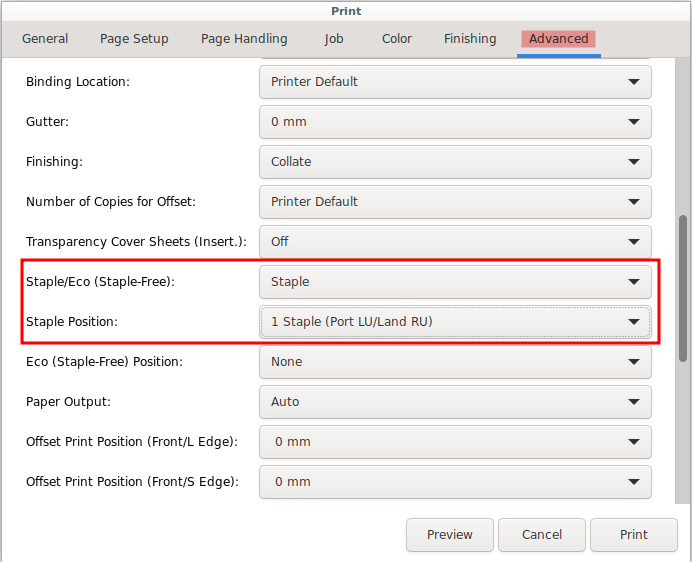
This will put one staple in the upper left corner of your Document.
Booklet
In the print preview dialog select jcolor_booklet or kcolor_booklet - these printers are already configured for booklet printing.
Alternatively, select j, jcolor, k, or kcolor' and choose the following options: Note: booklet printing requires A4 or A5 format.
If you have a personalized exam, one PDF for all students, and you like to print it and the output should be: than use the pdfPrintSequential script (commandline). Example: Staple pdfPrintSequential -o Duplex=None -o StaplePos=1PLU -o StapleType=StapleON -o sides=one-sided exam.pdf k 16 1 0 printer 'k', 16 pages per exam, starting at 1, no delay Shifting pdfPrintSequential -o Duplex=None -o sides=one-sided exam.pdf jcolor 8 33 5 printer 'jcolor', 8 pages per exam, starting at 33, 5 seconds delay
Poster printing are done via the 'Print Publish' Center of the ETHZ: https://www.print-publish.ethz.ch/ https://ethz.ch/staffnet/en/service/office-supplies-printing-and-mailing/print-publish.html > Self-Service Printing > Large format printing
Left binding for Booklet Printing on the tab Finishing 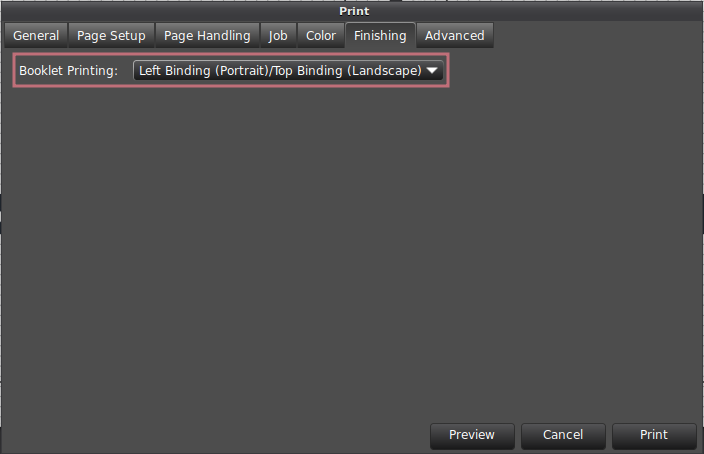
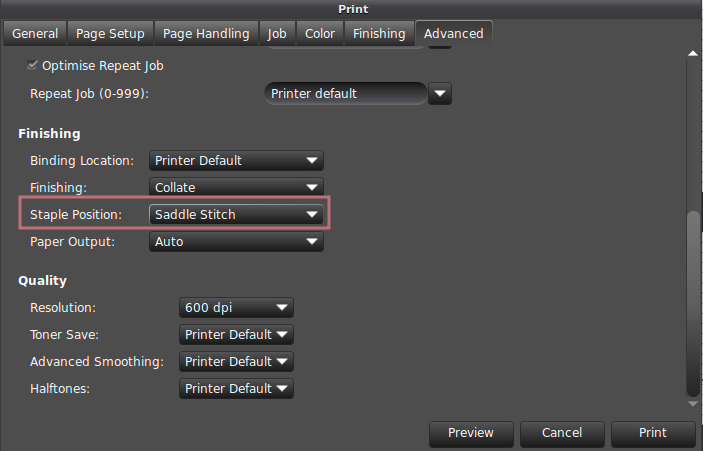
Printing exams - pdfPrintSequential
<printer>: a printer name like k, kcolor, j, or jcolor. # K Floor (k)
$ pdfPrintSequential -o Duplex=None -o StaplePos=1PLU -o StapleType=StapleON -o sides=one-sided <file.pdf> k <pages per exam> <start page to print from> <delay in seconds>
# J Floor (jcolor_booklet) - with color
$ pdfPrintSequential -o Duplex=None -o StaplePos=1PLU -o StapleType=StapleON -o sides=one-sided -o print-color-mode=Color <file.pdf> jcolor <pages per exam> <start page to print from> <delay in seconds>
Poster Printing (large)