thunderbird
Setup Outlook Account
- Info: Setup is different for Personal and Shared Accounts
- Personal: follow the Steps below
- Shared: Setup
1) Open the Account Settings
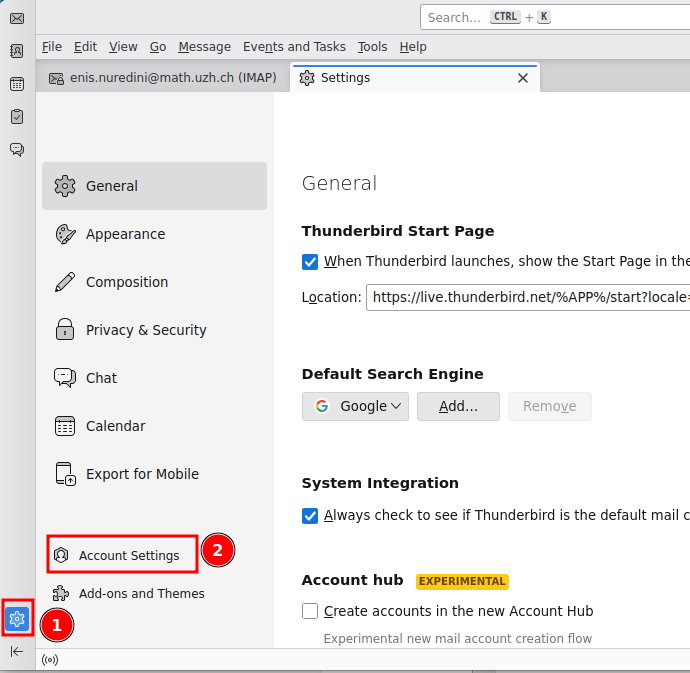
Open Thunderbird and click the gear button at the bottom left (1) to open the Settings tab. In the sidebar, click Account Settings (2).
2) Add a new mail account
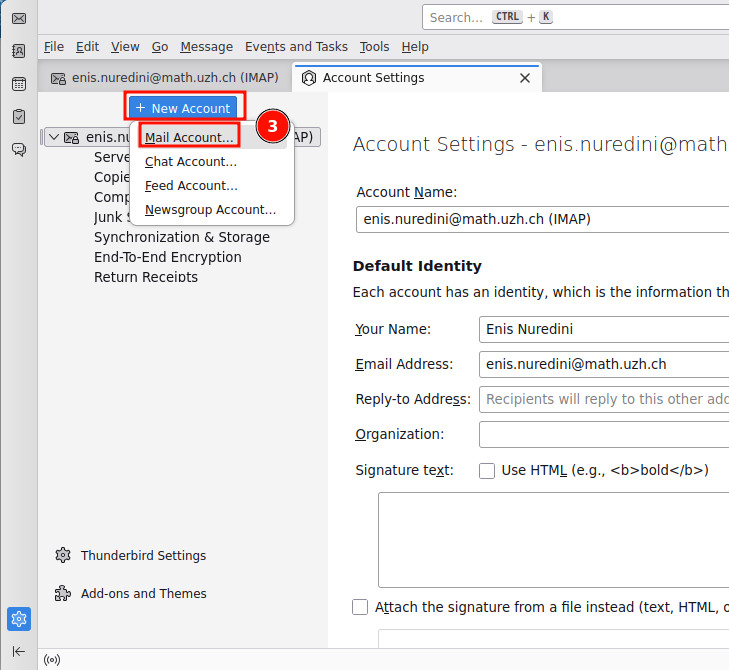
In the Account Settings tab, click + New Account above the account list and choose Mail Account… (3).
Tip: Give the new account a recognizable name (e.g. «… (Outlook)») so you can tell the two apart.
3) Enter your identity
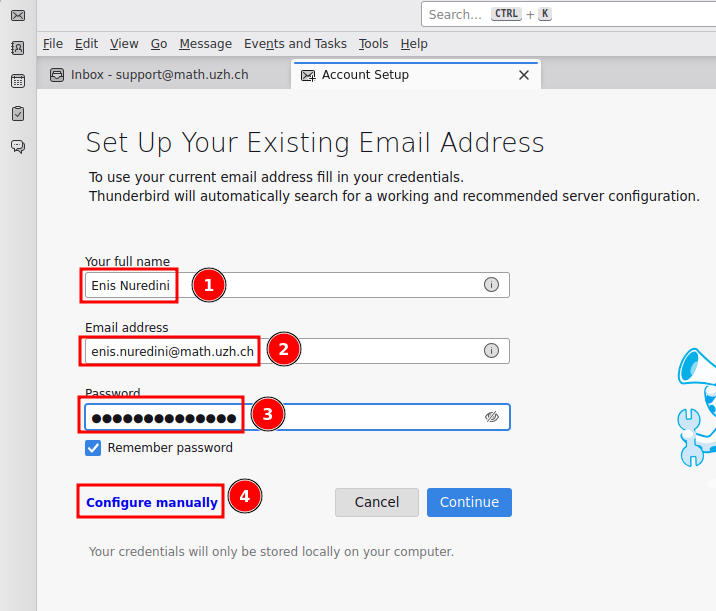
In the Account Setup tab, fill in:
- Your full name — shown to recipients of your e-mails
- Your e-mail address (e.g.
firstname.lastname@math.uzh.ch) - Your UZH password (check «Remember password»)
Then click Configure manually (4) — do not click «Continue», the automatic detection does not find the correct settings.
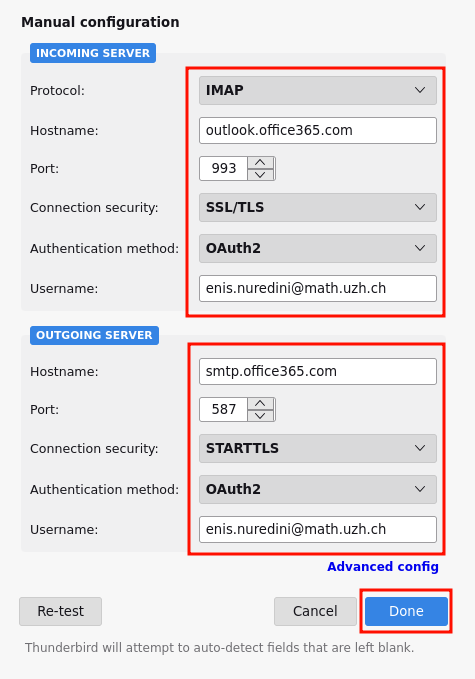
4) Manual configuration
Enter the following server settings:
| Incoming server | Outgoing server | |
|---|---|---|
| Protocol | IMAP | SMTP |
| Hostname | outlook.office365.com |
smtp.office365.com |
| Port | 993 | 587 |
| Connection security | SSL/TLS | STARTTLS |
| Authentication method | OAuth2 | OAuth2 |
| Username | your full e-mail address | your full e-mail address |
Click Re-test and then Done.
5) Microsoft sign-in
Because the account uses OAuth2, a Microsoft sign-in window opens the first time Thunderbird connects. Sign in with your UZH credentials and confirm the multi-factor authentication (MFA) prompt. After that, Thunderbird stays connected for around 10 days.
- Warning: If the Microsoft sign-in window opens as a blank page, save the incomplete configuration and reopen Thunderbird. Then retry the setup, this time it will display the proper page.
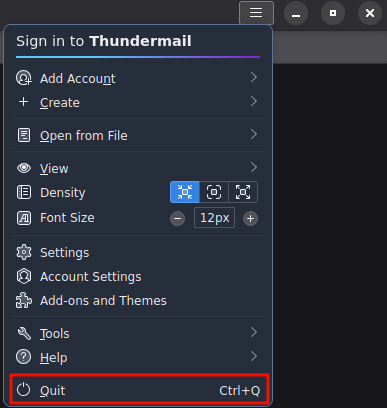
- Make sure to close Thunderbird via "Quit" button, not the "x" in the top right corner in order to kill the program.
6) DisableDisable: a) copy to send, b) local storage
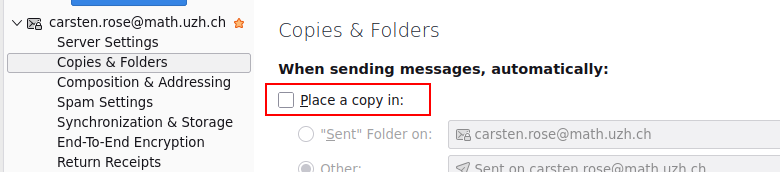
Outlook copies automatically each send mail to folder Send items. Disable Thunderbird to do this as well.
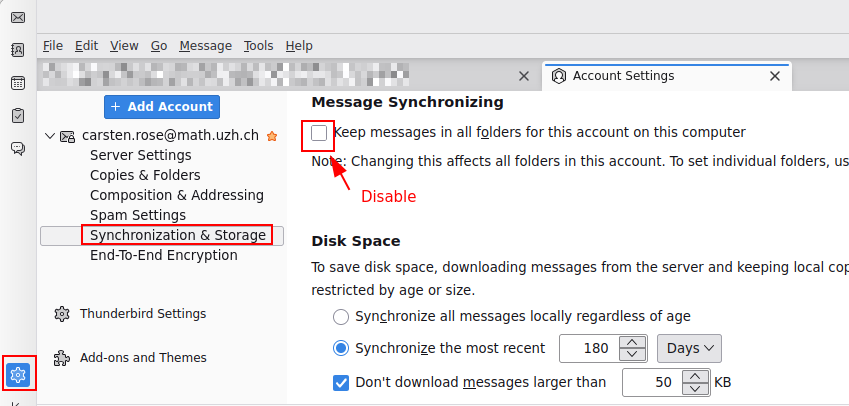
At least for thinlinc: Please disable the local storage - for large mailboxes, this will fill your home directory and gives no real advantage.
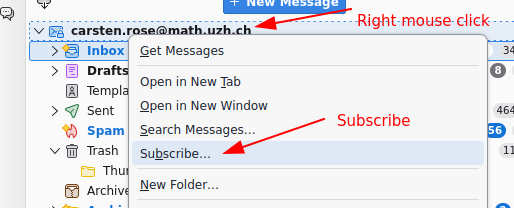
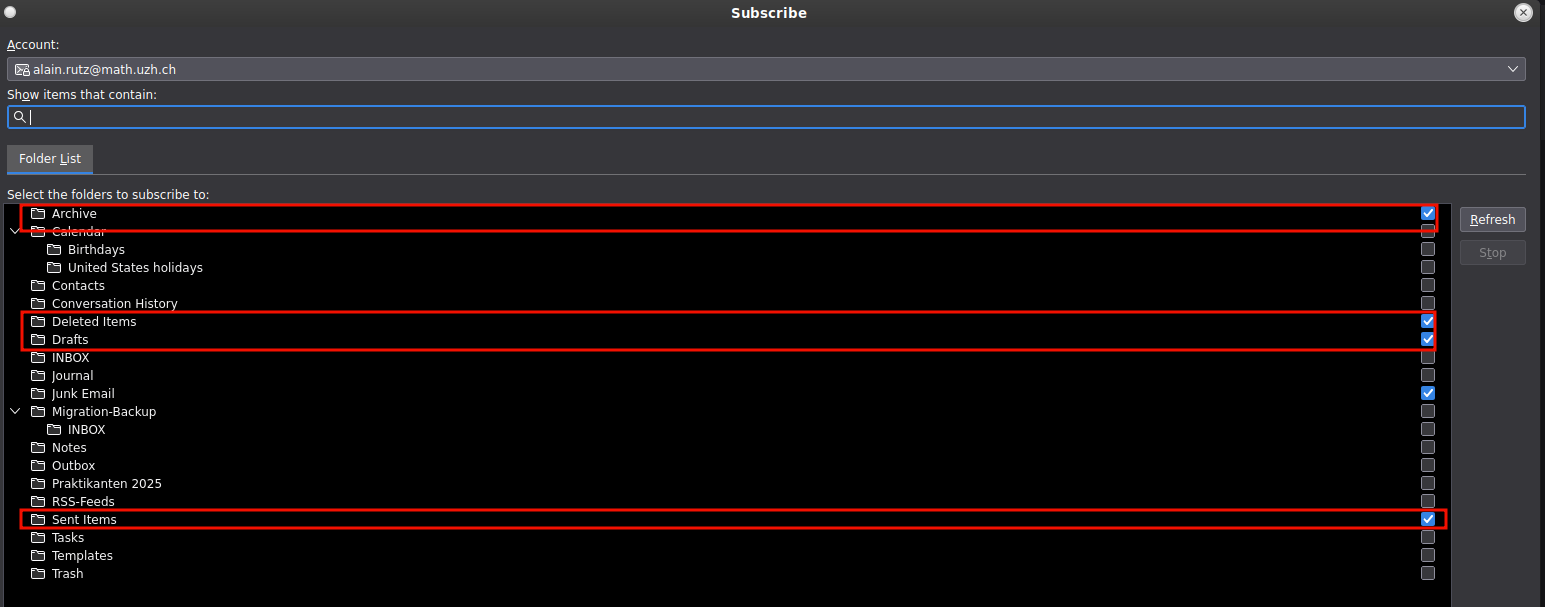
7) Folder: subscribe
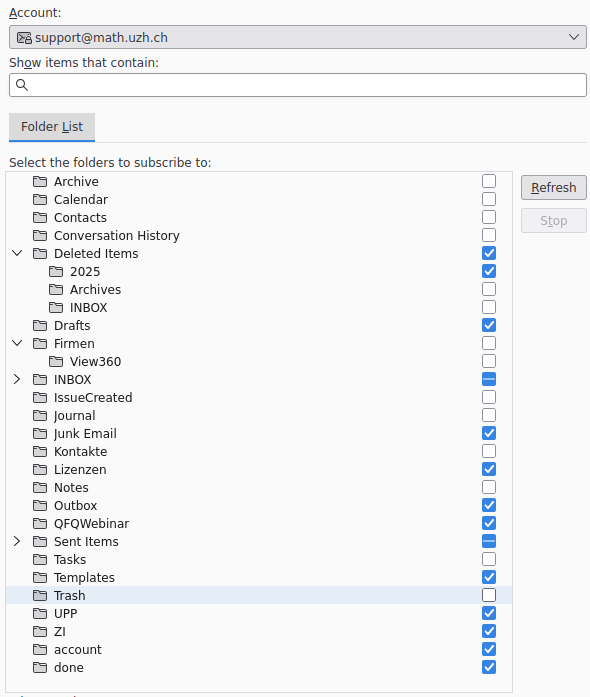
8) Folder: mapping
a) If you find folders with different names (Sent Items = Sent, Deleted Items = Trash) , but same meaning, best is to merge them:
b)
Shared Account
- This section describes, what to configure differently for Shared-Account Setup, compared to Personal Accounts.
- Every step that is missing here, do the same as described in the section on top of the page. (for example Step 1.)
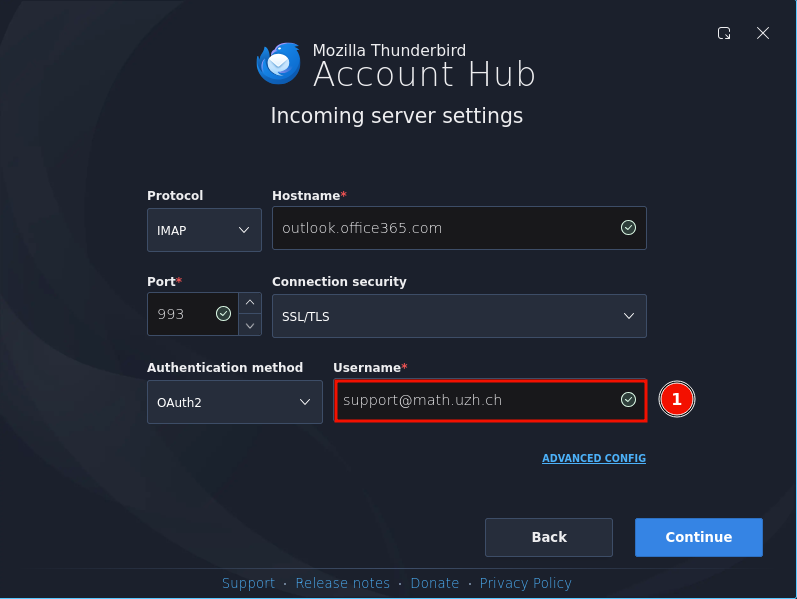
- 1.) Incoming Server: Type the Service Account adress as the username
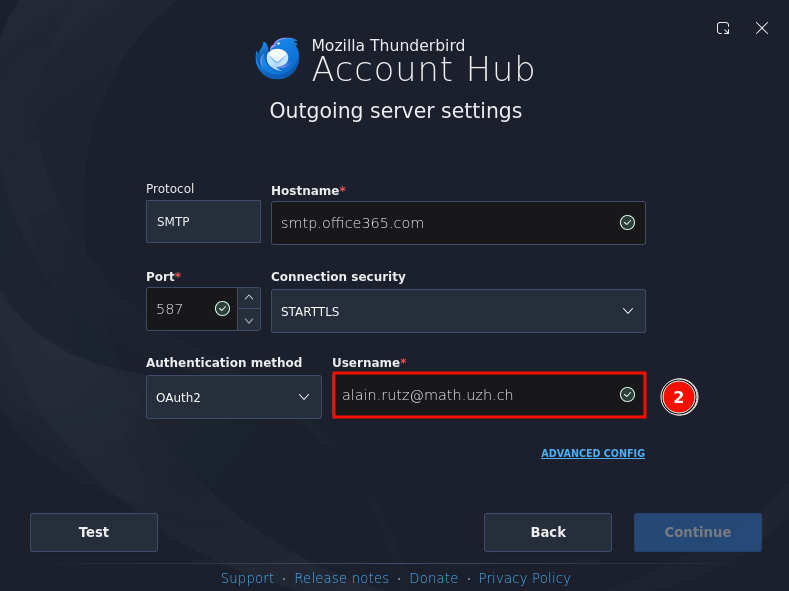
- Outgoing Server: Type your Personal Account adress as the username
- Klick "Test" and then "Continue"
- A Microsoft Sign-In Page will open:
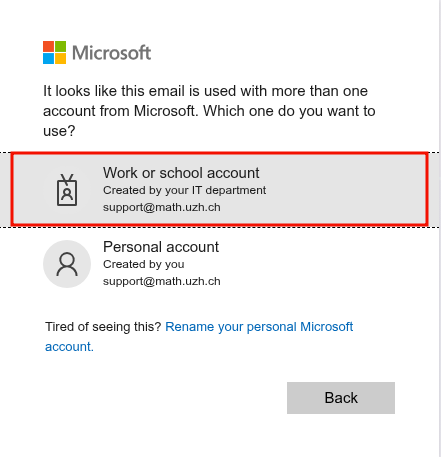
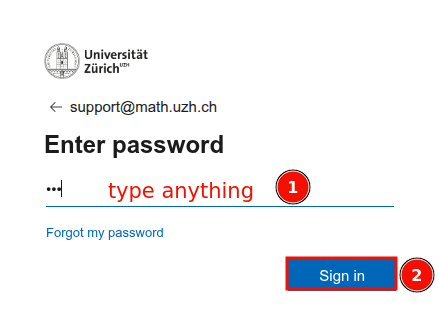
- At this Point it wants to sign you in with the wrong identity.
- So type anything in the Password-Field then "Sign in" -> it will fail
- Then click on "choose another account", choose your personal account and type your credentials.
- If your personal account is accepted, the setup is complete.
Troubleshooting
Missing Folders/Mails
IfAfteryousubscribingarethemissingproperfoldersfolders,ormakemails,surethisthatisnewlikelymailsduelandtoinwrongthefoldersrightbeing subscribed.
- In case you are unsure which one is the correct folder, open Outlook and compare the contents.
- Attention: Folder names may vary for you, for example "Sent items" could be "Gesendete Elemente"
- Important outlook folders are: Sent items / Gesendete Elemente | Deleted items / Gelöschte Elemente | Archive | Drafts
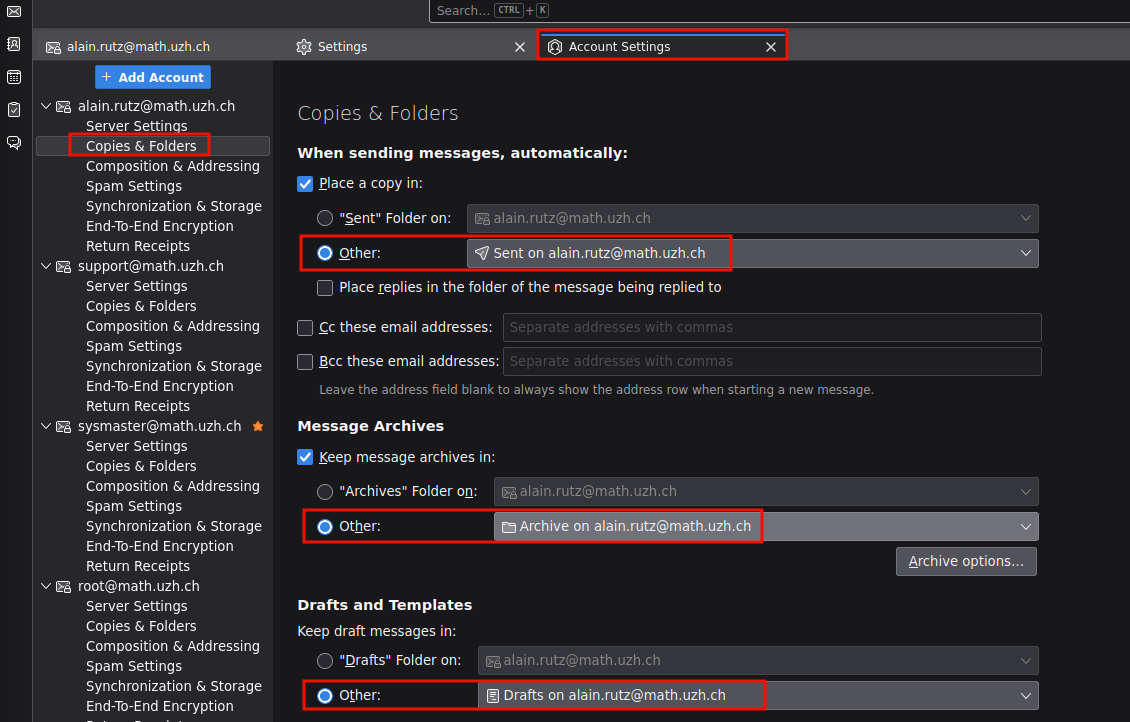
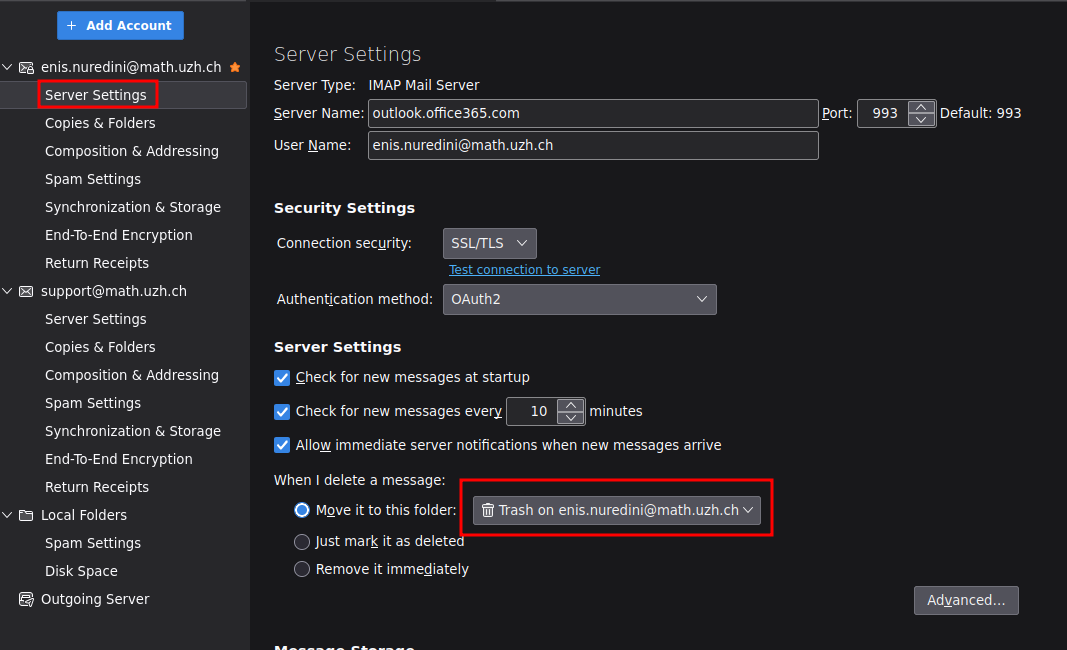
Select the right Trash folder (if Deleted items or Gelöschte Elemente exists in selection then use them):
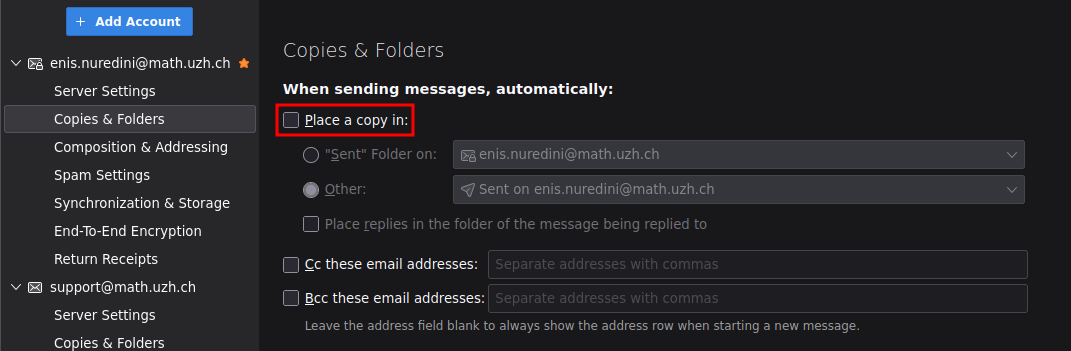
After the configuration is done "copy" for sent mails should be disabled:
Account order (left pane)
- Option a - Extension Folderpane Tools
- Option b - prefs.js
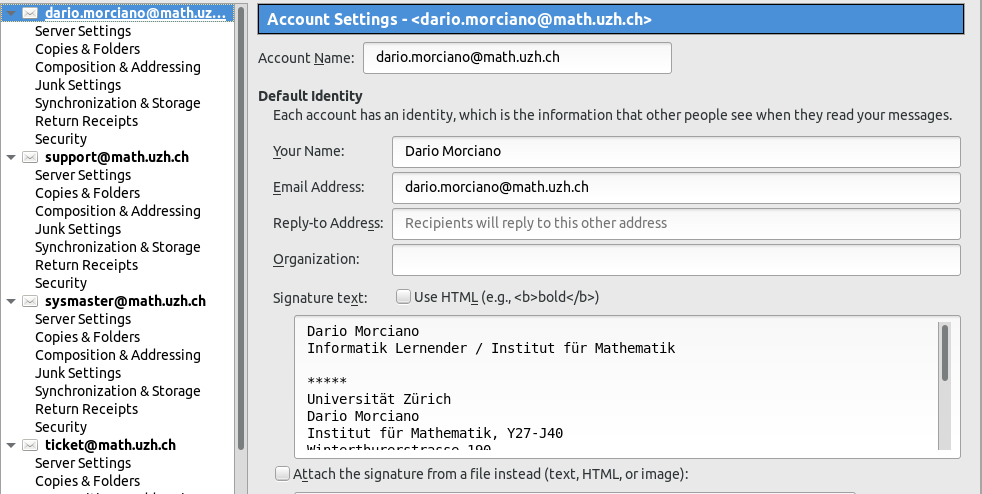
Signature
- Right click your email account and select 'Settings'
- On the right side you can now edit your signature
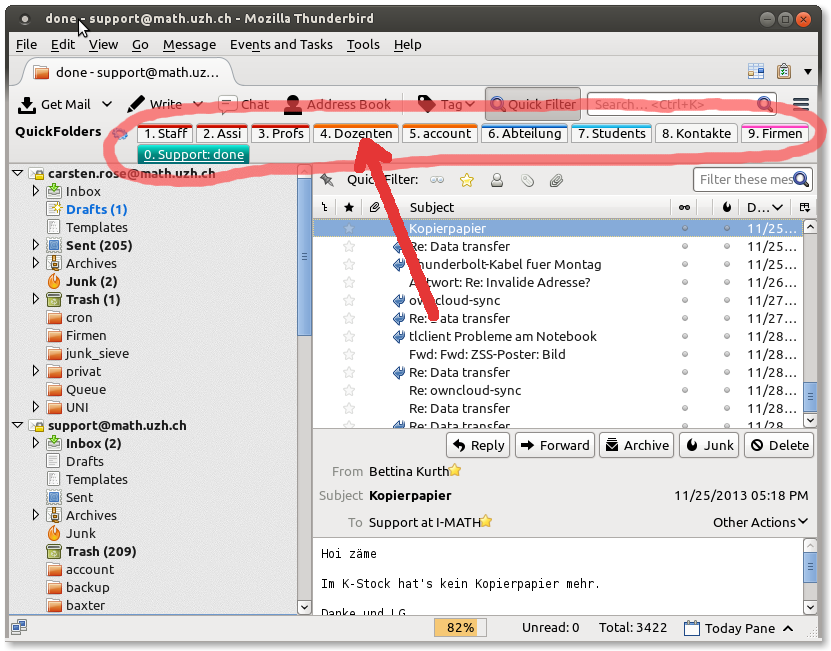
Quick Folders
- If you have a lot of folders, it is typically very time consuming to navigate through the tree on the left side, just in order to reach the folder.
- With the Thunderbird Add-On 'Quick Folders' you can configure your personal, most frequently used, folder list.
- For example, if you have to move your incoming mails into different folders, you just drag and drop the mails from the inbox to the configured folders in the 'Quick Folders'-List:
- To use the Add-On 'Quick Folders', you have to download and install it personally: https://addons.mozilla.org/en-US/thunderbird/addon/quickfolders-tabbed-folders/
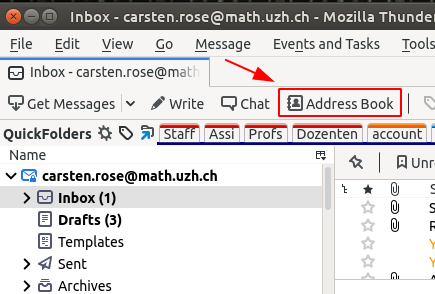
UZH Address Book
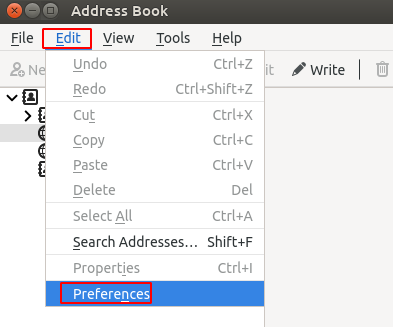
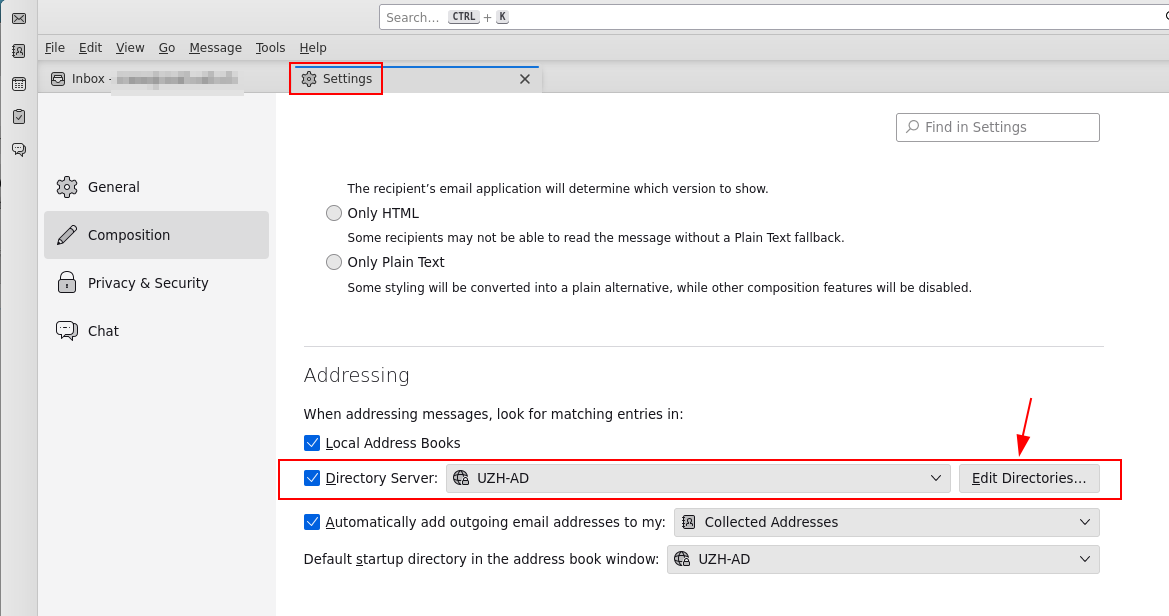
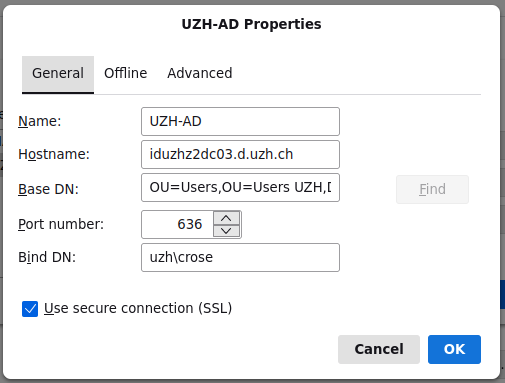
| Name | UZH-AD |
| Hostname | iduzhz2dc03.d.uzh.ch |
| Base DN | OU=Users,OU=Users UZH,DC=d,DC=uzh,DC=ch |
|
Port number |
636 |
| Bind DN | uzh\<your shortname> |
| Use secure connection (SSL) | on |
Shared Mailbox
Login (also ~every 10 days): Forgot my password > Cancel > Select your account > ... login with your personal credentials.
FAQ
Sent Folder: double mails
Some mails are shown doubled in the Sent folder. This might happen with Outlook and GMail.
Workaround: Disable in Thunderbird to save mails in the Sent folder (Outlook does it automatically on the server side).Settings > Accounts > <Account> > Copies & Folders > disable 'Place a copy in:'