
Microsoft Authentication
Microsoft Authentication
- Manage sign in options: https://mysignins.microsoft.com/security-info
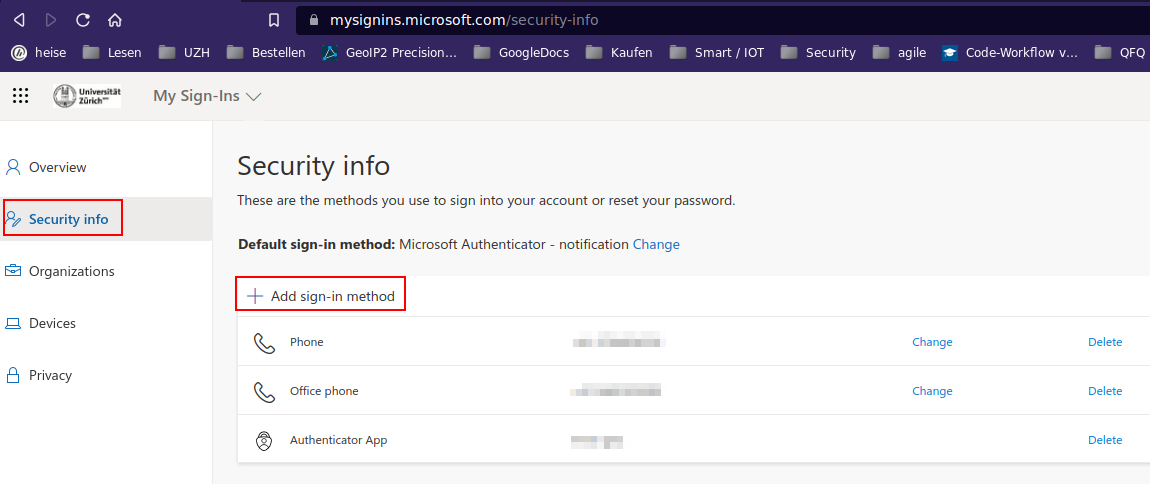
- MFA (Multi Factor Authentification) can be configured in different ways:
- a) Authenticator App, like KeePassXC, MS-Authenticator, Google Authenticator
- b) SMS on Mobile Phone,
- c) voice computer to classical phone
- a) Authenticator App, like KeePassXC, MS-Authenticator, Google Authenticator
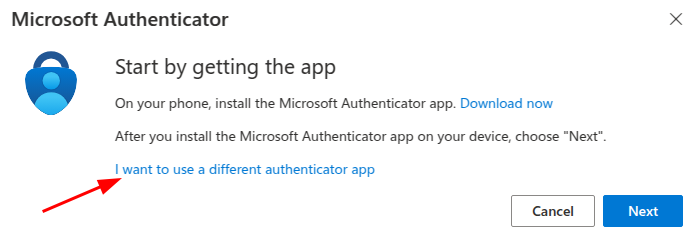
- But: After choosing 'Microsoft Authenticator App', also an alternative app can be selected (see below).
- Disadvantage of Microsoft Authenticator App: it binds to one device. An app registered Office365 account can only be unlocked with the specific device (or by phone call/SMS) - what is if your phone is broken and App and phone is on the same device?
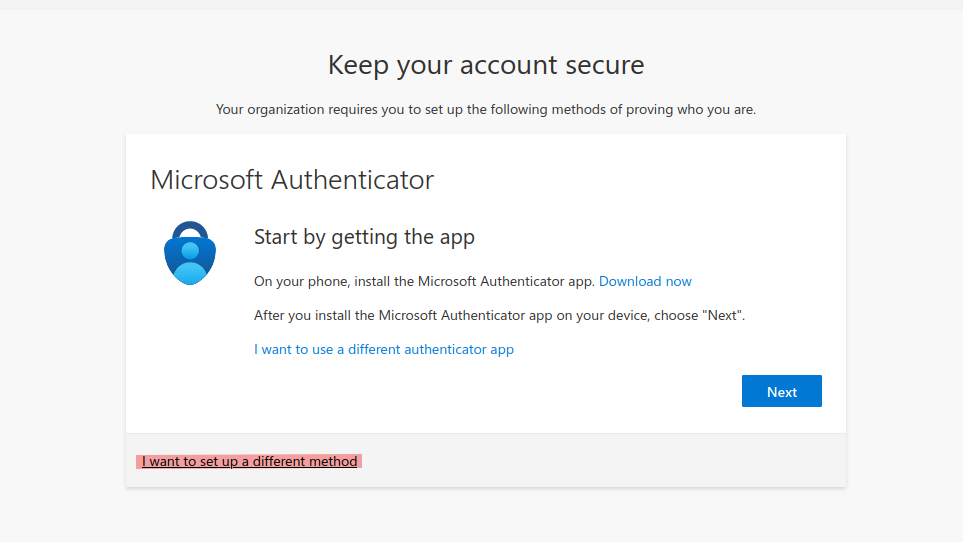
- If you choose 'Phone', enter your mobile or office phone number or private phone number.
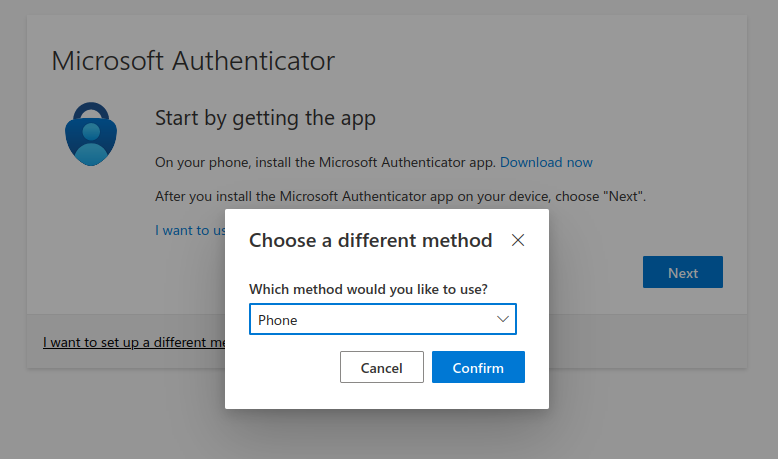
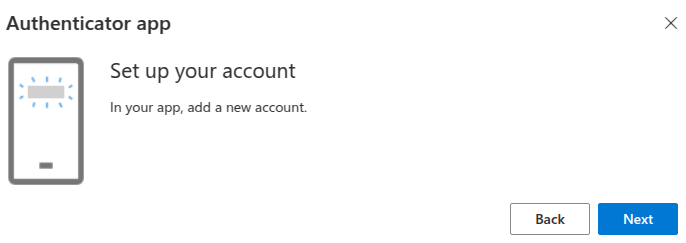
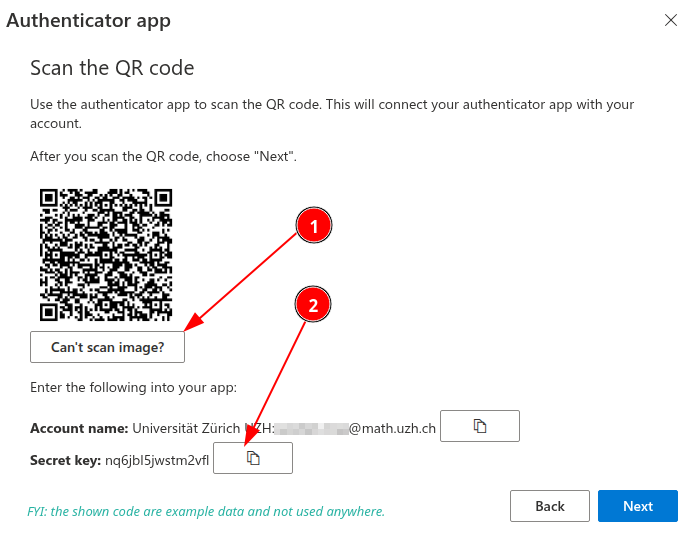
Add third party TOTP app
Attention: before you change your second factor: take care that there is always one factor which works! Typically your mobile number is a reasonable fallback during the reconfiguration.
Adding and removing factors: the system might ask again for authentication, even if you are still logged in!
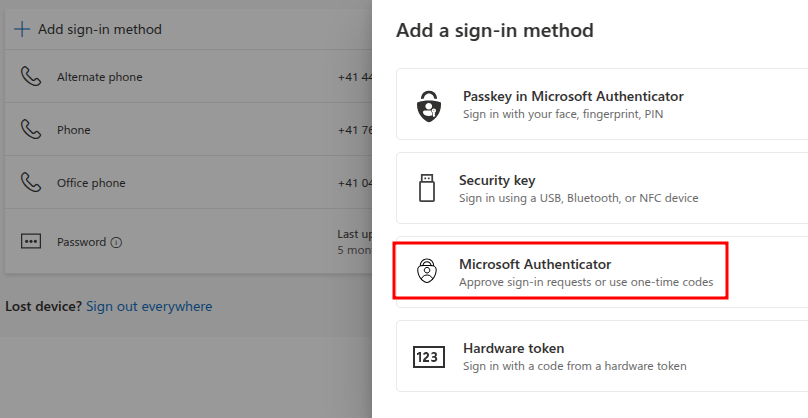
Recommendation: Additional phone numbers
- You'll need this to login to outlook.com (very seldom necessary), teams.microsoft.com (teams will be more often used), zoom.us, KWF, ...
- What happens if you forget your mobile at home, or your mobile is not working, or you are at home, ... or whatever. Our recommendation is to configure several additional ways:
- office phone number (if you don't have access to your mobile phone)
- personal mobile phone number (if you're not in your office)
- if exist: classical phone from at home (if your mobile is broken)
- office phone number (if you don't have access to your mobile phone)
Authentication method
- Authentication methods have fixed priorites (not changeable by user).
- The highest priority has 'MS Authenticator'. If this method is configured, this is always the default.
- Via "Sign in another way" you can choose TOTP or SMS, ...
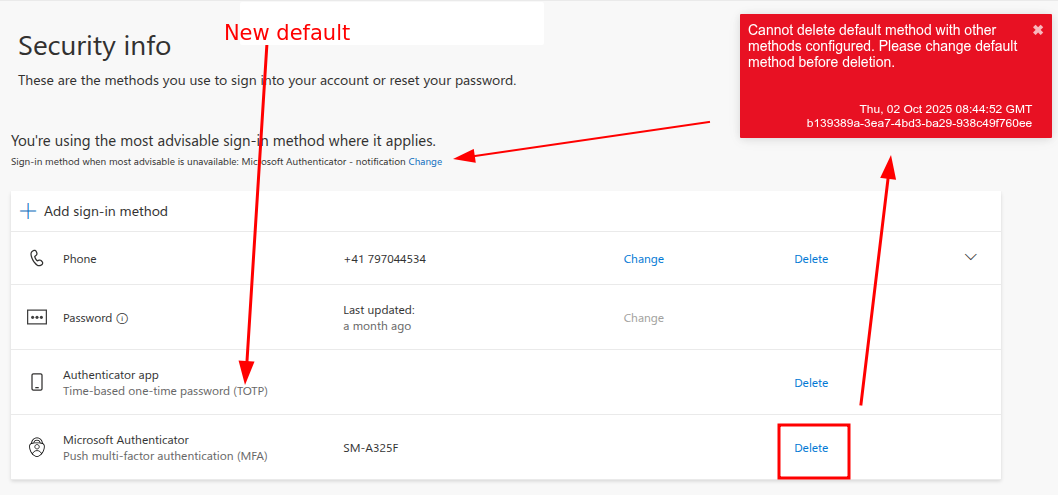
- If TOTP is not offered, please go to https://mysignins.microsoft.com/security-info, click on 'Change' and select the TOTP or phone method.
- in case when you click on 'delete' and you get an error, please change via "Sign-in when most... CHANGE" to TOTP or Phone.
MS Websites
Best is to add the following websites to the personal KeepassX Account:
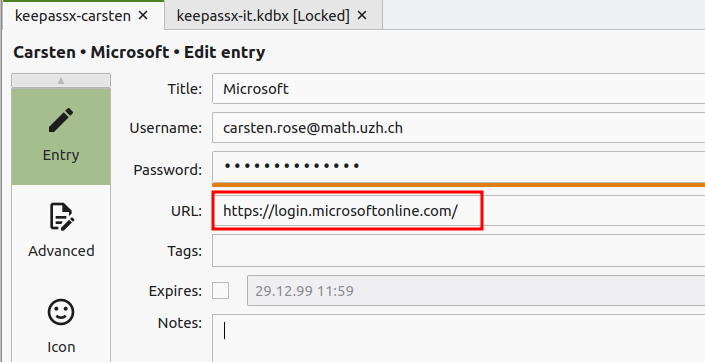
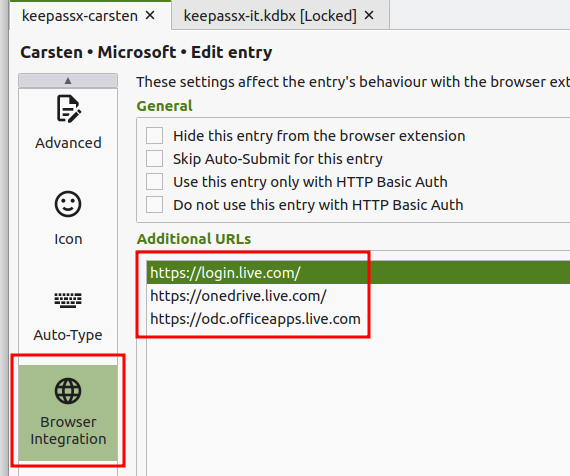
Lost Access
- If you lost access to your Microsoft Account, you can contact the ZI Support and ask them to reset your Accounts Authentication settings.
- ZI Support Contacts:
- Self-Service Portal: https://support.uzh.ch/
- More Information: https://www.zi.uzh.ch/en/support.html
- And for the next time: remember to setup a second way of authentication, before you loose the first one 😉
- Self-Service Portal: https://support.uzh.ch/