
MFA: I-MATH & DM3L
MFA I-MATH/DM3L services
- Thinlinc - https://tl.math.uzh.ch
- Wiki - https://wiki.math.uzh.ch
- Hello - https://hello.math.uzh.ch
- SSH - ssh.math.uzh.ch
- More will follow (GIT, Nextcloud, R-Studio,...).
Step 1 - configure MFA
Standard option via Web
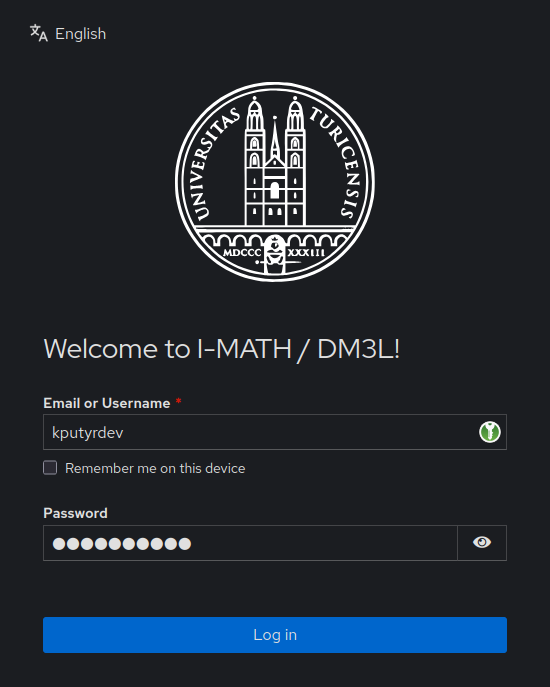
Open https://login.math.uzh.ch
| Type | Use | Pro | Contra |
| TOTP | Best for daily use | Possible configuration on multiple devices - no single device dependency. | TOTP App necessary. |
| If TOTP is not available | Email is often already configured on mobile and laptop. | Email access necessary. | |
| Recovery Codes | Emergency | Stupid simple. | Codes are quickly exhausted, the last has to be reservered to get new codes. |
- If no MFA device is configured yet, the page asks to configure one.
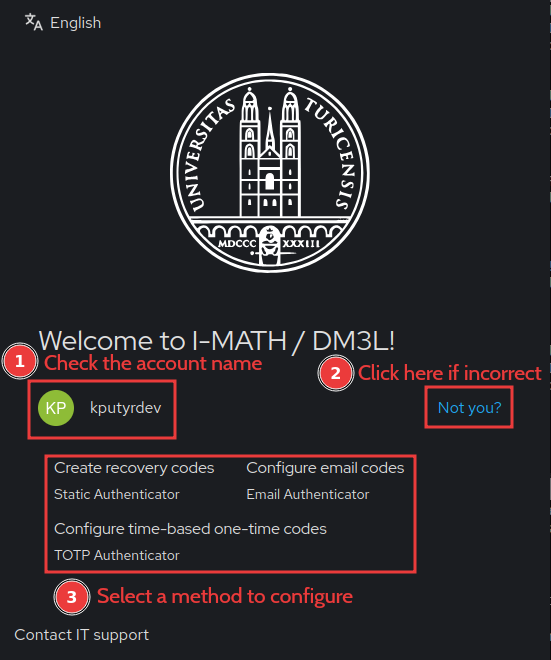
- Setup MFA methods
- Recommended: Setup a) TOTP, b) EMAIL and c) Recovery - ALL of them!
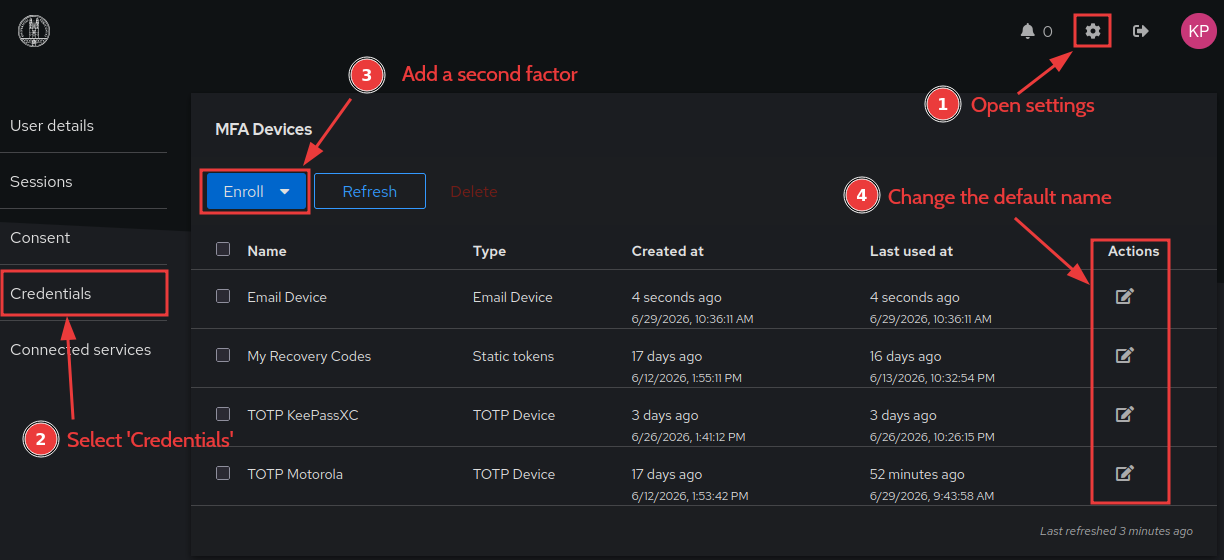
- Only one email-base MFA can be configured and the email can't be changed, it uses the email assigned to the account. This is your Primary UZH Email address.
- We recommend configuring only one TOTP, across several devices (by copying the code to e.g. KeepassXC and scanning the QR code with MS Authenticator).
- Althgouth several TOTPs can be configured (like in the screenshot) and any code is accepted currently.
Alternative MFA setup option via SSH
If you have no clue what SSH is - skip this section, you won't miss anything.
The second factor is checked by SSH connections. If no second factor is configured yet, you will have a chance to configure one.
Note 1: You can select any text with a mouse and copy to the clipboard with Ctrl+Shift+C.
Note 2: Press Ctrl+C to cancel the authentication at any step.
- Recovery codes:
- TOTP: copy the secret to your authenticator (such as KeePassXC)
- Email: the email assigned to your account will be used
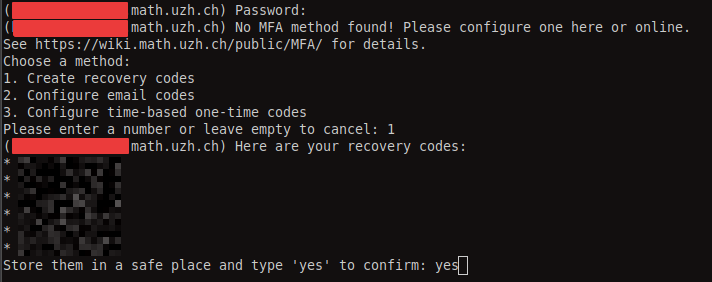
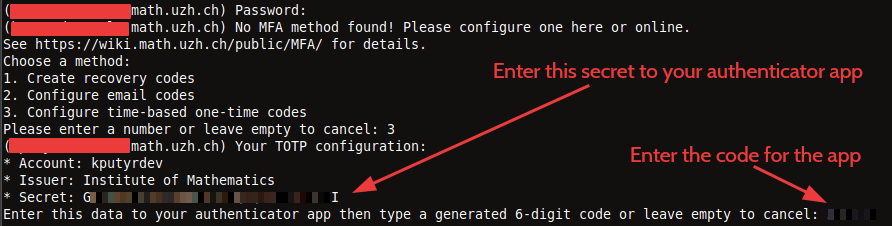

If second factor is already configured, you can use a code from any method. Type email to request an email code - an email is sent automatically only when it is the only method. 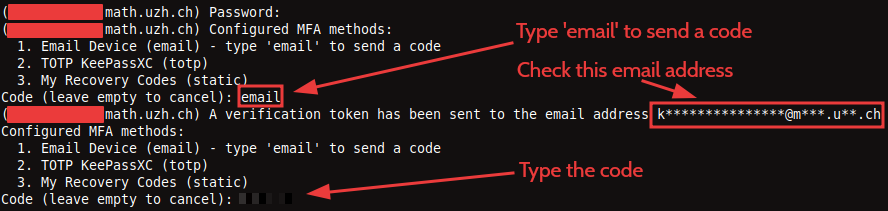
Entering an invalid code does not break the authentication process: you will be given another chance to enter a correct code.
Optional Step 2 - configure TOTP App
Problems
I cannot configure email codes
Please contact us on support@math.uzh.ch . Possible causes:
- There is another account this with email configured as a second factor. This usually happens to secondary accounts only.
- You have already started to configure the email, but the address has not been verified. Your MFA configuration must be cleaned.
I have lost access to my device and cannot sign in anymore
Please contact us - we will generate a short-living one-time URL to let you access your account and reconfigure MFA.
I'm stuck at "Something went wrong! Please try again later."
This usually happens when you try to configure an email-based MFA for an email that is already in use. You have to delete cookies in your browser that are associated with the domain login.math.uzh.ch, then try to use another method as a second factor.