linux
Printing via UZHPrintPlus
Offical ZI Page: UZH Print Plus
Recommended for students.
Printing is possible via WLAN UZH, but not via WLAN EduRoam.
Printing via MATH/DM3L-Print server
Recommended for institute members.
To use the printer in Y27, you need a LAN connection (not WLAN)
Adding Printers
Institute
- Info: Insitute Printers are the ones named after certain rooms (where the printer is located) e.g k30, h52 etc.
- Setup: Open a Terminal and type the following command:
- Make sure to insert the real printer name (e.g "k30") in the place holder <printer-name>
lpadmin -p <printer-name> -E -v ipp://print-mac.math.uzh.ch:631/printers/<printer-name> -m everywhere
- Make sure to insert the real printer name (e.g "k30") in the place holder <printer-name>
UPP
- Info: UPP Printers are the ones located on k and j floor (public) e.g k, j, kcolor, jcolor (they support booklet printing)
- Setup: Open a Terminal and type the following command:
- Make sure to insert the real printer name (e.g "kcolor") in the place holder <printer-name>
sudo lpadmin -p <printer-name> -E \
  -v ipp://print-mac.math.uzh.ch:631/printers/<printer-name> \
  -m raw \
  -o auth-info-required=username,password
- Make sure to insert the real printer name (e.g "kcolor") in the place holder <printer-name>
Authentication
- Info: Both Institute & UPP Printers require LDAP-Authentication in order to print. (IMATH-Credentials)
- Setup: After adding a printer, upon the first print-job do the following:
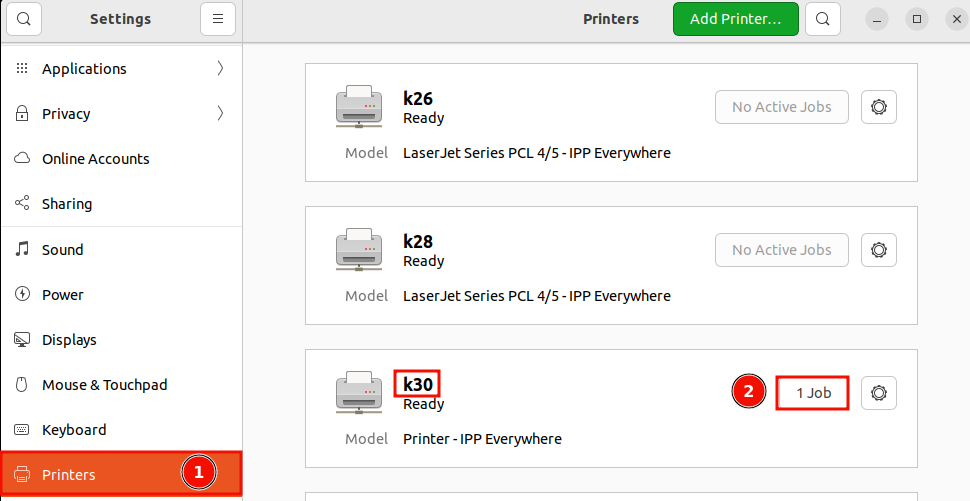
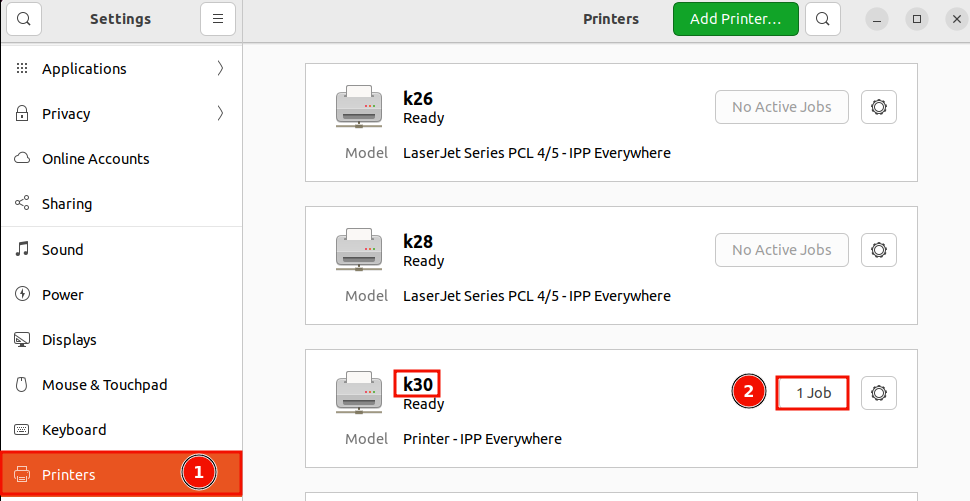
- Open "Settings" -> "Printers", then search for the printer on which you sent the job
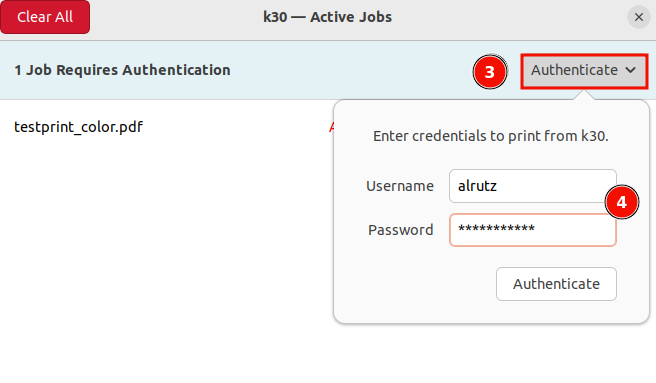
- Click on "1 Job"
- Click "Authenticate"
-
Enter your IMATH-Credentials (same as for MADE, MY, Thinlinc)
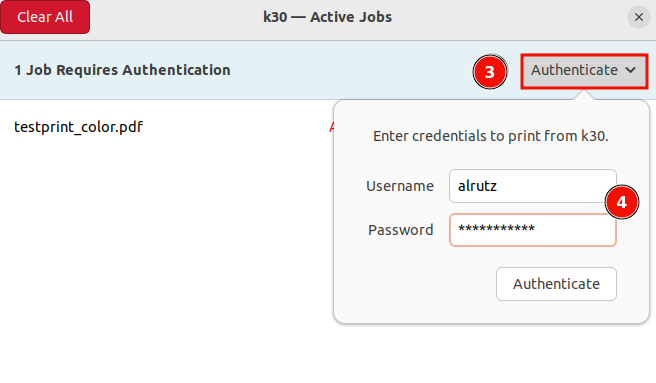
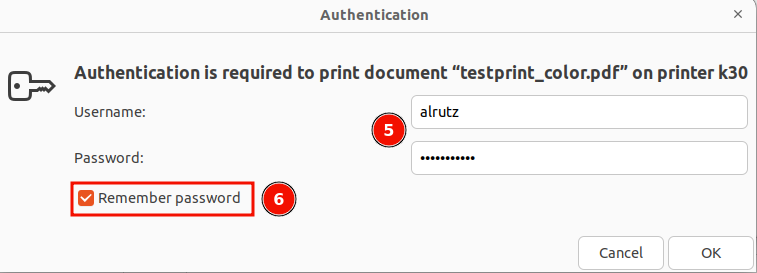
- Now the document will print. Upon the second print-job you will be automatically prompted for credentials:
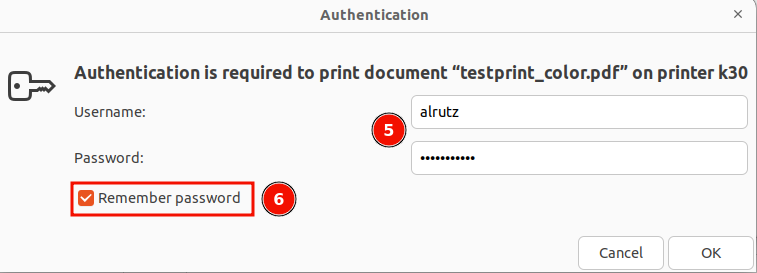
- Make sure to tick the box "Remember password", so you will never be prompted for credentials on this printer again.
- Congrats, setup is complete!
Booklet Printing
- Info: This option is only available on UPP Printers (k, kcolor, j, jcolor)
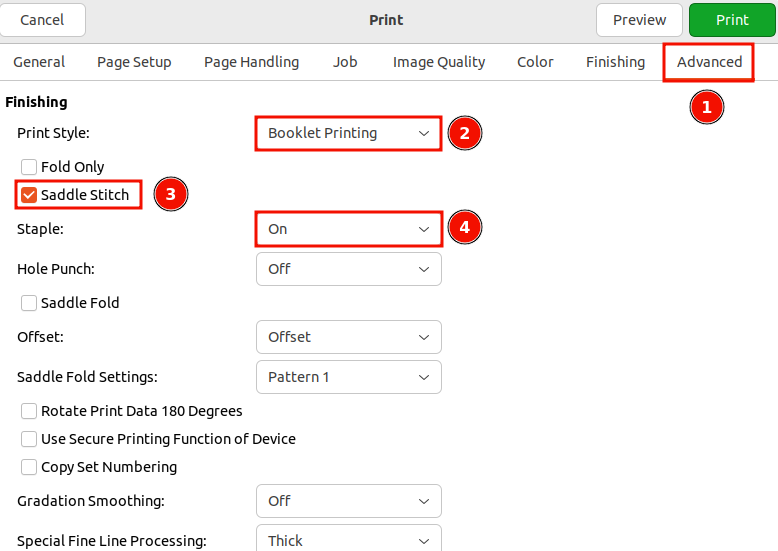
- In the Print-Dialog go to "Advanced", then set the following settings
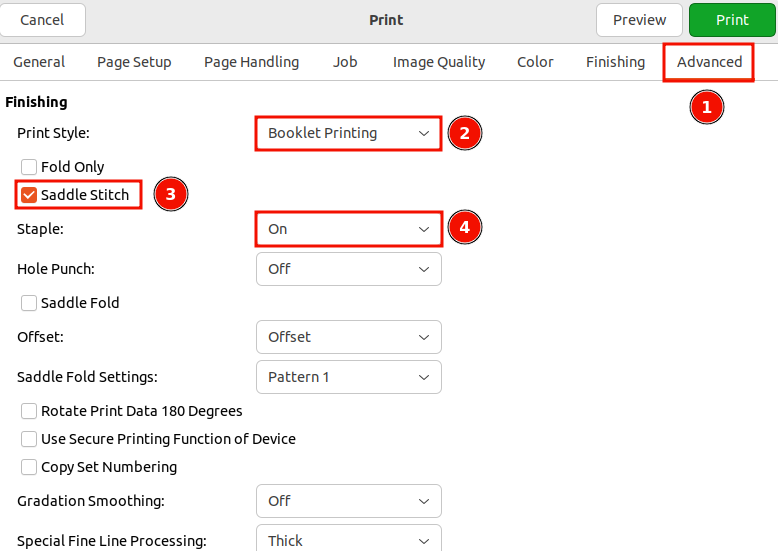
- Print Style: "Booklet Printing"
- Saddle Stich: On
- Staple: On
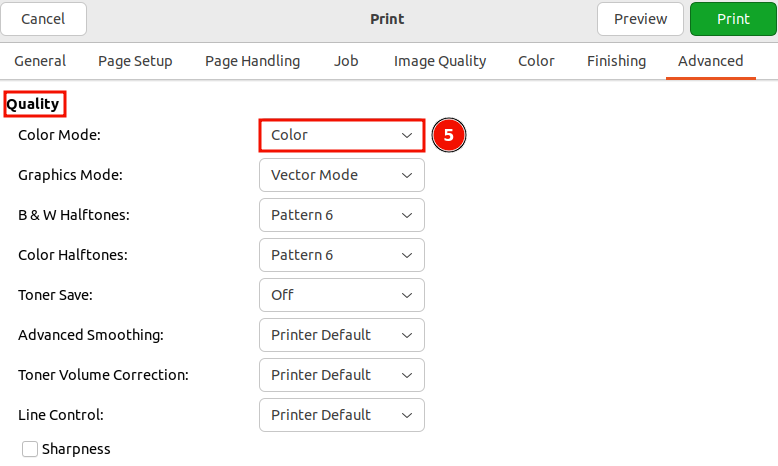
- For colored booklets scroll down to the "Quality" section and set the Color Mode: "Color"
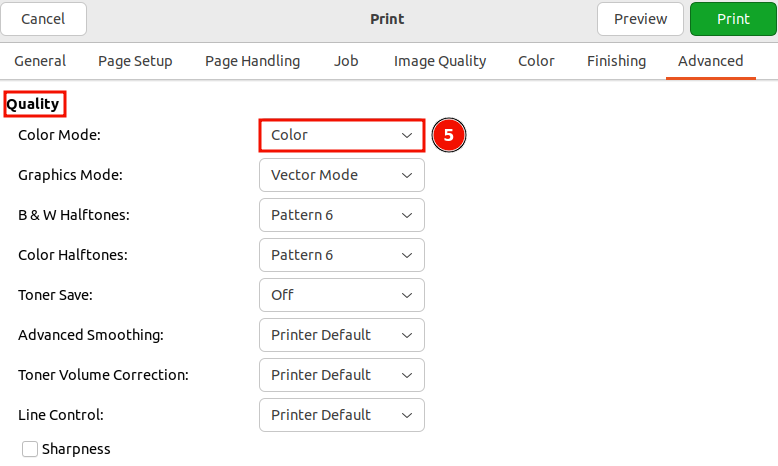
- Click "Print" in the top right corner.