linux
Printing from private notebooks to the institutes printer is only possible (UPP is fine) via LAN (=cable) and not via WLAN. Your device must be first registered in a central system - please contact support for help.
Enable: 'show remote printers'
Hint: after the first time activating your Notebook at IMATH, it's possible that you have to wait up to 15 minutes before the printers appear. If you deactivate/activate your network or if your reboot your machine, the printer will be displayed immediately.
The printers at UZH advertise their presence using the mDNS protocol, so, in order to see the printers on the network, you must have an mDNS client installed and configured. This can be accomplished, on most systems, by installing the 'nss-mdns' module, and adding 'mdns' or 'mdns_minimal' to the 'hosts' line in '/etc/nsswitch.conf'. Note that, in most distributions, nss-mdns requires the 'avahi-daemon' to be installed and running.
Adding a printer from a command line
lpadmin -p <local name> -v ipp://print.math.uzh.ch/printers/<printer_name> -m everywhere -E
-p sets the name of the printer on the local maching; it can be anything, but the actual name of the printer is recommended
-v is a location on a print server; if print.math.uzh.ch does not work, try print24-pub.math.uzh.ch
-m chooses the driver; the everywhere is a standard driver that works with most printers
-E enables the printer automatically
The user executing the command must in the lp group. Alternatively, use sudo.
Printing via UPP
UZHPrintPlus
Offical
ZI Page: UZH Print Plus
Recommended for students.
Printing is possible via LANWLAN orUZH, but not via WLAN asEduRoam.
long as
it is UZH internal.
UZH Print Plus
Booklets
Linux
Printing via terminalMATH/DM3L-Print server
Recommended for institute members.
To use the printer in Y27, you need a LAN connection (not WLAN)
Adding Printers
Institute
UseInfo: Insitute Printers are the buildones script:named after certain rooms (where the printer is located) e.g k30, h52 etc.
Setup: Open a Terminal and type the following command:
Make sure to insert the real printer name (e.g "k30") in the place holder <printer-name>
lpBookletlpadmin -p <printerprinter-name> -nE -v ipp://print-mac.math.uzh.ch:631/printers/<number_of_copiesprinter-name> -m everywhere
UPP
Info: UPP Printers are the ones located on k and j floor (public) e.g k, j, kcolor, jcolor (they support booklet printing)
Setup: Open a Terminal and type the following command:
Make sure to insert the real printer name (e.g "kcolor") in the place holder <
A4|A5printer-name>
sudo lpadmin -p <printer-name> -fE \
  -v ipp://print-mac.math.uzh.ch:631/printers/<file.pdfprinter-name> \
  -m raw \
  -o auth-info-required=username,password
Linux
via
GUI
Authentication
Info: Both Institute & UPP Printers require LDAP-Authentication in order to print. (IMATH-Credentials)
Setup: After adding a printer, upon the first print-job do the following:
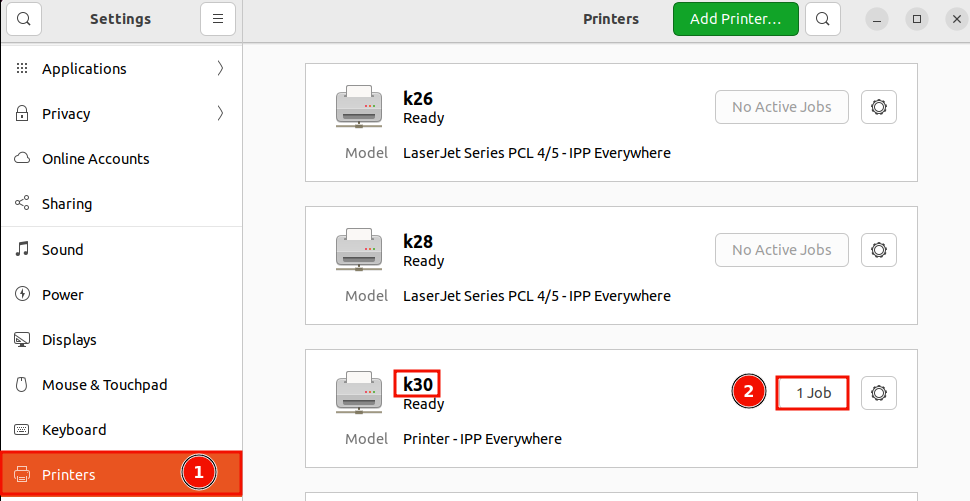
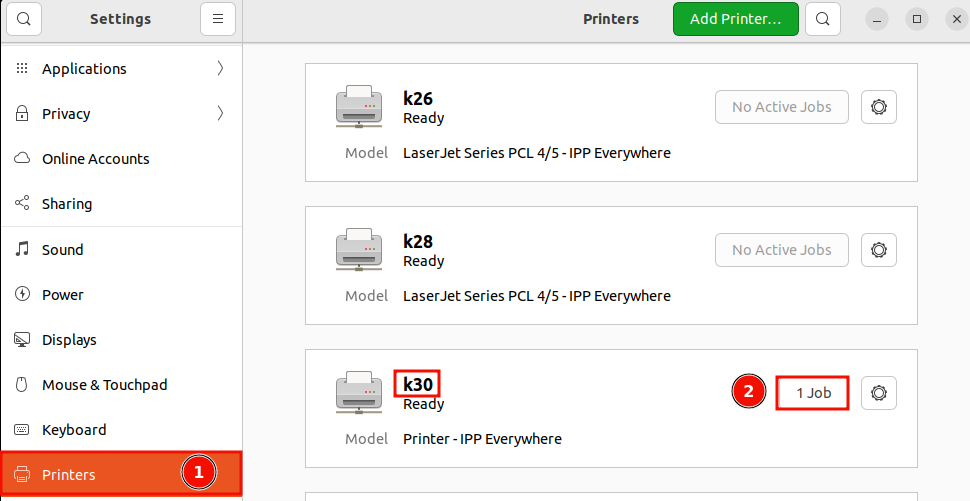
InOpen "Settings" -> "Printers", then search for the printprinter dialogon selectwhich you sent the job
Click on "1 Job"
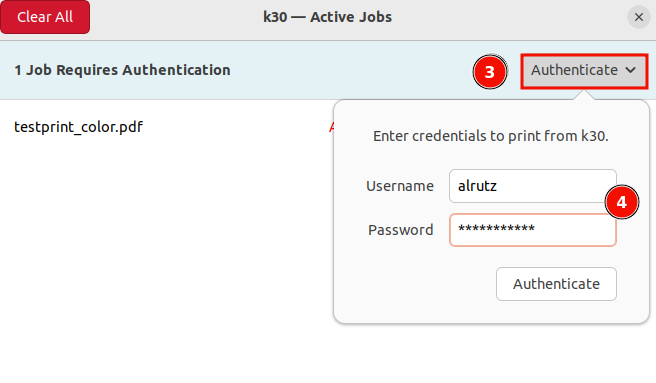
Click "Authenticate"
Enter your IMATH-Credentials (same as for MADE, MY, Thinlinc)
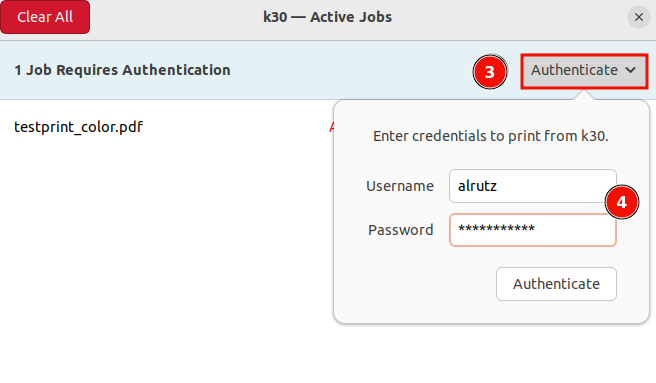
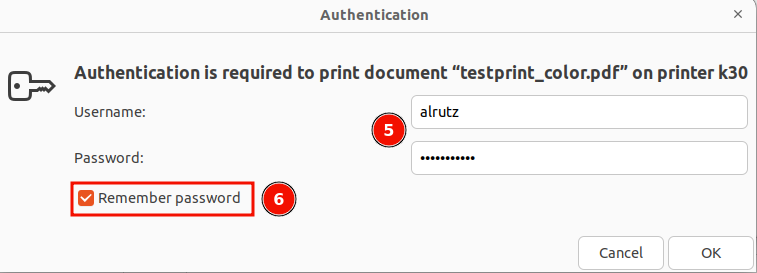
Now the document will print. Upon the second print-job you will be automatically prompted for credentials:
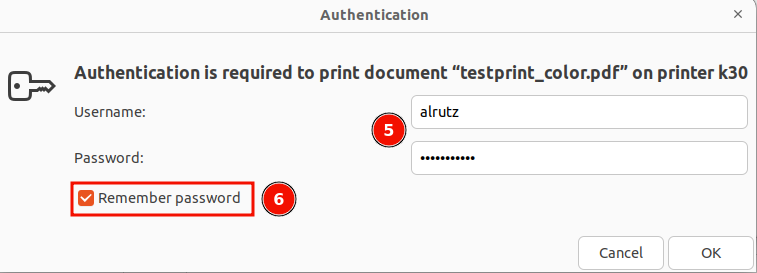
Make sure to tick the box "Remember password", so you will never be prompted for credentials on this printer
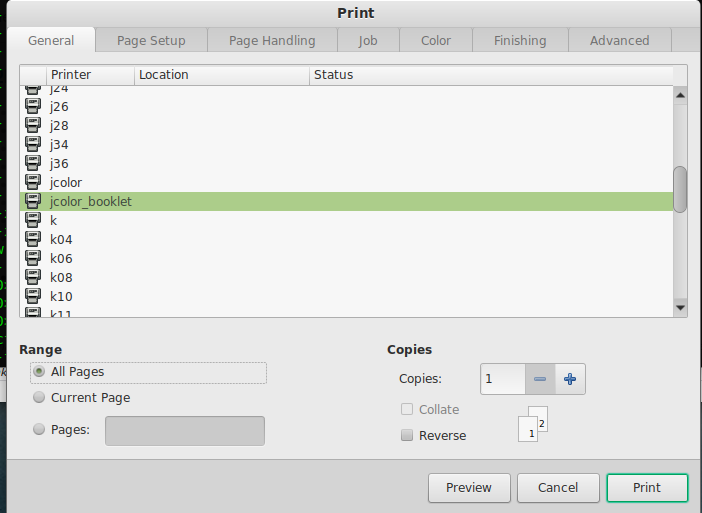
jcolor_bookletorCongrats, kcolor_booklet.setup Inis case you like to have multiple copies, do not select multiple Copies here (do it on tab 'Advanced')!complete!
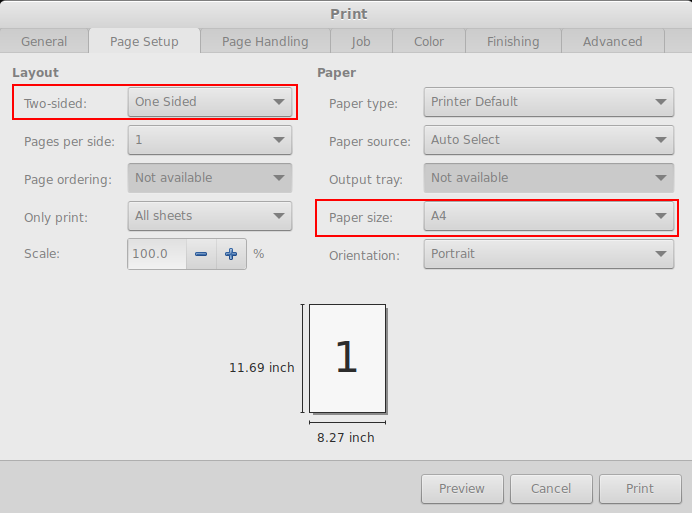
Go to Page Setup and select the final Paper size A4 or A5. Also: One-Sided has to be set!
Go to Finishing and check if Booklet Printing is set.

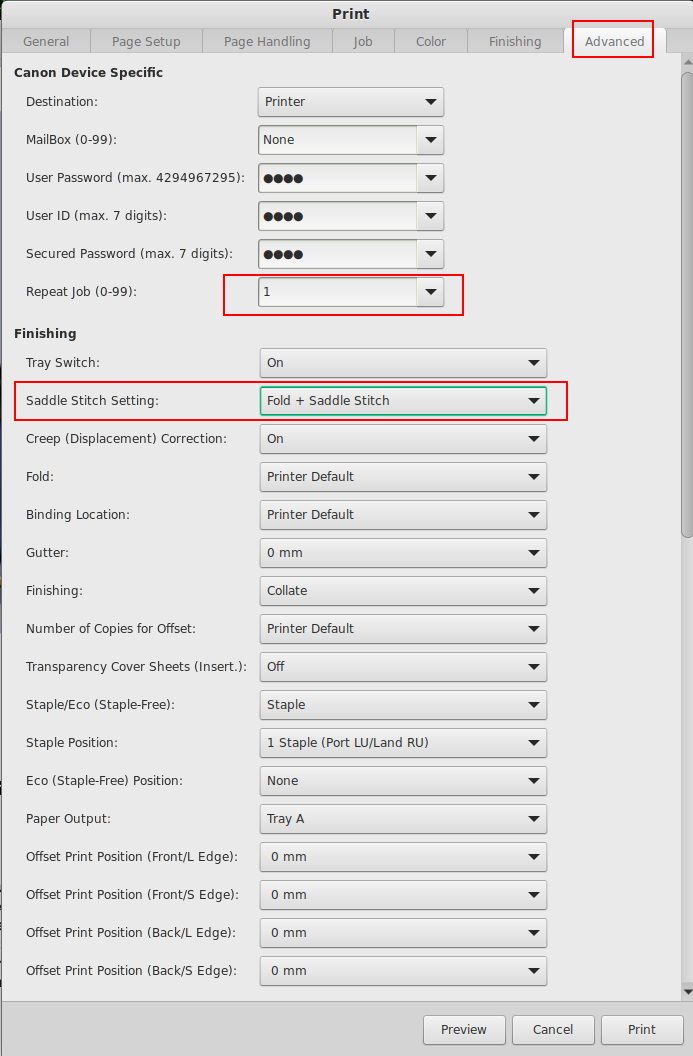
Go to Advanced and select at Saddle Stitch Setting: if you want the booklet folded only or folded and stitched. Also Repeat Job can be used to print multiple copies!
Hit Print to print your booklet