
android screen stream
- Your Notebook and Android devices should be in the same WIFI network.
Airserver
- https://airserver.com - It has a 30 day trial period. Costs: 11 EUR
- Make sure laptop and tablet are in the same wireless network.
- Start airserver on the notebook.
- Quick Settings > Smart View / Stream. Maybe you have to activate 'wireless transfer'
Screen Stream (private WLAN)
- UZH WLAN like 'Eduroam', 'UZH' and 'Public' are blocking direct traffic between devices! Screenstream won't work at UZH!
- Android: Install the app 'Screen Stream' via the Google Play store: Screen Stream
- Android and Notebook: Connect your phone and your PC to the same WIFI. (important!)
- Android: Open the newly installed app 'Screen Stream' on your android phone/tablet.
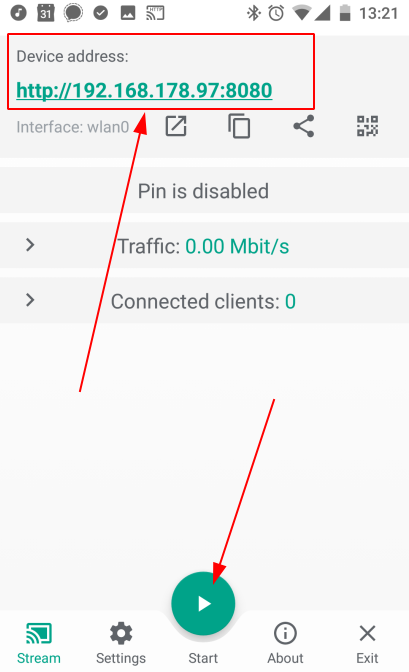
- Android: At the top of the app you see the 'Device address', you will need this later. But first press the 'start' button in the app.
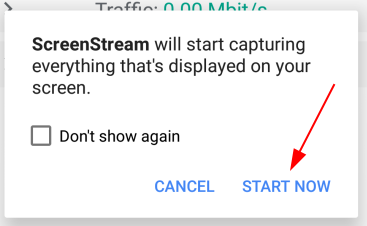
- Android: If you are asked for permissions, press 'START NOW'.
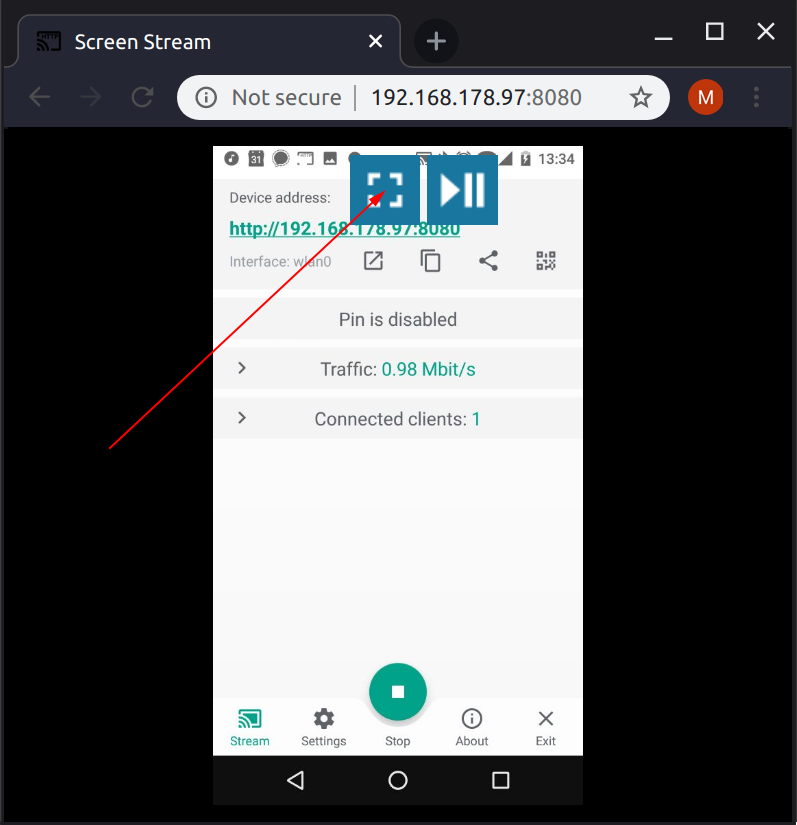
- Android and Notebook: Copy (by hand) the 'Device address' as mentioned above from the app into your browser address bar.

- Notebook: Select full screen.
- Notebook: Now you can share your screen using another application on your Notebook. For example
JitsiJitsi.orAdobe Connect.