MFA
MFA (Multi Factor Authentication) enhances your security by requiring to enter a code (= a second factor, 2-Factor-Authentication/2FA).
- General
- MFA: I-MATH & DM3L
- MFA: I-MATH & DM3L - text based setup via SSH
- TOTP App
- KeePassXC
- In browser authenticator
- Microsoft Authentication
- Thinlinc MFA login
General
What is it?
- MFA (Multi Factor Authentication) enhances your security by requiring to enter a code (= a second factor, 2-Factor-Authentication/2FA).
Why so complicated?
- Unfortunately, security always comes with an extra amount of effort. Why does need an apartment a door lock? If I loose the key, I'm in trouble?!
Why so many different MFA types?
- Each solution has it own advantage and disadvantage - again, unfortunately there is no one solution who fits all requirements.
Types of second factors
- Supported at https://login.math.uzh.ch
- There are more methods (SMS, FIDO, ...) but not supported at MATH/DM3L.
TOTP (Time-based One Time Passwords)
- Codes are generated locally by a user's device (an authenticator app on a phone, KeePassXC, in-browser extension).
- A new code is generated every 30 seconds.
- Configuring TOTP requires to share a secret data between the server and the device: either by copying it directly or by scanning a QR code
Email codes
- Codes are sent by the server to user's email and are valid several minutes. Only the last email's code is valid.
- This method requires access to the email account.
Recovery (static) codes
- A set of codes (usually 6) is shared between user and the server.
- No expiration time.
- Not practical for every day use, but can be treated as a backup method.
MFA: I-MATH & DM3L
Step 1 - configure MFA
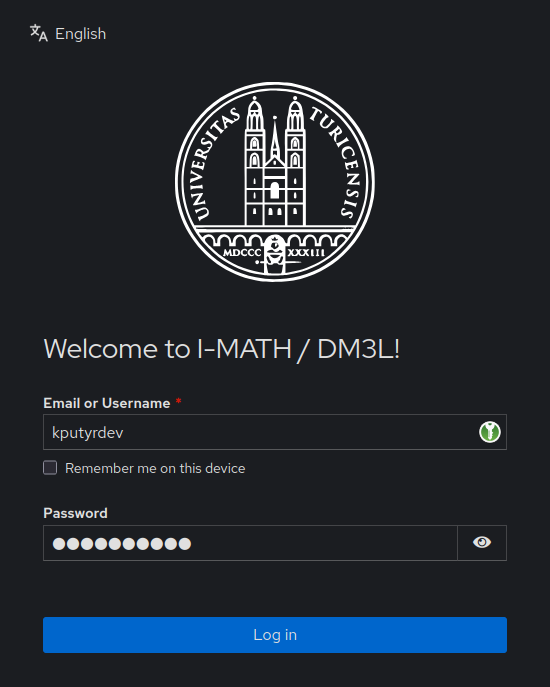
Open https://login.math.uzh.ch
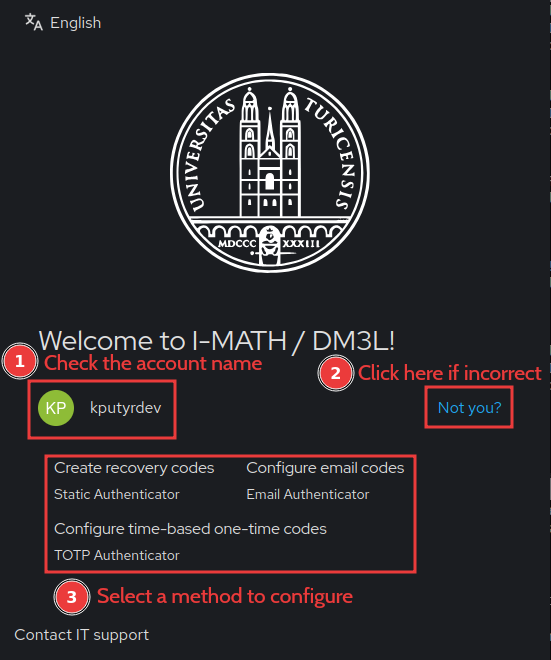
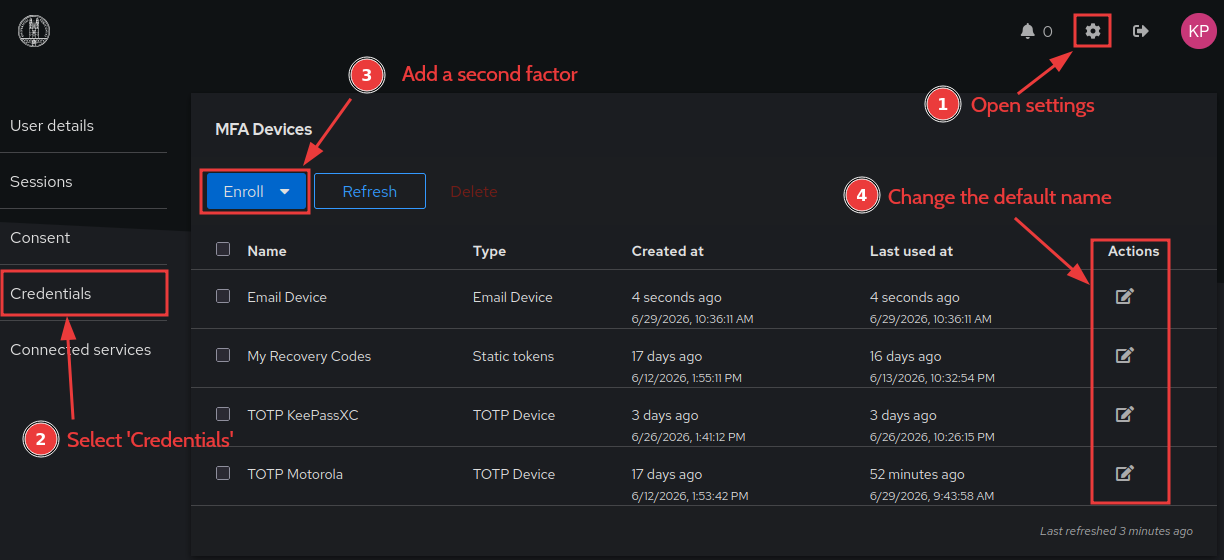
- If no MFA device is configured yet, the page asks to configure one.


- Setup MFA methods
- Recommended: Setup a) TOTP, b) EMAIL and c) Recovery - ALL of them!

- Only one email-base MFA can be configured and the email can't be changed, it uses the email assigned to the account. This is your Primary UZH Email address.
- We recommend configuring only one TOTP, across several devices (by copying the code to e.g. KeepassXC and scanning the QR code with MS Authenticator).
- Althgouth several TOTPs can be configured (like in the screenshot) and any code is accepted currently.
| Type | Use | Pro | Contra |
| TOTP | Best for daily use | Possible configuration on multiple devices - no single device dependency. | TOTP App necessary. |
| If TOTP is not available | Email is often already configured on mobile and laptop. | Email access necessary. | |
| Recovery Codes | Emergency | Stupid simple. | Codes are quickly exhausted, the last has to be reservered to get new codes. |
Optional Step 2 - configure TOTP App
- TOTP App overview and setup
- Recommendation: KeepassX
Problems
I cannot configure email codes
Please contact us on support@math.uzh.ch . Possible causes:
- There is another account this with email configured as a second factor. This usually happens to secondary accounts only.
- You have already started to configure the email, but the address has not been verified. Your MFA configuration must be cleaned.
I have lost access to my device and cannot sign in anymore
Please contact us - we will generate a short-living one-time URL to let you access your account and reconfigure MFA.
I'm stuck at "Something went wrong! Please try again later."
This usually happens when you try to configure an email-based MFA for an email that is already in use. You have to delete cookies in your browser that are associated with the domain login.math.uzh.ch, then try to use another method as a second factor.
MFA Services at I-MATH & DM3L via login.math.uzh.ch
- Thinlinc - https://tl.math.uzh.ch
- Wiki - https://wiki.math.uzh.ch
- Hello - https://hello.math.uzh.ch
- SSH - ssh.math.uzh.ch
- More services will follow (GIT, Nextcloud, R-Studio,...) to use the central MFA login.
MFA: I-MATH & DM3L - text based setup via SSH
Text based alternative MFA setup option via SSH
If you have no clue what SSH is - skip this section, you won't miss anything.
The second factor is checked by SSH connections. If no second factor is configured yet, you will have a chance to configure one.
Note 1: You can select any text with a mouse and copy to the clipboard with Ctrl+Shift+C.
Note 2: Press Ctrl+C to cancel the authentication at any step.
- Recovery codes:
- TOTP: copy the secret to your authenticator (such as KeePassXC)
- Email: the email assigned to your account will be used
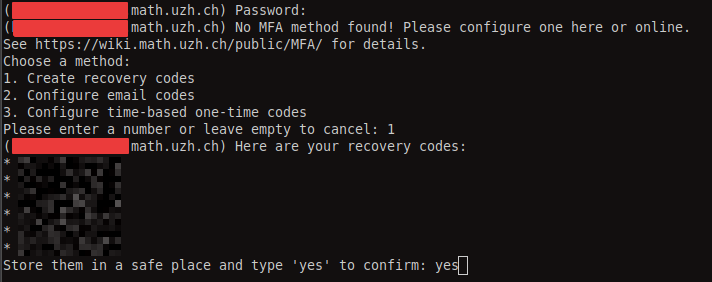
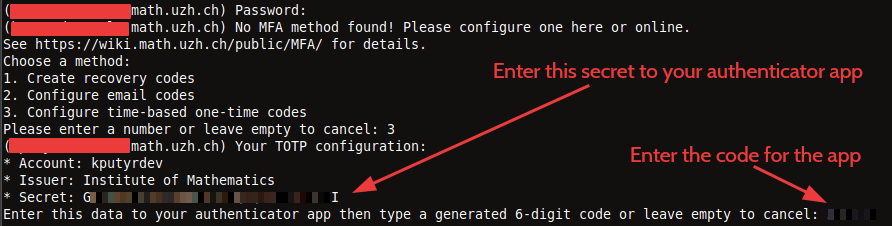

If second factor is already configured, you can use a code from any method. Type email to request an email code - an email is sent automatically only when it is the only method. 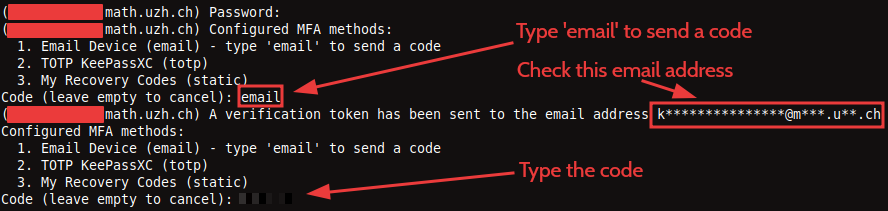
Entering an invalid code does not break the authentication process: you will be given another chance to enter a correct code.
TOTP App
| TOTP App | Browser Integration Mobile | Browser Integration Desktop | Pro | Contra |
| KeepassXC recommended |
yes | Via browser plugin. |
Save extra data. Optional: Sync to many devices. |
- |
| yes | - |
Known to many users |
Only on mobile. Only on ONE device. |
|
| Google Authenticator | yes | - | - |
Only on mobile. |
- There are other apps and online services, acting as TOTP Apps.
- TOTP is a standard.
- MS-Authenticator: If the mobile phone changes, remember to de-register first, before a new one can be registered.
Register a TOTP App
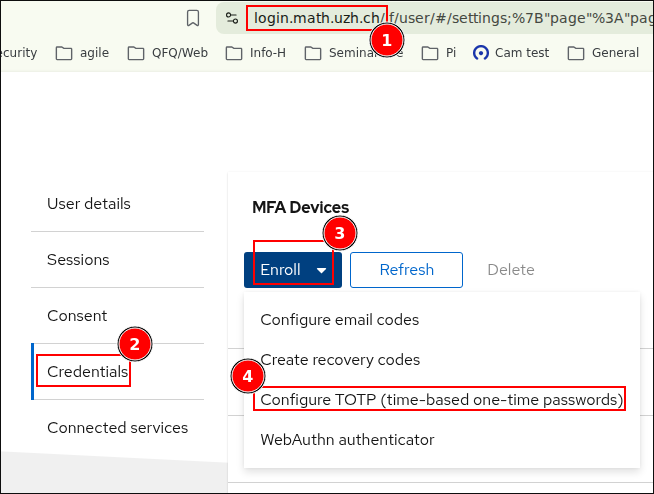
Create a QR Code / TOTP Secret
- Login https://login.math.uzh.ch
- Enroll to
Configure TOTP (...
Scan the QR Code / copy the secret
- [1] Open any Authenticator App on your phone, or (if using Keepass on a desktop) just copy the secret
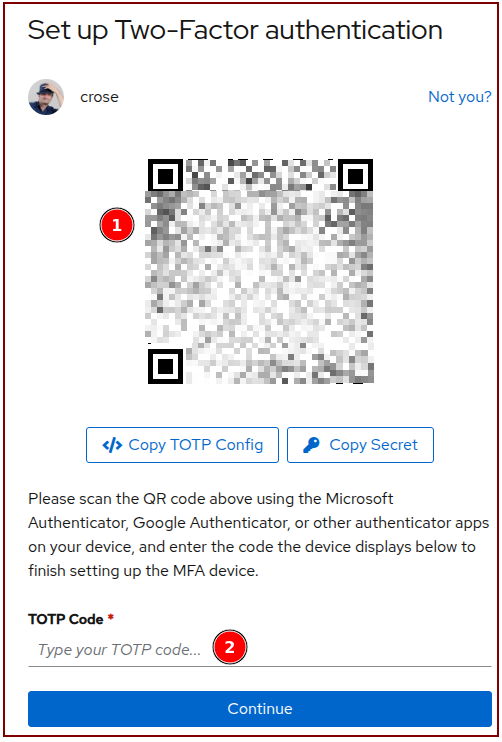
- [2] Type the new TOTP Code shown on your app into (2), to finalize the registration.
KeePassXC
An easy-to-use, cross-platform password manager with browser integration, strong encryption, zero cloud breach risk, and open-source transparency. You remain in full control of your data, because the vault is just a file. Do whatever you want with it. It is strongly encrypted, allowing you to sync it via the cloud provider of your choice. Because the format is open source, you will never lose access to your identities due to corporate mishaps, vendor lock-in, or a company shutting down.


Features
- Makes using secure passwords very very easy. The days of saving your password in an apple notes or docx file are OVER!
- Different passwords for different accounts - one get's hacked, no problem, others still save!
- Awesome browser integration! Even on mobile! Disabling your browser's password saving feature is a big security increase, as browser have a large attack surface.
- First class MFA/2FA and passkey integration, including mobile. Logging in with 2FA has never been faster.
- Open, post-quantum resistant file format.
- Apps for Android (KeepassDX) and iOS (Keepassium) - sync your vault file over all your devices with the cloud you already use.
- No single device dependency. Your passwords are wherever you sync them to (including your TOTP tokens!)
- No vendor-lock-in, no proprietary formats being discontinued in ten years, no trust issues whatsoever.
For Teams / Orgs:
- Security levels can be split into multiple vaults / files.
- This allows easy credential sharing between hierarchichal work groups.
Install
- MacOS/Windows/Linux - KeePassXC: https://keepassxc.org/.
- For Windows please observe the requirement for MSVC Redistributable to be installed
- Android: KeepassDX at Google Play Store
- iOS - Keepassium at Apple Appstore
What it does
- KeePassXC creates/opens/edits and saves password-vaults as a single, AES-256 or Twofish-256 encrypted .kdbx-file
- You can store your various usernames/passwords/URLs and also attachments like pictures or other important / private documents.
- Encryption happens via a key which is derived from a master password that you can change at any time. Additional authentication factors are also possible. (But a strong master password of >12 mixed characters is usually enough.)
- Remember the master password well. In practice, you enter it everyday (depending on your settings), so complete loss of access is very unlikely.
- All features: http://www.keepassx.org/features/
Creating a Password Vault
- Click on "File" --> "New Database..."
- You will be prompted to set a master key. Input your master password (the master password for all your other stored passwords). Then click "OK"
- Repeat your master password. click "OK".
- Chose a group. (Standard choices are Internet of eMail. You can also create your own groups).
- Click on "Entries" --> "Add New Entry..."
- Input the information you need
- Title: a short description of the entry
- Username: your username
- URL: on what homepage do you need the password (more urls can be added in the side tab Browser Integration)
- Password: your password - you can also let KPXC generate one for you. Do not go overboard with this, 24 latin characters, numbers and 'common' special chars are enough. Though unlikely, you should still be able to enter the password with a normal keyboard. (So avoid accented characters etc).
- Comment: a longer description of the entry. Make good use of this, it's very useful, because you might forget that a certain online service only required you to enter your email and no password. Note it down, so you won't be confused in 6 months when you see an empty password field.
- Click on "File" --> "Save Database"
- Chose a location and a name for your password database. click "OK"
Sync Your Vault: Sovereignty Over Convenience
Password management truly shines when your credentials are available on all the devices you need them on. To achieve this, you must sync your .kdbx database file across these devices. The security of this process depends entirely on where you store that file.
The Recommended Path: Sovereign Cloud Storage
For maximum data sovereignty, use trusted, non-US infrastructure. We recommend:
- I-MATH / DM3L Drive: drive.math.uzh.ch
- Switch Drive: drive.switch.ch (Swiss Education Cloud)
Why Avoid US-Based Giants? (Google, Dropbox, Apple, Microsoft)
While your .kdbx file is strongly encrypted, metadata and access patterns are not. Relying on US-based providers introduces critical risks:
- Legal Surveillance: Since the Snowden revelations, it is confirmed that US intelligence agencies (like the NSA) have legal pathways to compel US companies to hand over user data. Often, the company is not even allowed to tell you that they handed over your data.
- High-Value Targets: These massive platforms are the primary targets for state-level actors and sophisticated hackers, increasing the likelihood of a breach.
- Data Sovereignty: Storing confidential data on servers subject to the US CLOUD Act means you effectively lose control over who can access your data, regardless of your encryption.
Rule of Thumb: Never store confidential data on infrastructure hosted by or subject to US jurisdiction.
The Trade-Off: To Cloud or Not to Cloud?
Pros of Cloud Sync
- Ubiquitous Access: Your entire identity is available on every device instantly.
- Implicit Redundancy: The cloud acts as an automatic, off-site backup, protecting against local hardware failure.
Cons of Cloud Sync
- Expanded Attack Surface: Your encrypted vault exists on multiple endpoints. If any single device is compromised, the vault is exposed.
- Provider Risk: If the cloud provider is breached or legally compelled to hand over data, attackers obtain your encrypted vault file. While they cannot read it without your master password, they possess the target indefinitely for offline brute-force attacks.
Verdict: Syncing is essential for usability, but only if you retain control over the infrastructure. Choose a sovereign provider to ensure that even if the server is accessed, your data remains under your legal and technical protection.
Sync Strategy: Nextcloud
Configuration: Store your vault at e.g.Nextcloud/Passwords/Passwords.kdbx. Install the Nextcloud client on your devices and open the database directly from the synced local folder with KeePassXC.
How it works:
- Automatic Synchronization: The Nextcloud client keeps the
.kdbxfile updated across all devices. KeePassXC monitors the file for external changes and reloads automatically. - Conflict Resolution: If multiple devices modify the vault simultaneously, KeePassXC automatically merges the changes upon saving, preventing data loss or version conflicts.
- Team Usage: Multiple users can share the same file via a shared Nextcloud folder. Concurrent edits are merged seamlessly, eliminating the need for manual file exchanges or locking mechanisms.
This approach ensures a single, up-to-date vault across your infrastructure while maintaining full control over the storage location.
Browser integration / MFA Setup / Passkeys
- KeePassXC can be used from within a browser (Chrome, Chromium, Firefox, Vivaldi, Brave, ...)
- Browser connection to KeePassXC is nice: different browsers offer the same accounts/credentials - and if synced via cloud also on different computers.
- TOTP service (one time token)
- Passkeys
- Again, think on this: There is only one source of truth (=one KeePassXC vault), in all browsers you have all your credentials available.
Finally:
- no more MS-Authenticator app needed
- no more single device dependency (Phone at home, ...)
- login to any MFA protected website without a mobile phone - Biggest advantage: your second token are controlled by you, not any provider.
- still secure - the second factor is now your KeePassXC.
Settings

- Settings > Browser Integration > Enable integration ...: Chrome, Firefox, ...
Browser Plugin
- Install the corresponding browser plugin (links to app store: check above the settings dialog '5' )
Option: Passkeys
- Passkeys have to explicitly enabled in the browser plugin:

Regular Username / Password
- Take care that the KeePassXC icon on the top right is 'green' = connection to vault is active.
- Open the login page in the browser.

- Click on the small green kp icon.
- Choose the account.
MFA
TOTP
- To use TOTP with Microsoft Office 365 login: Add another (than MS-Authenticator-) app, as second factor How To

- Add TOTP functionality to individual accounts: Account > right mouse click > TOTP > Setup TOTP
- On a MFA-TOTP secured login website, just login as usual with KeePassXC, on the next page, where the one time token is requested, click again on the green symbol.
Hint:
- On the
TOTP setupyou have to provide the 'shared secret'. - The shared scecret is provided by the website which hosts the login, typically where the MFA can be configured.
- Either in plaintext like 'ABCD EFGH 1234 IJKL 5678 MNOP QRST UV89'.
- As a QR code to scan.
- Here sometimes it's a URL or a
fidostring. - If it is not in plaintext in the URL, hopefully the assigned app (=keepassdx) opens.
- Option: be creative - scan the QR, look at the url (or send the URL via 'share' to yourself): you should see the shared secret as an argument in the URL.
- Here sometimes it's a URL or a
Passkey
- Passkey / webauthn are offered as an additional way to use MFA.
- Passkeys are significantly more secure than MFA via a) email code or b) One Time Token, c) Authenticator App, cause they use pairing between store and the application.
- But: Some websites work better than others. E.g. eduid.ch is ok, gitlab is ok but with popup, Microsoft is broken for Linux/Chrome/KeePassXC, ...
- The paring is also a disadvantage: you need different keys for each store. Sure, KeepassXC acts like 'one store'.
- Logging to a passkey secured application only works with a running passkey device / software.
- In contrast: TOTP is fine if you get the code from your Mobile/Keepass App and type it in a browser on a computer.
- Using passkeys is recommended, but only after you got experience with KeepassXC and the corresponding browser plugin.
Recovery Keys
- Some services offer recovery keys.
- Copy the keys in corresponding account record in KeePassXC.
- If you used a key (it's burnt now), remove it from the list (if there was only one key, update it with the new one).
Same account / different URLs
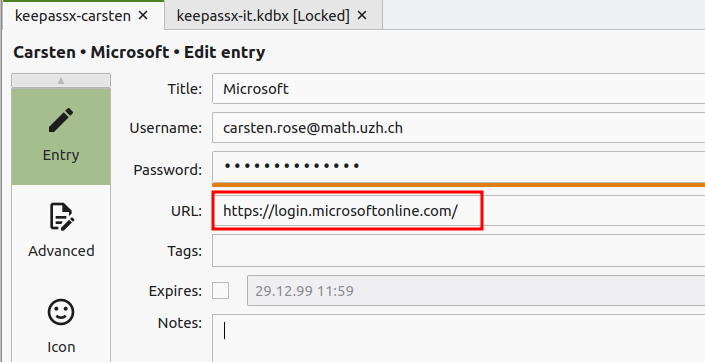
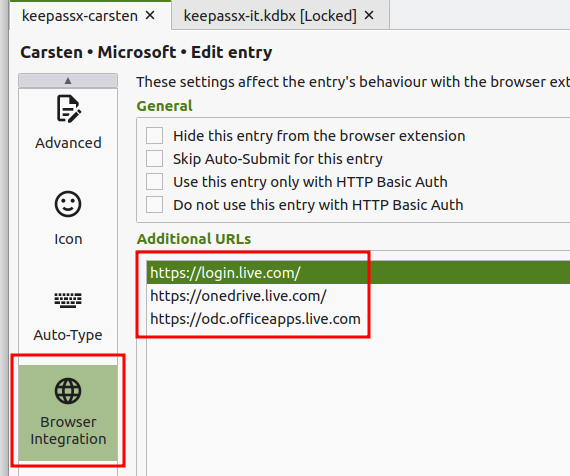
- Some services, e.g. Microsoft (https://login.live.com/, https://login.microsoftonline.com/, https://onedrive.live.com/, https://odc.officeapps.live.com), use a million different URLs to login. No problem.
- Don't make new KPXC entries, just add the additional urls to the Additional URLs section in the Browser Integration tab in the main Entry (e.g. your "Microsoft" entry)

- This is very powerful - add as many URLs you like to the same account record - the helps to keep your vault clean!
https://odc.officeapps.live.com
https://onedrive.live.com/
https://login.live.com/
Problems
Brave: No connection
If connection to KeepassXC fails after (re)starting Brave:
- In KeepassXC open
Settings > Browser Integration > Enable integration for there browsers: Off & On
Brave: Plugin spinning wheel turns all the time, no connection
Option 1
- Quit Brave.
- Optional: Check that there are no leftover processes.
- Check if keepassx gets a connection.
- No? Repeat the quit/restart at least 4 times - answer question like 'Restore pages' or 'Profile broken' (than quit). ... makes no sense, right? Try it!
Option 2
- Open the keepassx plugin options page.
- Change a setting.
- Close the tab.
- Open the keepassx plugin options page again.
- Is the setting still the one you choosed before?
- No: exit Brave (check that all processes are closed).
- Repeat the test - up to 3 times!!!
Option 3
- In Brave: Remove extension keepassxc plugin.
- Quit Brave.
- Check that really all brave processes are quit:
ps -ef | grep brave | grep $USER - Clean tempfiles:
\rm -R /tmp/.cache-$USER/BraveSoftware - Start Brave again.
- Install Brave plugin
keepassxc. - Optional: Import Brave plugin
keepassxcsettings (export them earlier when all is fine).
Option 4
- Close all Browser: Chrome, Brave, Firefox, Teams [PWA], Spotify [PWA]
- Close KeepassXC
for II in keepassxc-proxy keepassxc brave firefox chrome; do pkill $II; pkill -9 $II; done- 💡 Start and quit brave
- Start KeepassXC
- Start brave.
- If necessary, remove keepassxc plugin and reinstall.
- Connect to KeepassXC
Android: KeePassDX
- Setup the cloud service (e.g. Nextcloud).
- Install Nextcloud: https://play.google.com/store/apps/details?id=com.nextcloud.client
- On the file
Passwords > Passwords.kdbxset via three dot menu > synchronize
- On the file
- Install: https://www.keepassdx.com/
- Open KeePassDX
- Choose
open existing databaseand selectNextcloud > Passwords > Passwords.kdbx
- To unlock KeepassDX via fingerprint, check https://github.com/Kunzisoft/KeePassDX/wiki/Device-Unlocking
- To use the Android virtual keyboard to fill in a password on a website, activate in Android
Settings > Password, Passkeys, ... > Preferred Service: KeePassDX
-

Browser integration
- Chrome based browser:
Settings > Autofill-Services > Autofill with other Services - Firefox:
Not necessary
TOTP
- Android Autofill should be assigned to KeePassDX (see above)
- Google Chrome based browser: select
Autofill: System Services - Open webpage with login page: after a short moment, you'll see in the virtual keyboard all matching entries. Select the corresponding.
- Hint: not all websites offers autofill integration for TOTP - e.g. https://login.microsoftonline.com/ regular has problems (depending on time and moon phase).
- Alternative: Switch keyboard to 'Magic Keyboard' - https://txtechnician.com/blog/tech-tips-2/how-to-use-keepassdx-magic-keyboard-for-seamless-autofill-on-android-13
iOS: KeePassium
- Install Nextcloud: https://apps.apple.com/us/app/nextcloud/id1125420102
- Install: https://keepassium.com/
- Activate to be used as source:


In browser authenticator
This solution is perfect for users without a smart phone. This guide shows how to use it with git.math.uzh.ch, but the steps are the same for other pages.
Install the authenticator extension
| Extension name | authenticator.cc |
| Available for | [[https://addons.mozilla.org/en-US/firefox/addon/auth-helper?src=external-github|[FrontPage/firefox-add-ons.png]]] |
| [[https://chrome.google.com/webstore/detail/authenticator/bhghoamapcdpbohphigoooaddinpkbai|[FrontPage/chrome-web-store.png]]] | |
| [[https://microsoftedge.microsoft.com/addons/detail/ocglkepbibnalbgmbachknglpdipeoio|[FrontPage/microsoft-store.png]]] | |
| [[https://apps.apple.com/us/app/authen/id1602945200?mt=12|[FrontPage/apple-store.svg]]] |
Install the extension from the appropriate store using the above links. The most up-to-date links are provided on the official github page of the extension:
Register the extension for MFA with a QR code
- Scan the QR code with the extension by pressing the scan icon
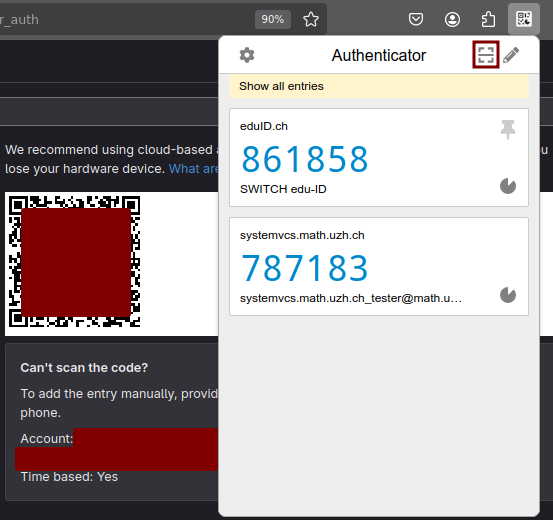
- Select the area of the page with the QR code
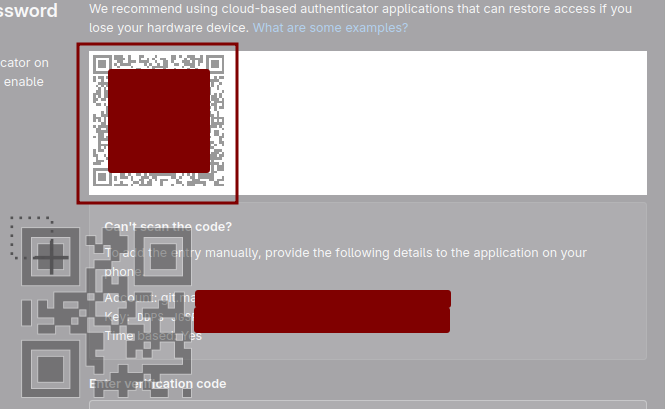
- The page will ask you for a code generated by the authenticator app - see below how to get the code

Note: If you want to use the extension in several places (e.g. both FireFox in a ThinLink session and an authenticator app on you smart phone or a browser on your personal laptop), please save the secret key provided along with the QR code. You can use the code to configure the extension in other places. The code is saved nowhere and once you close the page (or provide the code as in the last step above) it is not possible to access it again.
Usage
- Provide login credentials on the page.
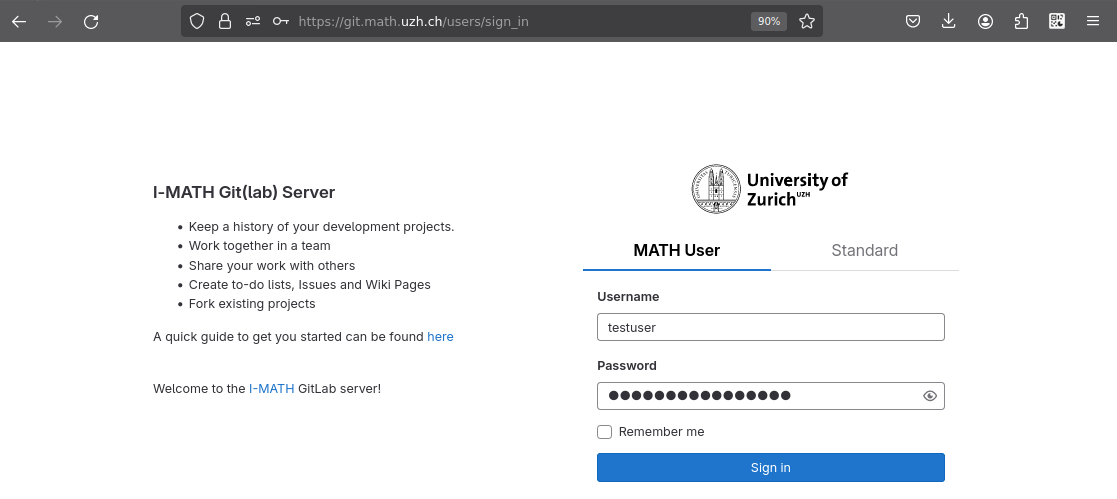
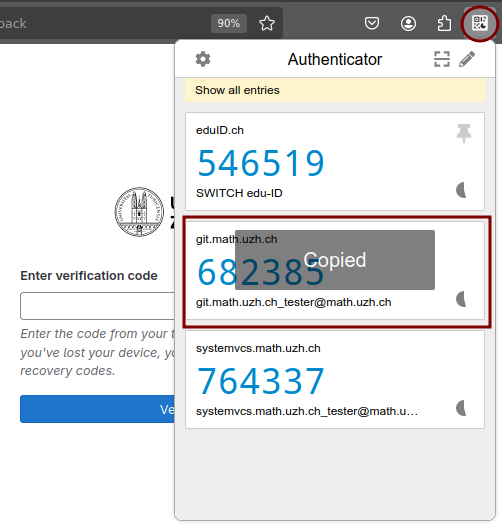
- When asked for the token:
- Open the authenticator extension and click on the proper entry to copy the code to the clipboard. You should see "Copied" displayed over this entry.
- Paste the code on the page (e.g. with Ctrl+V).
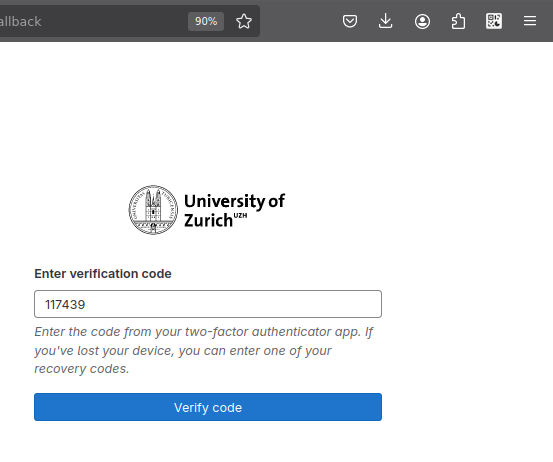
Note: On the first time the browser will ask you to permit the extension to use the clipboard - please allow it. If you choose otherwise, you can still copy the code manually (select then press Ctrl+C) or enter it manually on the page.
Remove an app from the extension
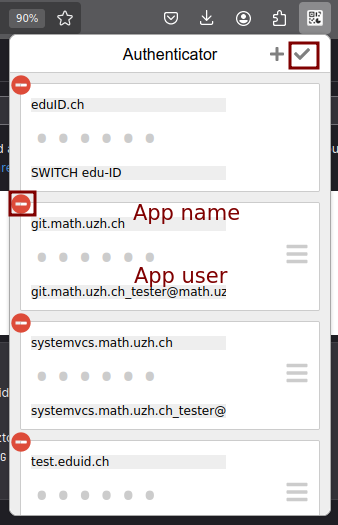
- Click on the extension icon, then the pen icon
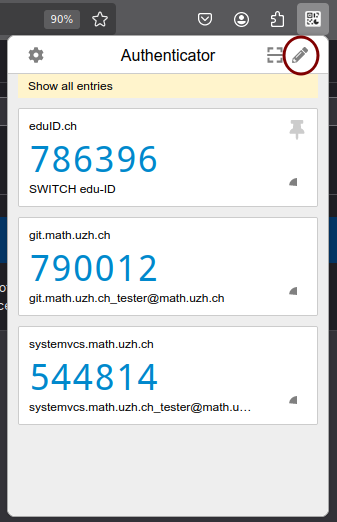
- Edit app properties and save by clicking the tick icon or remove the app by click the red disk icon
Microsoft Authentication
Microsoft Authentication
- Manage sign in options: https://mysignins.microsoft.com/security-info
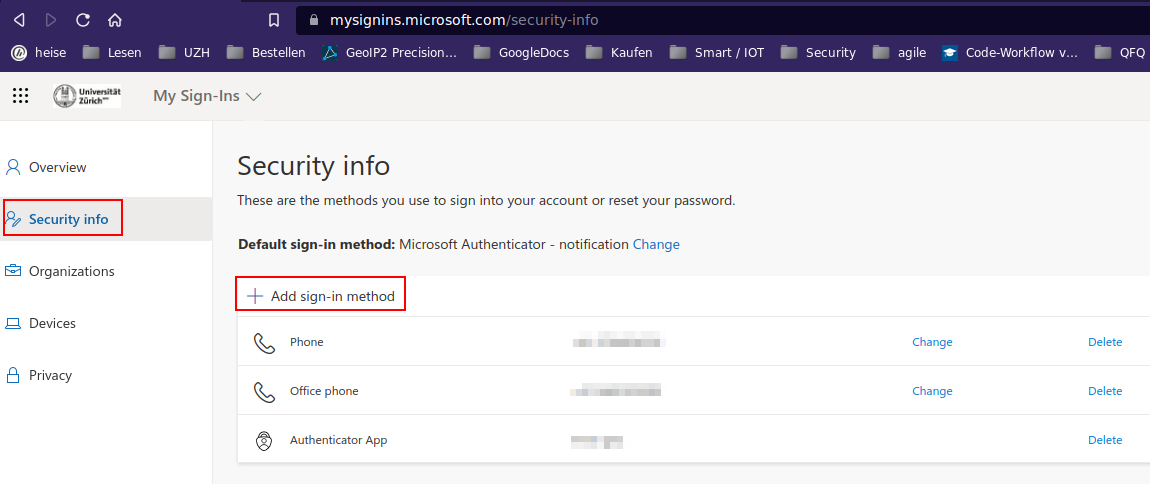
- MFA (Multi Factor Authentification) can be configured in different ways:
- a) Authenticator App, like KeePassXC, MS-Authenticator, Google Authenticator
- b) SMS on Mobile Phone,
- c) voice computer to classical phone
- The default way is to use the Microsoft Authenticator App.
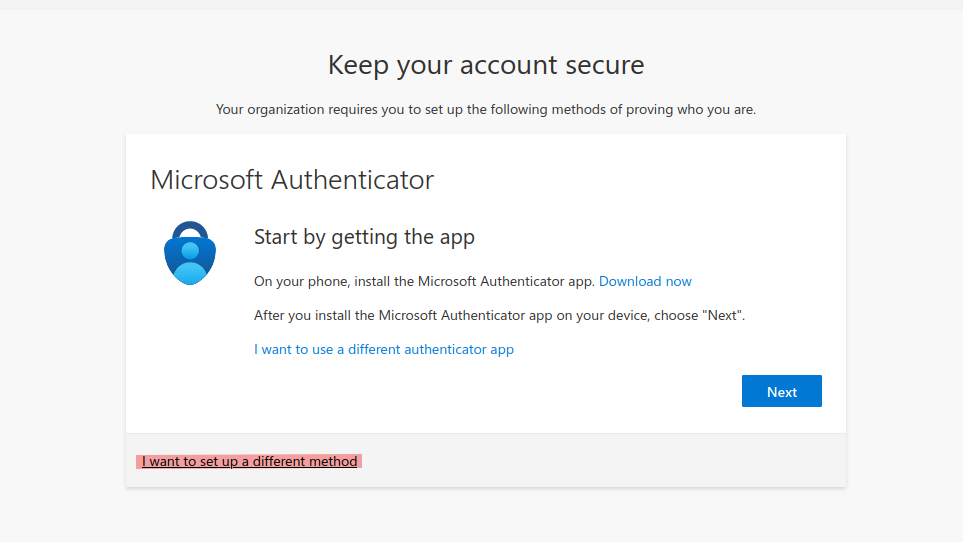
- But: After choosing 'Microsoft Authenticator App', also an alternative app can be selected (see below).
- Disadvantage of Microsoft Authenticator App: it binds to one device. An app registered Office365 account can only be unlocked with the specific device (or by phone call/SMS) - what is if your phone is broken and App and phone is on the same device?
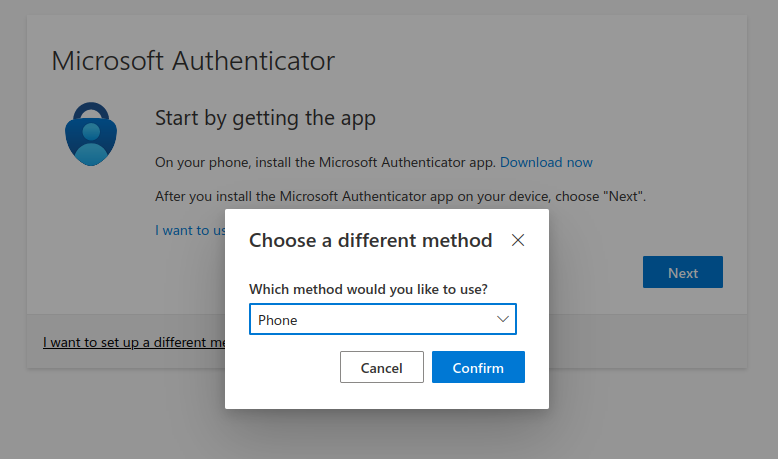
- To use a different method of Authentication, you can choose 'I want to set up a different method' when setting up your Microsoft Account.
- If you choose 'Phone', enter your mobile or office phone number or private phone number.
Add third party TOTP app
Attention: before you change your second factor: take care that there is always one factor which works! Typically your mobile number is a reasonable fallback during the reconfiguration.
Adding and removing factors: the system might ask again for authentication, even if you are still logged in!
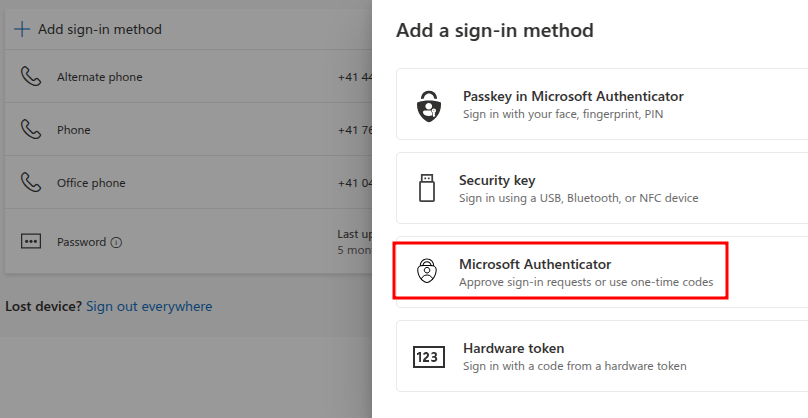
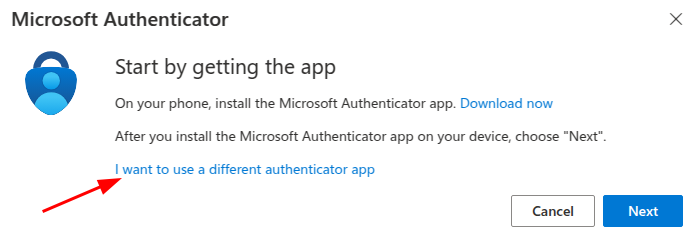
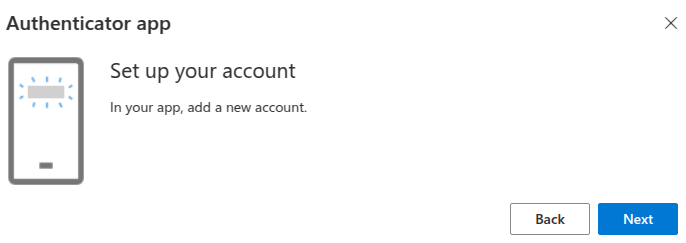
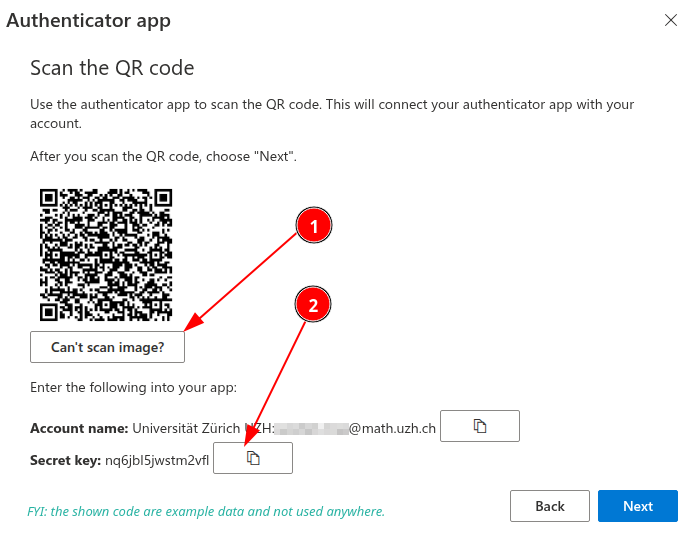
Recommendation: Additional phone numbers
- You'll need this to login to outlook.com (very seldom necessary), teams.microsoft.com (teams will be more often used), zoom.us, KWF, ...
- What happens if you forget your mobile at home, or your mobile is not working, or you are at home, ... or whatever. Our recommendation is to configure several additional ways:
- office phone number (if you don't have access to your mobile phone)
- personal mobile phone number (if you're not in your office)
- if exist: classical phone from at home (if your mobile is broken)
- https://www.zi.uzh.ch/en/support/Outlook-und-Kollaboration-Office-365/setup-multifactor-authentification.html
Authentication method
- Authentication methods have fixed priorites (not changeable by user).
- The highest priority has 'MS Authenticator'. If this method is configured, this is always the default.
- Via "Sign in another way" you can choose TOTP or SMS, ...
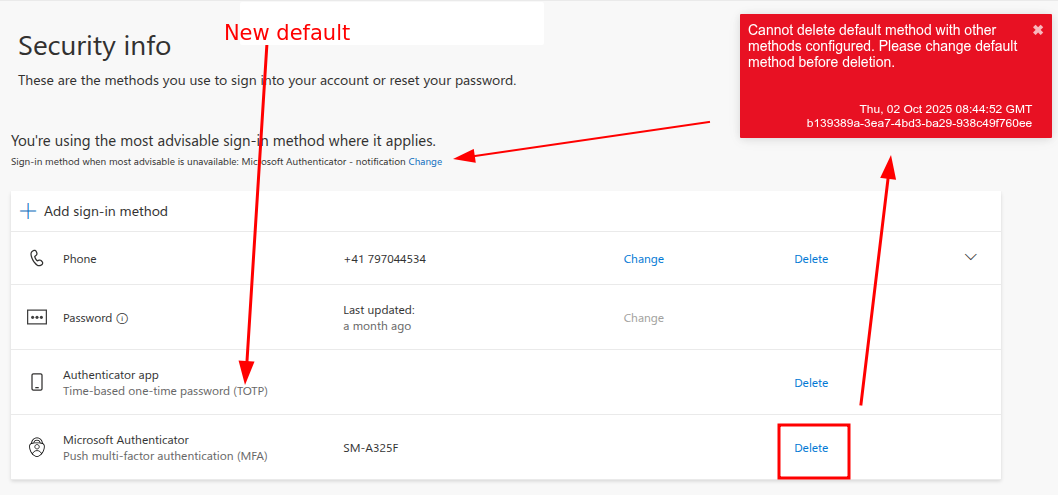
- If TOTP is not offered, please go to https://mysignins.microsoft.com/security-info, click on 'Change' and select the TOTP or phone method.
- To change the the default authentication method, you have to remove methods with a higher priority. E.g. the 'MS Authenticator App'.
- in case when you click on 'delete' and you get an error, please change via "Sign-in when most... CHANGE" to TOTP or Phone.
MS Websites
Best is to add the following websites to the personal KeepassX Account:
- https://login.microsoftonline.com/
- https://login.live.com/
- https://onedrive.live.com/
- https://odc.officeapps.live.com
Lost Access
- If you lost access to your Microsoft Account, you can contact the ZI Support and ask them to reset your Accounts Authentication settings.
- ZI Support Contacts:
- Self-Service Portal: https://support.uzh.ch/
- More Information: https://www.zi.uzh.ch/en/support.html
- And for the next time: remember to setup a second way of authentication, before you loose the first one 😉
- After the reset, log in to your Microsoft Account and follow the steps listed under Method to set up your Microsoft Authentication
Thinlinc MFA login
SSH/ThinLinc: GUI client
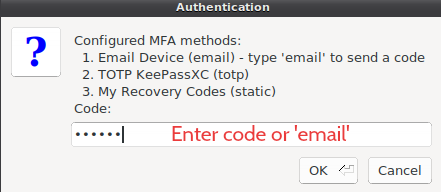
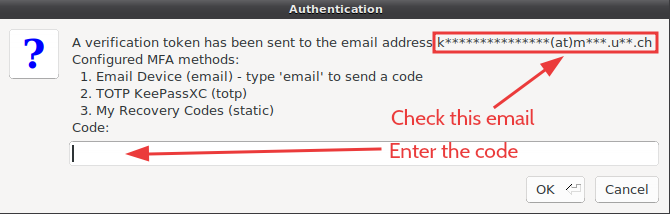
The authentication process is the same when a GUI client like !ThinLinc client is used. However, this method is least friendly for the initial configuration: the displayed text cannot be copied. Because of this we suggest other ways to configure the MFA initially.
1. Please login over ssh or with !ThinLinc. If no MFA device is configured yet, a selection of options is shown.
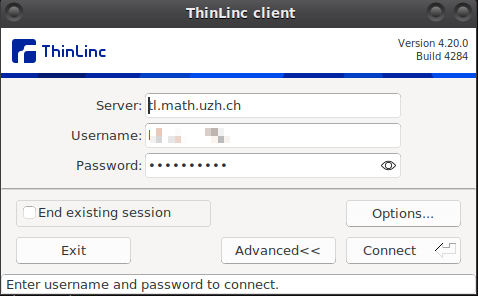
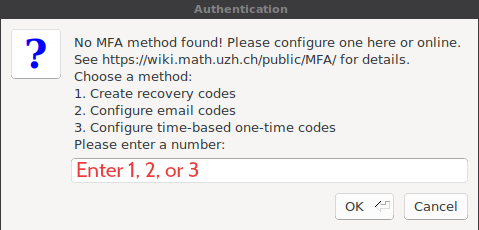
2. The easiest one to configure is email, but all three choices are possible:
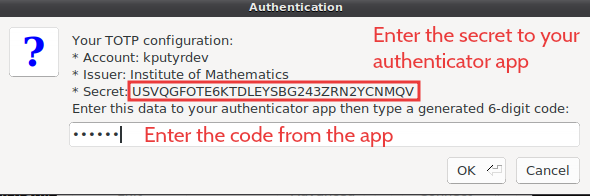
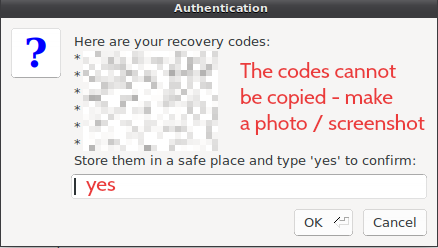
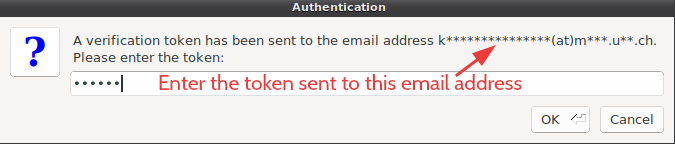
3. If the second factor is configured, a list of methods is shown and you can use a code from any of them. Type email to request an email code - an email is sent automatically only when it is the only method.