
UZHPrintPlus - UPP
Contents
Users
- Anyone with a UZH Identity should be able to print.
- MATH/DM3L Guest Accounts cannot print tp UPP.
Students have to charge their UPP account: https://uzhprintpluscharge.uzh.ch/ig/budgetrecharge/index.php
- Member of the MATH/DM3L institute: printing costs will be charged to the institute.
Authentication on copy machine
For all actions: please authenticate yourself with your UZH-Card (Badge).
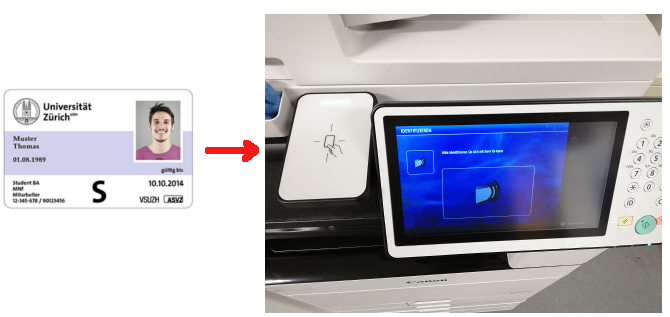
- Use your UZH Credentials (=Outlook/Teams)
If your password does not work, please login on https://identity.uzh.ch - the password from that account is mostly identical to the one used to register the UZH card.
Copy
- Insert your Documents in the paper-feed or the original glass
- change the copy settings if requested.
- Press start on the Printer-station.
Printing (secure Print)
Secure Print allows you to your print your documents, by UZH Badge authentication.
- Select on Thinclinc or Windows one of the print queue
"UZH-PrintPlus" or "UZHPrintPlusPCL"
- Walk to one of the public printers and authenticate yourself with your badge on:
- J Floor
- K Floor
- In the Menu
- Press Secure Print
- Press Drucken und verwalten

- Choose one of your print jobs
Press Drucken + Löschen to print out
To delete jobs press Löschen

- Old printing jobs will be removed after 72h.
Scan
- Authenticate via UZH card
Press 'Scannen & Senden'
- Press 'Scan to mail'
- Scan - will be sent by email, to the address associated with your UZH Shortname.
Further:
- Scan to USB stick.
Math account != UZH Shortname
- To print via commandline to a different user queue (e.g. the I-MATH account is different than the official UZH Shortname)
lp -U <UZH Shortname> -d UZH-PrintPlusPCL <file.pdf>