- Fully supported via native client.
Mac OS X: "macOS (formerly OS X) versions newer than 10.9 installs with a default setting that breaks the multi monitor functionality of the ThinLinc client. A workaround to this problem is to disable setting Displays have separate Spaces in settings for Mission Control found in System Preferences."
Primary / Secondary Display
- In a multi head setup, one screen becomes the primary screen.
- Typically, on the primary screen is the menu bar.
- Most people prefore the left screen as primary. This can be configured.
- Sometimes a computer (lthinstations in the institute) detects the connected screens in a different order, and than suddenly the primay screen is on the wrong side.
How to fix / change primary sceen:
Disconnect from thinlinc session.
- Open the screen setup on your computer.
On thinstation (computer at the institute): Menu > Configuration > Display Properties
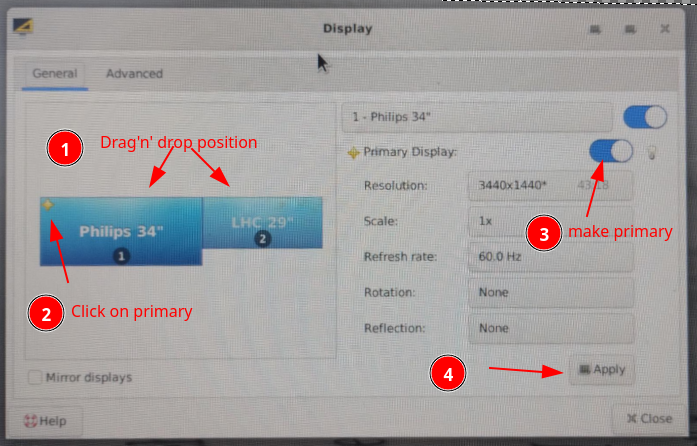
- Login to thinlinc