|
Size: 870
Comment:
|
Size: 921
Comment:
|
| Deletions are marked like this. | Additions are marked like this. |
| Line 7: | Line 7: |
| Clicking on the Globe Symbol (Directory) displays the list of all public channels. By clicking on one of those groups, you will see the active conversation and can join it by clicking on the JOIN button at the end. | * Clicking on the Globe Symbol (Directory) displays the list of all public channels. {{attachment:globe.png}} |
| Line 9: | Line 10: |
| == Channel == | * By clicking on one of those groups, you will see the active conversation and can join it by clicking on the JOIN button at the end. {{attachment:directory.png}} |
Rocket Chat
You can find the Rocket Chat application under Applications > Internet > Rocket.Chat
Channels
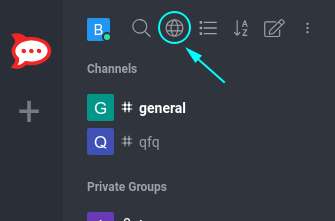
- Clicking on the Globe Symbol (Directory) displays the list of all public channels.
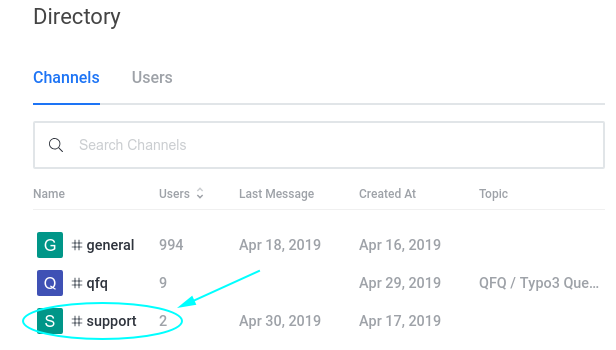
- By clicking on one of those groups, you will see the active conversation and can join it by clicking on the JOIN button at the end.
Inside a channel, you can click on the three dots at the top right corner, which opens a list of various options.
- File List
- See all the files that are uploaded to the channels
- Mentions
- See everyone that tagged you in their own message by writing @yourUsername
Starred Messages
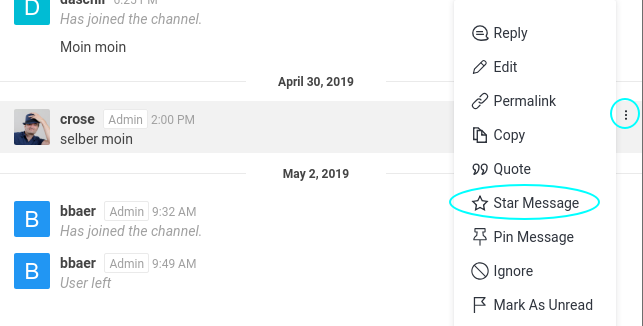
If you want to remember a message for later, you can star it by clicking on the 3 dots at the right side of the message and choosing Star Message, see Screenshot below.