|
Size: 486
Comment:
|
Size: 492
Comment:
|
| Deletions are marked like this. | Additions are marked like this. |
| Line 4: | Line 4: |
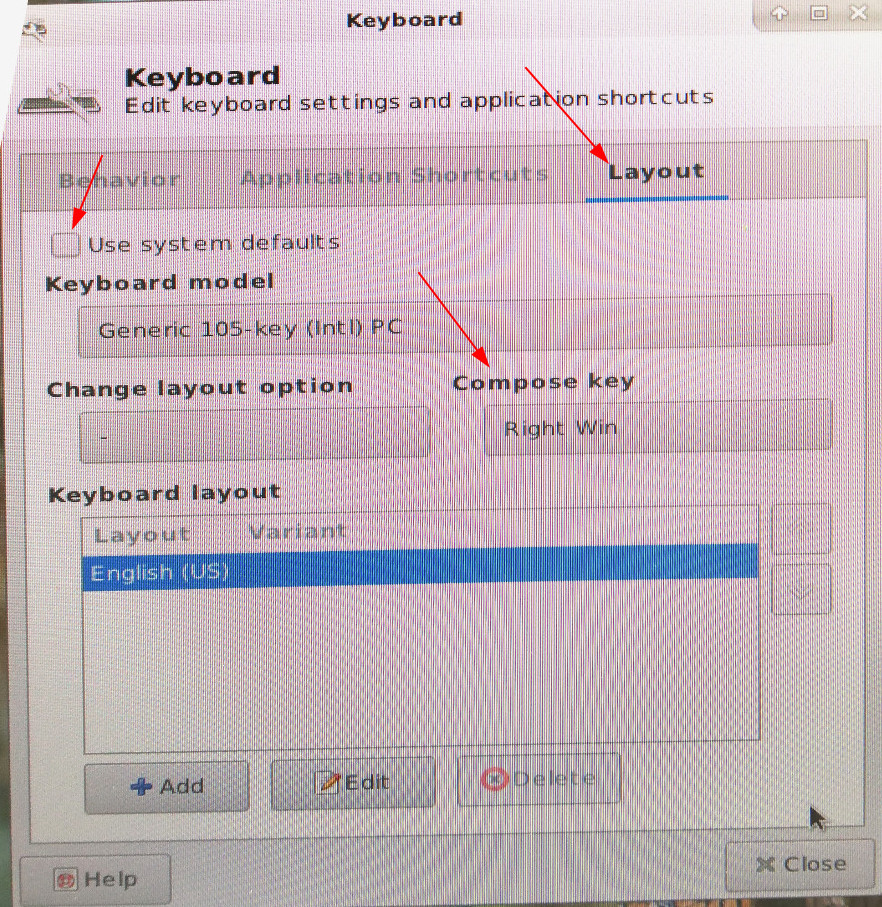
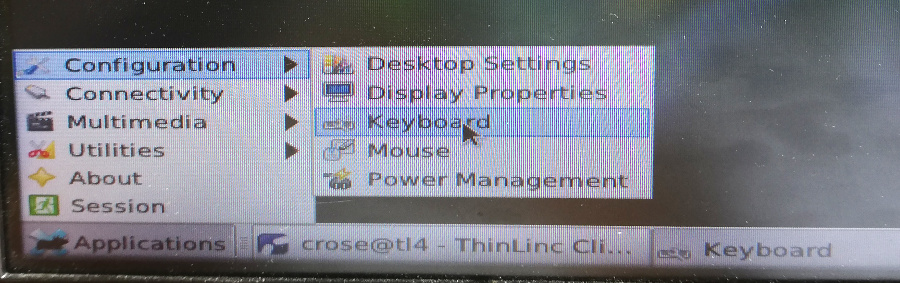
| 1. click F8 and untick "Full Screen" 1. on the right corner click Applications-> Configuration -> Keyboard 1. select the tab "Layout * untick "Use system defaults" * select " Keyboard model" i.e. "Generic 105-key" * select "Compose Key" i.e. "Right Win" |
1. click F8 and untick "Full Screen" 1. on the right corner click Applications-> Configuration -> Keyboard 1. select the tab "Layout * untick "Use system defaults" * select " Keyboard model" i.e. "Generic 105-key" * select "Compose Key" i.e. "Right Win" |
enableComposeKey
On the new NUC's Thinlic the compose Key is may not available. Please follow the instructions below to enable it:
- click F8 and untick "Full Screen"
on the right corner click Applications-> Configuration -> Keyboard
- select the tab "Layout
- untick "Use system defaults"
- select " Keyboard model" i.e. "Generic 105-key"
- select "Compose Key" i.e. "Right Win"