
thinlinc
The thinlinc environment provides a simple printing solution for workstations and personal devices.
Create own printer instances
Create own printer instances with personal settings. Such instances are only available via command line.
[user@host
# Create an instance 'jcolor/bw', which prints to 'jcolor', but always in b/w:
$ lpoptions -p jcolor/bw -o ColorModel=Gray

# To use the new instance:
$ lp -d jcolor/bw output.pdf

# Show all printer, incl. instances:
$ lpstat -t

# The local instances are saved under
~/.cups/lpoptions
Printing with Command Line
lpstat -a
Show default printer
lpstat -d
Set default printer
lpoptions -d Ex:
lpoptions -d k
Print
lp [-d ] Ex:
lp -d h52 paper.pdf
Print several copies (see notes)
lp -n [-d ] Ex:
lp -n 5 paper.pdf
Print several copies (see notes) in the order 1,2,3...
lp -o Collate=True -n Ex:
lp -o Collate=true -n 5 paper.pdf
Print several copies with staples (see notes)
lp -d -o RepeatJob= -o StaplePos=1PLUEx:
lp -d j -o RepeatJob=10 -o StaplePos=1PLU exam.pdf
Print 2 pages on one site
lp -o number-up=2 Ex:
lp -p number-up=2 paper.pdf
Printing one sided on a duplex printer
lp -o duplex=None Ex:
lp -o duplex=None paper.pdf
Printing duplex with turning on short edge
lp -o duplex=DuplexTumble Ex:
lp -o duplex=DuplexTumble paper.pdf
Printing transparencies
lp -o media=Transparency Ex:
lp -o media=Transparency
Printing with stapling (see note 1) - only j, jcolor, k, kcolor
lp -d jcolor -o StapleType=StapleON -o StaplePos=(1PLU|1PRU|1PLB|1PRB|2PL|2PR|2PU|2PB) Ex:
lp -d jcolor -o Duplex=None -o StapleType=StapleON -o StaplePos=1PLU -o sides=one-sided
Printing booklet via jcolor_booklet and kcolor_booklet (see note 3)
lp -d -o print-color-mode=Color|Grayscale Ex:
lp -d jcolor_booklet -o print-color-mode=Color -o PageSize=A5 paper.pdf
Printing booklet via j-ps and k-ps (see note 3)
lp -d -o BindMode=SaddleStitch -o Duplex=None -o Booklet=Left -o print-color-mode=Color Ex:
lp -d jcolor -o PageSize=A5 -o BindMode=SaddleStitch -o Duplex=None -o Booklet=Left -o Finishing=Col -o print-color-mode=Color paper.pdf
Note 1: Pay attention on combining copies and stapling. If you like to print a PDF (e.g. 4 pages) 10 times, do NOT use the -n parameter. The whole printjob, 4 pages * 10 copies, will be stapled together (only one)!
Solution: Use the 'Repeat Job' option in the advanced tab of the print dialog
Note 2: Do not print many copies at once, because it requires a lot of resources of the printer.
Solution: Use the lpRepeat script instead (with the -s parameter to specify a delay):
$ lpRepeat -d h52 -n 30 -s 15 big_file.pdf
Note 3: Booklet printing can be simplified with the lpBooklet script:
# Color print
$ lpBooklet -d jcolor -f booklet.pdf

# Black & white print
$ lpBooklet -d j -f booklet.pdf
Option values
Duplex: one/two sided print
StaplePos: staple position
Printing with graphical interface (evince PDF viewer)
Stapling
In the print preview dialog select j, jcolor, k, or kcolor and on the tab 'Advanced'
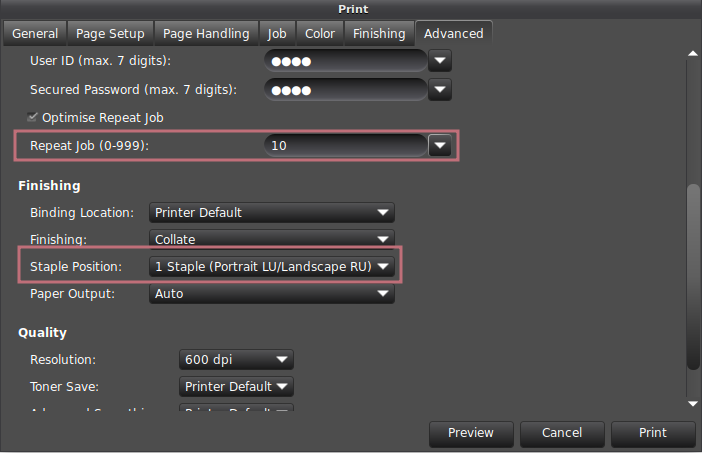
Note: do not specify Copies on the General tab to print several stapled copies! If you do so, all copies are stapled together!
Booklet
In the print preview dialog select jcolor_booklet or kcolor_booklet - these printers are already configured for booklet printing.
Alternatively, select j, jcolor, k, or kcolor and choose the following options:
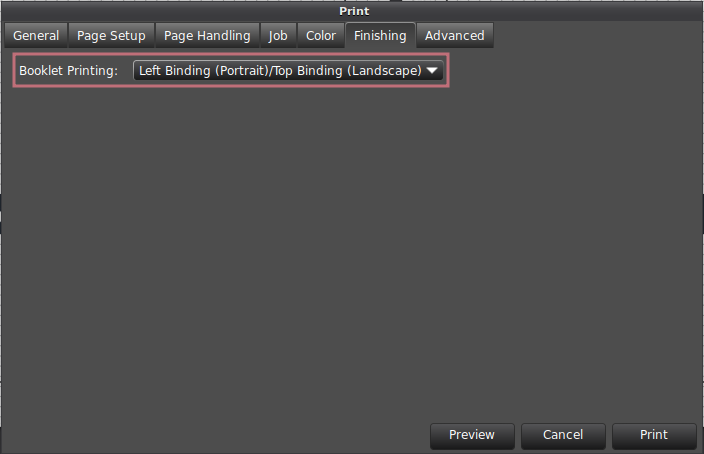
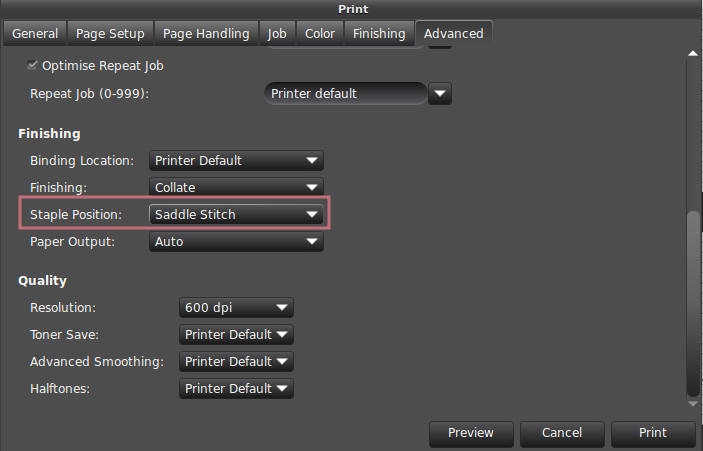
Note: booklet printing requires A4 or A5 format.
Printing exams - lpSequential
If you have a personalized exam, one PDF for all students, and you like to print it and the output should be:
than use the lpSequential script (commandline).
k, kcolor, j, or jcolor.
: If you have an exam pdf with 200 pages (one big file, 25 students, 8 pages per exam) the whole file will be split in jobs as and such part will be printed.
: '1', if you start from scratch, else the last reported printed page + 1.
: This is only necessary if you want to be sure that all exams are in exact same order as in the PDF. A reordering might appear inside the printer, if there are multiple print jobs at the same time in the local printer queue. If a delay is specified, this helps to take care that are never more than 2 jobs in the local printer queue at the same time. The amount of delay in seconds depends on the print job size. Start with 5 seconds and stop and increase if it is too short. You can check the local printer queue on the touchscreen at the copier.
# K Floor (k)
$ lpSequential -o Duplex=None -o StaplePos=1PLU -o StapleType=StapleON -o sides=one-sided <file.pdf> k <pages per exam> <start page to print from> <delay in seconds>
# J Floor (jcolor_booklet) - with color
$ lpSequential -o Duplex=None -o StaplePos=1PLU -o StapleType=StapleON -o sides=one-sided -o print-color-mode=Color <file.pdf> jcolor <pages per exam> <start page to print from> <delay in seconds>
Example:
lpSequential -o Duplex=None -o StaplePos=1PLU -o StapleType=StapleON -o sides=one-sided exam.pdf k 16 1 0
printer 'k', 16 pages per exam, starting at 1, no delay
Shifting
lpSequential -o Duplex=None -o sides=one-sided exam.pdf jcolor 8 33 5
printer 'jcolor', 8 pages per exam, starting at 33, 5 seconds delay