
Outlook
Overview
Your I-MATH mailbox is hosted on Microsoft Exchange Online (Outlook). Your e-mail address stays the same — only the mail server changes. This page shows the different ways to access your mailbox and how to set up Thunderbird step by step.
Ways to access your mailbox
1. Web interface
The quickest option, no installation needed: open https://outlook.office.com in your browser and sign in with your UZH e-mail address and password.
2. Outlook app via Citrix (staff only)
Staff members can use the full Microsoft Outlook desktop application through the UZH Citrix environment. Sign in to the Citrix portal and launch Outlook from the list of available apps.
3. Thunderbird (or another IMAP client)
You can keep using Thunderbird on your own computer. Follow the step-by-step guide below. The same server settings also work for other IMAP clients (e.g. Apple Mail).
Thunderbird: set up your Outlook account
Step 1 — AddOpen athe newAccount mail accountSettings
Open Thunderbird and go to ≡ Menu → Account Settings. Clickclick the gear button at the bottom left (1) andto chooseopen the NewSettings tab. In the sidebar, click Account → Mail Account…Settings (2).
[Insert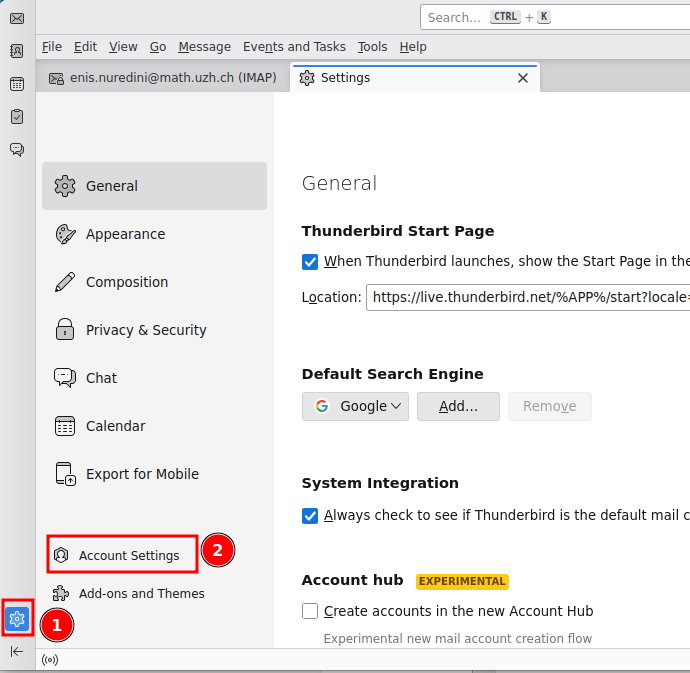
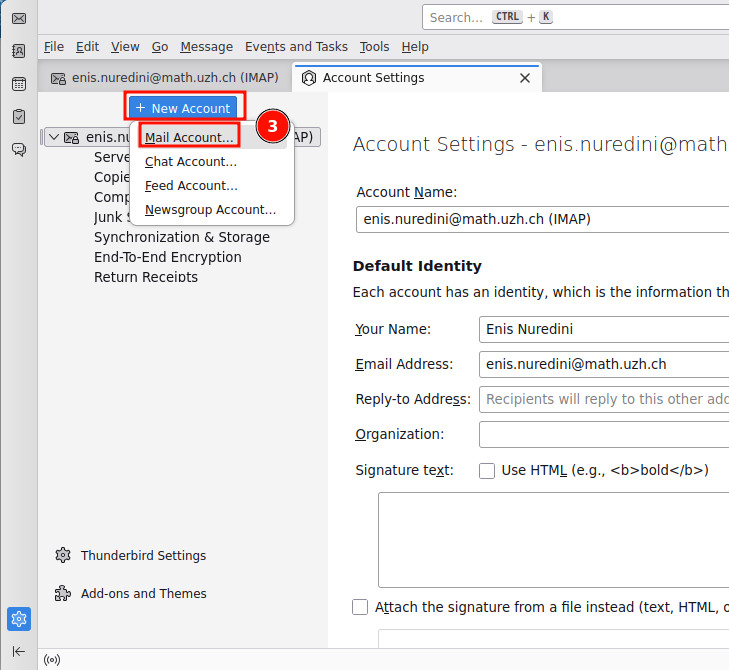
Step config_01.pnghere,— thenAdd deletea thisnew box]mail account
In the Account Settings tab, click + New Account above the account list and choose Mail Account… (3).
Tip: your old mail account stays in Thunderbird — the Outlook account is added next to it. Give the new account a recognizable name (e.g. «… (Outlook)») so you can tell the two apart.
Step 23 — Enter your identity
In the Account Setup tab, fill in:
- Your full name — shown to recipients of your e-mails
- Your e-mail address (e.g.
firstname.lastname@math.uzh.ch) - Your UZH password (check «Remember password»)
Then click Configure manually (4) — do not click «Continue», the automatic detection does not find the correct settings.
[Insert screenshot config_02.png here, then delete this box]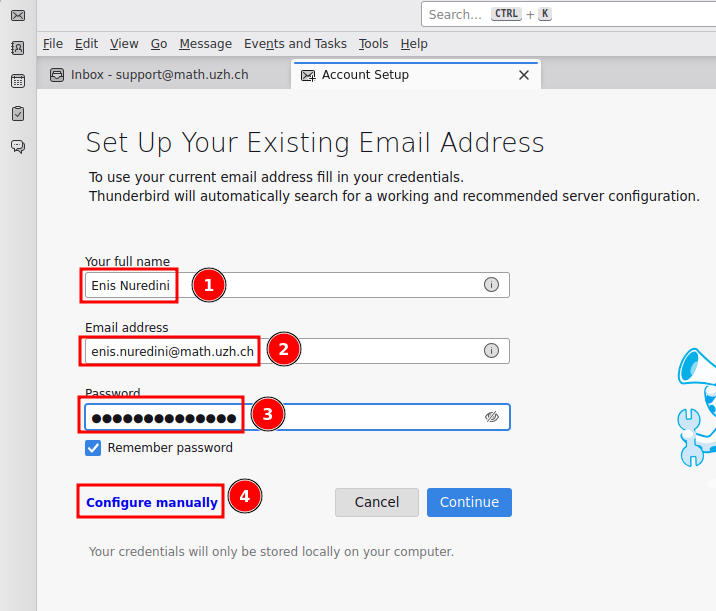
Step 34 — Manual configuration
Enter the following server settings:
| Incoming server | Outgoing server | |
|---|---|---|
| Protocol | IMAP | SMTP |
| Hostname | outlook.office365.com |
smtp.office365.com |
| Port | 993 | 465 |
| Connection security | SSL/TLS | SSL/TLS |
| Authentication method | OAuth2 | OAuth2 |
| Username | your full e-mail address | your full e-mail address |
Click Re-test and then Done.
[Insert screenshot config_03.png here, then delete this box]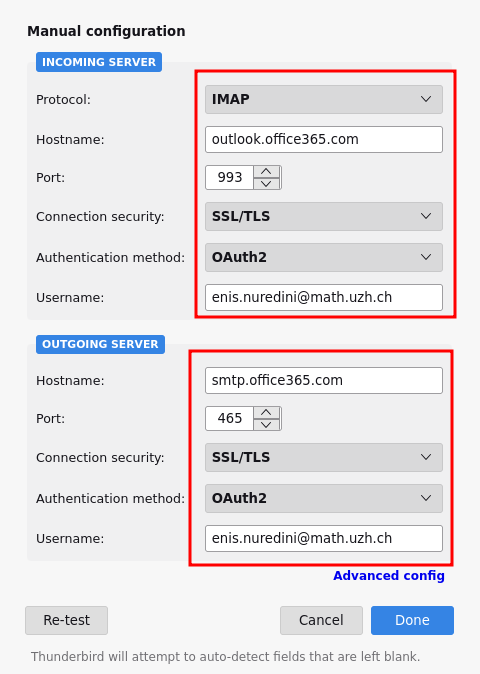
Step 45 — Microsoft sign-in
Because the account uses OAuth2, a Microsoft sign-in window opens the first time Thunderbird connects. Sign in with your UZH credentials and confirm the multi-factor authentication (MFA) prompt. After that, Thunderbird stays connected automatically.
Migration: what is preserved?
When your mailbox is migrated to Outlook, all e-mails and your complete folder structure are transferred. The following message details (meta information) are preserved as well:
- Read / unread status
- Replied marker
- Forwarded marker
- Flag / star marker
- Color tags — Thunderbird's built-in tags (Important, Work, Personal, To Do, Later) arrive in Outlook as categories with matching colors
Questions or problems?
If something does not work as described, contact support@math.uzh.ch.