
ms-teams
- Every UZH member has a MS-Teams Account.
- Use your official UZH institutes email address (...@math.uzh.ch) to login.
- If you can't login, set a password for account Active Directory under https://identity.uzh.ch
- Login: Microsoft_Authentication
Telephone
- To use MS-Teams as a phone (incl a phone number), a MS phone plan has to be purchased via the institute.
- Typically only administrative staff has a MS phone plan assigned to it.
Using MS-Teams
- MS-Teams via Browser: https://teams.microsoft.com
- MS-Teams Client: Windows & Mac - via App Store
- MS-Teams Client: Linux - Google Chrome WPA (installation see below)
Thinlinc (Linux)
- Webcam Support:
- Using the terminals in Y27: just plug in the webcam.
- Audio/Video Test: https://janus.conf.meetecho.com/echotest.html (press 'Start' on the top)
- Not using the terminals in Y27 (e.g. from at home, or on your notebook): NO webcam support by using MS-Teams via Thinlinc (instead: Start MS-Teams outside of Thinlinc).
- Using the terminals in Y27: just plug in the webcam.
- Chat, Audio and Screen share is fine
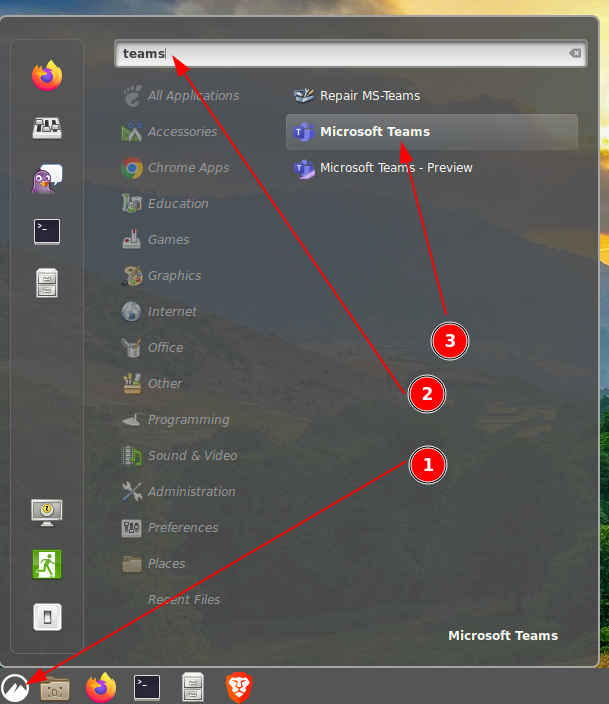
- Menu > Teams (to find it quickly, type 'teams' in the input field).
First time use / installation
Activate MS-Teams as PWA installation.
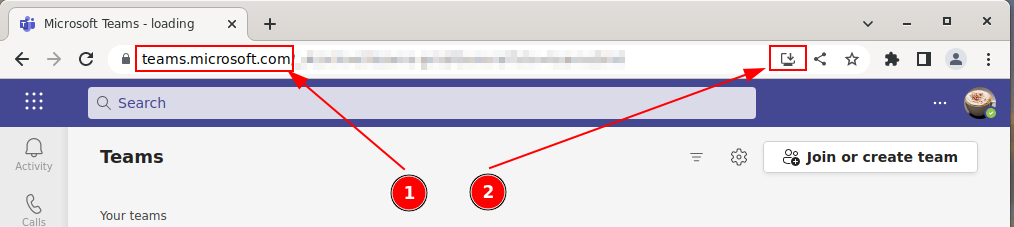
- In Google Chrome (Chrome and Brave are supported for the MS-Teams PWA app) open https://teams.microsoft.com
- Log in.
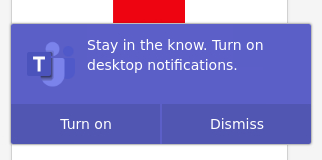
- Allow desktop notifications
- Install the PWA
- From now on, start the PWA via start menu:
- After installation, you'll find also a start icon on the Desktop.
- PWA does not have a dedicated notification icon in the border panel - instead you'll see new message notifications in the general notification area.
- To bring MS-Teams to the front, press
Alt-Tabor start MS-Teams again.
Printing
To open the print dialog, please press: Ctrl Shift p.
MS-Teams does not start
Problem with audio
Using audio (mic/speaker) in MS-Teams on Thinlinc is fine, but needs some attention after powering on the terminal:
- Power on terminal
- Unplug / plug the headset
- If thinlinc is already conntected:
F8 > disconnect and log in again. - If MS-Teams still has a problem:
quit MS-Teams and start MS-Teams again.
Test:
- PWA version of MS-Teams:
Menu > pavu (Pulse Audio Volume Control) > Input Devices > Tunnel: flickering when you speak