
mac
Printing via UZHPrintPlus
Offical ZI Page: UZH Print Plus
Recommended for students.
Printing is possible via WLAN UZH, but not via WLAN EduRoam.
Printing via MATH/DM3L-Print server
Recommended for institute members. (best Option for MacOS)
To use the printer in Y27, you need a LAN connection (not WLAN)
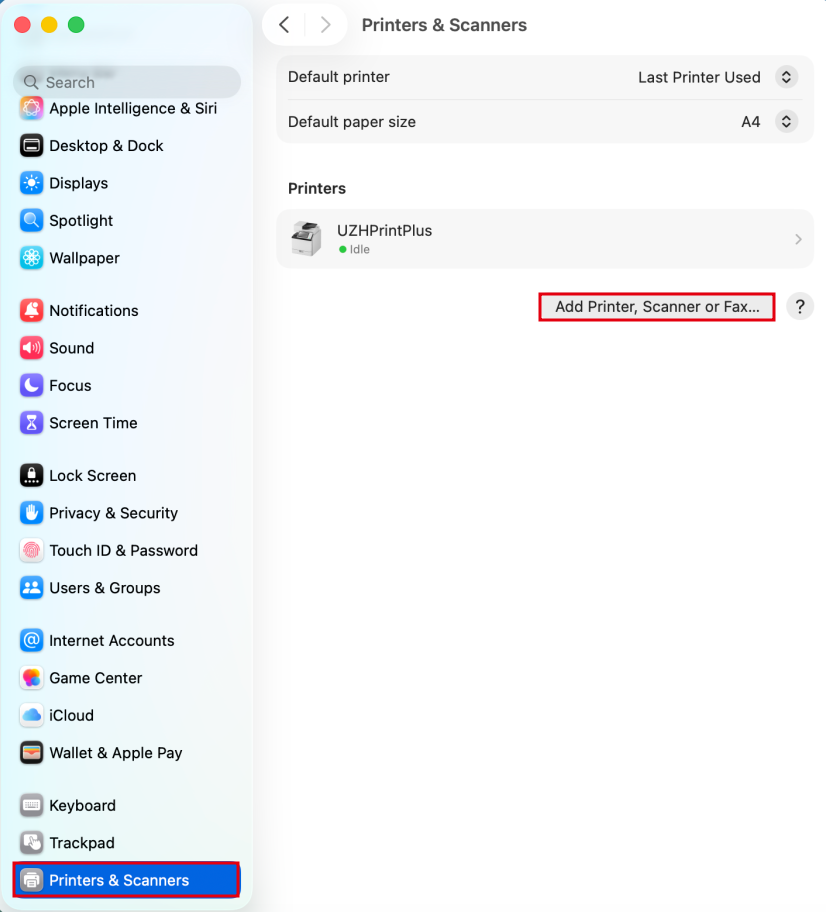
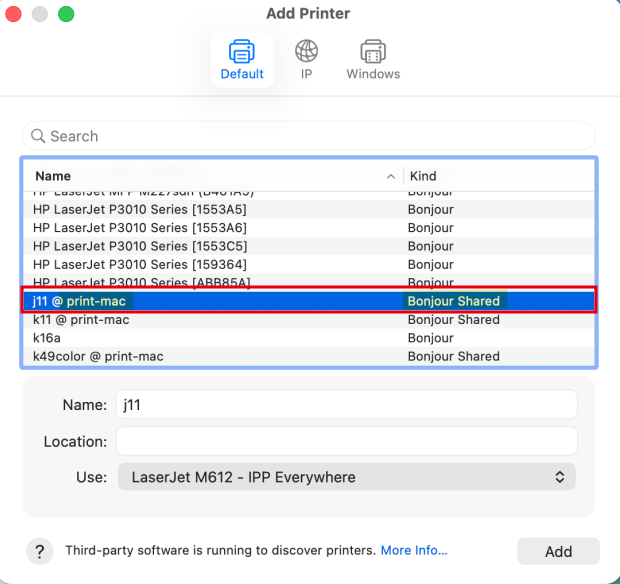
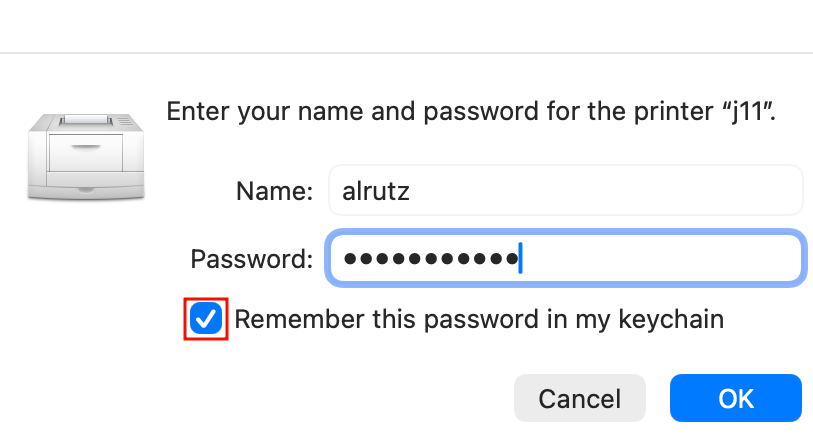
Open Printer Settings > Add Printer > Bonjour Shared - only ones that contain "@ print-mac" in the name.
Booklets
Only available on UPP Printers (j, k, jcolor, kcolor)
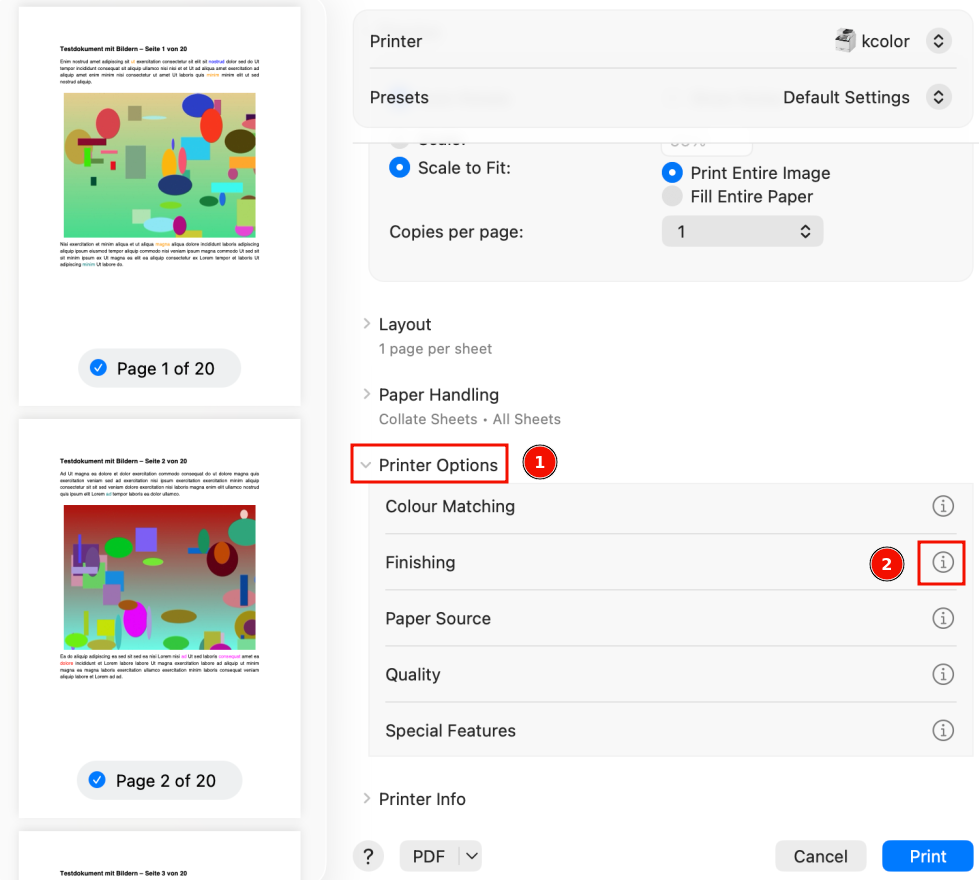
- Open the Printer-Dialog and follow these Steps:
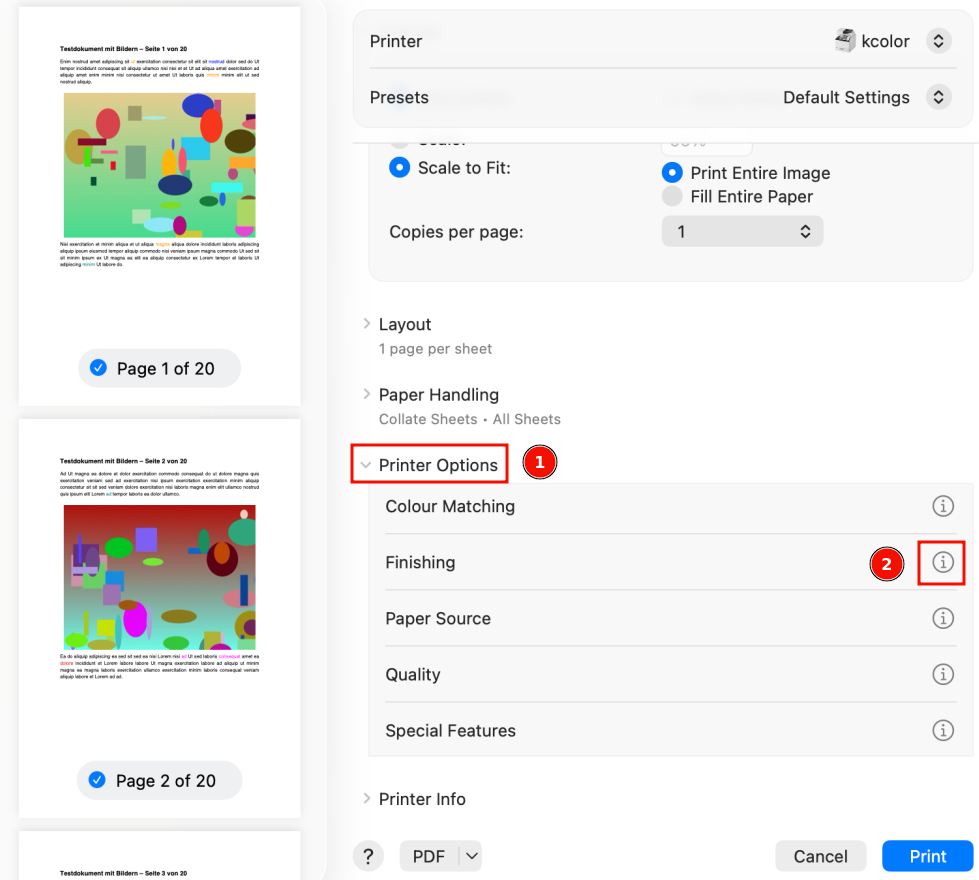
- 1.) Scroll down to "Printer options" and expand the menu
- 2.) Next to "Finishing" click the Info-Icon
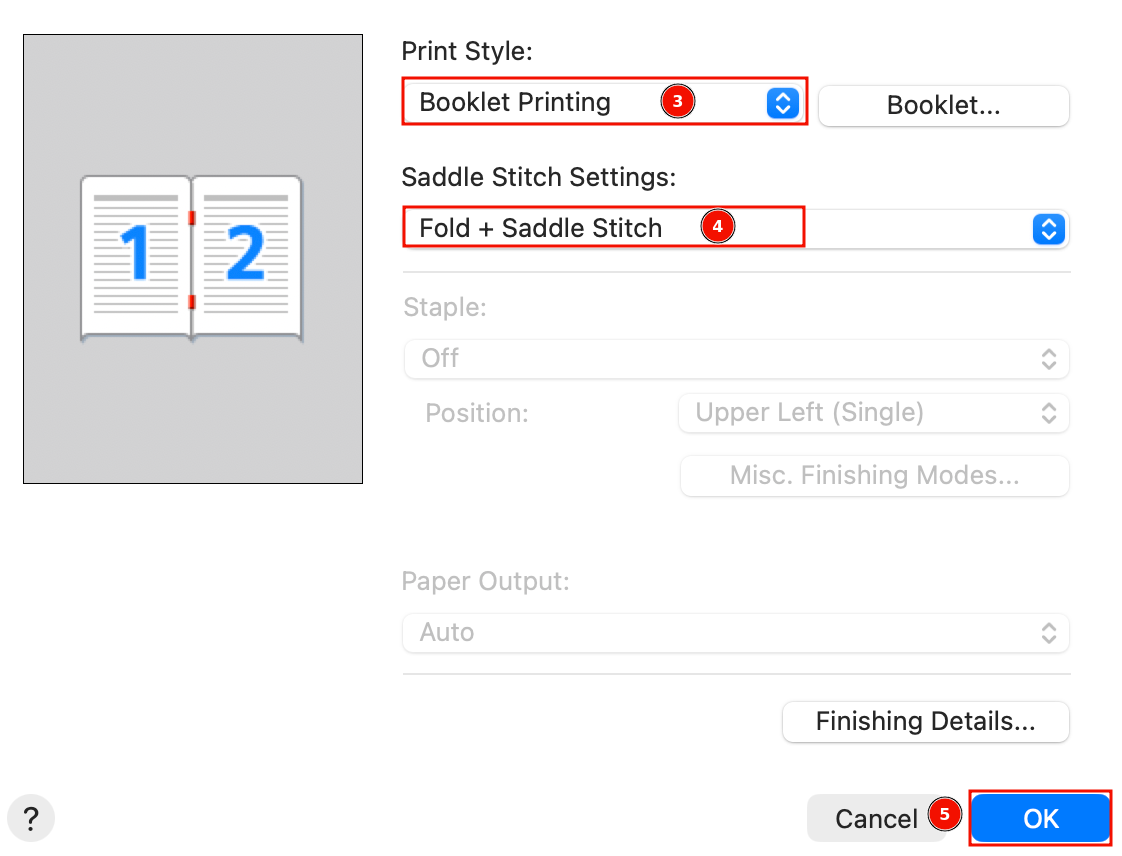
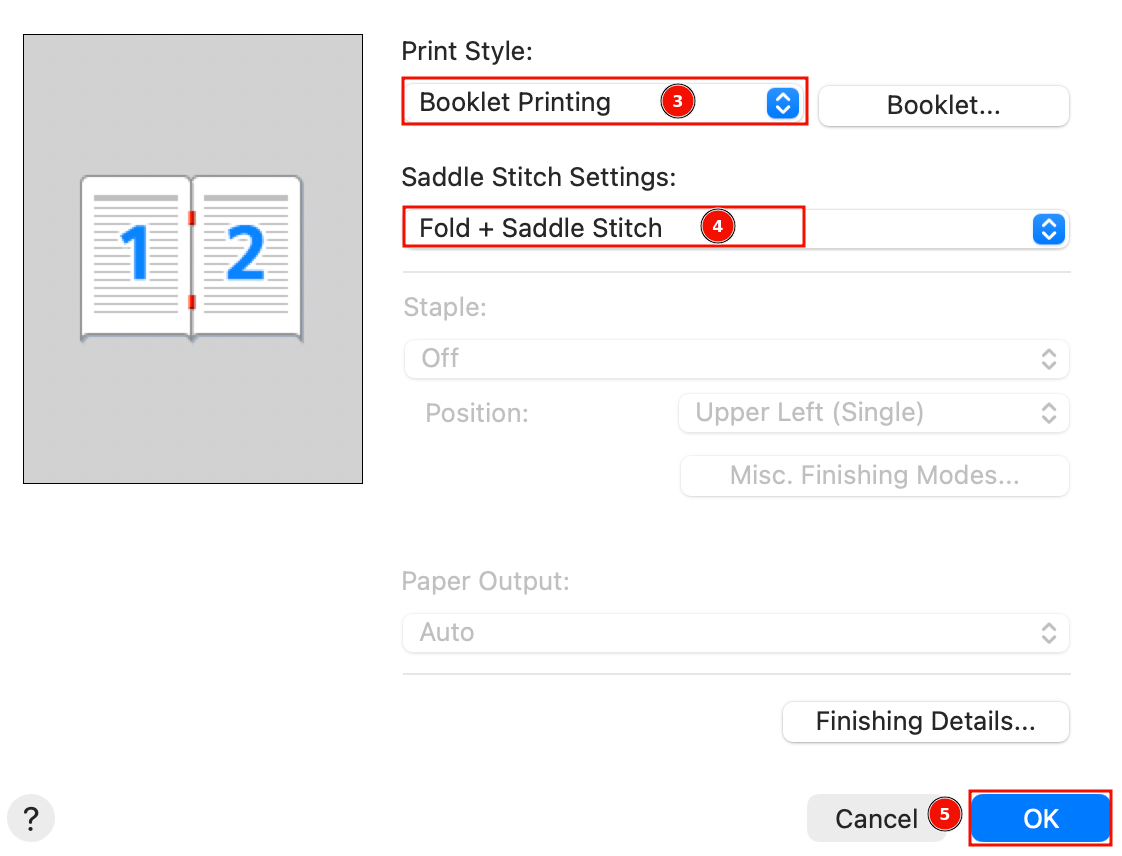
- 3.) Print Style: set "Booklet Printing"
- 4.) Saddle Stitch Settings: Set "Fold + Saddle Stitch"
- 5.) Press "OK" to save, then print the Booklet
Printing via MATH-Print Linux Printserver
To use the printer in Y27, you need a LAN connection (not WLAN)
Due to extra conversion, print time might be several minutes.
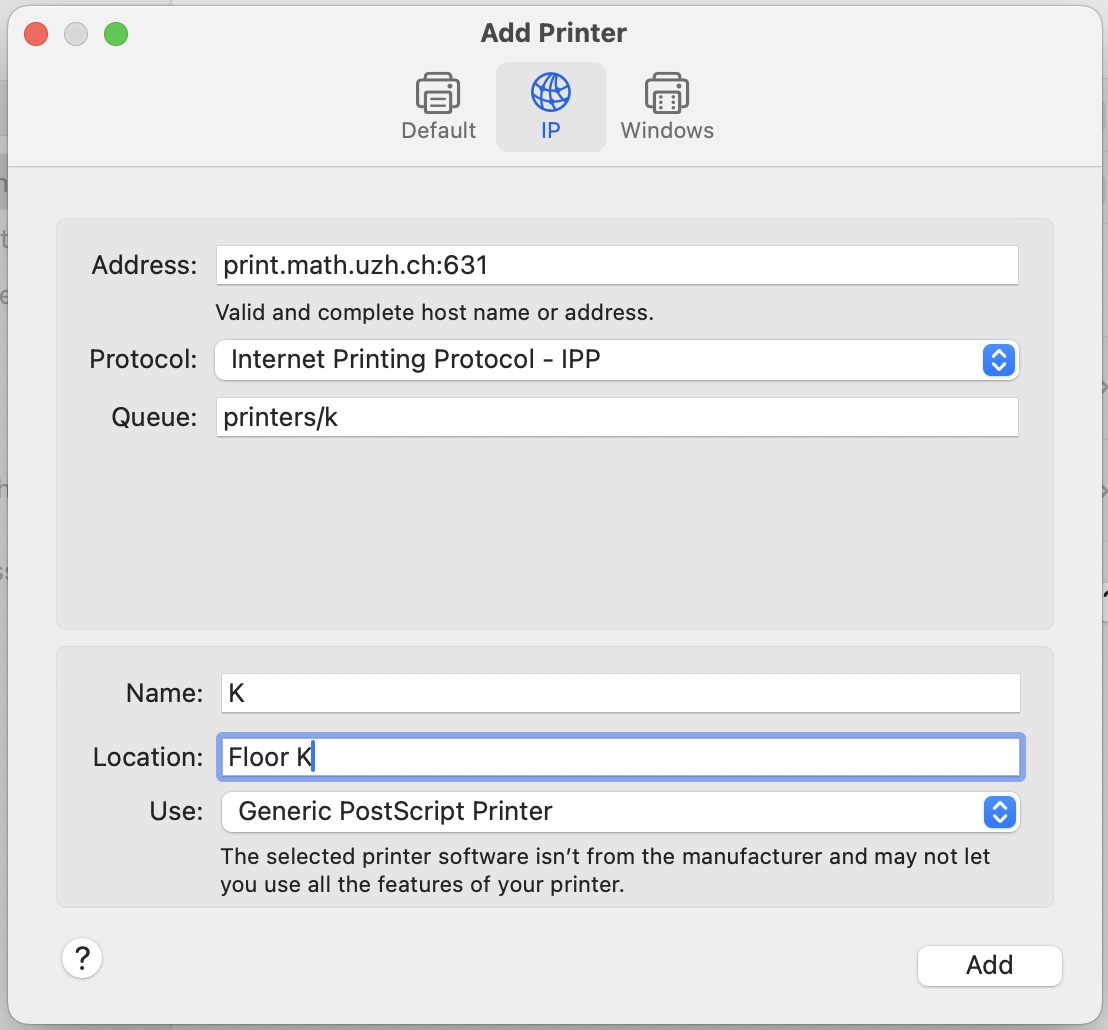
- Open System Settings > Printers & Scanners > Add Printer
- Example: Printer K, if you want a different printer replace the k after "printers/" with your printer name (k30, g25, jcolor,...)
Special cases
- k49color: use print22.math.uzh.ch:631 as the address, otherwise files are not printed