
mac
Printing via UZHPrintPlus
Offical ZI Page: UZH Print Plus
Recommended for students.
Printing is possible via WLAN UZH, but not via WLAN EduRoam.
Printing via MATH/DM3L-Print server
Recommended for institute members. (best Option for MacOS)
To use the printer in Y27, you need a LAN connection (not WLAN)
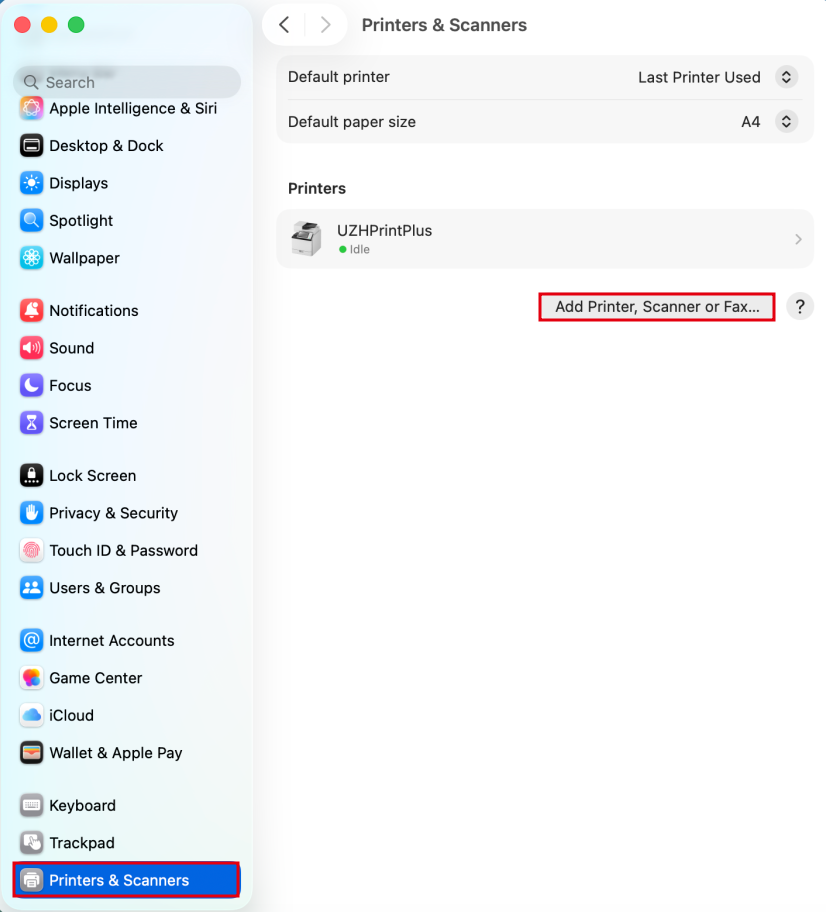
Open Printer Settings > Add Printer > Bonjour Shared - only ones that contain "@ print-mac" in the name.
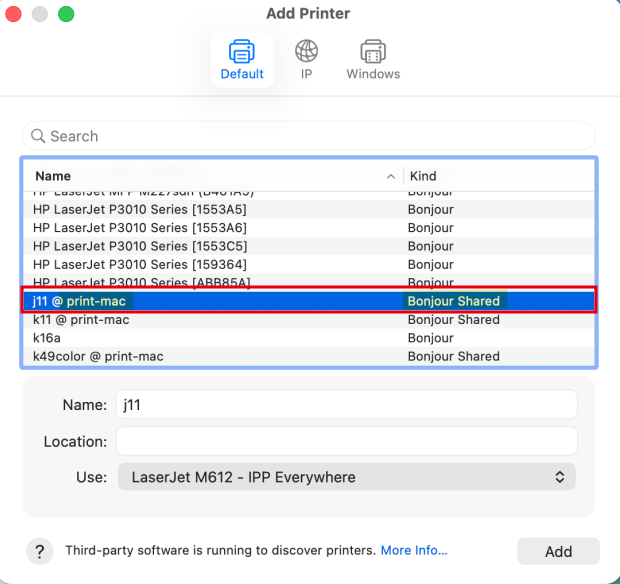
- Upon the first Print, you will be prompted for your IMATH-Credentials (shortname + PW)
- Make sure to tick the box "Remember this password in my Keychain", this way you will only have to enter the Credentials once.
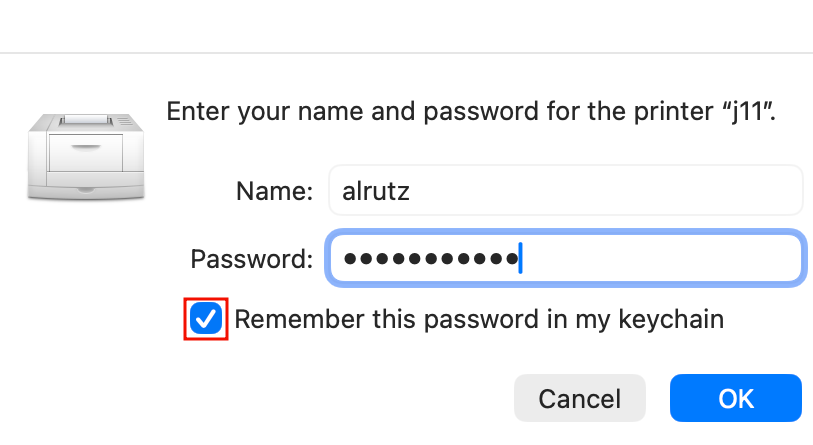
- Make sure to tick the box "Remember this password in my Keychain", this way you will only have to enter the Credentials once.
Booklets
Only available on UPP Printers (j, k, jcolor, kcolor)
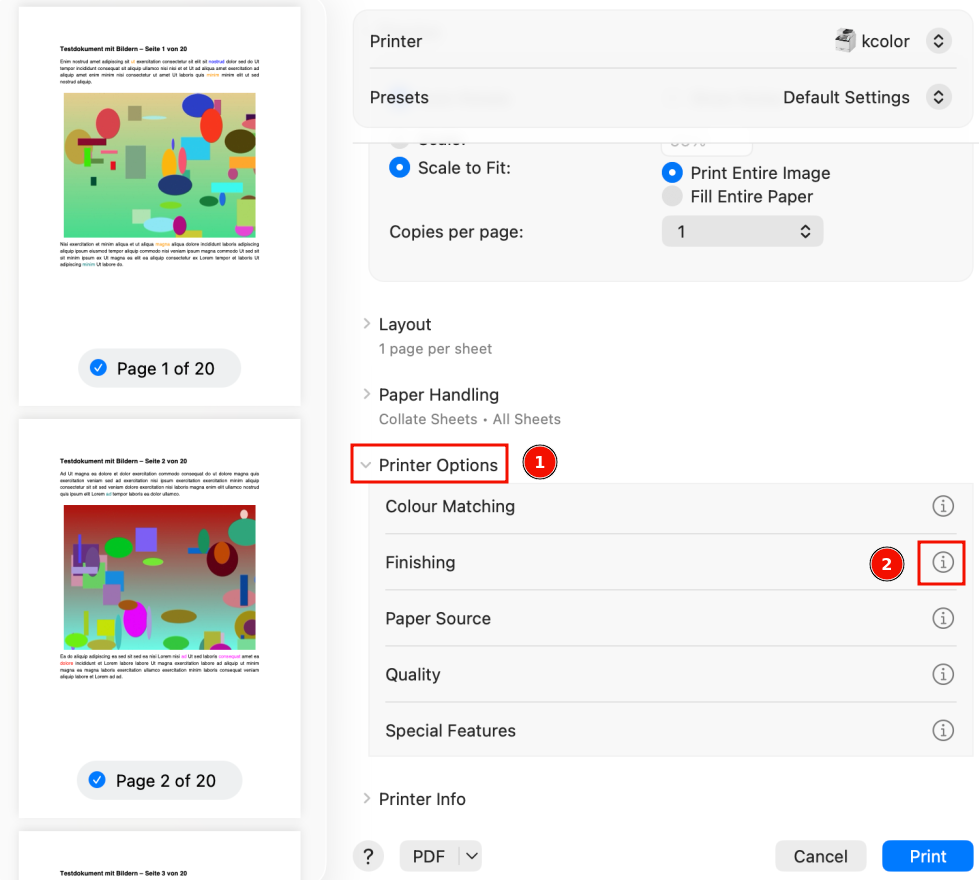
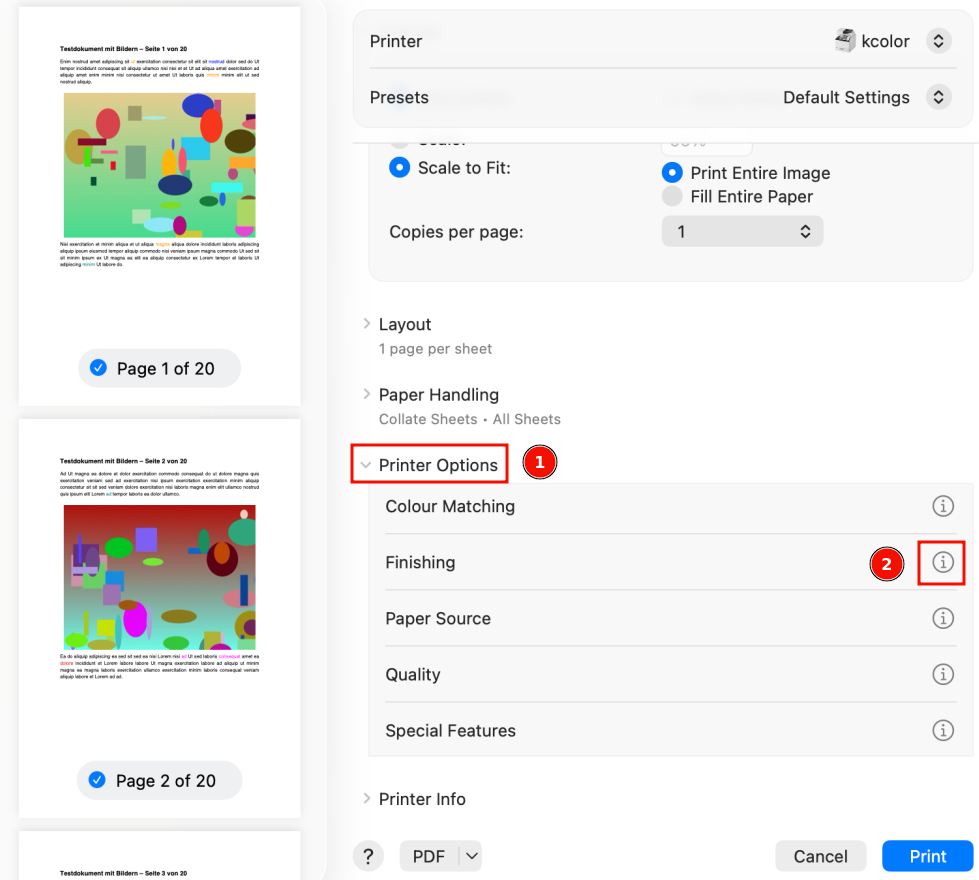
- Open the Printer-Dialog and follow these Steps:
- 1.) Scroll down to "Printer options" and expand the menu
- 2.) Next to "Finishing" click the Info-Icon
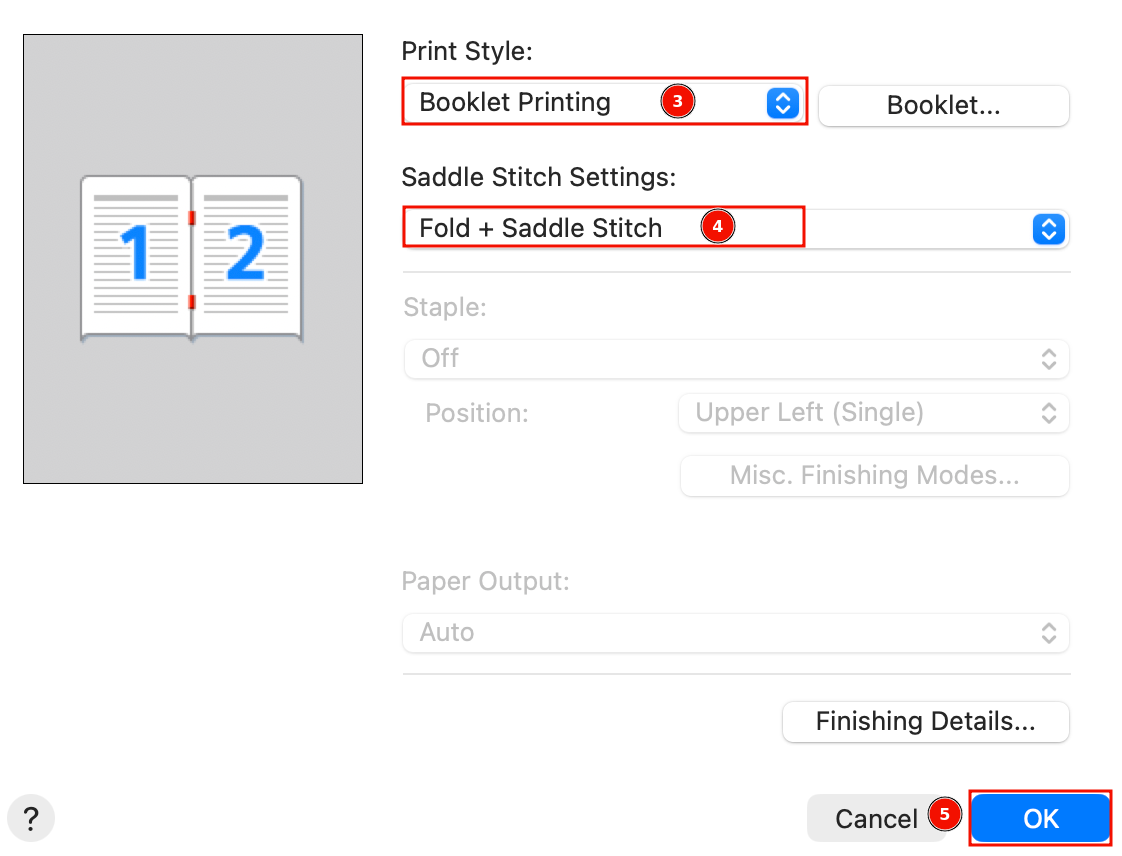
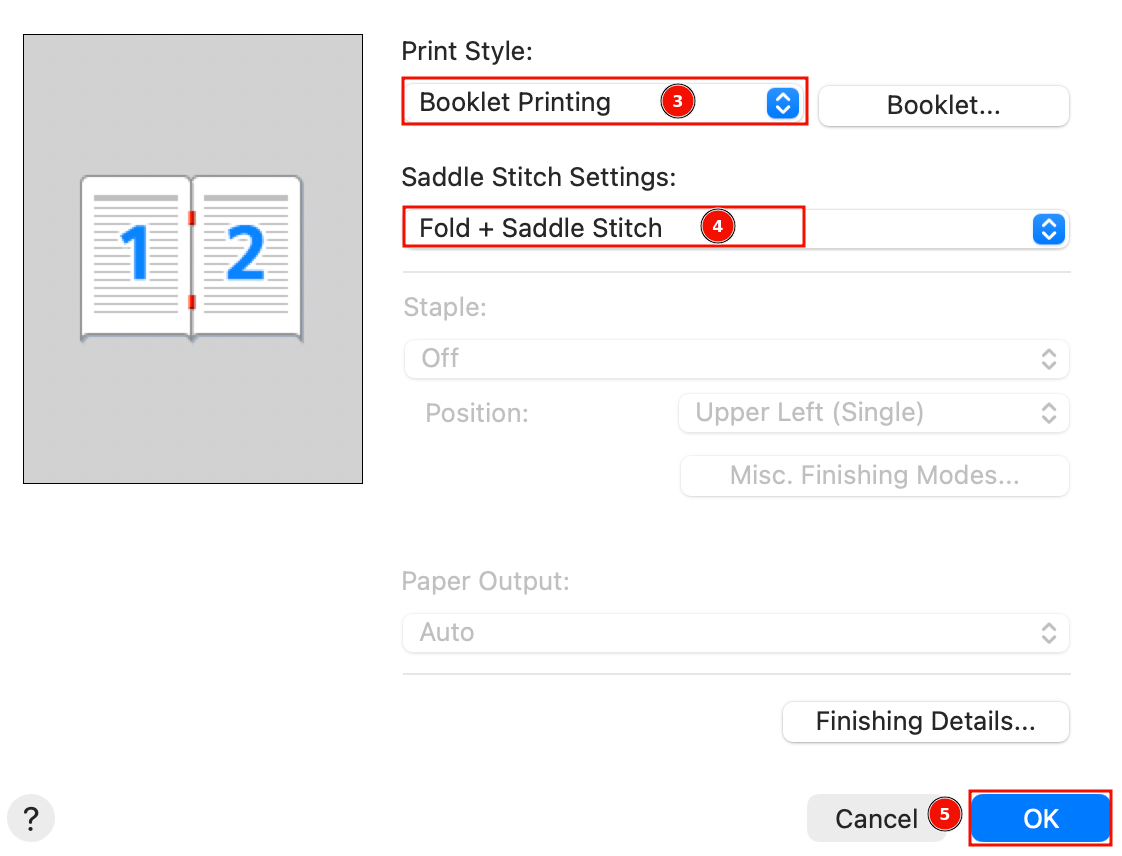
- 3.) Print Style: set "Booklet Printing"
- 4.) Saddle Stitch Settings: Set "Fold + Saddle Stitch"
- 5.) Press "OK" to save, then print the Booklet
Printing via MATH-Print Linux Printserver
To use the printer in Y27, you need a LAN connection (not WLAN)
Due to extra conversion, print time might be several minutes.
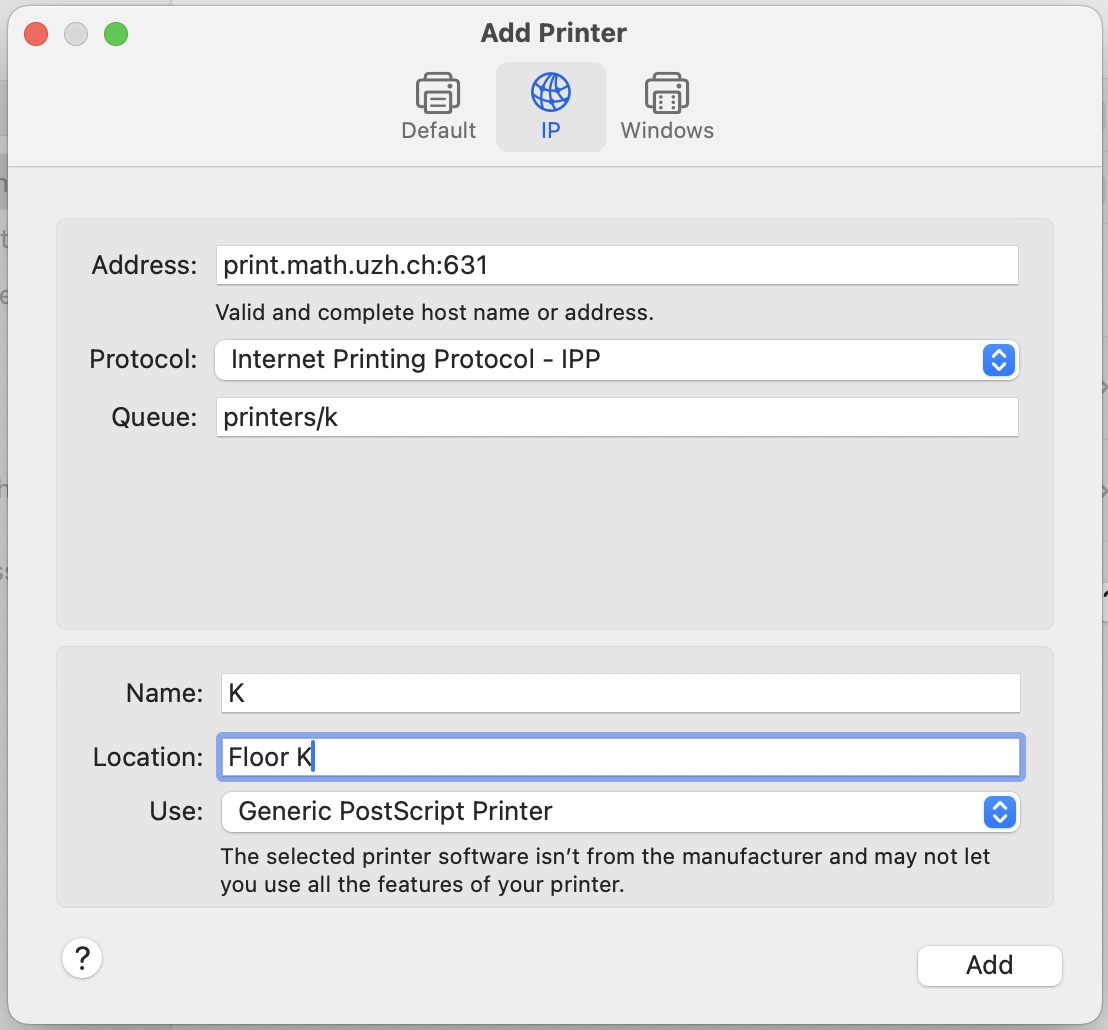
- Open System Settings > Printers & Scanners > Add Printer
- Example: Printer K, if you want a different printer replace the k after "printers/" with your printer name (k30, g25, jcolor,...)
Special cases
- k49color: use print22.math.uzh.ch:631 as the address, otherwise files are not printed