
firefox
AddOn
- MultiLogin: addons.mozilla.org/addon/multi-account-containers
Disable 'Reset Firefox ...'
- Tired of annoying mesage "It looks like you haven't started Firefox in a while. Do you want to clean it up for a fresh, like-new experience? And by the way, welcome back!"
- Solution found at http://miroslav.suchy.cz/blog/archives/2014/05/13/how_to_disable_reset_prompt_in_firefox/index.html
- step by step:
- Open:
about:config - Create a new entry by
selecting any entry > right mouse click > New > Boolean - Enter the preference name:
browser.disableResetPrompt - Value:
True
- Open:
This Connection is Untrusted

- You see this message on encrypted sites with selfsigned certificates. If you trust the site, click:
I Understand the Risks > Add Exception > Get Certificate > Confirm Security Exception
Profile in use / Clean lock files
- After an unclean stop of Mozilla or Thunderbird (application crashes, desktop session crash, server crash ) it happened frequently that a new start of the application fails with:
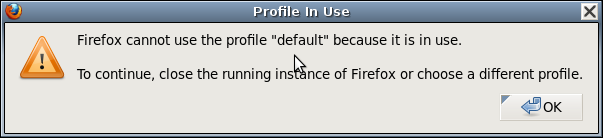
- To clean the setup, start either
Applications > System Tools > Clean Firefox/Thunderbird - Remove Lock', or- call
rmlock.shfrom a terminal.
Turn off Spell Checker
Tools > Options > Advanced > General > Check my spelling as I type: Off
Firefox Not Scrolling with Up/Down Arrow Keys or Home/End Keys
- Hit F7 to activate/deactivate 'caret browsing'
- http://en.wikipedia.org/wiki/Caret_navigation
Export / Import Bookmarks
This section explains how to export your bookmarks i.e on Windows to an HTML file, which can be used as a backup or for importing into another web browser and/or on an different Plattform.
Export
- Click the Library button |||\ icon, then click Bookmarks. Scroll to the bottom and click Show all Bookmarks.
- From the toolbar on the Library window, click Import and Backup and choose Export Bookmarks to HTML
- In the Export Bookmarks File window that opens, choose a location to save the file (any place you have write access will work), which is named bookmarks.html by default.
- Click the Save button. The Export Bookmarks File window will close.
- Close the Library window
Import
- Click the Library |||\ icon, then click Bookmarks. Scroll to the bottom and click Show all Bookmarks.
- From the toolbar on the Library window, click Import and Backup and choose Import Bookmarks from HTML
- In the Import Bookmarks File window that opens, navigate to the previously saved bookmarks HTML file you want import
- Click the Open button. The Import Bookmarks File window will close.
- Close the Library window.
- The bookmarks in the selected HTML file will be added to your Firefox bookmarks within the Bookmarks Menu directory.
Cookies
- Open the settings menu
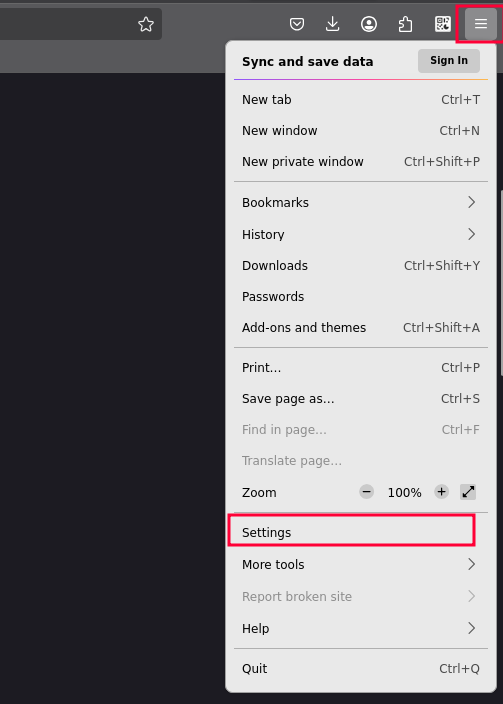
- Choose Privacy & Security tab and scroll down to the Cookies and Site Data section
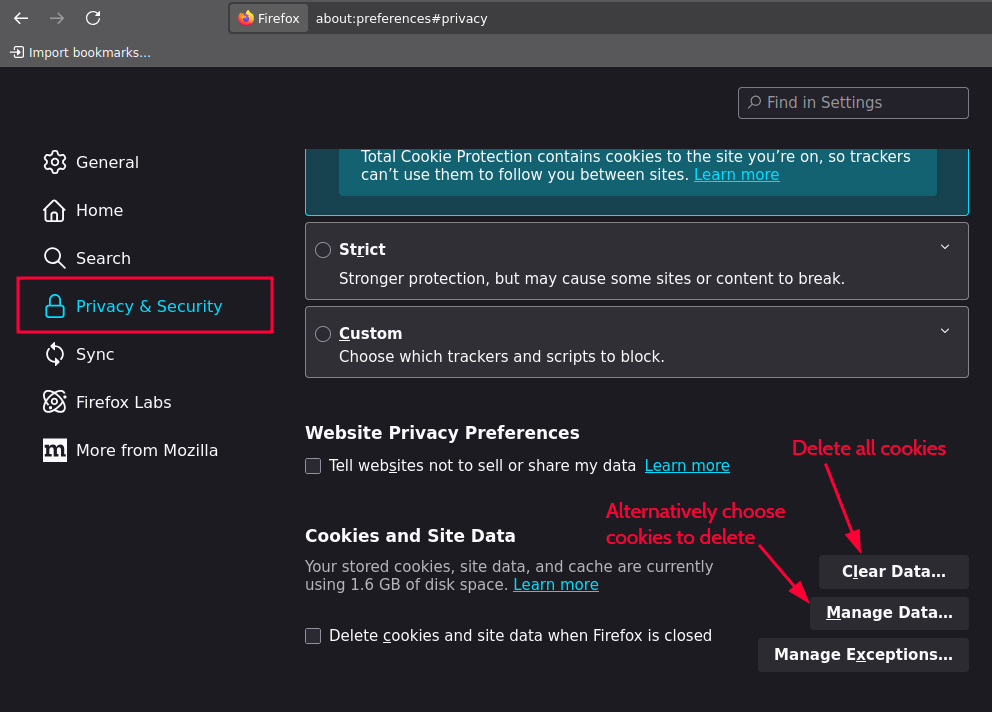
Here you can delete all cookies or cookies from selected pages. Several time periods are provided
- short-time periods (last hours, this day) are perfect to clean recent sessions
- in case of problems it is best to choose Everything