
drive.math.uzh.ch
Summary
Webaccess
Native Client
Thinlinc
Applications > Internet > Drive (nextCloud, ownCloud)- You'll find a small 'cloud' icon on the upper right corner of the Thinlinc screen.

Non Thinlinc
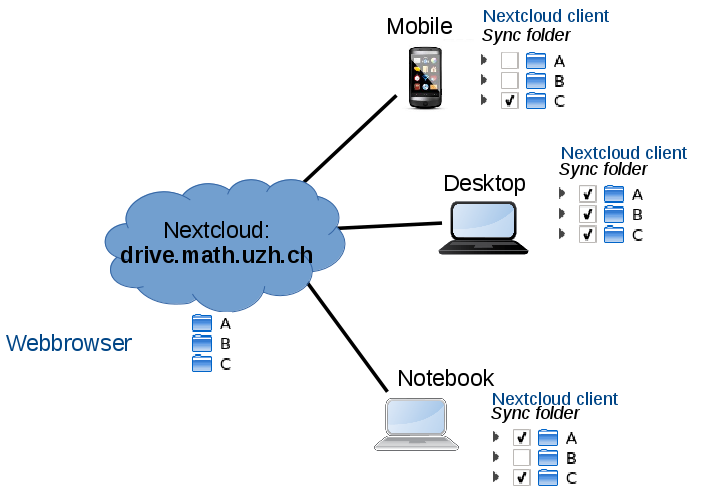
Sync different folder on different devices
- Which folders to sync can be configured per device - on the device itself.
- Nextcloud Client (=App) > Settings >
- Example:
- The cloud has 3 directories A, B, C.
- The mobile syncs only C.
- The notebook syncs A & C
- The desktop syncs A, B, C.
- The cloud has 3 directories A, B, C.
Share
Collaboration with UZH-user
- Files and Folder can be shared by person, groups or anonymously
- Choose the folder or file to share. Click on the share symbol. Click on the plus.

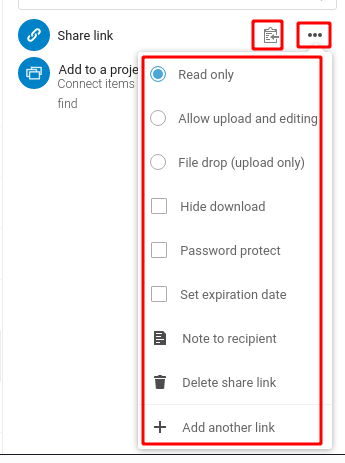
- Anonymous access:
- Click on the settings (3 points horizontal) to specify privileges.
- Click on the clipboard icon (you see no action, but the link is now in your clipboard) ... go to your email program and paste the link in an email.
- Click on the settings (3 points horizontal) to specify privileges.
Requesting confidential files from non-UZH-user (=anonymous)
Login to https://drive.math.uzh.ch/ (UZH-Credentials)- Navigate to "Files"
- Create a new folder
- Press the three dots and click "Open Details"
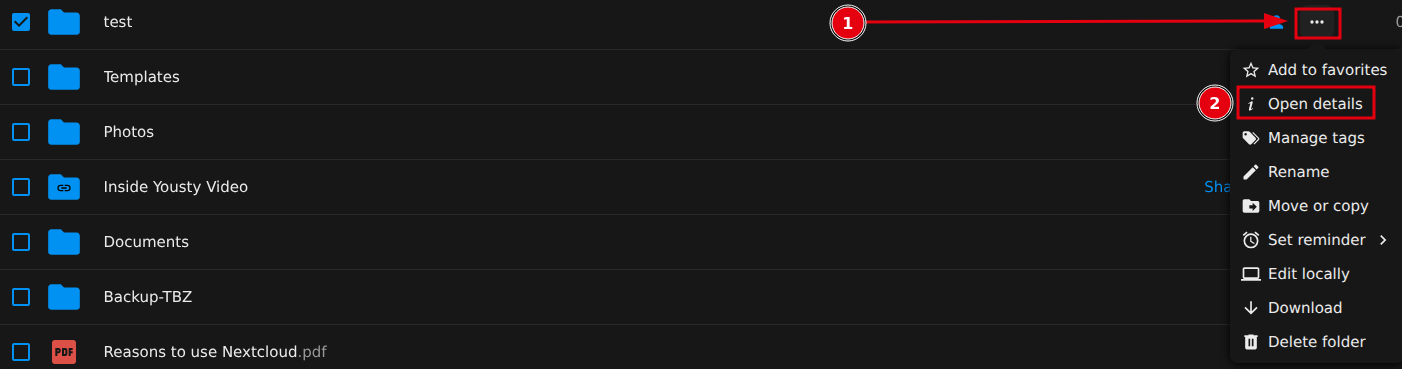
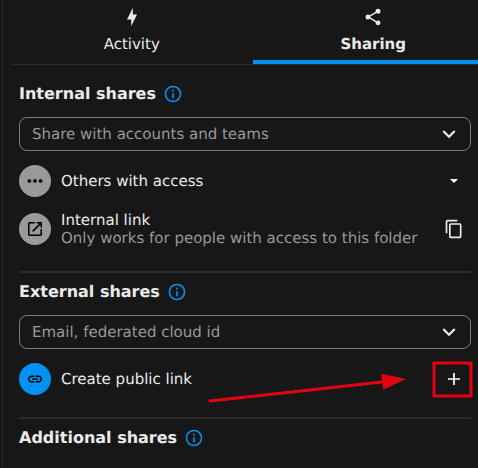
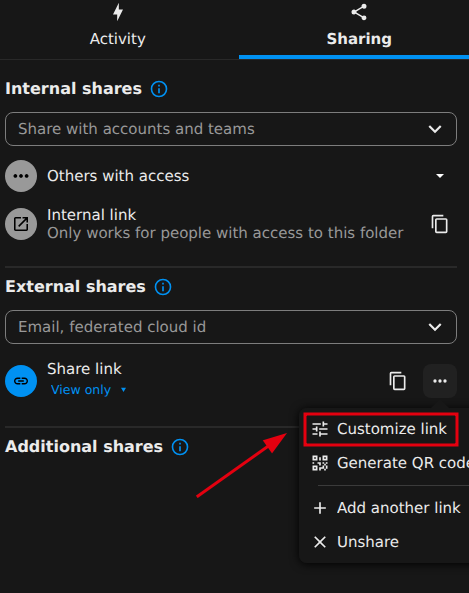
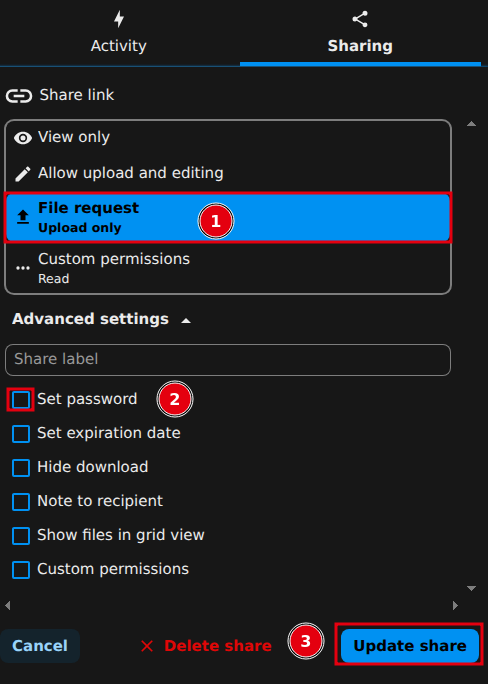
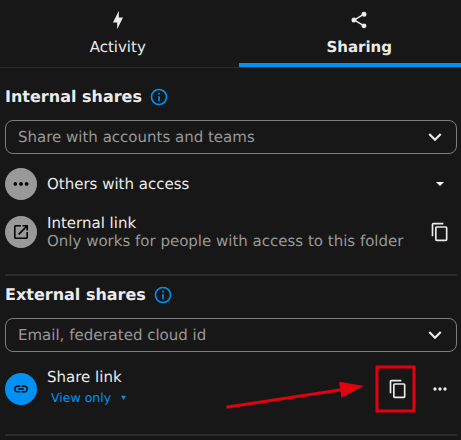
Photo / Gallery
Problems
Mac OS X: sync is stale
Reset the Local Database:
- Warning: This forces a full re-sync but often fixes "stale" sync:
- Quit Nextcloud.
* Open Terminal and run:
rm -rf ~/Library/Application\ Support/Nextcloud