
ChineseInputMethod
Follow these instructions to enable Chinese Input Methods in ThinLinc
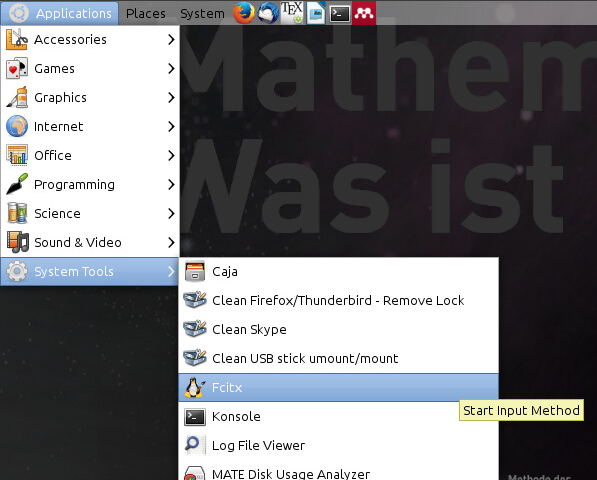
- Start
Fcitxfrom the Applications menu
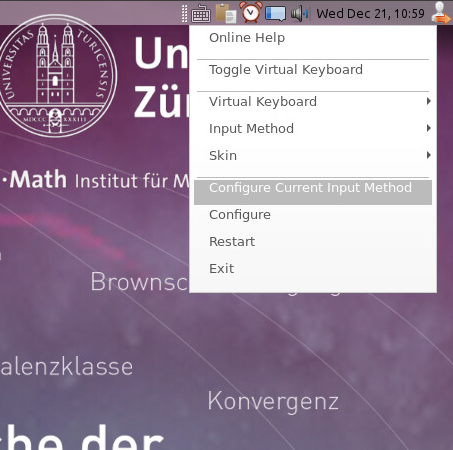
- In the upper right corner of the screen, right click on the keyboard icon and left click on
Configure Current Input Method
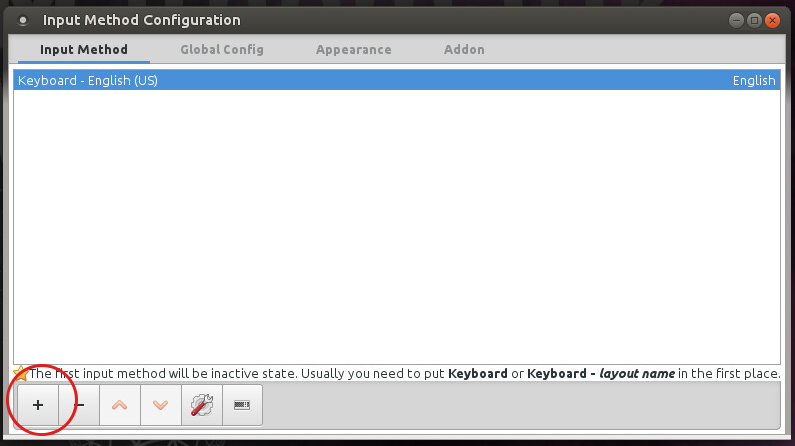
- Click on the plus-sign in the Input Method Configuration window
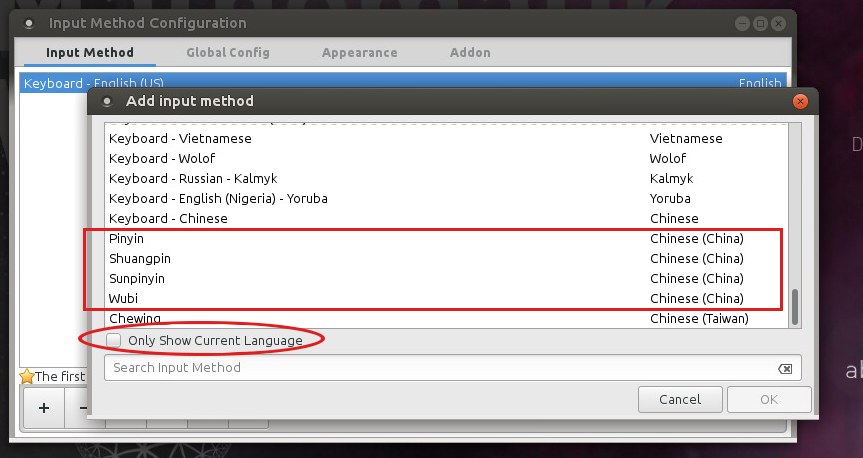
- Untick
Only Show Current Languageand scroll to the bottom of the window. Select the input method you want to use. When done, pressOK
- Close the
Input Method Configurationwindow.
1. Open .profile file in your home directory with a text editor and add following lines
export XMODIFIERS=@im=fcitx
export QT4_IM_MODULE=fcitx
export QT_IM_MODULE=fcitx
export GTK_IM_MODULE=fcitx
}}} and save the file.
 1. Logout of your session
  {{attachment:logout.png}}
 7. Login again
 8. Start `Fcitx` from the Applications menu
  {{attachment:start_fcitx.png}}
 9. In the upper right corner of the screen, right click on the keyboard icon and hover the mouse cursor over `Input Method` and set the current active Input Method.
  {{attachment:set_input_meth.png}}
 10. You should now be able to type Chinese characters
  {{attachment:final.png}}