
|
Size: 281
Comment:
|
Size: 1458
Comment:
|
| Deletions are marked like this. | Additions are marked like this. |
| Line 11: | Line 11: |
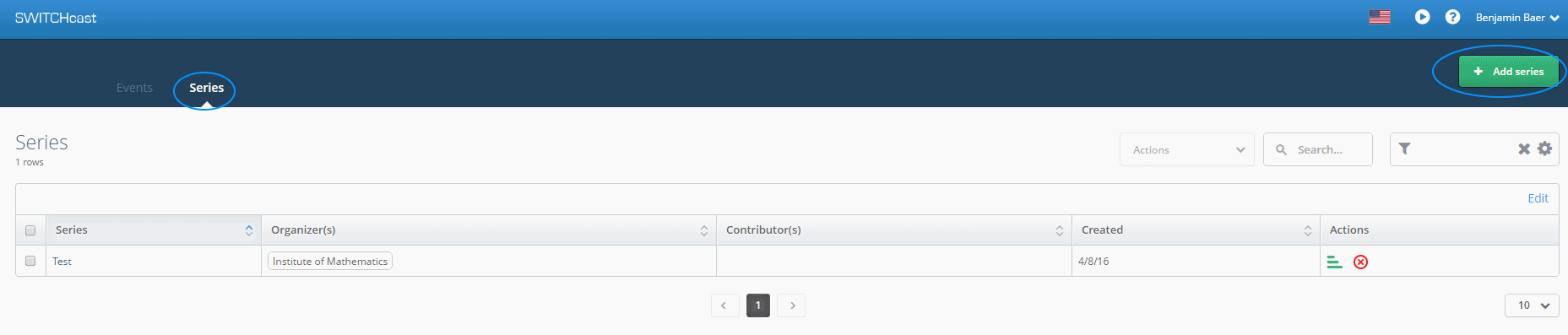
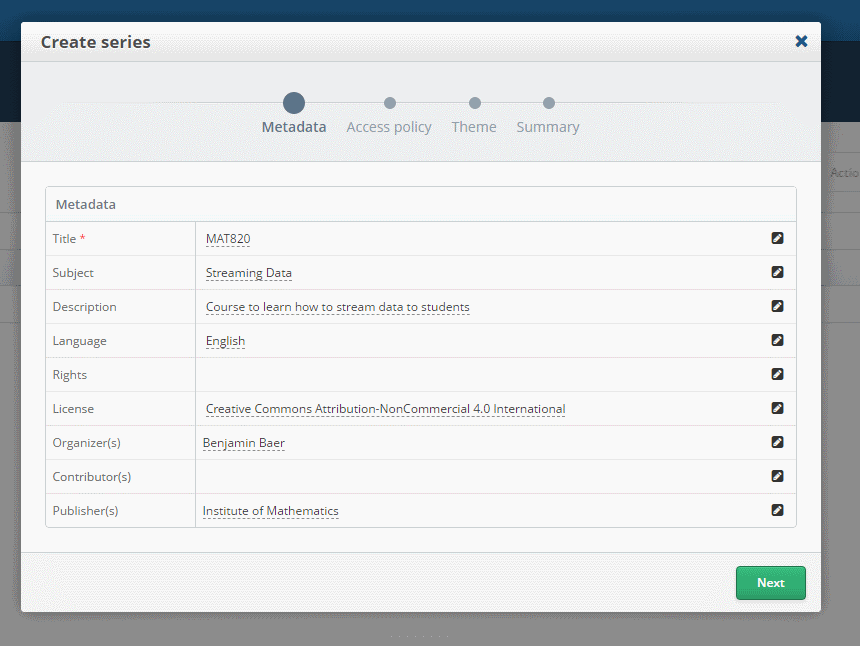
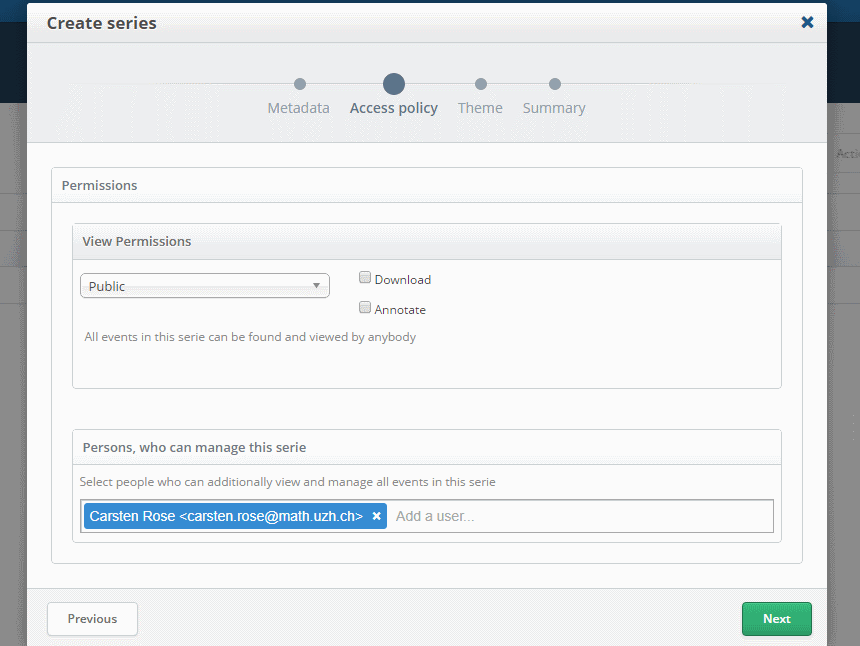
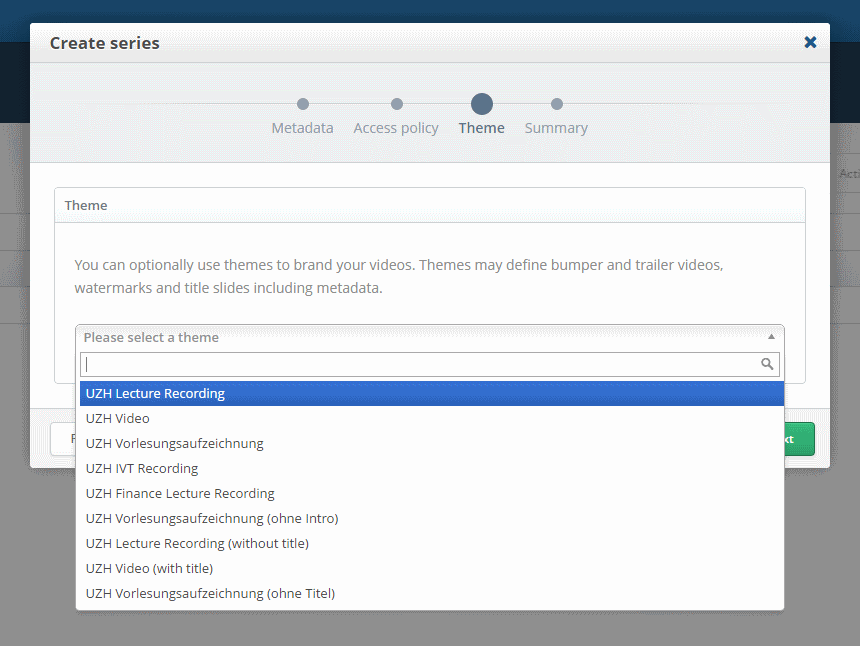
| * Switch to Series and click on New Series {{attachment:cast01.png}} * Fill out the Meta Information and choose a license {{attachment:cast02.png}} * Set Permission of who can view and who can add / edit videos in this Series. {{attachment:cast03.png}} * Select the Theme of the Series {{attachment:cast04.png}} * Click on Finish if everything is correct. = Create an Event = Events are the actual videos, each Series can have multiple Events. * Switch to the Events Tab and click on Add Event {{attachment:cast05.png}} * Fill out the Meta Data and choose the correct Series {{attachment:cast06.png}} * Upload your Videos, at least one Video needs to be provided. Slides would be the Desktop Recording. {{attachment:cast07.png}} * Here you can select if you want to publish it directly or cut before publishing. {{attachment:cast08.png}} * Click on Create if everything is correct. {{attachment:cast09.png}} * You will see a processing Event in the Overview. {{attachment:cast10.png}} = Cutting = If you didn't choose to publish your video directly, you can cut it inside cast. Wait for the Import to finish and |
Switch Cast
Switch Cast allows you to cut and publish videos to switch tube.
Login with AAI: https://cast.switch.ch
Create a Series
Every video has to be part of a series. Usually the Series would be a module or seminar, each with multiple lectures / talks.
- Switch to Series and click on New Series
- Fill out the Meta Information and choose a license
- Set Permission of who can view and who can add / edit videos in this Series.
- Select the Theme of the Series
- Click on Finish if everything is correct.
Create an Event
Events are the actual videos, each Series can have multiple Events.
- Switch to the Events Tab and click on Add Event
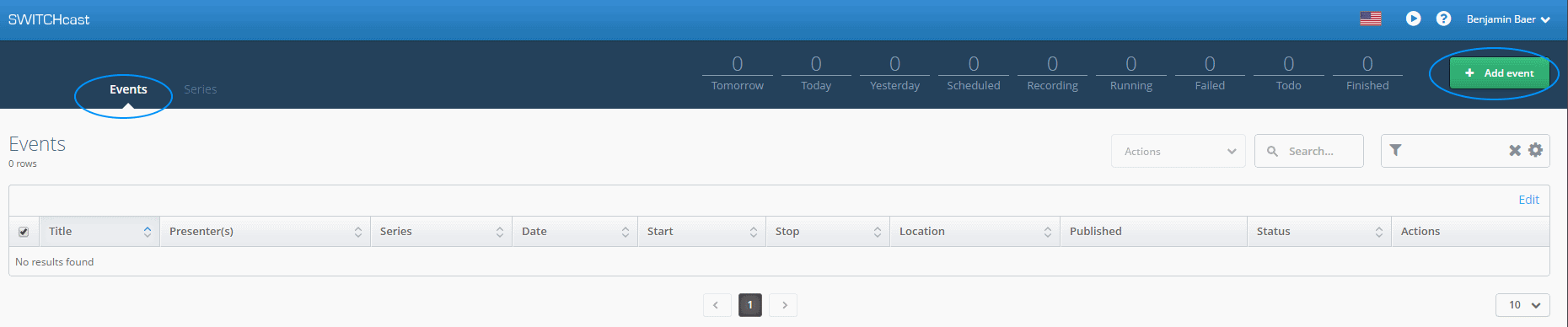
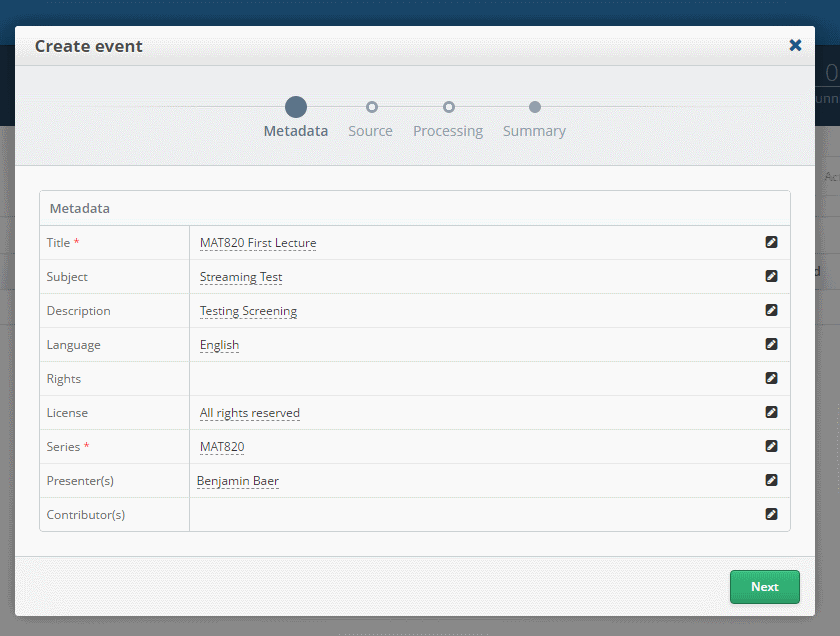
- Fill out the Meta Data and choose the correct Series
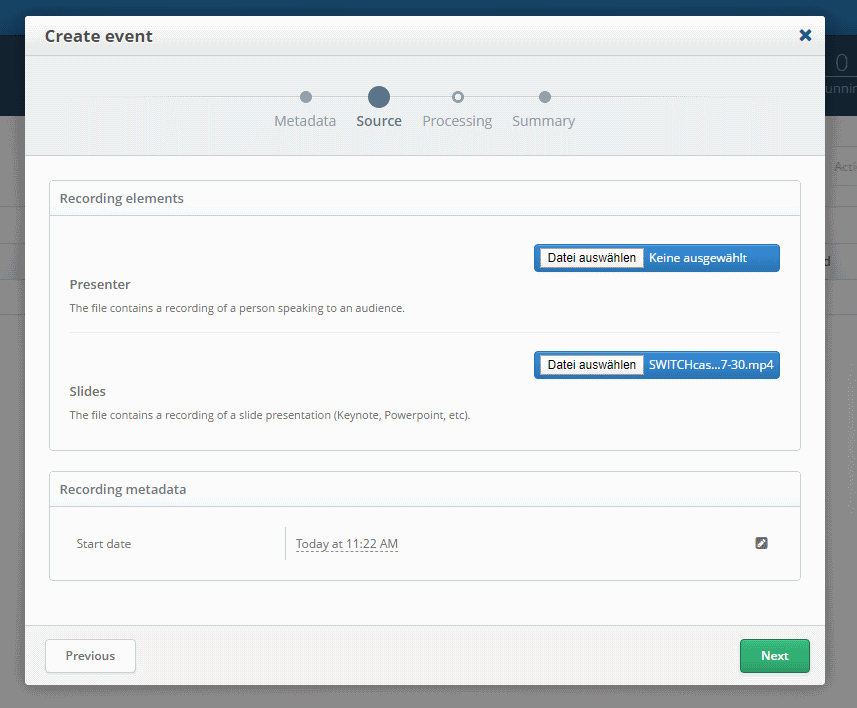
- Upload your Videos, at least one Video needs to be provided. Slides would be the Desktop Recording.
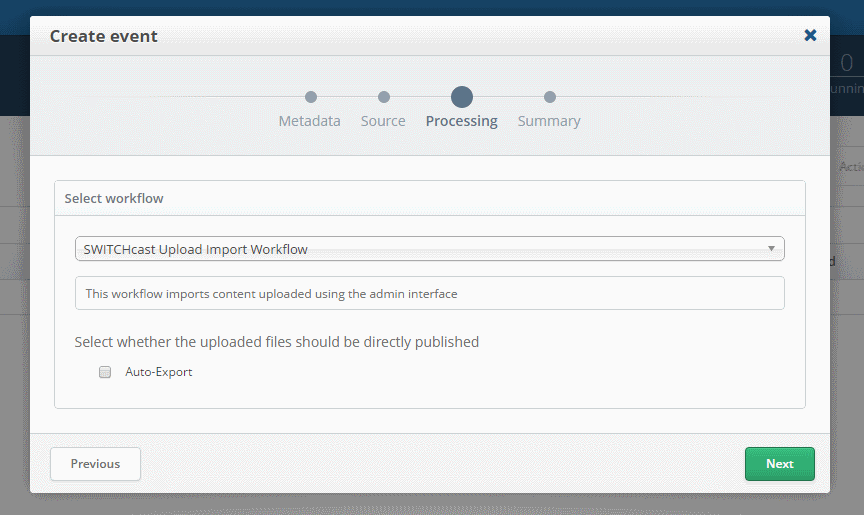
- Here you can select if you want to publish it directly or cut before publishing.
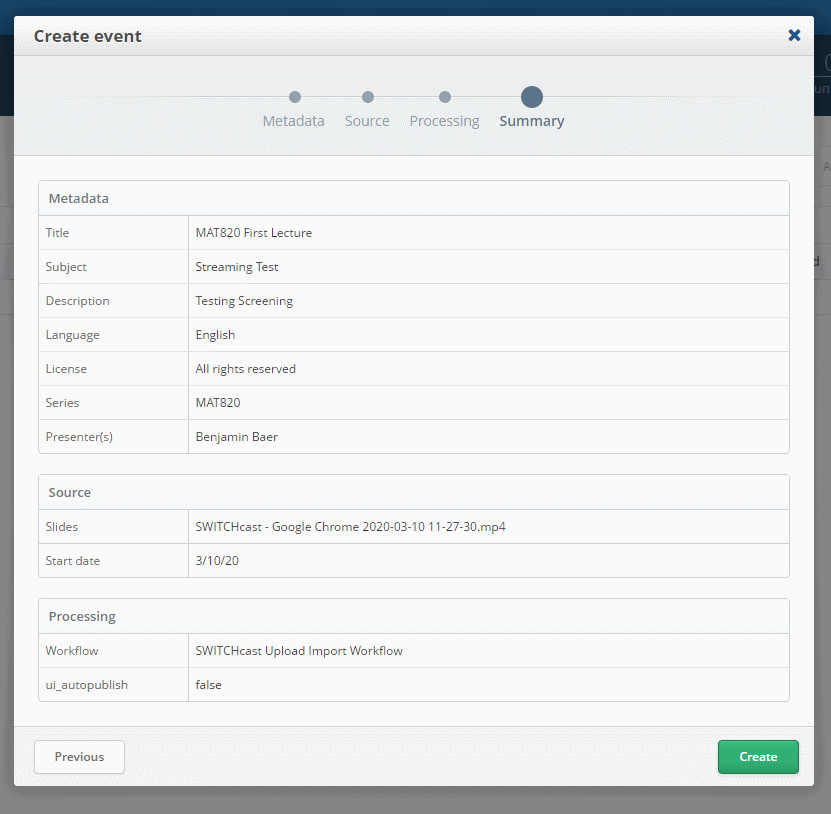
- Click on Create if everything is correct.
- You will see a processing Event in the Overview.

Cutting
If you didn't choose to publish your video directly, you can cut it inside cast. Wait for the Import to finish and