
|
Size: 2149
Comment:
|
Size: 6239
Comment:
|
| Deletions are marked like this. | Additions are marked like this. |
| Line 1: | Line 1: |
| = RemoteExam = | <<TableOfContents>> |
| Line 3: | Line 3: |
| * RemoteExam Tool: https://w16.math.uzh.ch/exam = Description == * You are a student and has been informed that your exam (or mid-term exam) is organized by the I-MATH RemoteExam Tool. * You '''need''' a '''cell phone / tablet''' with a camera (to scan your handwriting at the end and to upload it) and a '''reliable internet connnection'''. * We recommend also a notebook / desktop to download and display the exam (PDF). * Depending on the exam, you will be monitored by your webcam (cellphone, tablet or notebook). * During the exam, you can request help via button '''Request Help''' - A video call will be opened: wait until an assistant accept your call. |
= RemoteExam Tool = |
| Line 14: | Line 6: |
| = Preparation = * Log in under: https://w16.math.uzh.ch/exam * On the first page you see all exams assigned to you. If you miss an exam, contact your lecturer (an exam should be listed at least one week before exam date). * For each exam you have to pass the 'Practice Exam' test - do this a '''few days before''' the exam date. ''Use the same devices as with the exam, use the same location, use the same WLAN.'' |
|| RemoteExam Tool || https://w16.math.uzh.ch/exam || || Technical problems (before exam) || https://math.uzh.ch/support or via chat under https://hello.math.uzh.ch || || Questions during exam || 1) Video Call via button 'Request Help'<<BR>>2) Chat<<BR>>3) Send mail to address listed in RemoteExam Tool (last option, not recommended) || || Device necessary || Cell phone (Android / iOS) - be sure to have the latest updates installed. || || '''iOS''' (iPhone) || /!\ Switch off incompatible Image format (HEIC): Go to Settings > Camera > Formats > Select “Most Compatible.” /!\ || || '''Android''' || If there are upload problems, try a different camera app like [[https://play.google.com/store/apps/details?id=net.sourceforge.opencamera&hl=en|Open Camera]] || || Extra device recommended || Notebook: view the exam, !VideoCall for questions, monitor yourself. Please use [[https://www.google.com/chrome|Google Chrome]] - other browser will have trouble with Video Call for 'Request Help' || || Electronic writing || Writing on tablets is '''not allowed'''. Only handwriting. || || Scan || Only images can be uploaded, no multi page documents like PDFs. Don't use a specific App - do the scans with your cell phone camera. As soon as you click on 'Upload' in the webinterface, the camera should open automatically. Specific exams are allowed to upload other file types (like .Rmd, .m or .py files)|| || Internet || A reliable internet connection is necessary. || |
| Line 19: | Line 17: |
| == Exam Practice Test == ------------------------ - login, accept code of honour, justify the web cam (preferred via notebook/desktop) to see yourself and how you write, - download and display the fake exam, - handwrite something on a piece of paper, - scan and upload the piece of paper with your cellphone / tablet, - check the quality of your upload: download it again and check that you can easily read it, - submit finally your fake exam. |
* By default we transfer pictures from your webcam only once per second. But we recommend not to use 'mobile data'. Use an internet flatrate. If you do not have stable internet at home - try to find a stable internet location. * Depending on the exam, you will be monitored by your webcam (cellphone, tablet or notebook). * During the exam, you can request help via button '''Request Help''' - A video call will be opened: wait until an assistant accepts your call. * After log in, you'll see all exams assigned to you (most of of you will have one or maybe two exams). * Log in early and if you miss an exam, contact your lecturer (an exam should be listed at least one week before exam date). * If you share your internet connection with other persons (shared accomodation): inform them that you have an exam. |
| Line 28: | Line 24: |
| 2) Do the exam: | = FAQ = |
| Line 30: | Line 26: |
| - login 20 minutes before start time, - check 'code of honour', - enable microphone and webcam, - adjust the webcam to see yourself and how you write on the paper, - start exam at time, - upload your handwriting, - check and acknowledge the quality, - accept code of honour a second time, - submit the exam finally. |
* Q: I only have an iPad, no laptop. |
| Line 40: | Line 28: |
| By default we transfer pictures from your webcam only once per second. But we recommend not to use 'mobile data'. Use an internet flatrate. If you do not have stable internet at home - try to find a stable internet location. | * A: No problem. Use the iPad to view the exam. Place the iPad in a position that we see you (upright iPad position) * Q: My Cell phone is broken / I do not own a cell phone. * A: Please ask a friend of you to borrow one twice: first to complete the 'Exam Testdrive' a few days before the exam, and second for the exam. Use the same devices for 'Exam Testdrive' and 'Exam'. * Q: How do I kow if my internet connection is reliable? * A: does a 10 minute youtube video stream contantly? If yes, your internet is reliable (in terms of what we need). Check this at the same daytime as your exam will take place. * Q: My internet is not reliable or other people in my household need a lot of bandwidth at the time of the exam. * A: Look for a different place. Ask a friend if you can do the exam there. Or ask your roommates if they can postpone their video conference at the time of your exam. * Q: I use an iPhone and can't upload my scans. * A: Go to Settings > Camera > Formats > Select “Most Compatible.” * Q: I only see a button 'Exam Testdrive', but no exam. * A: Please pass the 'Exam Testdrive' completely, until 'final submit'. After that, the Button 'Exam' will appear. = Exam Testdrive = Steps: * Open https://w16.math.uzh.ch/exam * Log in * Open the page 'Exam Testdrive' * Do '''all steps incl. "final submit"''' Note: * For each exam you have to pass the 'Exam Testdrive' - do this a '''few days before''' the exam date. * Do the 'Exam Testdrive' completely, inclusive 'final submit' - the testdrive is only marked as 'done' if you do the 'final submit'. * ''Use the same devices as with the exam, use the same location, use the same WLAN.'' * The 'Exam Testdrive' guides you through the whole process - try to do it exactly as a real run. * Sit in a place where you can read the exam (in front of the computer) and where you write your answers on a sheet of paper. * Login (with your notebook), accept code of honor. * Justify the web cam (preferred via notebook/desktop) to see yourself and how you write. * Download and display the fake exam. * ... time to write something on a sheet of paper ... * Take your cell phone and open the RemoteExam Tool with a browser (iOS: Safari, Android: Google Chrome). * For quicker navigation, make a bookmark or use the QR Code on the RemoteExam tool website. * Take pictures of your handwritten answers: * Click on the 'upload' button (the Camera App opens automatically). * Take '''one''' picture and submit the picture. * Repeat this for all sheet of paper * You do not need any app. The '''upload button opens the camera!''' * Check the quality of your upload: download them and check that you can easily read it. * '''Finally, submit your fake exam.''' The 'Exam Testdrive' is passed '''successfully''', if you see a blue button 'Exam Room' above the Testdrive button. {{attachment:testdrive-passed.png}} = Exam = * Login 20 minutes before start time. * Accept 'code of honor'. * Enable microphone and webcam: Browser popup opens automatically - grant access. * Adjust the webcam to see yourself and how you write on the paper. * Start exam at time. * ... answer the exam questions on a sheet of paper ... * '''Write the question number clearly above your answer.''' * Scan and Upload your handwriting. * Check and acknowledge the quality. * Accept 'code of honor' a second time. * Finally, submit the exam. '''During the exam''' * In case of trouble you can use chat or video call (both on the left side on the exam page) to contact the staff. Please be patient if the staff is not responding immedeatly. * If webcam is required, you might be contacted by staff to readjust the webcam. |
Contents
RemoteExam Tool
RemoteExam Tool |
|
Technical problems (before exam) |
https://math.uzh.ch/support or via chat under https://hello.math.uzh.ch |
Questions during exam |
1) Video Call via button 'Request Help' |
Device necessary |
Cell phone (Android / iOS) - be sure to have the latest updates installed. |
iOS (iPhone) |
|
Android |
If there are upload problems, try a different camera app like Open Camera |
Extra device recommended |
Notebook: view the exam, VideoCall for questions, monitor yourself. Please use Google Chrome - other browser will have trouble with Video Call for 'Request Help' |
Electronic writing |
Writing on tablets is not allowed. Only handwriting. |
Scan |
Only images can be uploaded, no multi page documents like PDFs. Don't use a specific App - do the scans with your cell phone camera. As soon as you click on 'Upload' in the webinterface, the camera should open automatically. Specific exams are allowed to upload other file types (like .Rmd, .m or .py files) |
Internet |
A reliable internet connection is necessary. |
 Switch off incompatible Image format (HEIC): Go to Settings > Camera > Formats > Select “Most Compatible.”
 - By default we transfer pictures from your webcam only once per second. But we recommend not to use 'mobile data'. Use an internet flatrate. If you do not have stable internet at home - try to find a stable internet location.
- Depending on the exam, you will be monitored by your webcam (cellphone, tablet or notebook).
During the exam, you can request help via button Request Help - A video call will be opened: wait until an assistant accepts your call.
- After log in, you'll see all exams assigned to you (most of of you will have one or maybe two exams).
- Log in early and if you miss an exam, contact your lecturer (an exam should be listed at least one week before exam date).
- If you share your internet connection with other persons (shared accomodation): inform them that you have an exam.
FAQ
- Q: I only have an iPad, no laptop.
- A: No problem. Use the iPad to view the exam. Place the iPad in a position that we see you (upright iPad position)
- Q: My Cell phone is broken / I do not own a cell phone.
- A: Please ask a friend of you to borrow one twice: first to complete the 'Exam Testdrive' a few days before the exam, and second for the exam. Use the same devices for 'Exam Testdrive' and 'Exam'.
- Q: How do I kow if my internet connection is reliable?
- A: does a 10 minute youtube video stream contantly? If yes, your internet is reliable (in terms of what we need). Check this at the same daytime as your exam will take place.
- Q: My internet is not reliable or other people in my household need a lot of bandwidth at the time of the exam.
- A: Look for a different place. Ask a friend if you can do the exam there. Or ask your roommates if they can postpone their video conference at the time of your exam.
- Q: I use an iPhone and can't upload my scans.
A: Go to Settings > Camera > Formats > Select “Most Compatible.”
- Q: I only see a button 'Exam Testdrive', but no exam.
- A: Please pass the 'Exam Testdrive' completely, until 'final submit'. After that, the Button 'Exam' will appear.
Exam Testdrive
Steps:
- Log in
- Open the page 'Exam Testdrive'
Do all steps incl. "final submit"
Note:
For each exam you have to pass the 'Exam Testdrive' - do this a few days before the exam date.
- Do the 'Exam Testdrive' completely, inclusive 'final submit' - the testdrive is only marked as 'done' if you do the 'final submit'.
Use the same devices as with the exam, use the same location, use the same WLAN.
- The 'Exam Testdrive' guides you through the whole process - try to do it exactly as a real run.
- Sit in a place where you can read the exam (in front of the computer) and where you write your answers on a sheet of paper.
- Login (with your notebook), accept code of honor.
- Justify the web cam (preferred via notebook/desktop) to see yourself and how you write.
- Download and display the fake exam.
- ... time to write something on a sheet of paper ...
Take your cell phone and open the RemoteExam Tool with a browser (iOS: Safari, Android: Google Chrome).
For quicker navigation, make a bookmark or use the QR Code on the RemoteExam tool website.
- Take pictures of your handwritten answers:
- Click on the 'upload' button (the Camera App opens automatically).
Take one picture and submit the picture.
- Repeat this for all sheet of paper
You do not need any app. The upload button opens the camera!
- Check the quality of your upload: download them and check that you can easily read it.
Finally, submit your fake exam.
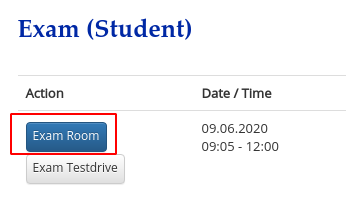
The 'Exam Testdrive' is passed successfully, if you see a blue button 'Exam Room' above the Testdrive button.
Exam
- Login 20 minutes before start time.
- Accept 'code of honor'.
- Enable microphone and webcam: Browser popup opens automatically - grant access.
- Adjust the webcam to see yourself and how you write on the paper.
- Start exam at time.
- ... answer the exam questions on a sheet of paper ...
Write the question number clearly above your answer.
- Scan and Upload your handwriting.
- Check and acknowledge the quality.
- Accept 'code of honor' a second time.
- Finally, submit the exam.
During the exam
- In case of trouble you can use chat or video call (both on the left side on the exam page) to contact the staff. Please be patient if the staff is not responding immedeatly.
- If webcam is required, you might be contacted by staff to readjust the webcam.