
|
Size: 842
Comment:
|
← Revision 48 as of 2025-06-25 13:36:13 ⇥
Size: 1598
Comment:
|
| Deletions are marked like this. | Additions are marked like this. |
| Line 1: | Line 1: |
| <<Tree>> | = WLAN at I-MATH / Campus = ||<rowbgcolor="#dddddd">Name||Username|| Password || Notes || || uzh, uzh-5GHZ|| <shortname> || <ITIM WLAN PW> ([[https://www.identity.uzh.ch|change]]) || UZH Campus || || eduroam || <firstname>.<lastname>'''@math.uzh.ch'''<<BR>>''(shortname won't work any longer)'' || <ITIM WLAN PW> ([[https://www.identity.uzh.ch|change]]) || Highschools worldwide, [[https://www.zi.uzh.ch/de/support/netzwerk/eduroam.html|Doc ZI]] || || uzh-guest || ''none'' || provide your mobile phone number || UZH Campus, valid for 24h || * ZI Documentation: https://www.zi.uzh.ch/en/support/network/wireless.html <<TableOfContents>> = WLAN Accounts = * UZH Member: automatically created by ID * Guests / Conferences: * Using Eduroam (account provided by their home organisation) * No Eduroam account: WLAN 'uzh-guest' - you have to provide your mobile number to get the password via SMS. = Eduroam = * Username: Your UZH Mailadress * Password: Your UZH Password * Certificate: No Certificate == Trouble == If there are problems to connect to ''eduroam'', please purge the old ''eduroam'' settings and configure ''eduroam'' again. Under Windows, right click on the WLAN and choose '''Forget''' {{attachment:wlan-forget.PNG}} |
| Line 4: | Line 34: |
| = Wireless - WLAN = * Networks: Choose '''uzh''' or '''eduroam''' * [[http://www.id.uzh.ch/dl/mobil/wlan.html|General Information]] * [[http://www.id.uzh.ch/dl/mobil/wlan/Angebot.html|Overview UZH]] |
== Linux == |
| Line 9: | Line 36: |
| = Configuration Windows / MacOS = * http://www.id.uzh.ch/dl/mobil/wlan/Angebot/konfig-uzh.html * Choose: `Windows: Konfiguration (PDF, 588 KB)` * Choose: `Mac OS X: Konfiguration (PDF, 368 KB)` |
{{attachment:wlan-linux.png}} |
| Line 14: | Line 38: |
| = Configuration Linux (Ubuntu 11.04) = * If not happened, install the necessary certificates with `sudo apt-get install ca-certificates` at the command line or by using the Synaptic package manager and installing the package `ca-certificates`. * Remove any network ''cable''. * Open the network manager and choose `uzh` or `eduroam`: {{attachment:Screenshot-Wireless Network Authentication Required.png}} |
'''Notes:''' * since 5.06.2024 the username is your primary UZH email address. For most of I-MATH member this is <firstname>.<lastname>@math.uzh.ch. * If a domain is required, use ''uzh.ch'' |
WLAN at I-MATH / Campus
Name |
Username |
Password |
Notes |
uzh, uzh-5GHZ |
<shortname> |
<ITIM WLAN PW> (change) |
UZH Campus |
eduroam |
<firstname>.<lastname>@math.uzh.ch |
<ITIM WLAN PW> (change) |
Highschools worldwide, Doc ZI |
uzh-guest |
none |
provide your mobile phone number |
UZH Campus, valid for 24h |
ZI Documentation: https://www.zi.uzh.ch/en/support/network/wireless.html
WLAN Accounts
- UZH Member: automatically created by ID
- Guests / Conferences:
- Using Eduroam (account provided by their home organisation)
- No Eduroam account: WLAN 'uzh-guest' - you have to provide your mobile number to get the password via SMS.
Eduroam
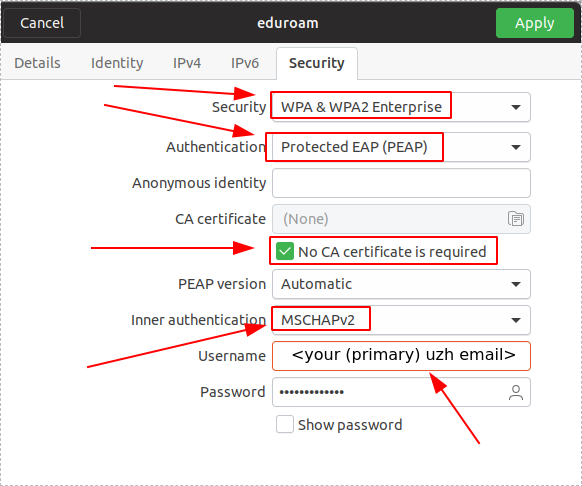
- Username: Your UZH Mailadress
- Password: Your UZH Password
- Certificate: No Certificate
Trouble
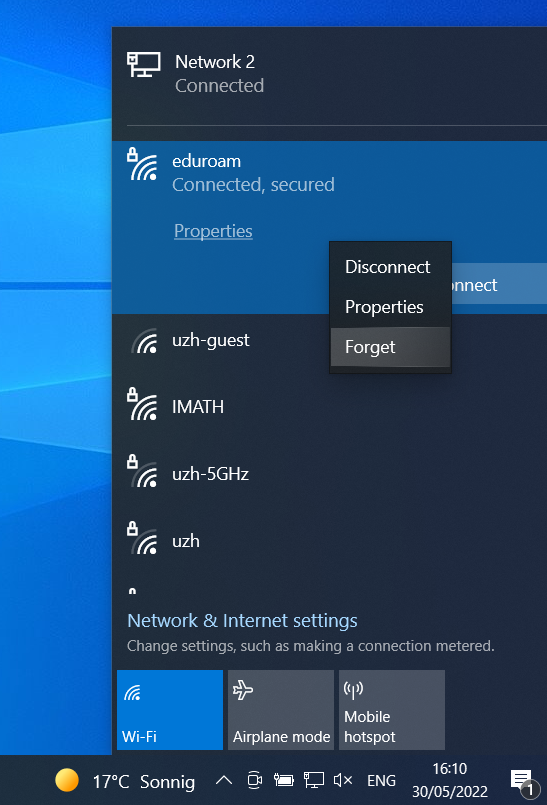
If there are problems to connect to eduroam, please purge the old eduroam settings and configure eduroam again.
Under Windows, right click on the WLAN and choose Forget
Linux
Notes:
since 5.06.2024 the username is your primary UZH email address. For most of I-MATH member this is <firstname>.<lastname>@math.uzh.ch.
If a domain is required, use uzh.ch