
|
Size: 4912
Comment:
|
Size: 3030
Comment:
|
| Deletions are marked like this. | Additions are marked like this. |
| Line 2: | Line 2: |
| == Sending Mails (SMTP) over an SSH tunnel == It is possible to send mails from outside our university using our mail server over an SSH-tunnel. To do this, you need two things: |
|
| Line 5: | Line 3: |
| * a SSH client like Putty or SSH Secure Shell * an additional profile in Thunderbird for our mail server |
<<TableOfContents>> |
| Line 8: | Line 5: |
| The configuration of both the ssh client and thunderbird is described below. I've you are an advanced user and used to using SSH, especially in a shell, scroll down to get a very short explanation how you can establish the SSH tunnel using the ssh comandline tool. | = General = |
| Line 10: | Line 7: |
| === Configuring the SSH client === As an example, we will demonstrate here how you have to configure SSH Secure Shell to build up an SSH tunnel to our network allowing you to use our mail server. |
Please see [[email]] |
| Line 13: | Line 9: |
| Download and install SSH Secure Shell. You can download it from [[javascript:void(0);/*1250512971679*/|this location]], its is free for non-commercial use. | = Adressbuch UZH = |
| Line 15: | Line 11: |
| Start SSH Secure Shell. If you use it for the first time, you need to create a new profile. Click on "File -> Profiles -> Add Profile ..." and enter a name for your profile. | * Thunderbird > Menu > Preferences > Preferences |
| Line 17: | Line 13: |
| {{attachment:/home/c/dcaspar/Desktop/Images/sshsecshell1.png}} | {{attachment:tb1.png}} |
| Line 19: | Line 15: |
| In the example, we created a new profile called "dc". | {{attachment:tb2.png}} |
| Line 21: | Line 17: |
| Now, you need to configure the profile just created. Open the configuration windows via "File -> Profiles -> Edit Profiles ..." and select your profile from the displayed list. Make sure that the "Connections"-Panel is shown on the right side. Fill in the host name, your username and the portnumber as shown in the following table. The other options should work fine. ||<tablewidth="500px"style="vertical-align: top;">Host Name: ||<style="vertical-align: top;">mathssh.uzh.ch || ||User Name: ||your own username || ||Port Number: ||22 || |
* '''IMPORTANT''': Replace ''Firstname Lastname'' with your UZH Fullname (typically your complete name, incl. any spaces). * At the first search you need login with your UZH-Password. |
| Line 27: | Line 21: |
| = Date / time format = * By default, the dates are shown with US locale * It's possible to change the Thunderbird UI to f.e. German: `Edit > Preferences > Language > English|French|German|Italian` * If the `English` is used and german date formating is wished, check: https://support.mozilla.org/en-US/kb/customize-date-time-formats-thunderbird * In config editor (`Edit > Preferences > Search: config > Config Editor`) set: * `intl.date_time.pattern_override.date_short` - `dd.MM.yyyy` * `intl.date_time.pattern_override.time_short` - `HH:mm` {{attachment:tb-date.png}} = Subscribe folder (shared mailbox) = == Show all folder == To automatically show all folder: * In Thunderbird move the mouse over the ''account'' do a ''right mouse click'' and select 'Settings > Server Settings > Advanced > Show only subscribed folders=off {{attachment:tb-account-settings.png}} {{attachment:tb-subscribe-showonly.png}} == Individual subscription == If a new folder has been created (maybe via Zimbra, or on a shared mailbox via another user), and Thunderbird does not show the new folder automatically: * Please update the 'folder subscription': on the ''account'' do a ''right mouse click'' and select 'Subscribe'. {{attachment:tb-subscribe.png}} * Subscribe all folder: {{attachment:tb-subscribe-select.png}} = Default account = * If you click on a `mailto` link in webbrowser, thunderbird will be opened and you can start to write a mail. * If you have multiple accounts, it might be useful to define the default account which acts as sender than. * Open: `Settings > Account Settings` {{attachment:tb-acc-1.png}} * Select the new default account, define as 'default' {{attachment:tb-acc-2.png}} = Add on = Installation: Tools > Add on and themes |
|
| Line 29: | Line 75: |
| {{attachment:sshsecshell2.png}} | * Tools > Add-on and Themes |
| Line 31: | Line 77: |
| Now select the "Outgoing Tunneling"-Panel on the right and Click on "Add...". In the opened window, provide the following information as described bellow: ||<tablewidth="643px" tableheight="160px">Display Name ||a name for this tunnel, e.g. "smtp" || ||Type ||TCP || ||Listen Port ||Enter a port above 1023, e.g. 25025 || ||Destination Host ||mail.math.uzh.ch || ||Destination Port ||2525 || |
{{attachment:tb-add-on-01.png}} {{attachment:tb-add-on-02.png}} {{attachment:tb-add-on-03.png}} |
| Line 39: | Line 82: |
| == Quick Folder == | |
| Line 40: | Line 84: |
| * https://quickfolders.org/index.html | |
| Line 41: | Line 86: |
| {{attachment:sshsecshell2b.png}} | == Attach from Clipboard == |
| Line 43: | Line 88: |
| {{attachment:sshsecshell3.png}} | * https://www.updatestar.com/dl/clipboard/clipboard.html |
| Line 45: | Line 90: |
| Click two times on "Ok" to store the Tunnel and close both the "Add New Outgoing Tunnel" window and the "Profiles" window. | = Probleme = |
| Line 47: | Line 92: |
| === Configure Thunderbird === Next, you need to configure Thunderbird to use your SSH tunnel. Open Thunderbird, open your account settings via "Tools -> Account Settings..." and select "Outgoing Server (SMTP)" on the left. |
== 3.5.23 / CR / Zugriff collected Adresse & Abfrage nach Passwort == |
| Line 50: | Line 94: |
| {{attachment:thunbird1b.png|thunbird1.png}} Now, click on "Add..." on the right to bring up the "SMTP Server" window. Enter the following information: || Description || Enter a description/name for this smtp server (optional) || || Server Name || 127.0.0.1 || || Port || the port you entered as listening port for your SSH tunnel (see section above), e.g. 25025 like in the example || Check "Use name and password" and enter your username. Select "TLS" under "Use secure connection". {{attachment:thunbird2.png}} Click "Ok" two times to close both windows and save the configuration. You are now ready to use SSH tunneling to send your mails. === Sending mails over the SSH tunnel === To send mails over the SSH tunnel you need to connect to our network with your SSH client. In SSH Secure Shell, simply select your profile from "File -> Profiles -> [name of your profile]" and SSH Secure Shell will try automaticaly to connect to our network. Enter your password if you are asked for it. {{attachment:usage1.png}} SSH Secure Shell tells you in the lower left corner if you are connected to our network or not. If you are connected, write your mails as usual. Before sending a mail you should check you use the proper mailserver for this mail. To do this, click on "Tools -> Account Settings..." in the window you composed your mail, select your account name on the left and make sure you selected the proper option under "Outgoing Server" on the right. Then close the window by clicking "Ok" and send your mail. {{attachment:usage2.png}} {{attachment:usage3.png}} If you're done with your mails, simply close SSH Secure Shell. === Establishing the SSH tunnel for experts === If you are used to using SSH, especially via the ssh commandline tool in a shell, you can simply create the necessary SSH tunnel with the following command: {{{ ssh [username]@mathssh.uzh.ch -L [ListeningPort]:mail.math.uzh.ch:2525 }}} As an example, user dc creates an SSH tunnel with listening port 25025 with the following command: {{{ ssh dc@mathssh.uzh.ch -L 25025:mail.math.uzh.ch:2525 }}} == Open URLs (no/wrong Browser) == . `Edit > Preferences > Advanced > Config Editor` {{attachment:thunderbird.firefox.png}} |
* After a NFS server problem (on TL), several user complain about broken Thunderbird configuration. * One user reports that the collected addresses not available anymore * Other user reports that they have to supply their passwort frequently, even if they activate 'save password'. * Solution: start `clean-firefox-thunderbird.sh` - this will restore the latest settings from the last snapshot. |
Thunderbird
Contents
General
Please see email
Adressbuch UZH
Thunderbird > Menu > Preferences > Preferences
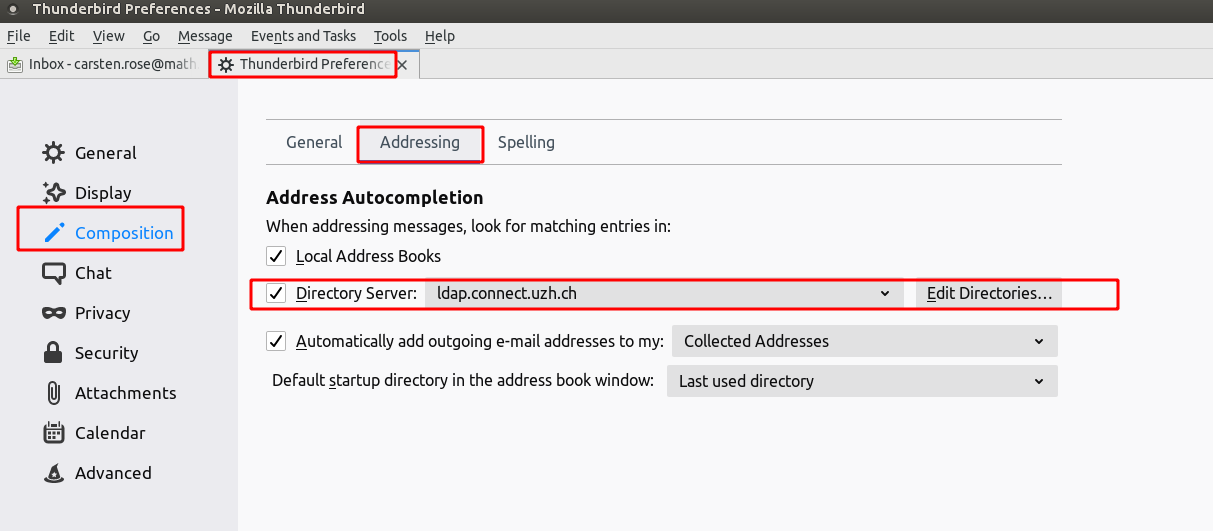
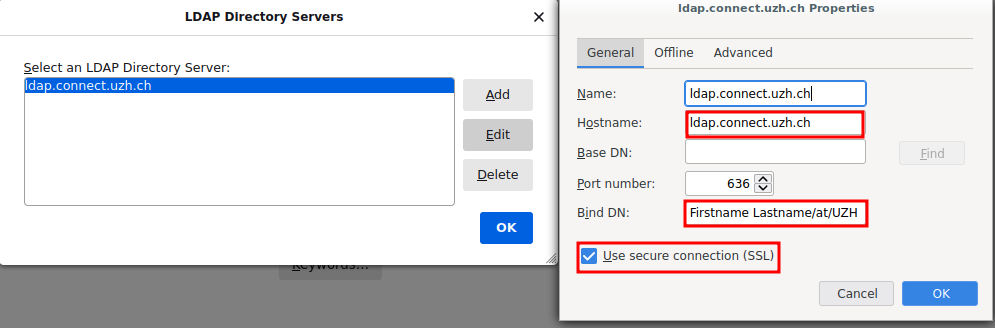
IMPORTANT: Replace Firstname Lastname with your UZH Fullname (typically your complete name, incl. any spaces).
- At the first search you need login with your UZH-Password.
Date / time format
- By default, the dates are shown with US locale
It's possible to change the Thunderbird UI to f.e. German: Edit > Preferences > Language > English|French|German|Italian
If the English is used and german date formating is wished, check: https://support.mozilla.org/en-US/kb/customize-date-time-formats-thunderbird
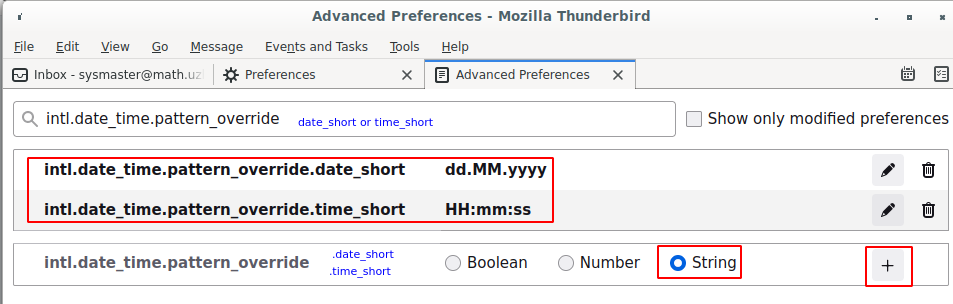
In config editor (Edit > Preferences > Search: config > Config Editor) set:
intl.date_time.pattern_override.date_short - dd.MM.yyyy
intl.date_time.pattern_override.time_short - HH:mm
Subscribe folder (shared mailbox)
Show all folder
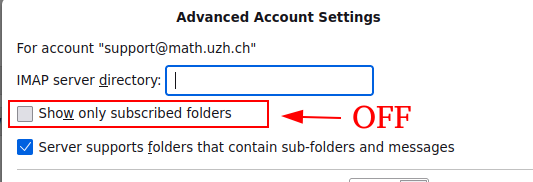
To automatically show all folder:
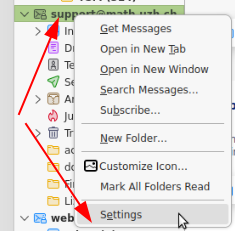
In Thunderbird move the mouse over the account do a right mouse click and select 'Settings > Server Settings > Advanced > Show only subscribed folders=off
Individual subscription
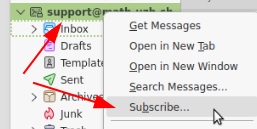
If a new folder has been created (maybe via Zimbra, or on a shared mailbox via another user), and Thunderbird does not show the new folder automatically:
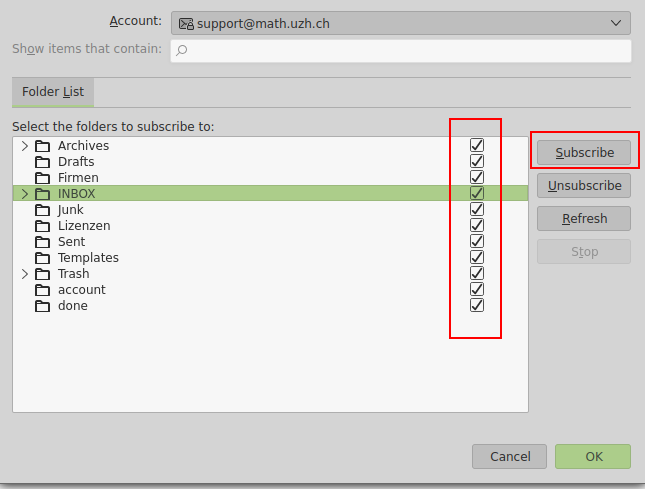
Please update the 'folder subscription': on the account do a right mouse click and select 'Subscribe'.
- Subscribe all folder:
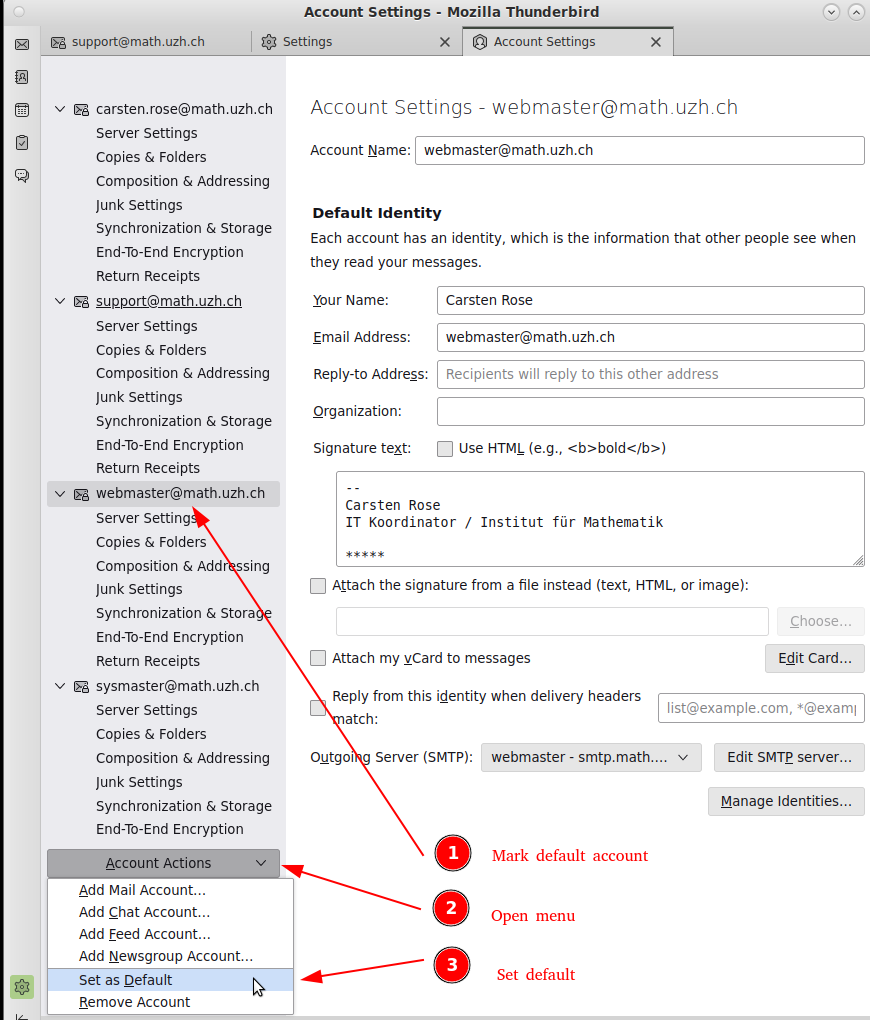
Default account
If you click on a mailto link in webbrowser, thunderbird will be opened and you can start to write a mail.
- If you have multiple accounts, it might be useful to define the default account which acts as sender than.
Open: Settings > Account Settings
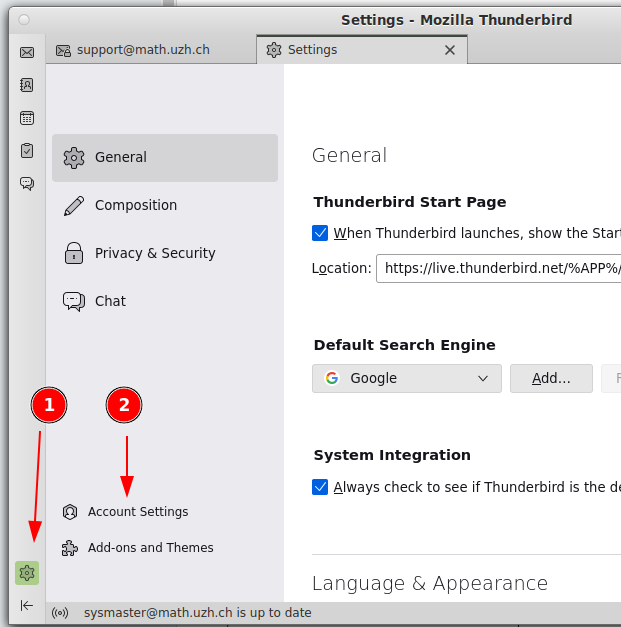
- Select the new default account, define as 'default'
Add on
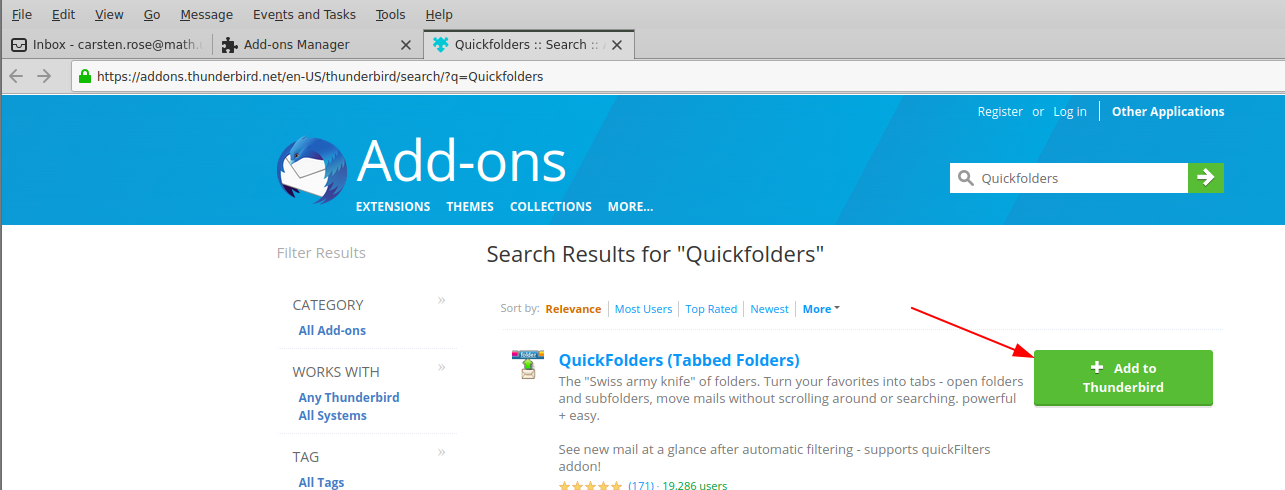
Installation: Tools > Add on and themes
Tools > Add-on and Themes


Quick Folder
Attach from Clipboard
Probleme
3.5.23 / CR / Zugriff collected Adresse & Abfrage nach Passwort
- After a NFS server problem (on TL), several user complain about broken Thunderbird configuration.
- One user reports that the collected addresses not available anymore
- Other user reports that they have to supply their passwort frequently, even if they activate 'save password'.
Solution: start clean-firefox-thunderbird.sh - this will restore the latest settings from the last snapshot.