
|
Size: 1810
Comment:
|
Size: 1969
Comment:
|
| Deletions are marked like this. | Additions are marked like this. |
| Line 16: | Line 16: |
| * Person to share screen: | * Person to '''share''' screen: |
| Line 23: | Line 23: |
| * Person to join screen share: | * Person to '''join''' screen share: |
| Line 26: | Line 26: |
{{attachment:remmina1.png}} * After saving the user - for future sessions just doubleclick the username {{attachment:remmina2.png}} |
Screen Share: Remote Shadow & Control
Service |
Use |
shadow |
control |
scale |
clipboard |
Group |
only thinlinc |
x |
x |
x |
x |
x |
|
all OS |
x |
- |
- |
- |
x |
|
all OS |
x |
- |
- |
- |
x |
|
all OS |
x |
x |
? |
x |
? |
|
all OS |
x |
- |
- |
- |
? |
Remina / Vino
Installed on thinlinc. Available for all linux distros.
Thinlinc:
Person to share screen:
Applications > Remote Desktop > Desktop Sharing
- [on] Allow other users to view your Desktop.
- [on] Allow other users to control your Desktop.
Person to join screen share:
Applications > Remote Desktop > Remmina
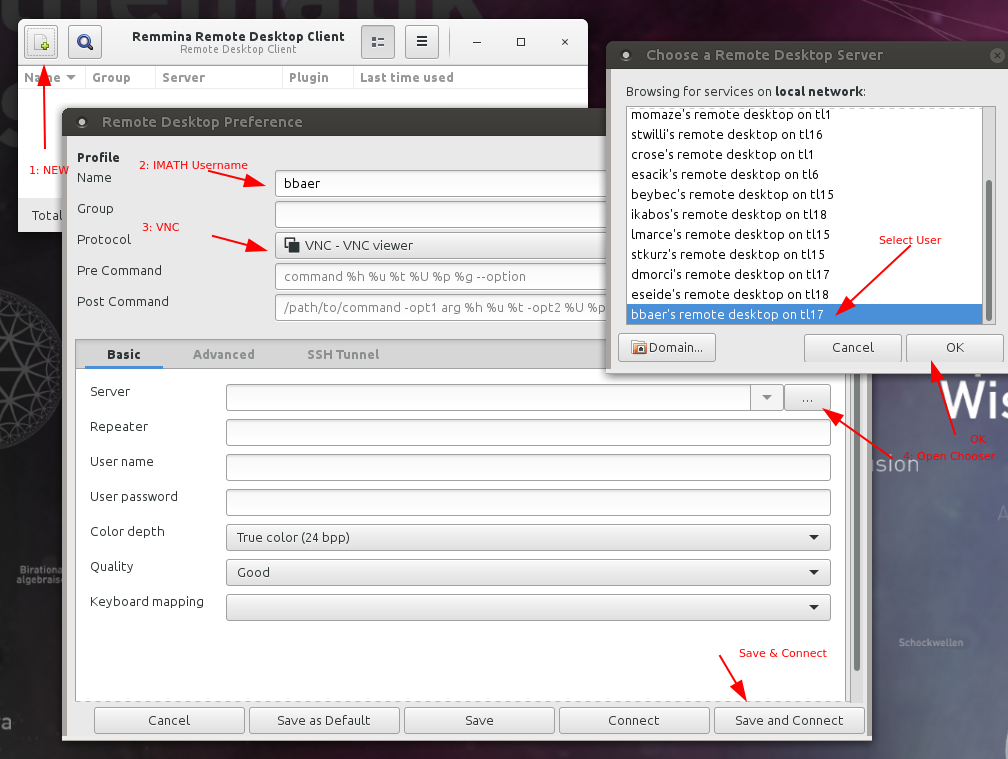
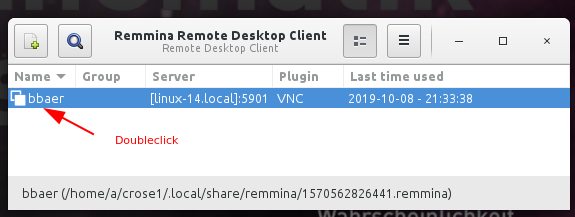
- After saving the user - for future sessions just doubleclick the username
hello.math.u.zh.ch / RocketChat
Install https://rocket.chat/install App
- Server: hello.math.uzh.ch
- Account: I-MATH username/password
- Only shadow, no remote control.
Start:
Start a voice call via RocketChat.
- Click on 'screen share'
Skype
- Install Skype client.
- Create / use your Microsoft Account
- Only shadow, no remote control.
Start:
- Start a voice call via Skype.
- Click on 'screen share'
Teamviewer.com
- Install Teamviewer client.
Start:
- Start Teamviewer
- Exchange ID's (show during start)
Google Chrome
Install ScreenShare Google Chrome App.
- Login with gmail account.