
|
Size: 5510
Comment:
|
Size: 4316
Comment:
|
| Deletions are marked like this. | Additions are marked like this. |
| Line 4: | Line 4: |
| || [[#VNC:_Remmina_.2F_Vino|VNC: Remmina / Vino]] || only thinlinc || x || x || x || x || x || | || [[#VNC: Shadow ]] || thinlinc, imath flips & notebooks || x || x || - || - || x || |
| Line 15: | Line 15: |
| * Start "Shadow Screenshare" from the applications menu, a system tray icon will appear. (Bottom right on Thinlinc, top right on laptops & flips.) | * Start "Shadow Screenshare" from the applications menu, a system tray icon will appear. (Bottom right on Thinlinc, top right on laptops & flips.) |
| Line 19: | Line 19: |
| * Left click on the icon and choose either 'View' or 'Share with', a text box will appear where you can enter an ID. Real world examples: * Click 'View', enter `crose` to shadow a colleague with that username. They get a popup asking for permission. * Click 'share', enter 'enured' to share your screen with a colleague with that username. They'll get a popup asking if they want to see your screen. If they accept, it'll ''again'' ask you if you actually want to share your screen with them. * Click 'Share', enter a room number like `k11` or `k30` to ''project'' your screen to a flip nuc. These are configured to accept shares by default, so you'll get a view request right back if it worked. * A list of all your recent actions is kept, so you don't have to type your colleagues name each time. Simply select an action from the tray icon's menu. * To disconnect all connected clients, there's a button above the `Quit` menu in the tray icon's menu. |
* Left click on the icon and choose either 'View' or 'Share with', a text box will appear where you can enter an ID. Real world examples: * Click 'View', enter `crose` to shadow a colleague with that username. They get a popup asking for permission. * Click 'share', enter 'enured' to share your screen with a colleague with that username. They'll get a popup asking if they want to see your screen. If they accept, it'll ''again'' ask you if you actually want to share your screen with them. * Click 'Share', enter a room number like `k11` or `k30` to ''project'' your screen to a flip nuc. These are configured to accept shares by default, so you'll get a view request right back. * A list of all your recent actions is kept, so you don't have to type your colleagues name each time. Simply select an action from the tray icon's menu. * To disconnect all connected clients, there's a button above the `Quit` menu in the tray icon's menu. |
| Line 28: | Line 28: |
| == FAQ == * Q: I am the host, I want to disconnect all guests! * A: [host] Click on the 'Desktop Sharing' icon in the top panel and choose `Disconnect <user>`. * Q: Fast way to join on a screen share? * A: [guest] Check the Remmina symbol in the top panel. Click on it and you'll see '''all your saved buddies'''. * Q: The name of my colleague does not appear in the chooser list! * A: [host] Let the colleague open a terminal and type: `vino.sh` - this will restart the 'Desktop Sharing'. * Q: Double click on the colleague's name opens the window and shows `Can't connect`! * A: [guest] `Stop Remmina and start again`. Explanation: if the colleague logs off from thinlinc and logs in again, a new server might be assigned. With restarting Remmina, the buddies list is updated with the latest server/buddy pairs. * Q: Sharing is fine, but the window is too big - it should be scaled! * A: [guest] On the left side switch on 'Toggle Scale Mode' * Q: The [host] says there is no 'screen share request' to acknowledge! * A: [host] Sometimes the window with the screen share request is in the background - look at the bottom task list for a window with 'bold' text, click on it and it comes to the front. |
There is currently no clipboard or scaling support. It's planned for V2. |
Screen Share: Remote Shadow & Control
Service |
Use |
shadow |
control |
scale |
clipboard |
multiple user |
thinlinc, imath flips & notebooks |
x |
x |
- |
- |
x |
|
all OS |
x |
- |
- |
- |
x |
|
iOS |
x |
- |
- |
- |
- |
Contents
VNC: shadow
Developed in-house, shadow allows for simplified VNC Screensharing between Thinlinc sessions, flips and notebooks in the imath network. It is preinstalled on Thinlinc, on imath flips and imath notebooks.
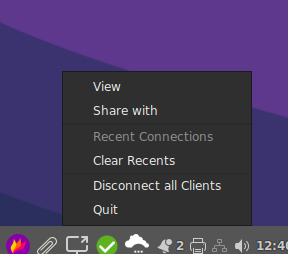
Start "Shadow Screenshare" from the applications menu, a system tray icon will appear. (Bottom right on Thinlinc, top right on laptops & flips.)

- Left click on the icon and choose either 'View' or 'Share with', a text box will appear where you can enter an ID. Real world examples:
Click 'View', enter crose to shadow a colleague with that username. They get a popup asking for permission.
Click 'share', enter 'enured' to share your screen with a colleague with that username. They'll get a popup asking if they want to see your screen. If they accept, it'll again ask you if you actually want to share your screen with them.
Click 'Share', enter a room number like k11 or k30 to project your screen to a flip nuc. These are configured to accept shares by default, so you'll get a view request right back.
- A list of all your recent actions is kept, so you don't have to type your colleagues name each time. Simply select an action from the tray icon's menu.
To disconnect all connected clients, there's a button above the Quit menu in the tray icon's menu.
There is currently no clipboard or scaling support. It's planned for V2.
hello.math.uzh.ch / RocketChat
Install https://rocket.chat/install App - or just visit the URL with your browser.
- Server: hello.math.uzh.ch
- Account: I-MATH username/password
- Only shadow, no remote control.
Start:
Start a voice call via RocketChat.
- Click on 'screen share'
iPad
Native AirPlay: https://support.apple.com/en-us/HT204289
- Commercial:
iPad > Linux
[user@ubuntu20.04]
$ sudo apt-get install cmake libavahi-compat-libdnssd-dev libplist-dev libssl-dev libgstreamer1.0-dev libgstreamer-plugins-base1.0-dev gstreamer1.0-libav gstreamer1.0-vaapi gstreamer1.0-plugins-bad

$ git clone https://github.com/FD-/RPiPlay.git
$ cd RPiPlay
$ mkdir build; cd build; cmake ..
$ make
$ sudo make install

# On problems it might help to install:
$ sudo apt install ubuntu-restricted-extras vlc

# Start
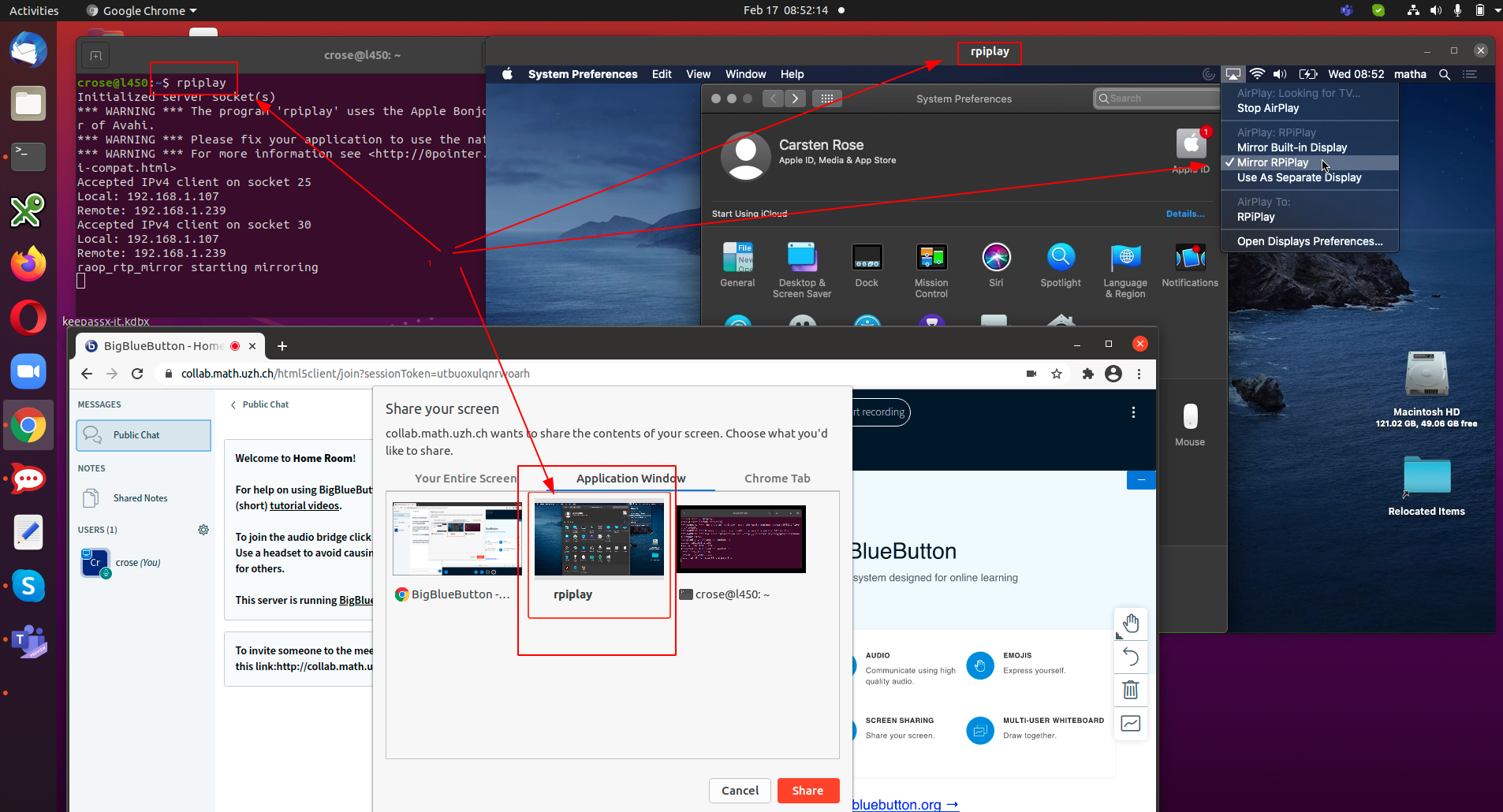
$ rpiplay
On the iPad, share the screen: https://support.apple.com/en-us/HT204289.
Select rpiplay as destination (is only shown as long as on the Linux host the program rpiplay is running)
- On the linux host a window pops up.
A compiled version of rpiplay for Linux Ubuntu 20.04 is available under https://drive.math.uzh.ch/index.php/s/ek3oFfHb4Z9zaYt
Android Tablet
Problem
Mac OS X Catalina / 10.15
Each applications needs the screen record privilege: https://help.daily.co/en/articles/3400532-enable-screen-recording-permission-for-macos-catalina-10-15-and-later