
|
Size: 1657
Comment:
|
Size: 3533
Comment:
|
| Deletions are marked like this. | Additions are marked like this. |
| Line 1: | Line 1: |
| = Screen Share / Shadow = | = Screen Share: Remote Shadow & Control = |
| Line 3: | Line 3: |
| || Service || Use || shadow || control || scale || clipboard || Group || || Remmina / Vino || only thinlinc || x || x || x || x || x || || hello.math.uzh.ch || all OS || x || - || - || - || x || || Skype || all OS || x || - || - || - || x || || teamviewer.com || all OS || x || x || ? || x || ? || || Google Chrome || all OS || x || - || - || - || ? || |
|| Service || Use || shadow || control || scale || clipboard || multiple user || || [[#VNC:_Remmina_.2F_Vino|VNC: Remmina / Vino]] || only thinlinc || x || x || x || x || x || || [[#hello.math.uzh.ch_.2F_RocketChat|hello.math.uzh.ch]] || all OS || x || - || - || - || x || || [[#Skype|Skype]] || all OS || x || - || - || - || x || || [[#Teamviewer.com|teamviewer.com]] || all OS || x || x || x || x || ? || || [[#Google_Chrome|Google Chrome]] || all OS || x || - || - || - || ? || |
| Line 11: | Line 11: |
| = Remina / Vino = | <<TableOfContents>> |
| Line 13: | Line 13: |
| Installed on thinlinc. Available for all linux distros. | = VNC: Remmina / Vino = |
| Line 15: | Line 15: |
| Thinlinc: | Installed on thinlinc and available for all major linux distros. |
| Line 17: | Line 17: |
| * Person to share screen: | '''Thinlinc:''' |
| Line 19: | Line 19: |
| * Applications > Remote Desktop > Desktop Sharing | * [host] '''share''' screen: `Applications > Remote Desktop > Desktop Sharing` |
| Line 21: | Line 21: |
| * [on] Allow other users to view your Desktop. * [on] Allow other users to control your Desktop. |
* [on] Allow other users to view your Desktop. * [on] Allow other users to control your Desktop. |
| Line 24: | Line 24: |
| * Person to join screen share: | * [guest] '''join''' screen share: `Applications > Remote Desktop > Remmina` |
| Line 26: | Line 26: |
| * Applications > Remote Desktop > Remmina |
{{attachment:remmina1.png}} * The [host] has to accept the join request. * After saving the user - for future sessions just doubleclick the username. {{attachment:remmina2.png}} |
| Line 29: | Line 34: |
| == FAQ == * Q: I am the host, I want to disconnect all guests! * A: [host] Click on the 'Desktop Sharing' icon in the top panel and choose `Disconnect <user>`. * Q: Fast way to join on a screen share? * A: [guest] Check the Remmina symbol in the top panel. Click on it and you'll see '''all your saved buddies'''. * Q: The name of my colleague does not appear in the chooser list! * A: [host] Let the colleague open a terminal and type: `vino.sh` - this will restart the 'Desktop Sharing'. * Q: Double click on the colleague's name opens the window and shows `Can't connect`! * A: [guest] `Stop Remmina and start again`. Explanation: if the colleague logs off from thinlinc and logs in again, a new server might be assigned. With restarting Remmina, the buddies list is updated with the latest server/buddy pairs. * Q: Sharing is fine, but the window is too big - it should be scaled! * A: [guest] On the left side switch on 'Toggle Scale Mode' * Q: The [host] says there is no 'screen share request' to acknowledge! * A: [host] Sometimes the window with the screen share request is in the background - look at the bottom task list for a window with 'bold' text, click on it and it comes to the front. |
|
| Line 31: | Line 55: |
| = hello.math.u.zh.ch / RocketChat = | = hello.math.uzh.ch / RocketChat = |
| Line 39: | Line 63: |
| * Start a voice call via RocketChat. | * Start a voice call via !RocketChat. |
| Line 62: | Line 86: |
| * Install ScreenShare Google Chrome App. | * Check: https://remotedesktop.google.com/ |
| Line 64: | Line 88: |
= Problem = == Mac OS X Catalina / 10.15 == Each applications needs the screen record privilege: https://help.daily.co/en/articles/3400532-enable-screen-recording-permission-for-macos-catalina-10-15-and-later |
Screen Share: Remote Shadow & Control
Service |
Use |
shadow |
control |
scale |
clipboard |
multiple user |
only thinlinc |
x |
x |
x |
x |
x |
|
all OS |
x |
- |
- |
- |
x |
|
all OS |
x |
- |
- |
- |
x |
|
all OS |
x |
x |
x |
x |
? |
|
all OS |
x |
- |
- |
- |
? |
Contents
VNC: Remmina / Vino
Installed on thinlinc and available for all major linux distros.
Thinlinc:
[host] share screen: Applications > Remote Desktop > Desktop Sharing
- [on] Allow other users to view your Desktop.
- [on] Allow other users to control your Desktop.
[guest] join screen share: Applications > Remote Desktop > Remmina
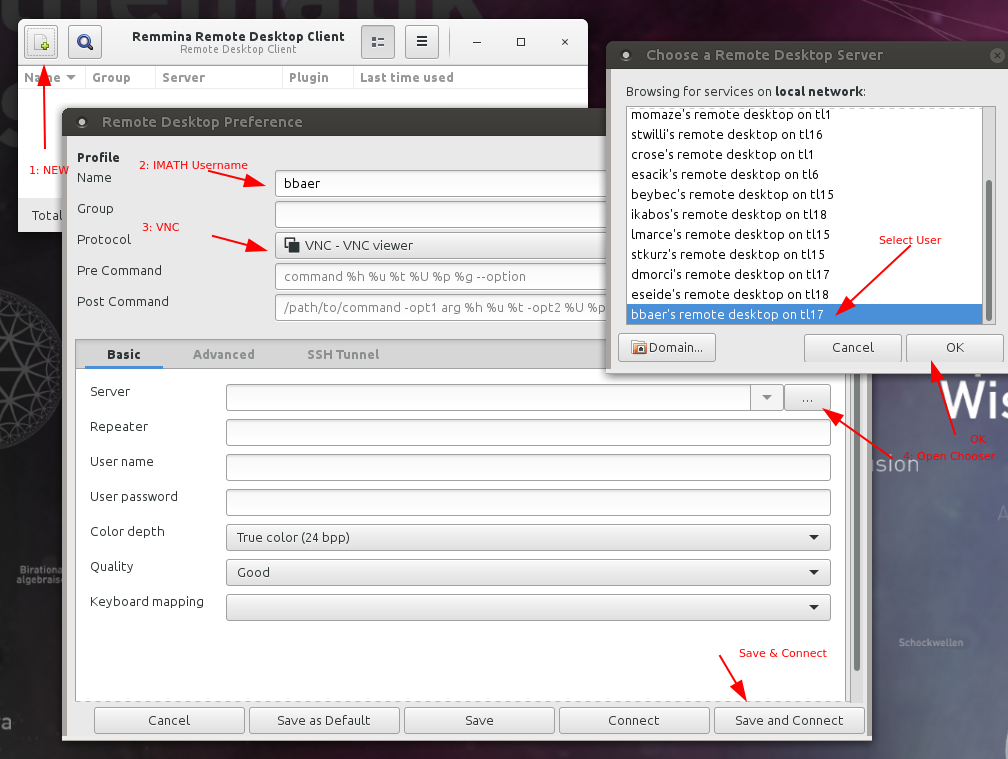
- The [host] has to accept the join request.
- After saving the user - for future sessions just doubleclick the username.
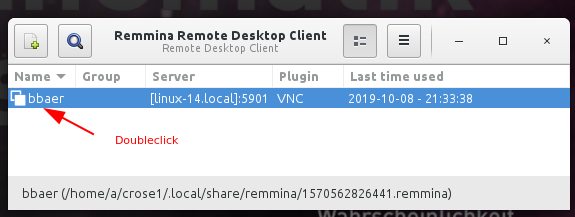
FAQ
- Q: I am the host, I want to disconnect all guests!
A: [host] Click on the 'Desktop Sharing' icon in the top panel and choose Disconnect <user>.
- Q: Fast way to join on a screen share?
A: [guest] Check the Remmina symbol in the top panel. Click on it and you'll see all your saved buddies.
- Q: The name of my colleague does not appear in the chooser list!
A: [host] Let the colleague open a terminal and type: vino.sh - this will restart the 'Desktop Sharing'.
Q: Double click on the colleague's name opens the window and shows Can't connect!
A: [guest] Stop Remmina and start again. Explanation: if the colleague logs off from thinlinc and logs in again, a new server might be assigned. With restarting Remmina, the buddies list is updated with the latest server/buddy pairs.
- Q: Sharing is fine, but the window is too big - it should be scaled!
- A: [guest] On the left side switch on 'Toggle Scale Mode'
- Q: The [host] says there is no 'screen share request' to acknowledge!
- A: [host] Sometimes the window with the screen share request is in the background - look at the bottom task list for a window with 'bold' text, click on it and it comes to the front.
hello.math.uzh.ch / RocketChat
Install https://rocket.chat/install App
- Server: hello.math.uzh.ch
- Account: I-MATH username/password
- Only shadow, no remote control.
Start:
Start a voice call via RocketChat.
- Click on 'screen share'
Skype
- Install Skype client.
- Create / use your Microsoft Account
- Only shadow, no remote control.
Start:
- Start a voice call via Skype.
- Click on 'screen share'
Teamviewer.com
- Install Teamviewer client.
Start:
- Start Teamviewer
- Exchange ID's (show during start)
Google Chrome
- Login with gmail account.
Problem
Mac OS X Catalina / 10.15
Each applications needs the screen record privilege: https://help.daily.co/en/articles/3400532-enable-screen-recording-permission-for-macos-catalina-10-15-and-later