
|
Size: 1733
Comment:
|
Size: 2233
Comment:
|
| Deletions are marked like this. | Additions are marked like this. |
| Line 1: | Line 1: |
| = WOL: Remotely power on a notebook / dekstop of IMATH = | = Remotely power on a notebook / desktop of IMATH = <<TableOfContents>> |
| Line 3: | Line 4: |
| The idea of this feature is simple, everyone should be able to wake their machine using localinfo. We use the standard Wake on Lan (in short WOL) feature to accomplish this. | The idea of this feature is simple, everyone should be able to wake their machine using localinfo. We use the standard 'Wake on Lan' (in short WOL) feature to accomplish this. |
| Line 6: | Line 9: |
| 1 Activate WOL on the Device 2 Log in to localinfo > Power On (WOL) |
1. Activate WOL on the Device 1. Log in to localinfo: http://www.math.uzh.ch > LI > Remote Power On (WOL) * Check if the device is on the list 1. WOL only works over the yellow tagged network (LAN). WOL over WIFI is not supported. |
| Line 9: | Line 14: |
| Check if the device is on the list and note that WOL only works over the yellow tagged network. | = Activate WOL = |
| Line 11: | Line 16: |
| == Activate WOL == | == BIOS: Linux / Windows == |
| Line 13: | Line 18: |
| == Mac OS X == | Enter the BIOS Setup at startup of the machine. Look for the an Option like `Power on by PCIE Devices`, `Power On by onboard Lan`, `On Board LAN boot (rom)` (!) and set it to enable. It is usually under `Boot` or `Advanced`. |
| Line 15: | Line 20: |
| === Setup === | == OS: Mac OS X == |
| Line 17: | Line 22: |
| Open system preferences -> Energy saving options -> wake for network access (or wake for wifi on most notebooks). Use "sleep" instead of Power Off. | * Open system preferences -> Energy saving options -> wake for network access (or wake for wifi on most notebooks). * General: if you leave your office, use '''sleep''' instead of '''Power Off'''. |
| Line 19: | Line 25: |
| === BIOS === | Note: Some Mac Mini (10.9) don't support WOL. |
| Line 21: | Line 27: |
| Enter the BIOS Setup at startup of the machine. Look for the an Option like Power on by PCIE Devices, Powern On by onboard Lan, On Board LAN boot (rom) and set it to enable. It is usually under boot or advanced. === Windows === |
== OS: Windows == |
| Line 26: | Line 30: |
| 1. Right-click Computer, then click Properties > Device Manager. | 1. Right-click Computer > Properties > Device Manager. |
| Line 29: | Line 33: |
| {{attachment:wol_windows.png}} 4. Use Windowskey + R and type: `shell:::{67718415-c450-4f3c-bf8a-b487642dc39b}` {{attachment:windows1.png}} 5. |
|
| Line 30: | Line 38: |
| === Linux === | == OS: Linux == |
| Line 32: | Line 40: |
| If you are using RHEL / SL / Fedora / CentOS Linux, edit /etc/sysconfig/network-scripts/ifcfg-eth0 and add / modify the following line: | * Install ethtools `sudo apt-get install ethtool` * Run the command (necessary after each boot) {{{ sudo /sbin/ethtool -s eth0 wol g }}} * Auto activation during boot: |
| Line 34: | Line 45: |
| {{{ ETHTOOL_OPTS="wol g" }}} or {{{ ETHTOOL_OPTS="wol g autoneg off speed 100 duplex full " }}} Save and close the file. If you are using Debian / Ubuntu Linux, edit /etc/network/interfaces and append the following to eth0: {{{#!highlight bash |
* For Debian / Ubuntu Linux (without network manager) edit /etc/network/interfaces and append the following to eth0: {{{ |
| Line 51: | Line 54: |
* For RHEL / SL / Fedora / CentOS Linux, edit /etc/sysconfig/network-scripts/ifcfg-eth0 and add / modify the following line: {{{ ETHTOOL_OPTS="wol g" }}} * or {{{ ETHTOOL_OPTS="wol g autoneg off speed 100 duplex full " }}} |
Remotely power on a notebook / desktop of IMATH
Contents
The idea of this feature is simple, everyone should be able to wake their machine using localinfo. We use the standard 'Wake on Lan' (in short WOL) feature to accomplish this.
The following steps have to be taken:
- Activate WOL on the Device
Log in to localinfo: http://www.math.uzh.ch > LI > Remote Power On (WOL)
- Check if the device is on the list
- WOL only works over the yellow tagged network (LAN). WOL over WIFI is not supported.
Activate WOL
BIOS: Linux / Windows
Enter the BIOS Setup at startup of the machine. Look for the an Option like Power on by PCIE Devices, Power On by onboard Lan, On Board LAN boot (rom)  and set it to enable. It is usually under Boot or Advanced.
OS: Mac OS X
Open system preferences -> Energy saving options -> wake for network access (or wake for wifi on most notebooks).
General: if you leave your office, use sleep instead of Power Off.
Note: Some Mac Mini (10.9) don't support WOL.
OS: Windows
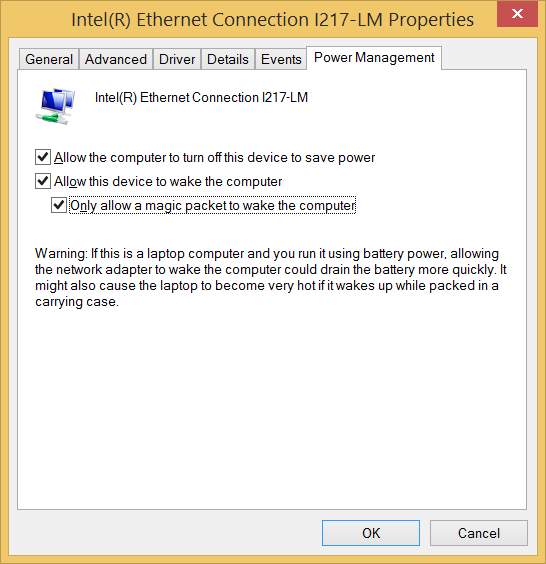
To enable WOL under Windows:
Right-click Computer > Properties > Device Manager.
- Under Network Adapters, double-click the device.
- Tick all the items under the Power Management tab.
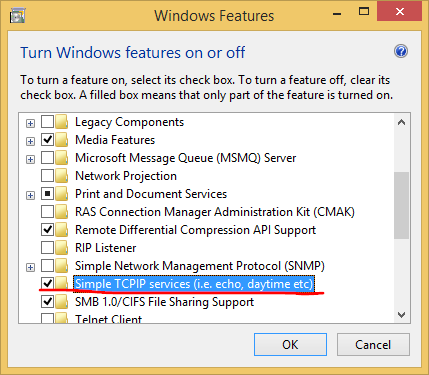
Use Windowskey + R and type: shell:::{67718415-c450-4f3c-bf8a-b487642dc39b}
OS: Linux
Install ethtools sudo apt-get install ethtool
Run the command (necessary after each boot)
sudo /sbin/ethtool -s eth0 wol g
- Auto activation during boot:
For Debian / Ubuntu Linux (without network manager) edit /etc/network/interfaces and append the following to eth0:
auto eth0
iface eth0 inet static
address 192.168.1.1
netmask 255.255.255.0
gateway 192.168.1.254
        post-up /sbin/ethtool -s eth0 wol g
        post-down /sbin/ethtool -s eth0 wol g
For RHEL / SL / Fedora / CentOS Linux, edit /etc/sysconfig/network-scripts/ifcfg-eth0 and add / modify the following line:
ETHTOOL_OPTS="wol g"
or
ETHTOOL_OPTS="wol g autoneg off speed 100 duplex full "