
- Printing Booklet:
- Copier 'jcolor' is able to automatically
- print,
- stamp and
- fold booklets.
- Output Size:
- A4
- A5
- Copier 'jcolor' is able to automatically
Important: Several Copies
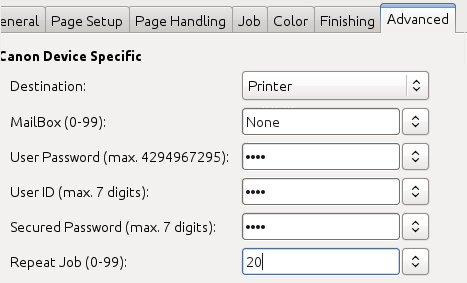
If you like to print several copies: do not use Copies on the first dialog page!
Instead use Tab: Advanced > Repeat Job:
Booklet printing on Linux
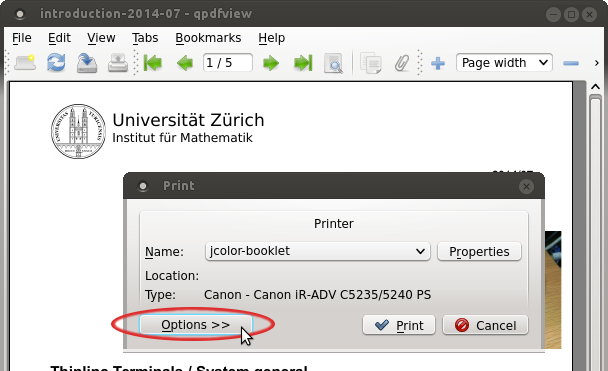
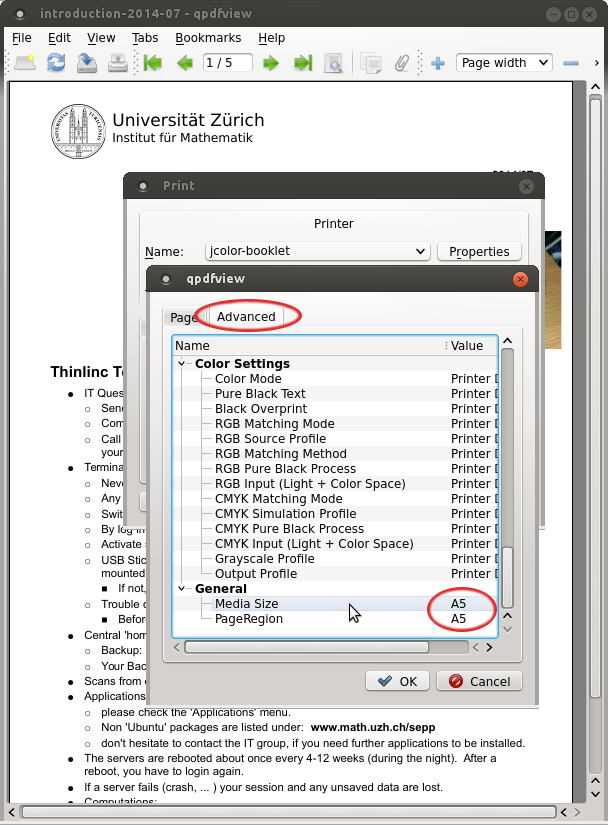
In the print dialog select printer jcolor-booklet
Open the Options view by pressing Options >>
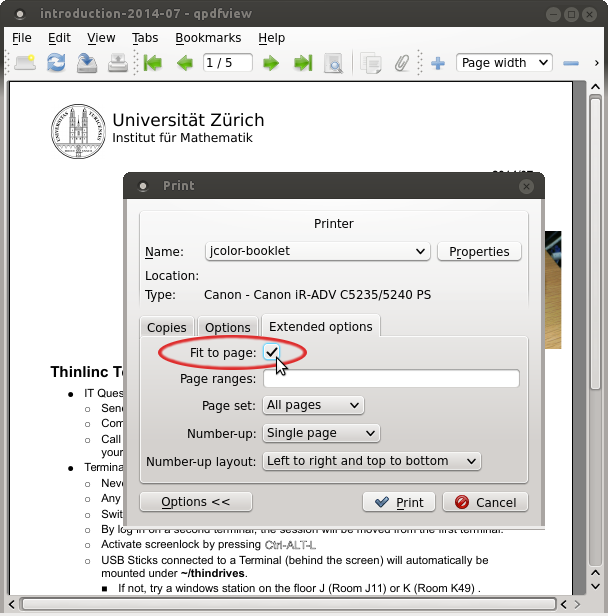
Make sure, Fit to page: is checked on the Extended options tab
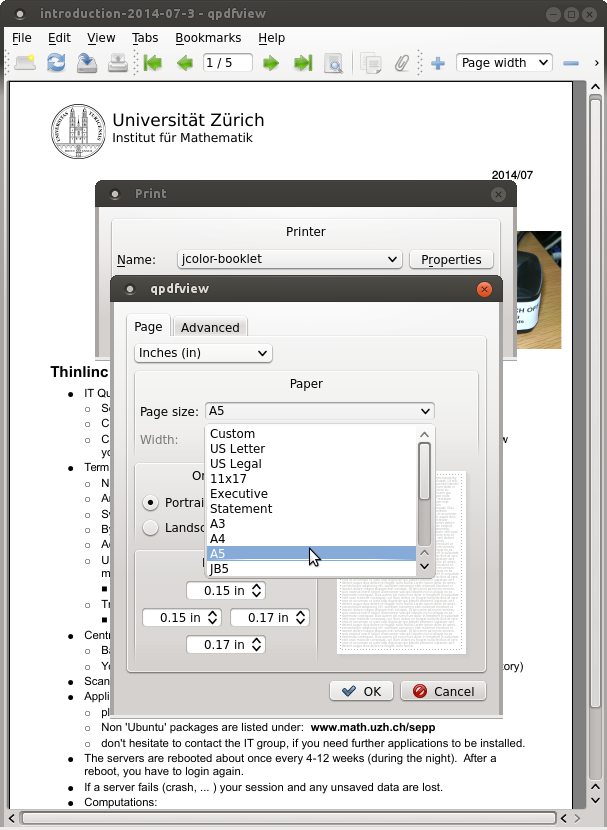
Depending on your requirements, select A5 or A4 as for paper size
Switch to the Advanced tab, and make sure Media Size and PageRegion are set to the same value, depending on what you've selected in the previous step.
Press OK and print the document
![[ATTACH]](/public/print/booklet?action=AttachFile&do=upload_form&ticket=006996ec99.1b6acb29d7304b8bdd75f40bdf3f3b6860c556dc&target=booklet+1.png "[ATTACH]")
Booklet printing on Windows
In the print dialog of the application (Word, Acrobat, etc.), select the printer jcolor
Open the Printer Properities
Select the Basic Settings tab and choose Booklet A5 or Booklet A4, depending on your requirements
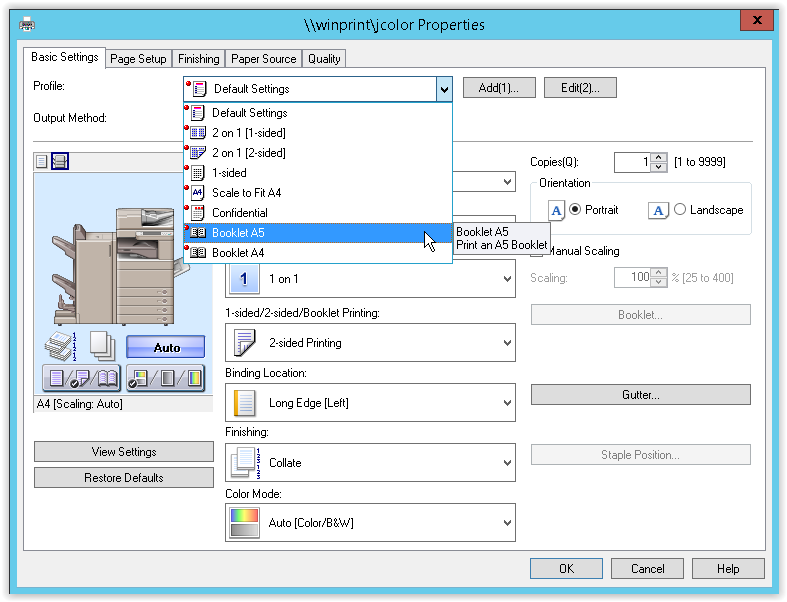
Confirm the dialog by pressing OK
- Print the document