
|
Size: 6771
Comment:
|
← Revision 94 as of 2026-03-15 10:33:40 ⇥
Size: 10672
Comment:
|
| Deletions are marked like this. | Additions are marked like this. |
| Line 1: | Line 1: |
| = Keepass = | <<TableOfContents>> = Links = * [[https://keepassxc.org/|Download]] * [[https://www.heise.de/ratgeber/KeePass-Grundlagen-Passwoerter-endlich-effektiv-schuetzen-11187694.html?seite=all|Basics]] * [[https://www.heise.de/news/Open-Source-Adventskalender-Der-Passwort-Manager-KeePass-6288780.html|Background information]] = KeePassXC = |
| Line 5: | Line 13: |
| <<TableOfContents>> * Background information: https://www.heise.de/news/Open-Source-Adventskalender-Der-Passwort-Manager-KeePass-6288780.html |
|
| Line 12: | Line 17: |
| * MFA for modern accounts/services. | * MFA for modern accounts/services- this becomes so easy, use it wherever it is possible. |
| Line 14: | Line 19: |
| * Splitted security levels (multiple databases). | * Splitted security levels (multiple vaults). |
| Line 16: | Line 21: |
| * Sharing credentials (multiple databases) via cloud storage. | * Sharing credentials (multiple vaults, shared via cloud storage). E.g. a) team: sharing credentials, b) family: shared WLAN password, children school accounts. |
| Line 20: | Line 25: |
| !KeePass is a tool to store and manage passwords. Apps are freely available for * MacOS/Windows/Linux - !KeePass: https://keepassxc.org/. |
KeePassXC is a tool to store and manage passwords. Apps are freely available for * MacOS/Windows/Linux - KeePassXC: https://keepassxc.org/. |
| Line 26: | Line 31: |
| Mobile Integration: * We have tested KeePassXC on mobile devices only very roughly. * The integration is not as good ('simple to use') as on the desktop app or in the browser. * Never the less: most persons see's it as an advantage to have the personal vault on their mobile device accessible. |
|
| Line 28: | Line 40: |
| * KeePassXC create/open/edit/save password-databases in a single file. * A password-database is basically an encrypted file, where you can store your various usernames/passwords/URLs and also attachments like pictures or other important / private documents. * A password-database can only be opened if you know the Master-Password. The Master Password is the key to all your stored passwords. |
* KeePassXC create/open/edit/save password-vaults in a single file. * A password-vault is basically an encrypted file, where you can store your various usernames/passwords/URLs and also attachments like pictures or other important / private documents. * A password-vault can only be opened if you know the Master-Password. The Master Password is the key to all your stored passwords. |
| Line 32: | Line 44: |
| * Encryption -- either the Advanced Encryption Standard (AES) or the Twofish algorithm are used for encryption of the database in 256 bit sized increments | * Encryption -- either the Advanced Encryption Standard (AES) or the Twofish algorithm are used for encryption of the vault in 256 bit sized increments |
| Line 35: | Line 47: |
| == Creating a Password Database == | == Creating a Password Vault == |
| Line 38: | Line 50: |
| * you will be prompted to set a master key. Input your master password (the master password for all your other stored passwords). Then click "OK" * repeat your master password. click "OK". * chose a group. (Standard choices are Internet of eMail. You can also create your own groups). * click on "Entries" --> "Add New Entry..." |
* You will be prompted to set a master key. Input your master password (the master password for all your other stored passwords). Then click "OK" * Repeat your master password. click "OK". * Chose a group. (Standard choices are Internet of eMail. You can also create your own groups). * Click on "Entries" --> "Add New Entry..." |
| Line 49: | Line 61: |
| * click on "File" --> "Save Database" * chose a location and a name for your password database. click "OK" == Best practice: Sync Database via cloud == * Only use a cloud service if you need to sync your passwords over several devices. |
* Click on "File" --> "Save Database" * Chose a location and a name for your password database. click "OK" == Best practice: Sync Vault via cloud == * Only use a cloud service if you need to sync your passwords across several devices! (Recommendation: yes, use a cloud service) |
| Line 59: | Line 71: |
| * creates automatically backups. | * implicit backups (data on multiple devices, and also in the cloud). |
| Line 62: | Line 74: |
| * If your cloud access is compromised or the cloud service provider is compromised: the thief owns the treasure. | * all of your confidental data on all devices - higher chance that your (encrypted) vaults are accessible to others. * If your cloud access is compromised or the cloud service provider is compromised: the thief owns the (enrypted) vault. |
| Line 77: | Line 90: |
| * On all devices where you like to sync your !KeePass database file, install and configure [[drive.math.uzh.ch]] * Open the !KeePass database file on all of your devices directly from the cloud folder. * Automatic merge of databases: Even if KeePassXC has a database opened, changes on a different device (e.g. phone) and sync via cloud, becomes immediately active. |
* On all devices where you like to sync your KeePassXC Vault file, install and configure [[drive.math.uzh.ch]] * Open the KeePassXC vault file on all of your devices directly from the cloud folder. * Automatic merge of vault: Even if KeePassXC has a vault opened, changes on a different device (e.g. phone) and sync via cloud, becomes immediately active. |
| Line 90: | Line 103: |
| * Again, think on this: There is only one source of truth (=one KeePassXC vault), in all browsers you have all your credentials available. | |
| Line 93: | Line 107: |
| * '''no more MS-Authenticator app needed''' (what if MS is down, and you like to log on any service which uses MS as login method) | * '''no more MS-Authenticator app needed''' |
| Line 96: | Line 110: |
| * '''still secure'''. | * '''still secure''' - the second factor is now your KeePassXC. |
| Line 106: | Line 120: |
| * Install the corresponding browser plugin (links to app store: check settings dialog '5' ) | * Install the corresponding browser plugin (links to app store: check above the settings dialog '5' ) === Option: Passkeys === |
| Line 113: | Line 131: |
| * Take care that the keepass icon on the top right is 'green' = connection to database is active. | * Take care that the KeePassXC icon on the top right is 'green' = connection to vault is active. |
| Line 129: | Line 147: |
| * On a MFA-TOTP secured login website, just login as usual with keepass, on the next page, where the one time token is requested, click again on the green symbol. | * On a MFA-TOTP secured login website, just login as usual with KeePassXC, on the next page, where the one time token is requested, click again on the green symbol. |
| Line 137: | Line 155: |
| * Or as a QR code to scan. Here sometimes it's a URL or a `fido` string. If it is not in plaintext in the URL, hopefully the assigned app (=keepassdx) opens. | * As a QR code to scan. * Here sometimes it's a URL or a `fido` string. * If it is not in plaintext in the URL, hopefully the assigned app (=keepassdx) opens. * Option: be creative - scan the QR, look at the url (or send the URL via 'share' to yourself): you should see the shared secret as an argument in the URL. |
| Line 142: | Line 164: |
| * Passkeys offers more security than TOTP and should be used when possible. | * Passkeys are significant more secure than MFA via a) email code or b) One Time Token, c) Authenticator App, cause they use pairing between store and the application. |
| Line 144: | Line 166: |
| * The paring is also a disadvantage: you need different keys for each store. Sure, KeepassXC acts like 'one store'. * Logging to a passkey secured application only works with a running passkey device / software. * In contrast: TOTP is fine if you get the code from your Mobile/Keepass App and type it in a browser on a computer. * Using passkeys is recommended, but only after you got experience with KeepassXC and the corresponding browser plugin. === Recovery Keys === * Some services offers recovery keys. * Copy the keys in corresponding account record in KeePassXC. * If you used a key (it's burnt now), remove it from the list (if there was only one key, update it with the new one). |
|
| Line 151: | Line 187: |
* This is very '''powerful''' - add as many URLs you like to the same account record - the helps to keep your vault clean! {{{ https://odc.officeapps.live.com https://onedrive.live.com/ https://login.live.com/ }}} == Problems == === Brave: No connection === If connection to KeepassXC fails after (re)starting Brave: * In KeepassXC open `Settings > Browser Integration > Enable integration for there browsers: Off & On` === Brave: Plugin spinning wheel turns all the time, no connection === ==== Option 1 ==== * Quit Brave. * Optional: Check that there are no leftover processes. * Check if keepassx gets a connection. * No? '''Repeat''' the quit/restart at least '''4 times''' - answer question like 'Restore pages' or 'Profile broken' (than quit). ... ''makes no sense, right? Try it!'' ==== Option 2 ==== * Open the keepassx plugin options page. * Change a setting. * Close the tab. * Open the keepassx plugin options page again. * Is the setting still the one you choosed before? * No: exit Brave (check that all processes are closed). * Repeat the test - up to 3 times!!! ==== Option 3 ==== * In Brave: '''Remove extension keepassxc plugin.''' * Quit Brave. * '''Check that really all brave processes are quit''': `ps -ef | grep brave | grep $USER` * '''Clean tempfiles''': `\rm -R /tmp/.cache-$USER/BraveSoftware` * Start Brave again. * Install Brave plugin `keepassxc`. * Optional: Import Brave plugin `keepassxc` settings (export them earlier when all is fine). ==== Option 4 ==== * Close all Browser: Chrome, Brave, Firefox, Teams [PWA], Spotify [PWA] * Close KeepassXC * {{{for II in keepassxc-proxy keepassxc brave firefox chrome; do pkill $II; pkill -9 $II; done}}} * (!) '''Start''' and '''quit''' brave * Start KeepassXC * Start brave. * If necessary, remove keepassxc plugin and reinstall. * Connect to KeepassXC |
Links
KeePassXC
Features
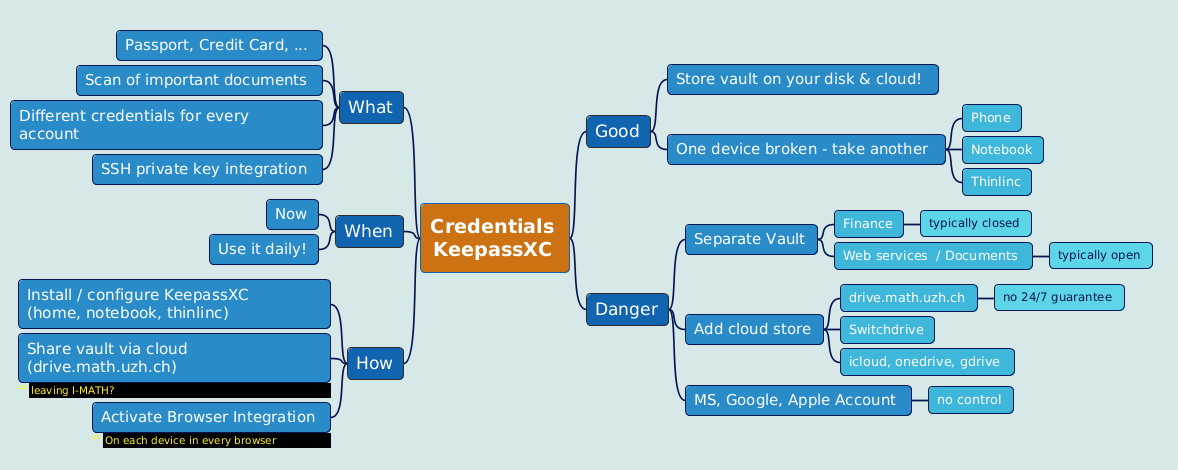
- Different passwords for different accounts.
- MFA for modern accounts/services- this becomes so easy, use it wherever it is possible.
- No single device dependency. Your passwords are where you are.
- Splitted security levels (multiple vaults).
- Awesome browser integration.
- Sharing credentials (multiple vaults, shared via cloud storage). E.g. a) team: sharing credentials, b) family: shared WLAN password, children school accounts.
Description
KeePassXC is a tool to store and manage passwords. Apps are freely available for
MacOS/Windows/Linux - KeePassXC: https://keepassxc.org/.
Android: KeepassDX
iOS - https://keepassium.com/
Mobile Integration:
- We have tested KeePassXC on mobile devices only very roughly.
- The integration is not as good ('simple to use') as on the desktop app or in the browser.
- Never the less: most persons see's it as an advantage to have the personal vault on their mobile device accessible.
How KeePassXC works
- KeePassXC create/open/edit/save password-vaults in a single file.
- A password-vault is basically an encrypted file, where you can store your various usernames/passwords/URLs and also attachments like pictures or other important / private documents.
- A password-vault can only be opened if you know the Master-Password. The Master Password is the key to all your stored passwords.
- If you forgot your Master-Password, you cannot access your stored passwords anymore.
- Encryption -- either the Advanced Encryption Standard (AES) or the Twofish algorithm are used for encryption of the vault in 256 bit sized increments
All features: http://www.keepassx.org/features/
Creating a Password Vault
Click on "File" --> "New Database..."
- You will be prompted to set a master key. Input your master password (the master password for all your other stored passwords). Then click "OK"
- Repeat your master password. click "OK".
- Chose a group. (Standard choices are Internet of eMail. You can also create your own groups).
Click on "Entries" --> "Add New Entry..."
- Input the information you need
- Title: a short description of the entry
- Username: your username
- URL: on what homepage do you need the password
- Password: your password
- Repeat: repeat your password
- Comment: a longer description of the entry
Click on "File" --> "Save Database"
- Chose a location and a name for your password database. click "OK"
Best practice: Sync Vault via cloud
- Only use a cloud service if you need to sync your passwords across several devices! (Recommendation: yes, use a cloud service)
- Decide on your own:
- Pro 'cloud':
- all of your confidental data on all devices.
- implicit backups (data on multiple devices, and also in the cloud).
- Contra 'cloud':
- all of your confidental data on all devices - higher chance that your (encrypted) vaults are accessible to others.
- If your cloud access is compromised or the cloud service provider is compromised: the thief owns the (enrypted) vault.
- Pro 'cloud':
US based cloud provider like Google Drive, Dropbox, Apple iDrive, Microsoft OneDrive:
- Those services are very attractive to hackers.
- The NSA has the right to get all data from US companies. After Snowden it's for sure, the NSA is not friendly.
Rule of thumb: Don't use US hosted / company based services for confidential data.
- Local cloud storage provider:
https://drive.switch.ch - Switch Eduction cloud service - switchdrive
https://drive.math.uzh.ch - I-MATH
- How to:
On all devices where you like to sync your KeePassXC Vault file, install and configure drive.math.uzh.ch
- Open the KeePassXC vault file on all of your devices directly from the cloud folder.
- Automatic merge of vault: Even if KeePassXC has a vault opened, changes on a different device (e.g. phone) and sync via cloud, becomes immediately active.
- If you work in a team: no change, everyone can open the local copy - changes will be merged.
Browser integration / MFA Setup / Passkeys
- KeePassXC can be used from within a browser (Chrome, Chromium, Firefox, Vivaldi, Brave, ...)
- Browser connection to KeePassXC is nice: different browsers offer the same accounts/credentials - if synced via cloud than also on different computers.
- TOTP service (one time token).
- Passkeys support.
- Again, think on this: There is only one source of truth (=one KeePassXC vault), in all browsers you have all your credentials available.
Finally:
no more MS-Authenticator app needed
no more single device dependency (Phone at home, ...)
login to any MFA protected website without a mobile phone - Biggest advantage: your second token are controlled by you, not any provider.
still secure - the second factor is now your KeePassXC.
Settings
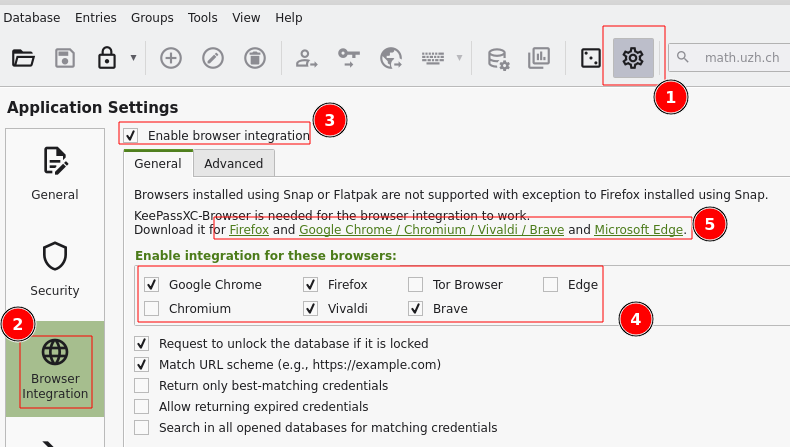
Settings > Browser Integration > Enable integration ...: Chrome, Firefox, ...
Browser Plugin
- Install the corresponding browser plugin (links to app store: check above the settings dialog '5' )
Option: Passkeys
- Passkeys have to explicitly enabled in the browser plugin:

Regular Username / Password
- Take care that the KeePassXC icon on the top right is 'green' = connection to vault is active.
- Open the login page in the browser.
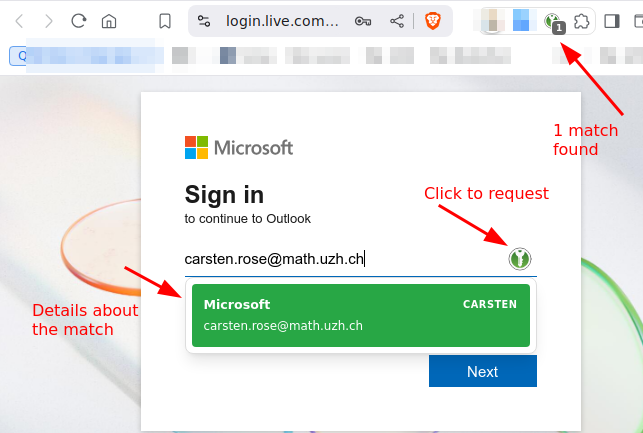
- Click on the small green kp icon.
- Choose the account.
MFA
TOTP
To use TOTP with Microsoft Office 365 login: Add another (than MS-Authenticator-) app, as second factor How To
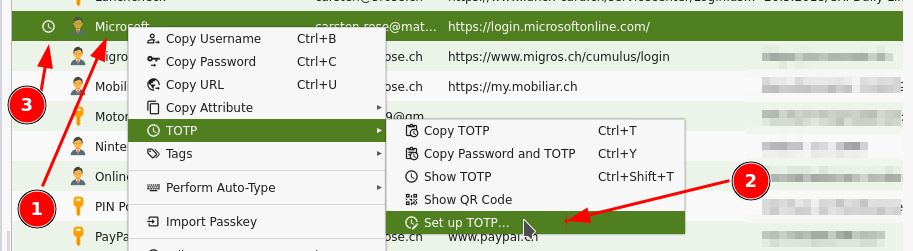
Add TOTP functionality to individual accounts: Account > right mouse click > TOTP > Setup TOTP
- On a MFA-TOTP secured login website, just login as usual with KeePassXC, on the next page, where the one time token is requested, click again on the green symbol.
Hint:
On the TOTP setup you have to provide the 'shared secret'.
- The shared scecret is provided by the website which hosts the login, typically where the MFA can be configured.
- Either in plaintext like 'ABCD EFGH 1234 IJKL 5678 MNOP QRST UV89'.
- As a QR code to scan.
Here sometimes it's a URL or a fido string.
- If it is not in plaintext in the URL, hopefully the assigned app (=keepassdx) opens.
- Option: be creative - scan the QR, look at the url (or send the URL via 'share' to yourself): you should see the shared secret as an argument in the URL.
Passkey
Passkey / webauthn are offered as an additional way to use MFA.
- Passkeys are significant more secure than MFA via a) email code or b) One Time Token, c) Authenticator App, cause they use pairing between store and the application.
- But: Some websites work better than others. E.g. eduid.ch is ok, gitlab is ok but with popup, Microsoft is broken for Linux/Chrome/KeePassXC, ...
- The paring is also a disadvantage: you need different keys for each store. Sure, KeepassXC acts like 'one store'.
- Logging to a passkey secured application only works with a running passkey device / software.
- In contrast: TOTP is fine if you get the code from your Mobile/Keepass App and type it in a browser on a computer.
- Using passkeys is recommended, but only after you got experience with KeepassXC and the corresponding browser plugin.
Recovery Keys
- Some services offers recovery keys.
- Copy the keys in corresponding account record in KeePassXC.
- If you used a key (it's burnt now), remove it from the list (if there was only one key, update it with the new one).
Same account / different URLs
Some services, especially Microsoft (https://login.live.com/, https://login.microsoftonline.com/), uses different URLs to login.
- Per account, add further URLs:
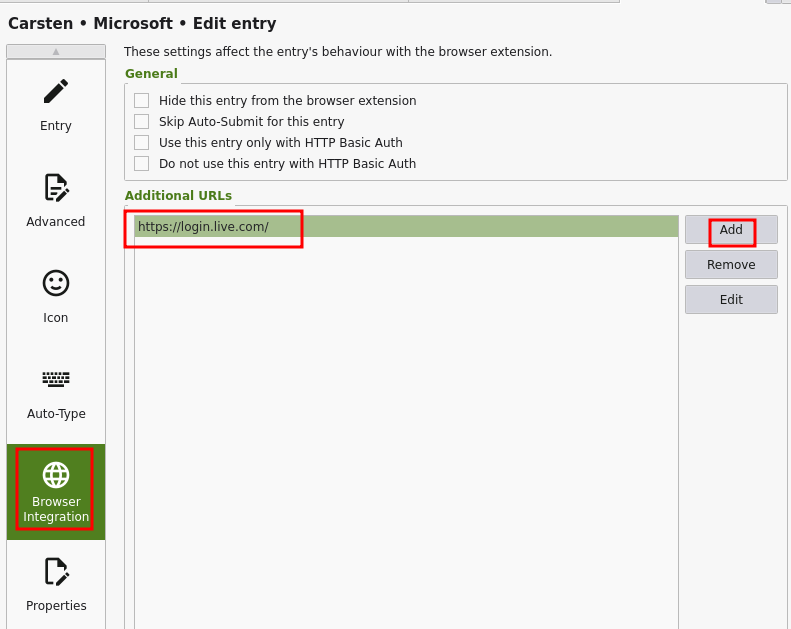
This is very powerful - add as many URLs you like to the same account record - the helps to keep your vault clean!
https://odc.officeapps.live.com
https://onedrive.live.com/
https://login.live.com/
Problems
Brave: No connection
If connection to KeepassXC fails after (re)starting Brave:
In KeepassXC open Settings > Browser Integration > Enable integration for there browsers: Off & On
Brave: Plugin spinning wheel turns all the time, no connection
Option 1
- Quit Brave.
- Optional: Check that there are no leftover processes.
- Check if keepassx gets a connection.
No? Repeat the quit/restart at least 4 times - answer question like 'Restore pages' or 'Profile broken' (than quit). ... makes no sense, right? Try it!
Option 2
- Open the keepassx plugin options page.
- Change a setting.
- Close the tab.
- Open the keepassx plugin options page again.
- Is the setting still the one you choosed before?
- No: exit Brave (check that all processes are closed).
- Repeat the test - up to 3 times!!!
Option 3
In Brave: Remove extension keepassxc plugin.
- Quit Brave.
Check that really all brave processes are quit: ps -ef | grep brave | grep $USER
Clean tempfiles: \rm -R /tmp/.cache-$USER/BraveSoftware
- Start Brave again.
Install Brave plugin keepassxc.
Optional: Import Brave plugin keepassxc settings (export them earlier when all is fine).
Option 4
- Close all Browser: Chrome, Brave, Firefox, Teams [PWA], Spotify [PWA]
- Close KeepassXC
for II in keepassxc-proxy keepassxc brave firefox chrome; do pkill $II; pkill -9 $II; done
 Start and quit brave
 - Start KeepassXC
- Start brave.
- If necessary, remove keepassxc plugin and reinstall.
- Connect to KeepassXC