# mac
## Printing via UZHPrintPlus
Offical ZI Page: [UZH Print Plus](https://www.zi.uzh.ch/de/support/it-workplace/uzhprintplus/install-printer.html#macOS)
Recommended for students.
Printing is possible via WLAN *UZH,* but **not** via WLAN EduRoam.
## Printing via MATH/DM3L-Print server
Recommended for institute members. (best Option for MacOS)
Printing is possible via LAN aswell as WLAN *UZH* & *EduRoam*
IMATH-Account required. *[Create I-MATH Account](https://www.math.uzh.ch/my/account)*
### Setup
- Open Printer Settings > Add Printer > IP-Tab:
[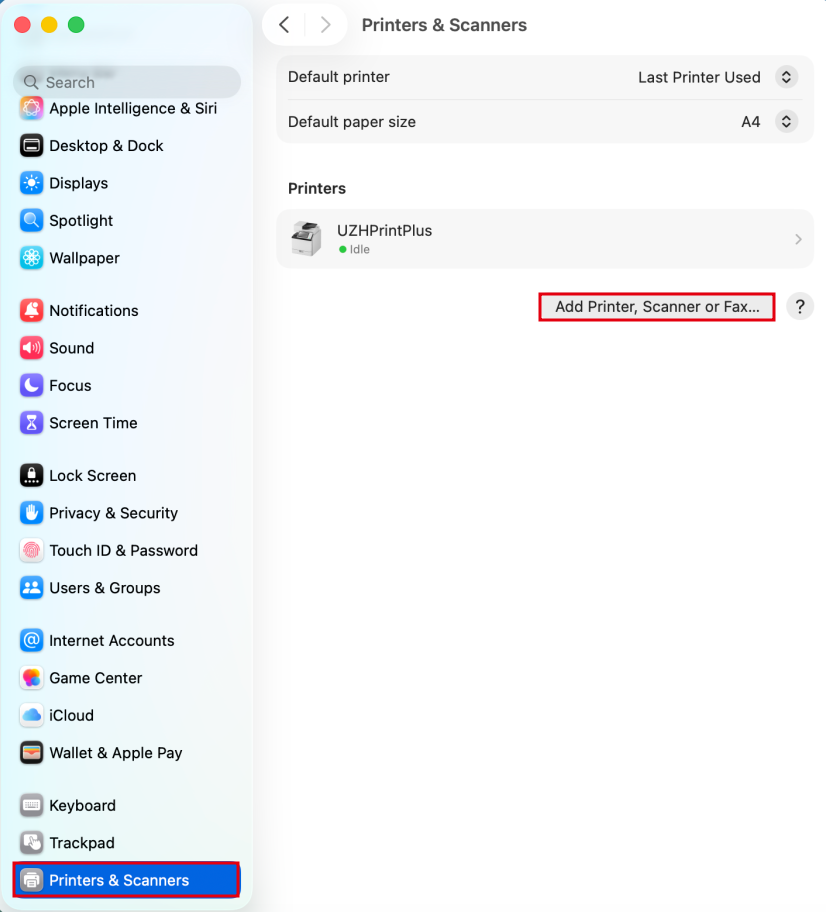](https://wiki.math.uzh.ch/public/uploads/images/gallery/2026-06/og811.png)
- **Configuration:**
- Adress: `print-mac.math.uzh.ch:443`
- Protocol: `Airprint`
- Queue: `printers/` (Replace <printername> with the actual name of the printer, e.g "k30")
- Name: Up to you, has no effect on the configuration (we advise to make it the printername)
- Use: Nothing to do here, Airprint will automatically provide the correct driver.
[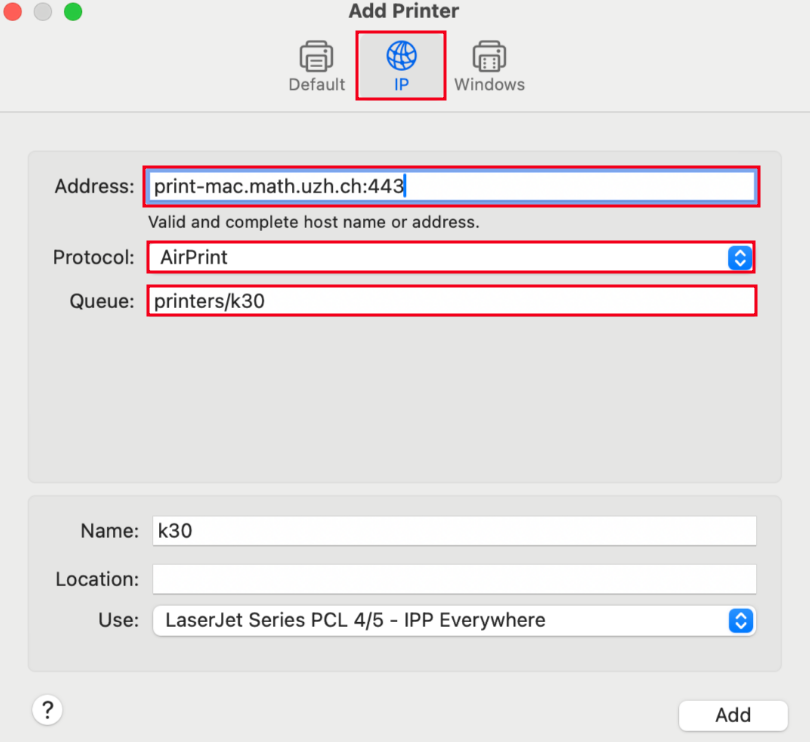](https://wiki.math.uzh.ch/public/uploads/images/gallery/2026-10/tO0image.png)
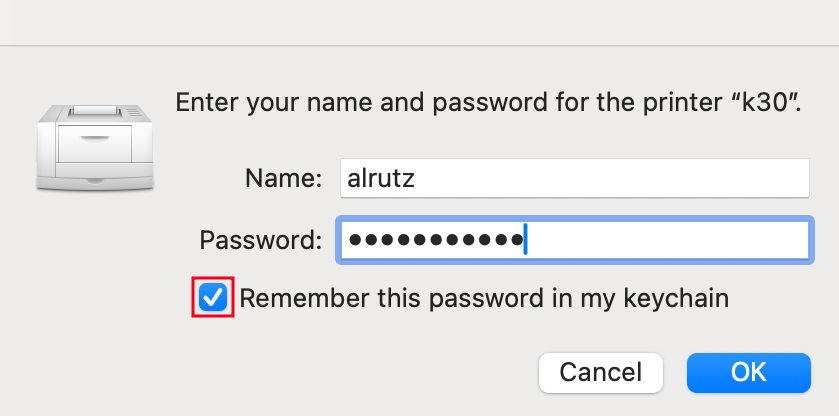
- **Upon the first Print**, you will be prompted for your IMATH-Credentials (shortname + PW)
- Make sure to tick the box "Remember this password in my Keychain", this way you will only have to enter the Credentials once.
- **Attention:** In Case the Authentication-Popup doesn't appear upon the first print, just print the File again - it will then appear.
[](https://wiki.math.uzh.ch/public/uploads/images/gallery/2026-10/ylOimage.png)
#### Booklets
*Only available on specific UPP Printer-Queues (jcolor\_booklet & kcolor\_booklet)*
- 1.) Add the following printer: `jcolor_booklet` or `kcolor_booklet` (See above how to add)
- Important: jcolor or kcolor will not work, it has to be the booklet queue!
- 2.) After the printer is added and you are in the Print Dialog, make sure you set the following:
- Paper Setup: A4
- Do **NOT** select "Booklet" under Handling - **Print it as if it was a regular File.**