Clean up files
Finding current quota
Your quota is shown on MY> Settings > Personal Info:
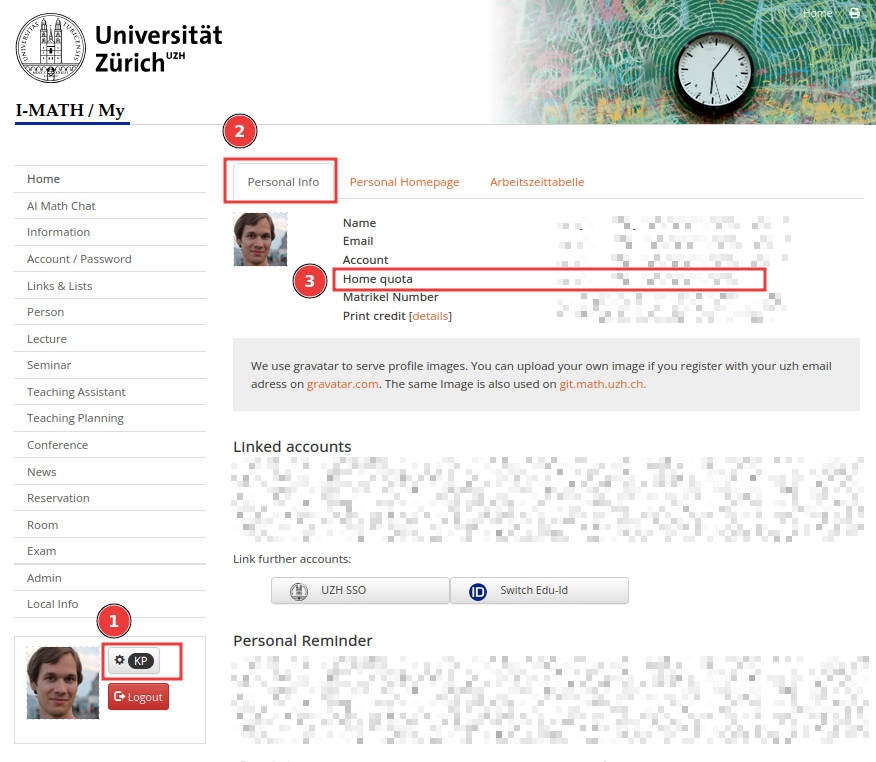 You can also check it from the terminal:
# Quota and usage in 1K blocks
$ df ~

# Quota and usage in a short format
$ df -h ~
Note: if your usage is over 95% of the quota, then the current quota might be temporarily increased. In such case you can find your quota in the automatic email notification about high disk usage or on MY as above.
Analyzing and cleaning up space
Using ThinLinc (graphical)
- Get an overview: start Disk Usage Analyzer application
- Delete files
- Empty the trash
- Get again an overview
Using terminal
# Space used by the current directory (all files and sub directories)
$ du -kx

# Recursive: the above for the current directory and subdirectories up to 2 levels
$ du -kxd 2

# Space used by all files and sub directories of the current directory, excluding hidden
$ du -kxs *

# Space used by all files and sub directories of the current directory, including hidden
$ du -kxs * .[a-zA-Z0-9]*

# Remove a directory, incl. all sub directories (be carefull !)
$ rm -R <dir>

# Remove a directory, incl. all sub directories (be more carefull !) without asking !!!
$ \rm -R <dir>