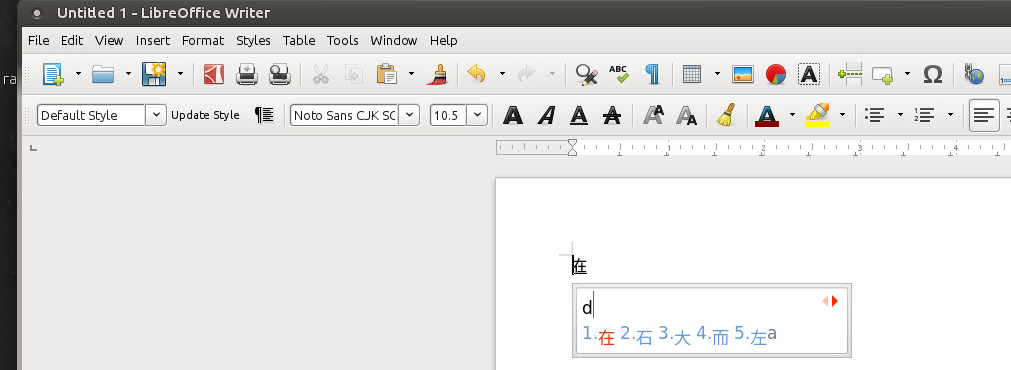
ChineseInputMethod
Follow these instructions to enable Chinese Input Methods in ThinLinc
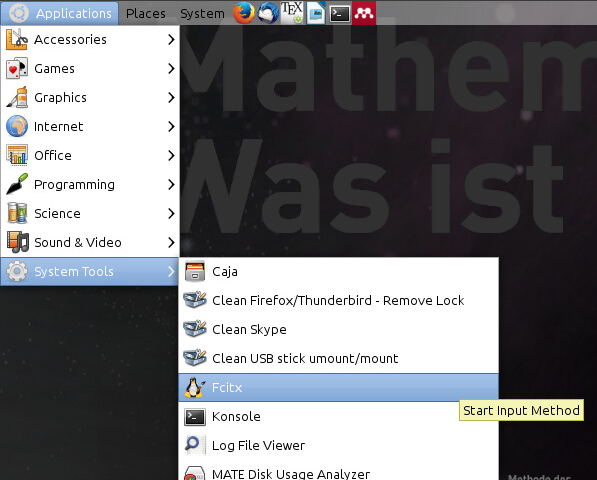
1. Start Fcitx from the Applications menu
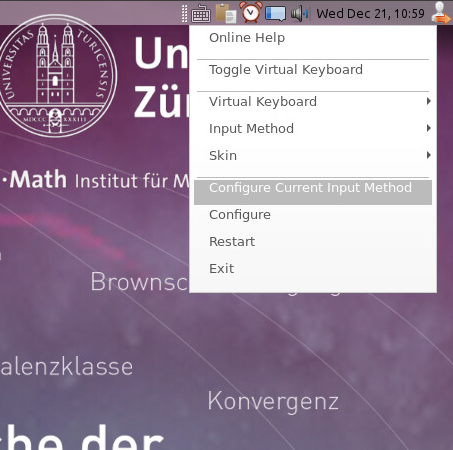
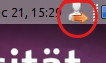
2. In the upper right corner of the screen, right click on the keyboard icon and left click on Configure Current Input Method
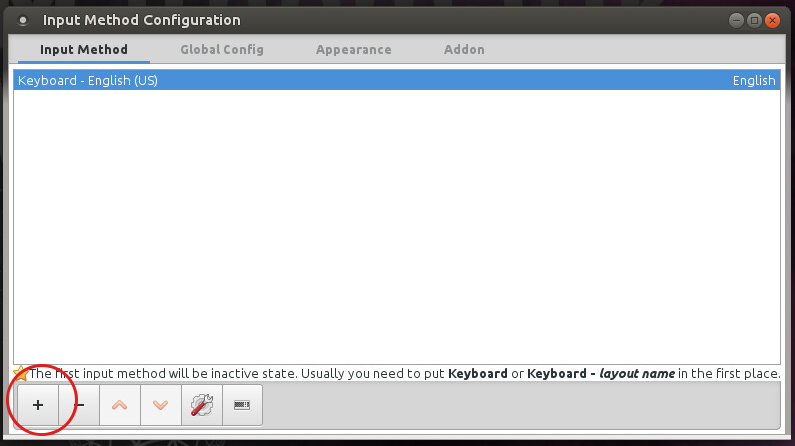
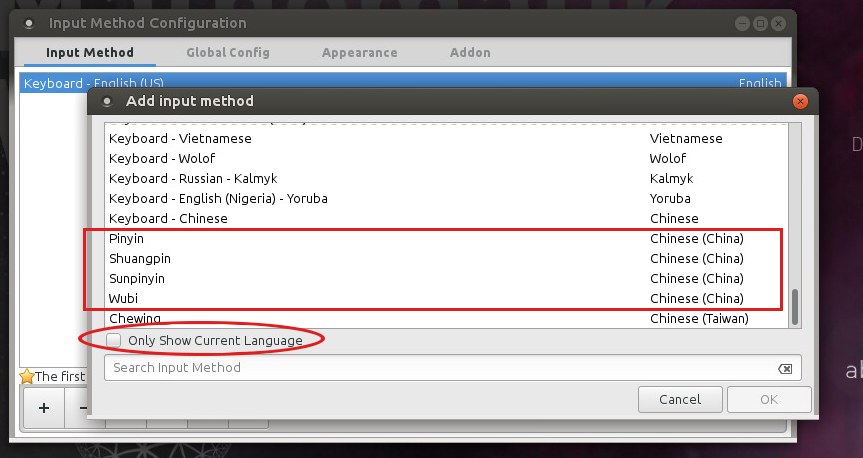
3. Click on the plus-sign in the Input Method Configuration window
4. Untick Only Show Current Language and scroll to the bottom of the window. Select the input method you want to use. When done, press OK
5. Close the Input Method Configuration window.
6. Open .profile file in your home directory with a text editor and add following lines
export XMODIFIERS=@im=fcitx
export QT4_IM_MODULE=fcitx
export QT_IM_MODULE=fcitx
export GTK_IM_MODULE=fcitx
and save the file.
7. Logout of your session
8. Login again
9. Start `Fcitx` from the Applications menu
10. In the upper right corner of the screen, right click on the keyboard icon and hover the mouse cursor over `Input Method` and set the current active Input Method.
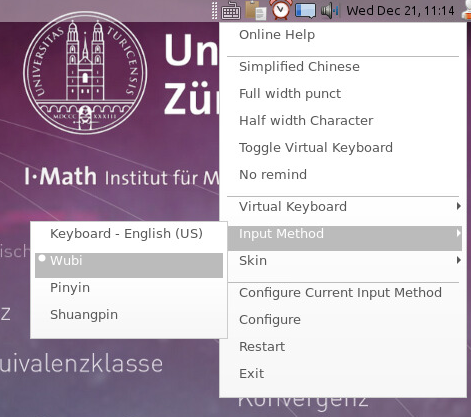
11. You should now be able to type Chinese characters