Android: Screen sharing via HDMI
Solution:
Comparison
- A similar setup can be reached with
Hardware
- Android Tablet with USB-C connector (Samsung Galaxy S4, S6).
- USB-C / HDMI Adapter (plugged into the tablet)
- HDMI cable (between 2 and 4)
- HDMI capture stick (plugged into the notebook). If the USB port of the HDMI capture stick is to big, use an USB extension.
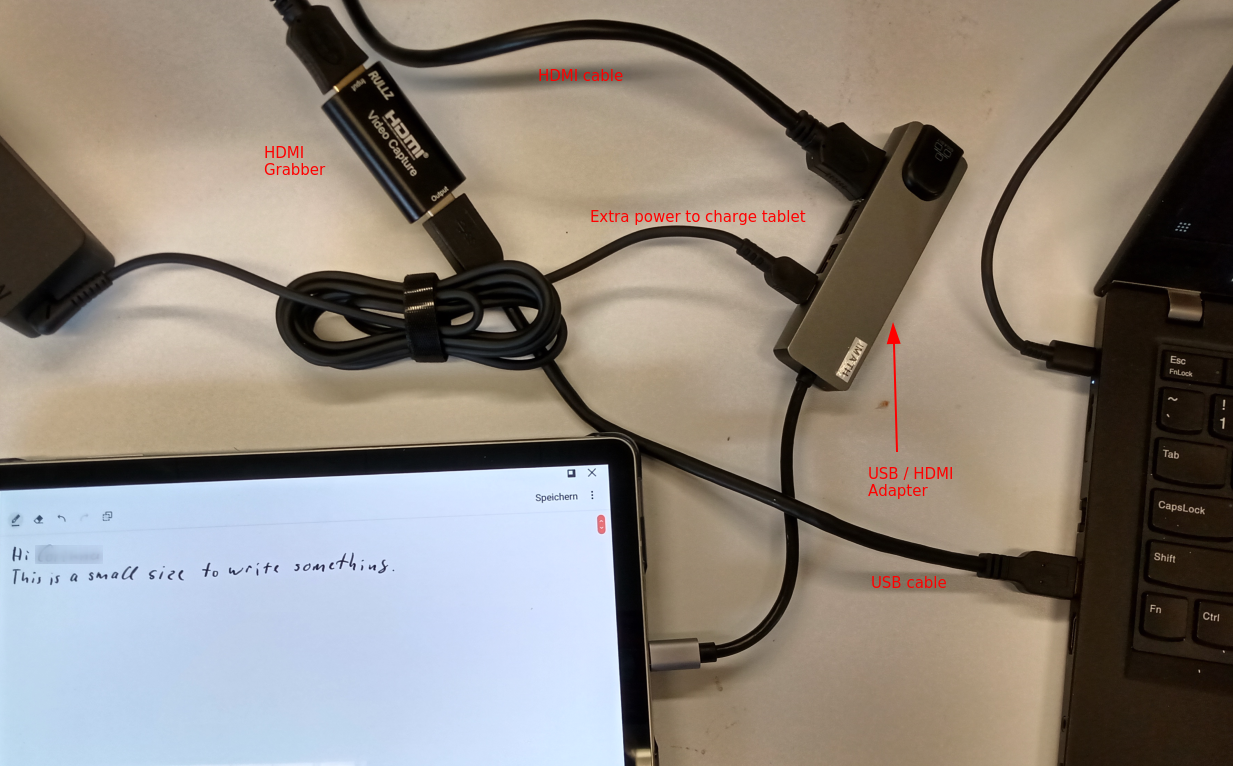
Use with BBB in a Y27 seminar room
Part 1: Setup BBB
- Power on the Seminar room laptop.
- Open the browser.
- Login to MY > start a BBB stream (or use MS-Teams, Zoom).
- Share the notebook screen in BBB - or just the guvcview window (see below).
- Students in the room: switch on the beamer (small black box, takes 2 minutes to power on).
- Connect the tablet with HDMI Capture stick to the notebook (see hardware above).
- Samsung: do not use Samsung DeX .. the tablet will act as a notebook, not as a tablet (in this scenario more disadvantage than advantage).
- Start
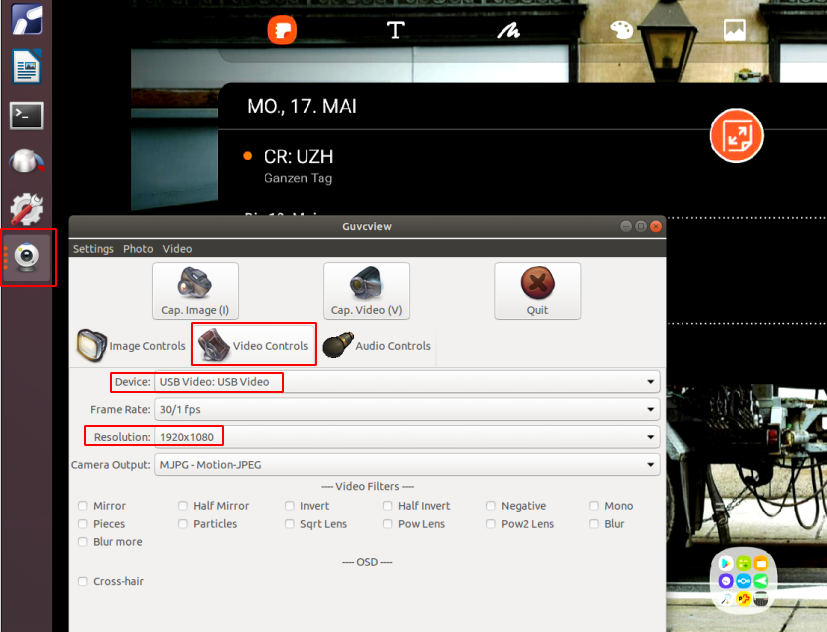
guvcview(webcam icon on the left panel)- Select the right video source:
- On tab Video Controls select device: USB Video: USB Video.
- There are probably two (same name), check both.
- A popup appears: Launch new process or restart? >> restart.
- Select the right video source:
- Resolution: 1920x 1080
- Keep the guvcview open. To bring the tablet share window to front, click in it.
Conclusion:
- The notebook webcam can still show the speaker.
- A window (=guvcview) is the tablet screen.
- The quality should be fine for streaming as well as beamer presentation (both at the same time).
- The seminar room microphones are used as regular.