# print

# linux

- Printing from private notebooks to the institutes printer is **only possible** (UPP is fine) via **LAN** (=cable) and not via WLAN. Your device must be first registered in a central system - please contact support for help.
- Enable: 'show remote printers'
- Hint: after the first time activating your Notebook at IMATH, it's possible that you have to wait up to 15 minutes before the printers appear. If you deactivate/activate your network or if your reboot your machine, the printer will be displayed immediately.
- The printers at UZH advertise their presence using the mDNS protocol, so, in order to see the printers on the network, you must have an mDNS client installed and configured. This can be accomplished, on most systems, by installing the 'nss-mdns' module, and adding 'mdns' or 'mdns\_minimal' to the 'hosts' line in '/etc/nsswitch.conf'. Note that, in most distributions, nss-mdns requires the 'avahi-daemon' to be installed and running.

### Adding a printer from a command line

```

lpadmin -p <local name> -v ipp://print.math.uzh.ch/printers/<printer_name> -m everywhere -E

```

- `-p` sets the name of the printer on the local maching; it can be anything, but the actual name of the printer is recommended
- `-v` is a location on a print server; if `print.math.uzh.ch` does not work, try `print24-pub.math.uzh.ch`
- `-m` chooses the driver; the `everywhere` is a standard driver that works with most printers
- `-E` enables the printer automatically

The user executing the command must in the `lp` group. Alternatively, use `sudo`.

### Printing via UPP

- Printing is possible via LAN or WLAN as long as it is UZH internal.
- [UZH Print Plus](https://www.zi.uzh.ch/de/support/it-workplace/uzhprintplus/secure-print/install-printer.html)

### Booklets

#### Linux via terminal

- Use the build script:

```

lpBooklet -p <printer> -n <number_of_copies> -m <A4|A5> -f <file.pdf>

```

#### Linux via GUI

1. In the print dialog select printer `jcolor_booklet` or `kcolor_booklet`. In case you like to have multiple copies, **do not** select multiple Copies here (do it on tab 'Advanced')!

[![booklet-01.png](https://wiki.math.uzh.ch/public/uploads/images/gallery/2026-06/booklet-01.png)](https://wiki.math.uzh.ch/public/uploads/images/gallery/2026-06/booklet-01.png)

1. Go to `Page Setup` and select the final `Paper size` A4 or A5. Also: One-Sided has to be set!

[![booklet-02.png](https://wiki.math.uzh.ch/public/uploads/images/gallery/2026-06/booklet-02.png)](https://wiki.math.uzh.ch/public/uploads/images/gallery/2026-06/booklet-02.png)

1. Go to `Finishing` and check if Booklet Printing is set.

[![booklet-02a.png](https://wiki.math.uzh.ch/public/uploads/images/gallery/2026-06/booklet-02a.png)](https://wiki.math.uzh.ch/public/uploads/images/gallery/2026-06/booklet-02a.png)

1. Go to `Advanced` and select at `Saddle Stitch Setting:` if you want the booklet folded only or folded and stitched. Also Repeat Job can be used to print multiple copies!

[![booklet-03.png](https://wiki.math.uzh.ch/public/uploads/images/gallery/2026-06/booklet-03.png)](https://wiki.math.uzh.ch/public/uploads/images/gallery/2026-06/booklet-03.png)

1. Hit `Print` to print your booklet

# mac

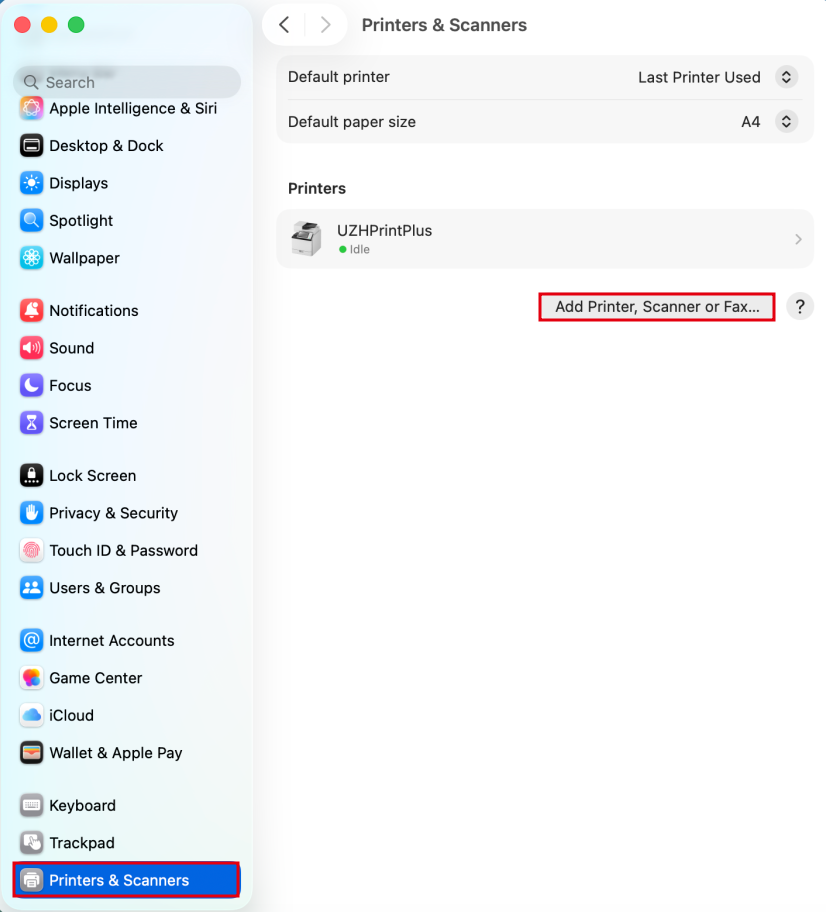
## Printing via UZHPrintPlus

<p class="callout info">Offical ZI Page: [UZH Print Plus](https://www.zi.uzh.ch/de/support/it-workplace/uzhprintplus/install-printer.html#macOS)</p>

<p class="callout info">Recommended for students.</p>

<p class="callout success">Printing is possible via WLAN *UZH,* but **not** via WLAN EduRoam.</p>

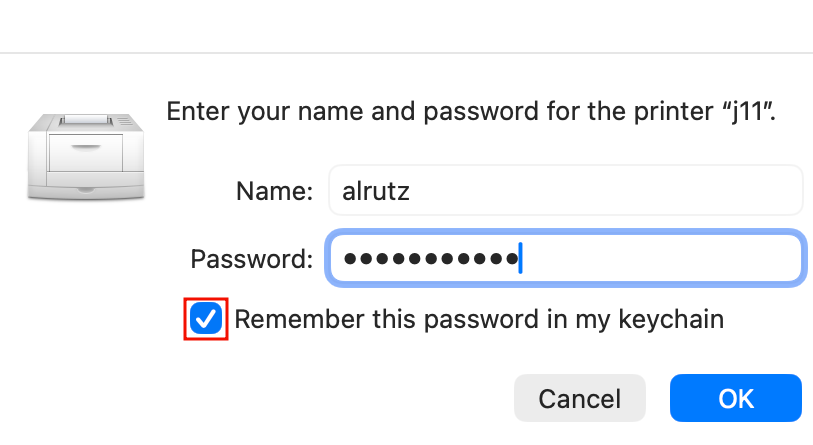
## Printing via MATH/DM3L-Print server

<p class="callout info">Recommended for institute members. (best Option for MacOS)</p>

<p class="callout warning">To use the printer in Y27, you need a **LAN connection** (not WLAN)</p>

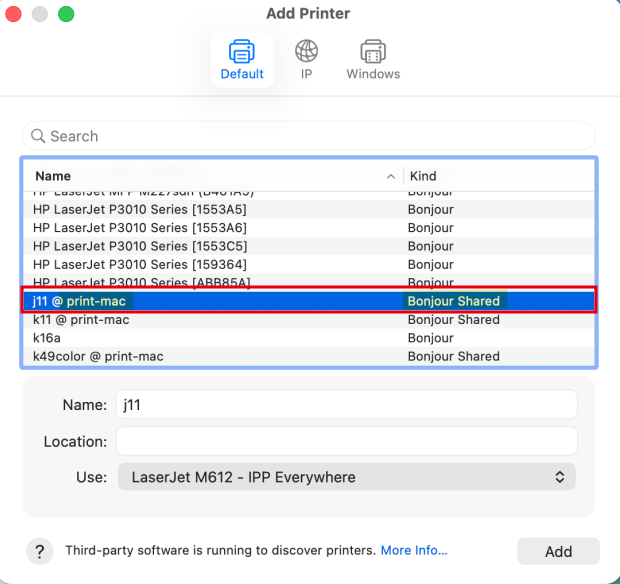
<p class="callout success">Open Printer Settings &gt; Add Printer &gt; Bonjour Shared - only ones that contain "**@ print-mac**" in the name.</p>

[![11.png](https://wiki.math.uzh.ch/public/uploads/images/gallery/2026-06/og811.png)](https://wiki.math.uzh.ch/public/uploads/images/gallery/2026-06/og811.png)

[![12.png](https://wiki.math.uzh.ch/public/uploads/images/gallery/2026-06/Qu912.png)](https://wiki.math.uzh.ch/public/uploads/images/gallery/2026-06/Qu912.png)
#### Booklets

*Only available on UPP Printers (j, k, jcolor, kcolor)*

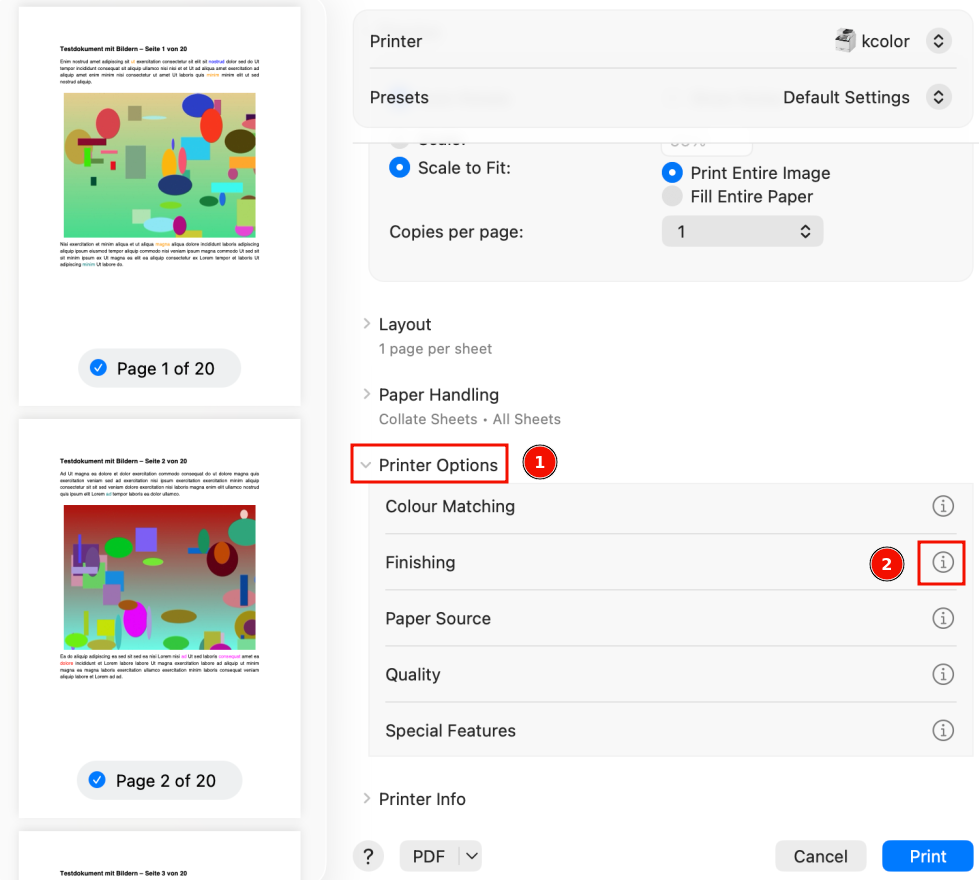
- Open the Printer-Dialog and follow these Steps: 
    - 1.) Scroll down to "Printer options" and expand the menu
    - 2.) Next to "Finishing" click the Info-Icon[![image.png](https://wiki.math.uzh.ch/public/uploads/images/gallery/2026-08/scaled-1680-/image.png)](https://wiki.math.uzh.ch/public/uploads/images/gallery/2026-08/image.png)
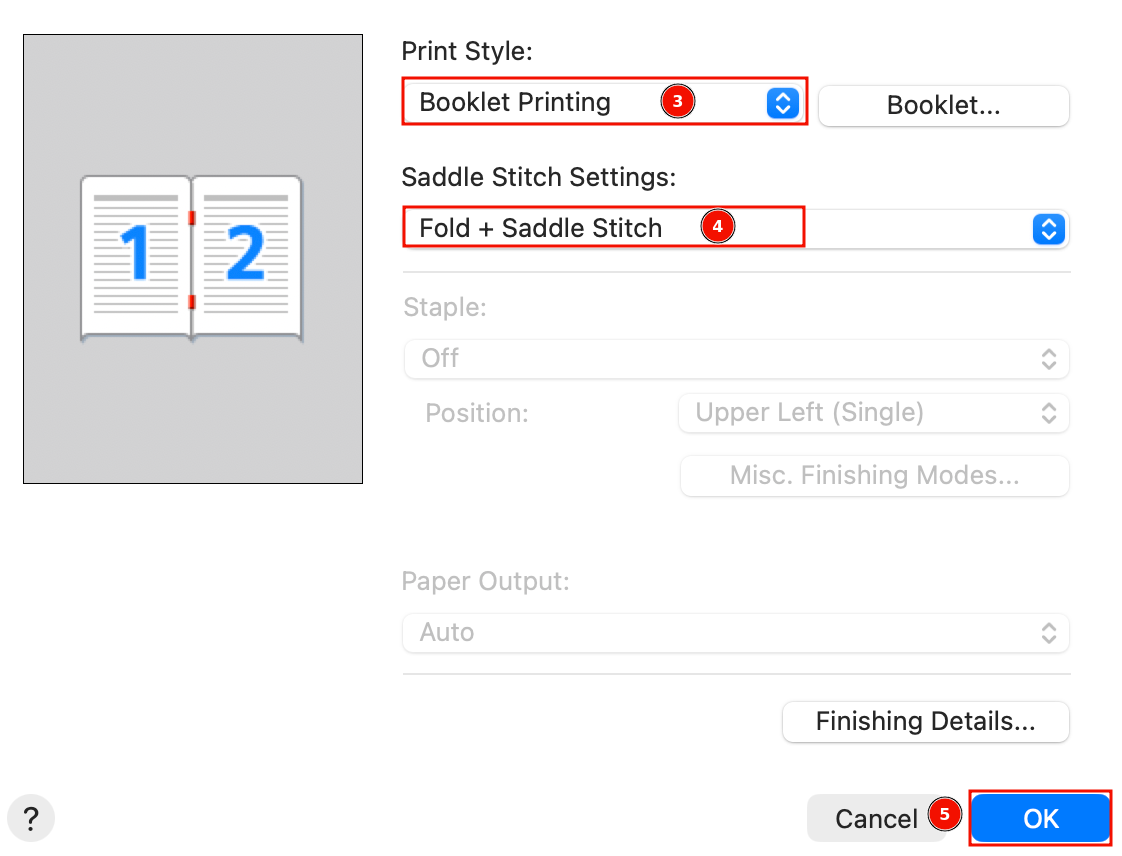
        - 3.) Print Style: set "Booklet Printing"
        - 4.) Saddle Stitch Settings: Set "Fold + Saddle Stitch"
        - 5.) Press "OK" to save, then print the Booklet[![image.png](https://wiki.math.uzh.ch/public/uploads/images/gallery/2026-08/scaled-1680-/sDOimage.png)](https://wiki.math.uzh.ch/public/uploads/images/gallery/2026-08/sDOimage.png)
## Printing via MATH-Print Linux Printserver

<p class="callout warning">To use the printer in Y27, you need a **LAN connection** (not WLAN)</p>

<p class="callout warning">Due to extra conversion, print time might be several minutes.</p>

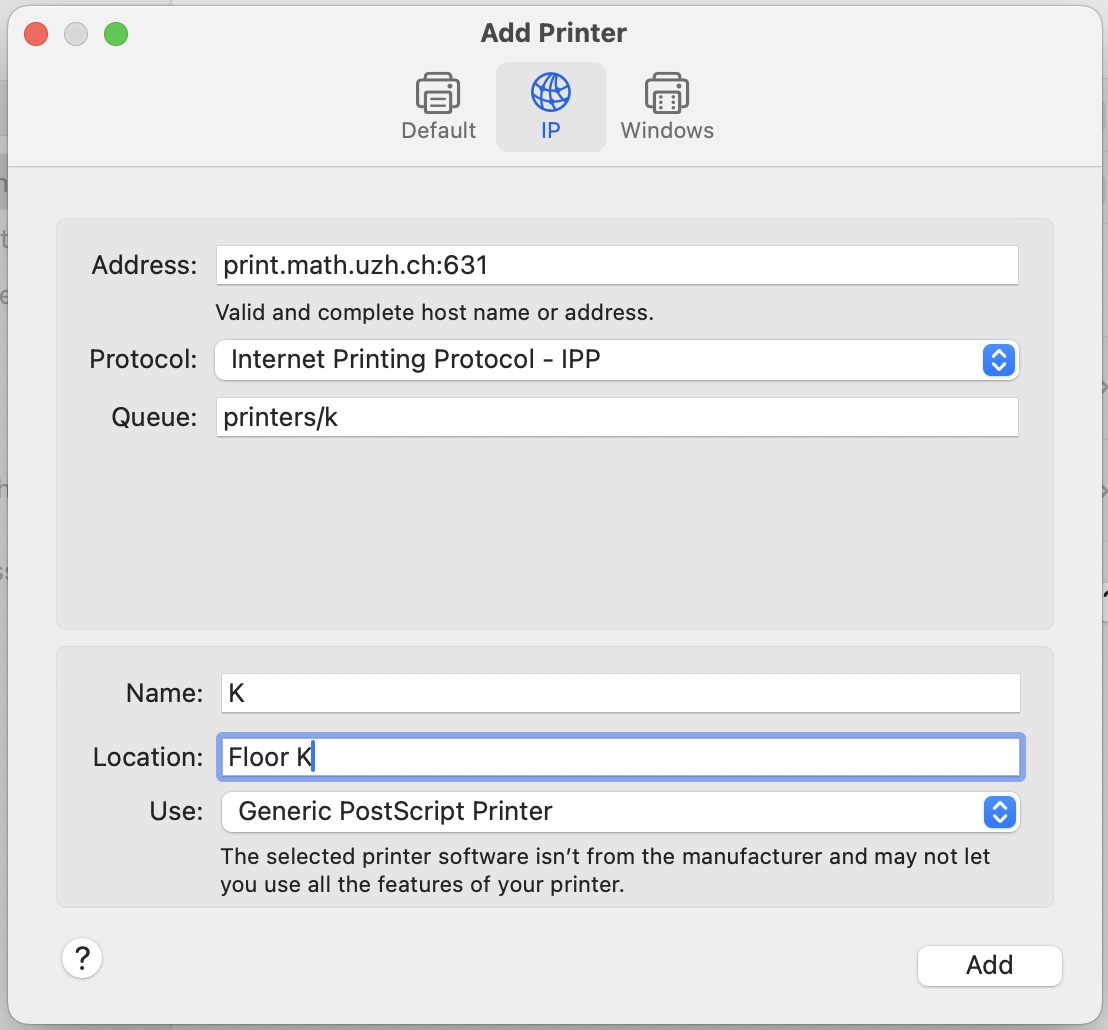
- Open System Settings &gt; Printers &amp; Scanners &gt; Add Printer
- Example: Printer K, if you want a different printer replace the k after "printers/" with your printer name (k30, g25, jcolor,...)

[![097AD18D-87D2-4B3C-8FAF-131B2CB11549.jpeg](https://wiki.math.uzh.ch/public/uploads/images/gallery/2026-06/097ad18d-87d2-4b3c-8faf-131b2cb11549.jpeg)](https://wiki.math.uzh.ch/public/uploads/images/gallery/2026-06/097ad18d-87d2-4b3c-8faf-131b2cb11549.jpeg)
### Special cases

- k49color: use print22.math.uzh.ch:631 as the address, otherwise files are not printed

# Overview-Print

## Printing I-MATH vs. UZH Printplus (UPP)

At the institute there are two printing solutions available: I-MATH-based and UZH Printplus (UPP)-based.

<table id="bkmrk-i-mathupp-printerall" style="width: 100%; border-collapse: collapse; height: 217.969px;"><tbody><tr style="height: 29.7969px;"><td style="height: 29.7969px;"> </td><td style="height: 29.7969px;">**I-MATH**</td><td style="height: 29.7969px;">**UPP**</td></tr><tr style="height: 46.5938px;"><td style="height: 46.5938px;">Printer</td><td style="height: 46.5938px;">All printers &amp; copiers</td><td style="height: 46.5938px;">Copiers k, kcolor and j, jcolor. Thinlinc Print Dialog: UZHPrintPlus</td></tr><tr style="height: 29.7969px;"><td style="height: 29.7969px;">UZH wide</td><td style="height: 29.7969px;">-</td><td style="height: 29.7969px;">yes</td></tr><tr style="height: 29.7969px;"><td style="height: 29.7969px;">Cost</td><td style="height: 29.7969px;">Low. I-MATH pays the infrastructure</td><td style="height: 29.7969px;">High. UZH</td></tr><tr style="height: 46.5938px;"><td style="height: 46.5938px;">Scan</td><td style="height: 46.5938px;">Only a few dedicated rooms (not public)</td><td style="height: 46.5938px;">k / kcolor, j / jcolor - use your UZH badge, free</td></tr><tr style="height: 35.3906px;"><td style="height: 35.3906px;">Paying</td><td style="height: 35.3906px;">see below</td><td style="height: 35.3906px;">[UZH Printplus](https://www.zi.uzh.ch/de/students/workplace-collaboration/uzhprintplus.html)</td></tr><tr><td>Requirements</td><td>I-MATH Account (or guest)</td><td>UZH Account &amp; Badge</td></tr></tbody></table>

### Printing 

Please review the specific page:

- **I-MATH**
    - Windows: [Manual](https://wiki.math.uzh.ch/public/books/public-wiki/page/windows "windows")
    - Mac OS X: [Manual](https://wiki.math.uzh.ch/public/books/public-wiki/page/mac "mac")
    - Linux: [Manual](https://wiki.math.uzh.ch/public/books/public-wiki/page/linux "linux")
    - Thinlinc: [Manual](https://wiki.math.uzh.ch/public/books/public-wiki/page/thinlinc-mdy)

- **UZH Printplus (UPP)**
    - [Homepage](https://www.zi.uzh.ch/de/students/workplace-collaboration/uzhprintplus.html)
    - [UPP Printer install](https://www.zi.uzh.ch/de/support/it-workplace/uzhprintplus/install-printer.htmll)
    - [Recharge credit](https://www.zi.uzh.ch/de/support/it-workplace/uzhprintplus/topup.html)

## Printer Names

- Printers are named after the room they are in.
- For the big printers on corridors of J and K floors several virtual printers with various configurations are provided. For example: 
    - jcolor = colored
    - j = black/white
    - jcolor-booklet = booklet

### Public printers

<table id="bkmrk-printerlocationcolor" style="width: 100%; border-collapse: collapse; height: 394.953px;"><thead><tr style="height: 29.7969px;"><th scope="col" style="height: 29.7969px;">**Printer**</th><th scope="col" style="height: 29.7969px;">**Location**</th><th scope="col" style="height: 29.7969px;">**Color**</th><th scope="col" style="height: 29.7969px;">**Remarks**</th></tr></thead><tbody><tr style="height: 29.7969px;"><td style="height: 29.7969px;">h52</td><td style="height: 29.7969px;">Y27 H52</td><td style="height: 29.7969px;">No</td><td style="height: 29.7969px;"> </td></tr><tr style="height: 29.7969px;"><td style="height: 29.7969px;">j11</td><td style="height: 29.7969px;">Y27 J11</td><td style="height: 29.7969px;">No</td><td style="height: 29.7969px;"> </td></tr><tr style="height: 29.7969px;"><td style="height: 29.7969px;">k49</td><td style="height: 29.7969px;">Y27 K49</td><td style="height: 29.7969px;">No</td><td style="height: 29.7969px;"> </td></tr><tr style="height: 29.7969px;"><td style="height: 29.7969px;">k49color</td><td style="height: 29.7969px;">Y27 K49</td><td style="height: 29.7969px;">Yes</td><td style="height: 29.7969px;">  
</td></tr><tr style="height: 46.5938px;"><td style="height: 46.5938px;">j</td><td style="height: 46.5938px;">J floor</td><td style="height: 46.5938px;">No</td><td style="height: 46.5938px;">Stapling, booklet print, A3 format</td></tr><tr style="height: 46.5938px;"><td style="height: 46.5938px;">jcolor</td><td style="height: 46.5938px;">J Floor</td><td style="height: 46.5938px;">Yes</td><td style="height: 46.5938px;">Stapling, booklet print, A3 format</td></tr><tr style="height: 29.7969px;"><td style="height: 29.7969px;">jcolor\_booklet</td><td style="height: 29.7969px;">J Floor</td><td style="height: 29.7969px;">Yes</td><td style="height: 29.7969px;">Only booklet print</td></tr><tr style="height: 46.5938px;"><td style="height: 46.5938px;">k</td><td style="height: 46.5938px;">K floor</td><td style="height: 46.5938px;">No</td><td style="height: 46.5938px;">Stapling, booklet print, A3 format</td></tr><tr style="height: 46.5938px;"><td style="height: 46.5938px;">kcolor</td><td style="height: 46.5938px;">K floor</td><td style="height: 46.5938px;">Yes</td><td style="height: 46.5938px;">Stapling, booklet print, A3 format</td></tr><tr style="height: 29.7969px;"><td style="height: 29.7969px;">kcolor\_booklet</td><td style="height: 29.7969px;">K floor</td><td style="height: 29.7969px;">Yes</td><td style="height: 29.7969px;">Only booklet print</td></tr></tbody></table>

### Credit System

All printers of the institute are connected to a central print server, which logs and counts all print jobs. Before a print is sent to a printer, the system gets the page number and job settings, calculates the costs and checks permissions and credits for the sender. After a successful printing, the credits will be subtracted.

<table id="bkmrk-credits-and-free-pri" style="width: 100%; border-collapse: collapse;"><tbody><tr><td>**Credits and free printing**</td><td>**black and white**</td><td>**color**</td></tr><tr><td>**members of the institute\***</td><td>free</td><td>free\*\*</td></tr><tr><td>**students\*\*\***</td><td>costs</td><td>costs</td></tr></tbody></table>

- Members of the institute are: Professors, Staff, Assistants (!PostDocs and !PhDs), Guests.
- Assistants need to refill the credit (for free) after printing 100 colored pages per semester.
- Students with 'Hauptfach Mathematik' or "Hauptfach Bio Statistic" get free credits worth 20 SFr. per semester. An [I-MATH account](https://www.math.uzh.ch/my/account) is required to print.
- A printjob is counted based on page number, page format (A4 or A3), simplex or duplex and black/white or color.
- Special settings like A3, color or stapling are only available on some special printers like jcolor, k.

[Prices for all printers with different settings!](http://www.math.uzh.ch/li/index.php?id=printer-costs)

#### Charging/Checking Credits

- You can view your credit, your settings and your last 50 print jobs in your account admin panel: [My Math](https://www.math.uzh.ch/my/print-history).
- Users can charge credits at the office **Y27K30**. The credit can be used immediately.
- Assistants can also write an email to the system support (<support@math.uzh.ch>), but in this case it can take a while until you receive the credit.

### Booklets

Printers / Copiers 'jcolor' and 'kcolor' are capable to fold and stamp printouts to create booklets / brochures.

- Mulitple Copies: DO NOT USE 'copies' (print dialog or via commandline '-n num-copies'). Instead use 'Repeat jobs' under advanced options. 
    - [![repeat.job.png](https://wiki.math.uzh.ch/public/uploads/images/gallery/2026-06/repeat-job.png)](https://wiki.math.uzh.ch/public/uploads/images/gallery/2026-06/repeat-job.png)
- Up to 16 sheets of paper can be stitched! If you have more they only get folded.
- Printing booklet with **only** folding (no stamps), might produce outputs where the single folded sheets of paper are one by one and not inserted into each other.

- **Manuals:**
    - [Thinlinc](https://wiki.math.uzh.ch/public/books/public-wiki/page/thinlinc-mdy#bkmrk-booklet)
    - [MacOS](https://wiki.math.uzh.ch/public/books/public-wiki/page/mac#bkmrk-booklets)
    - [Windows](https://wiki.math.uzh.ch/public/books/public-wiki/page/windows#bkmrk-booklets)
    - [Linux](https://wiki.math.uzh.ch/public/books/public-wiki/page/linux#bkmrk-booklets)

## Poster Printing (large)

- ETHZ has outsourced most printing jobs, but you can still print large formats, see here: [https://signprint.ch](https://signprint.ch/)  
    and here for FAQ on ETHZ's decision to outsource etc: [https://ethz.ch/staffnet/en/service/office-supplies-printing-and-mailing/print-publish/futureprint-eth.html](https://ethz.ch/staffnet/en/service/office-supplies-printing-and-mailing/print-publish/futureprint-eth.html)
- If you are looking for a nearby option: [https://posterprinting.bioc.uzh.ch/](https://posterprinting.bioc.uzh.ch/)

# windows

### I-MATH Printer

- Printing from private notebooks to the institutes printer is **only possible** (UPP is fine) via **LAN** (=cable) and not via WLAN. The notebook/LAN Adapter has to be assgined to DMZ (ask I-MATH Support to do so).

#### Install HP Universal Driver

- Go to website: [https://support.hp.com/ch-de/drivers/selfservice/hp-universal-print-driver-series-for-windows/503548/model/3271558](https://support.hp.com/ch-de/drivers/selfservice/hp-universal-print-driver-series-for-windows/503548/model/3271558) and download the driver (make sure it is PCL6)

[![driver_download.PNG](https://wiki.math.uzh.ch/public/uploads/images/gallery/2026-06/driver-download.PNG)](https://wiki.math.uzh.ch/public/uploads/images/gallery/2026-06/driver-download.PNG)

- Run the downloaded file and follow the steps in the screenshots
- Unzip the Files

[![install_step1.PNG](https://wiki.math.uzh.ch/public/uploads/images/gallery/2026-06/install-step1.PNG)](https://wiki.math.uzh.ch/public/uploads/images/gallery/2026-06/install-step1.PNG)

- Choose 'dynamic mode'

[![install_step2.PNG](https://wiki.math.uzh.ch/public/uploads/images/gallery/2026-06/install-step2.PNG)](https://wiki.math.uzh.ch/public/uploads/images/gallery/2026-06/install-step2.PNG)

#### Add Printer

- Go to Control Panel &gt; Programs and click 'Turn Windows features on or off'

[![features.PNG](https://wiki.math.uzh.ch/public/uploads/images/gallery/2026-06/features.PNG)](https://wiki.math.uzh.ch/public/uploads/images/gallery/2026-06/features.PNG)

- Expand 'Print and Document Services' and make sure 'Internet Printing Client' is ticked

[![internet_printing_client.PNG](https://wiki.math.uzh.ch/public/uploads/images/gallery/2026-06/internet-printing-client.PNG)](https://wiki.math.uzh.ch/public/uploads/images/gallery/2026-06/internet-printing-client.PNG)

- Go to Control Panel &gt; Hardware and Sound &gt; view Devices and Printers and click 'Add a printer'

[![add_printer.PNG](https://wiki.math.uzh.ch/public/uploads/images/gallery/2026-06/add-printer.PNG)](https://wiki.math.uzh.ch/public/uploads/images/gallery/2026-06/add-printer.PNG)

- Click 'The printer that I want isn't listed'

[![not_listed.PNG](https://wiki.math.uzh.ch/public/uploads/images/gallery/2026-06/not-listed.PNG)](https://wiki.math.uzh.ch/public/uploads/images/gallery/2026-06/not-listed.PNG)

- 'Select a shared printer by name' and enter your printer (e.g. k30) `<a href="http://print.math.uzh.ch:631/printers/k30">http://print.math.uzh.ch:631/printers/k30}}}</a>`

[![choose_printer.PNG](https://wiki.math.uzh.ch/public/uploads/images/gallery/2026-06/choose-printer.PNG)](https://wiki.math.uzh.ch/public/uploads/images/gallery/2026-06/choose-printer.PNG)

- Select category 'HP' and choose the driver 'HP Universal Printing PCL 6'

[![choose_driver.PNG](https://wiki.math.uzh.ch/public/uploads/images/gallery/2026-06/choose-driver.PNG)](https://wiki.math.uzh.ch/public/uploads/images/gallery/2026-06/choose-driver.PNG)

- Try printing a testpage

### UZH Printer - UPP

- Printing is possible via LAN or WLAN as long as it is UZH internal. 
    - [Guide](https://www.zi.uzh.ch/de/support/it-workplace/uzhprintplus/install-printer.html)

### Booklets

- In the print dialog of the application (Word, Acrobat, etc.), select the printer `jcolor` or `kcolor` and open the `Printer Properties`

[![booklet 6.png](https://wiki.math.uzh.ch/public/uploads/images/gallery/2026-06/booklet-6.png)](https://wiki.math.uzh.ch/public/uploads/images/gallery/2026-06/booklet-6.png)

- Select the `Basic Settings` tab and choose `Booklet A5` or `Booklet A4`, depending on your requirements

[![booklet_profile_windows.png](https://wiki.math.uzh.ch/public/uploads/images/gallery/2026-06/booklet-profile-windows.png)](https://wiki.math.uzh.ch/public/uploads/images/gallery/2026-06/booklet-profile-windows.png)

- Confirm the dialog by pressing `OK`
    - Print the document

# thinlinc

The thinlinc environment provides a simple printing solution for workstations and personal devices.

- Workstation: 
    - Every workspace at the institute provides access to Thinlinc (login with your I-MATH credentials)
    - All the Printers are already configured. Press Ctrl+P inside your document to print.
- Personal Device: 
    - Install the TL-Client: [https://www.cendio.com/thinlinc/download/](https://www.cendio.com/thinlinc/download/)
    - Once installed, login with your I-MATH Credentials. (URL=tl.math.zuh.ch)
    - All the Printers are already configured. Press Ctrl+P inside your document to print.

## Create own printer instances

Create own printer instances with **personal settings**. Such instances are only available via command line.

```

[user@host
# Create an instance 'jcolor/bw', which prints to 'jcolor', but always in b/w:
$ lpoptions -p jcolor/bw -o ColorModel=Gray

# To use the new instance:
$ lp -d jcolor/bw output.pdf

# Show all printer, incl. instances:
$ lpstat -t

# The local instances are saved under
~/.cups/lpoptions

```

## Printing with Command Line

<table id="bkmrk-descriptionsyntax-%2F-" style="width: 100%; border-collapse: collapse;"><tbody><tr><td>Description</td><td>Syntax / Example</td></tr><tr><td>List all printers</td><td>`lpstat -a`</td></tr><tr><td>Show default printer</td><td>`lpstat -d`</td></tr><tr><td>Set default printer</td><td>`lpoptions -d `  
Ex: `lpoptions -d k`</td></tr><tr><td>Print</td><td>`lp [-d ] `  
Ex: `lp -d h52 paper.pdf`</td></tr><tr><td>Print several copies (see notes)</td><td>`lp -n  [-d ] `  
Ex: `lp -n 5 paper.pdf`</td></tr><tr><td>Print several copies (see notes) in the order 1,2,3...</td><td>`lp -o Collate=True -n  `  
Ex: `lp -o Collate=true -n 5 paper.pdf`</td></tr><tr><td>Print several copies with staples (see notes)</td><td>`lp -d  -o RepeatJob= -o StaplePos=1PLU`  
Ex: `lp -d j -o RepeatJob=10 -o StaplePos=1PLU exam.pdf`</td></tr><tr><td>Print 2 pages on one site</td><td>`lp -o number-up=2 `  
Ex: `lp -p number-up=2 paper.pdf`</td></tr><tr><td>Printing one sided on a duplex printer</td><td>`lp -o duplex=None `  
Ex: `lp -o duplex=None paper.pdf`</td></tr><tr><td>Printing duplex with turning on short edge</td><td>`lp -o duplex=DuplexTumble `  
Ex: `lp -o duplex=DuplexTumble paper.pdf`</td></tr><tr><td>Printing transparencies</td><td>`lp -o media=Transparency `  
Ex: `lp -o media=Transparency `</td></tr><tr><td>Printing with stapling (see note 1) - only `j`, `jcolor`, `k`, `kcolor`</td><td>`lp -d jcolor -o StapleType=StapleON -o StaplePos=(1PLU|1PRU|1PLB|1PRB|2PL|2PR|2PU|2PB) `  
Ex: `lp -d jcolor -o Duplex=None -o StapleType=StapleON -o StaplePos=1PLU -o sides=one-sided `</td></tr><tr><td>Printing booklet via `jcolor_booklet` and `kcolor_booklet` (see note 3)</td><td>`lp -d  -o print-color-mode=Color|Grayscale `  
Ex: `lp -d jcolor_booklet -o print-color-mode=Color -o PageSize=A5 paper.pdf`</td></tr><tr><td>Printing booklet via `j-ps` and `k-ps` (see note 3)</td><td>`lp -d  -o BindMode=SaddleStitch -o Duplex=None -o Booklet=Left -o print-color-mode=Color `  
Ex: `lp -d jcolor -o PageSize=A5 -o BindMode=SaddleStitch -o Duplex=None -o Booklet=Left -o Finishing=Col -o print-color-mode=Color paper.pdf`</td></tr></tbody></table>

**Note 1:** Pay attention on combining *copies* and *stapling*. If you like to print a PDF (e.g. 4 pages) 10 times, do **NOT** use the `-n ` parameter. The whole printjob, 4 pages \* 10 copies, will be stapled together (only one)!

*Solution*: Use the 'Repeat Job' option in the advanced tab of the print dialog

**Note 2:** Do not print many copies at once, because it requires a lot of resources of the printer.

*Solution*: Use the `lpRepeat` script instead (with the `-s` parameter to specify a delay):

```

$ lpRepeat -d h52 -n 30 -s 15 big_file.pdf

```

**Note 3:** Booklet printing can be simplified with the `lpBooklet` script:

```

# Color print
$ lpBooklet -d jcolor -f booklet.pdf

# Black & white print
$ lpBooklet -d j -f booklet.pdf

```

### Option values

#### Duplex: one/two sided print

<table id="bkmrk-valuemeaning-noneone" style="width: 100%; border-collapse: collapse;"><tbody><tr><td>**Value**</td><td>**Meaning**</td></tr><tr><td>None</td><td>One sided</td></tr><tr><td>!DuplexTumble</td><td>Two sided along long edge</td></tr><tr><td>!DuplexNoTumble</td><td>Two sided along short edge</td></tr></tbody></table>

#### StaplePos: staple position

<table id="bkmrk-valueportrait-modela" style="width: 100%; border-collapse: collapse;"><tbody><tr><td>**Value**</td><td>**Portrait mode**</td><td>**Landscape mode**</td></tr><tr><td>!PosNone</td><td>No staple</td><td>No staple</td></tr><tr><td>1PLU</td><td>Upper left</td><td>Upper right</td></tr><tr><td>1PRU</td><td>Upper right</td><td>Bottom right</td></tr><tr><td>1PLB</td><td>Bottom left</td><td>Upper left</td></tr><tr><td>1PRB</td><td>Bottom right</td><td>Bottom left</td></tr><tr><td>2PL</td><td>Left x2</td><td>Upper x2</td></tr><tr><td>2PR</td><td>Right x2</td><td>Bottom x2</td></tr><tr><td>2PU</td><td>Upper x2</td><td>Right x2</td></tr><tr><td>2PB</td><td>Bottom x2</td><td>Left x2</td></tr><tr><td>SDL</td><td>Middle x2</td><td>Middle x2</td></tr></tbody></table>

## Printing with graphical interface (evince PDF viewer)

### Stapling

In the print preview dialog select j, jcolor, k, or kcolor and on the tab 'Advanced'

1. choose the position of a staple (here upper left corner)
2. specify *Repeat Job* if you need more than one copy

[![print-staples-pcl-advanced.png](https://wiki.math.uzh.ch/public/uploads/images/gallery/2026-06/print-staples-pcl-advanced.png)](https://wiki.math.uzh.ch/public/uploads/images/gallery/2026-06/print-staples-pcl-advanced.png)

**Note**: do not specify *Copies* on the *General* tab to print several stapled copies! If you do so, all copies are stapled together!

### Booklet

In the print preview dialog select *jcolor\_booklet* or *kcolor\_booklet* - these printers are already configured for booklet printing.

Alternatively, select *j*, *jcolor*, *k*, or *kcolor* and choose the following options:

1. *Left binding* for *Booklet Printing* on the tab *Finishing*
2. *Saddle Stitch* for *Staple Position* on the tab *Advanced*

[![print-booklet-pcl-finishing.png](https://wiki.math.uzh.ch/public/uploads/images/gallery/2026-06/print-booklet-pcl-finishing.png)](https://wiki.math.uzh.ch/public/uploads/images/gallery/2026-06/print-booklet-pcl-finishing.png)[![print-booklet-pcl-advanced.png](https://wiki.math.uzh.ch/public/uploads/images/gallery/2026-06/print-booklet-pcl-advanced.png)](https://wiki.math.uzh.ch/public/uploads/images/gallery/2026-06/print-booklet-pcl-advanced.png)

**Note**: booklet printing requires A4 or A5 format.

## Printing exams - lpSequential

If you have a personalized exam, one PDF for all students, and you like to print it and the output should be:

- shifted (easy separation), or
- stapled,

than use the `lpSequential` script (commandline).

- For each exam print, the current page number is shown.
- You can stop a running print job, by pressing Ctrl-C in the commandline.
- If you stopped the printing, restart the printjob by specifing the last printed page + 1.
- : a printer name like `k`, `kcolor`, `j`, or `jcolor`.
- : If you have an exam pdf with 200 pages (one big file, 25 students, 8 pages per exam) the whole file will be split in jobs as and such part will be printed.
- : '1', if you start from scratch, else the last reported printed page + 1.
- : This is only necessary if you want to be sure that all exams are in exact same order as in the PDF. A **re**ordering might appear inside the printer, if there are multiple print jobs at the same time in the local printer queue. If a delay is specified, this helps to take care that are never more than 2 jobs in the local printer queue at the same time. The amount of delay in seconds depends on the print job size. Start with 5 seconds and stop and increase if it is too short. You can check the local printer queue on the touchscreen at the copier.

```

# K Floor (k)
$ lpSequential -o Duplex=None -o StaplePos=1PLU -o StapleType=StapleON -o sides=one-sided <file.pdf> k <pages per exam> <start page to print from> <delay in seconds>
# J Floor (jcolor_booklet) - with color
$ lpSequential -o Duplex=None -o StaplePos=1PLU -o StapleType=StapleON -o sides=one-sided -o print-color-mode=Color <file.pdf> jcolor <pages per exam> <start page to print from> <delay in seconds>

```

Example:

<table id="bkmrk-staplelpsequential--" style="width: 100%; border-collapse: collapse;"><tbody><tr><td>Staple</td><td>`lpSequential -o Duplex=None -o StaplePos=1PLU -o StapleType=StapleON -o sides=one-sided exam.pdf k 16 1 0`</td><td>printer 'k', 16 pages per exam, starting at 1, no delay</td></tr><tr><td>Shifting</td><td>`lpSequential -o Duplex=None -o sides=one-sided exam.pdf jcolor 8 33 5`</td><td>printer 'jcolor', 8 pages per exam, starting at 33, 5 seconds delay</td></tr></tbody></table>

- Most exams are single sided, so switch of the default Duplex mode.