- archive my emails
- emaillisten
- locked out
- mailMerge
- office365
- phishing
- signature
- thunderbird
- apple mail
archive my emails
- Typically you do not have to archive your emails, because there is a backup system. Saving disk space (on the mail account) is also 'normally' not necessary.
- If you leave the institute and you loose your IMATH and also the UZH email address, it might me necessary to make a copy of your mails.
- Attention: copying emails is slow! Please be patient, check the log messages what's going on.
- There is no 'one solution fits all'.
Copy to a mail folder of a different email account (gmail, gmx , ..) - Via Thunderbird, Apple Mail, ...
- Quick and easy solution.
- Drawback:
- Not so stable if you have thousands of emails.
- If you have subfolders: there is no recursive duplicating - you have to do it for every single folder.
Step by step:
- Setup any email client on your computer. F.e. 'Thunderbird' (http://www.mozilla.org/en-US/thunderbird/) or Apple Mail. Configure your IMATH Account.
- Copy (duplicate!) all mails (mark all mails and choose 'copy') to
- a) a local email folder (this becomes your archive/backup, which is stored on your local computer), or
- b) a second configured (a free email service like gmail, gmx, ...) email account.
- In most applications, you have to copy/duplicate each folder separately (no recursive copy).
Thunderbird: use importexporttools-ng
- Create a zip or mbox file(s) of your mails - thunderbird#Import_.2F_Export_Mails:_importexporttools-ng
Via imapsync
- https://github.com/imapsync/imapsync
- Commandline tool - no GUI - compplicate to setup
- Has to be installed locally.
- Very flexible.
- Copies Mail recursively.
emaillisten
- All Links & Lists
FAQ
Why should I use these lists?
- A lot of recipients in the 'to' field, could classify your email as spam.
- It's much easier than to copy/paste 50 and more addresses.
- It's very easy to remember the list name.
How do I use the list?
- The name of the list is an email address. Put this email address in the 'to' field of your email program.
Who can use (send to) the emaillist?
- This depends on the list. Details are shown under TXT.
- If you see a 'green checkmark', you are allowed to send via your UZH email address.
- Most lists: every subscriber (by using the UZH email address).
- Specific lists: static configured moderators - please contact Support.
How often is the list updated?
- Hourly
My lecture is not listed, what should I do?
- Contact Support.
I would like to become a member of a list or I don't want to be a member of a list
- Contact Support.
Which persons are member of a list?
- Under Links & Lists you will see behind each list name a link called TXT - click on it and wait.
locked out
Trouble accessing email might be caused by
- Wrong username / password.
- Locked user in Zimbra - too many tries with wrong password (not IP based).
- IP block on Zimbra - too many tries with wrong password (IP based).
- IP block for the whole I-MATH infrastructure - too many tries with wrong password (IP based).
To track down the problem:
- Open https://mail.math.uzh.ch - log in with your I-MATH account. For the most user, the I-MATH account is identicallly to the UZH shortname.
- Success: continue
- Fail:
- Does the website load correctly but shows an error 'Wrong password'?
- Sync/set your password under https://math.uzh.ch/account - Warning: if your I-MATH is different from UZH shortname, ALWAYS use the I-MATH account!
- Still problems: contact Support - your account might be locked on Zimbra.
- Does the website timed out? Your IP is banned, contact Support. Best together with a screenshot of your IP address https://www.whatismyip.com/
- Does the website load correctly but shows an error 'Wrong password'?
- In case your email program (Thunderbird, Apple Mail, ...) has a problem:
- Typically the password is saved separately for sending (SMTP) and for receiving (IMAP). Change both!
- Switch off the WLAN on all of your devices but one - start with that one.
- Start your email program and send a mail from your I-MATH account to your I-MATH account.
- Wrong password: set the password again in your mail programm. Important: If you use Apple, reboot your device after changing the passwords! Apple Mail is known to still use the old password.
- Still wrong password? Check if (1) is still fine - if yes, your account is fine (not locked), the problem has to be in the Mail configuration.
- Repeat step 2 with all of your devices.
mailMerge
- Sending mass mail via Thunderbird with the add-on Mail Merge (already installed on the terminal servers).
- Database is a CSV File.
Quick Intro
- Create a receiver list as CSV File
- Start to write the Mail. As receiver (field To) write
{{email}}. - Inside of the 'new mail'-window,
- click on menu:
File > Mail Merge.- Choose: Personal Mail
- Deliver Mode: Send Later
- Format: Plain Text
- Browse and select the CSV File (step 1) with all the receiver email addresses.
- Click OK.
- The 'new mail' window disappears.
- All mails will be generated and copied to
Local Folders > Outbox. Here you can check the mails. - To send all mails, click on
File > Send unsent messages
- click on menu:
- You'll find a copy of each mail in your send folder.
Detailed description
CSV file with receiver email addresses
- Create a CSV file (plain text file with "," as field separation). One line for each receiver.
- Use a generic Texteditor like
geditornedit. - Format Rules:
records are separated by line breaks (\r, \n, \r\n)
fields are separated by field delimiters (comma, semicolon, colon, tab)
fields may be enclosed within text delimiters (double quote, single quote, none)
fields with embedded line breaks must be enclosed within text delimiters
fields with embedded field delimiters must be enclosed within text delimiters
fields with embedded text delimiters must be enclosed within text delimiters
embedded text delimiters must be doubled
first record must contain columnnames
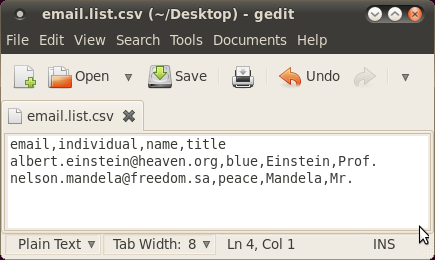
- Example CSV File:
email,individual,name,title
albert.einstein@heaven.org,blue,Einstein,Prof.
nelson.mandela@freedom.sa,peace,Mandela,Mr.
Write Mail
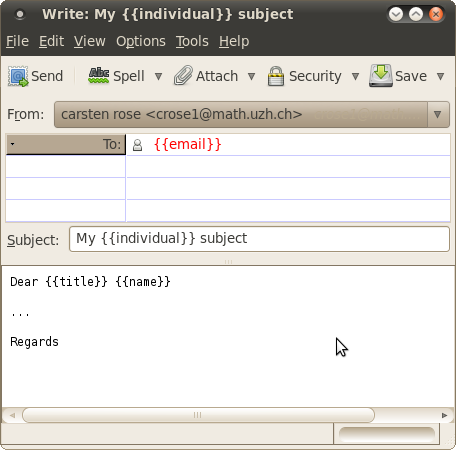
- Write the mail as you would normally do.
- In the
Tofield insert the name of the column of the CSV file which represents the receiver email address. - If necessary, insert further variable names (column names in the CSV file - no spaces in column names!).
- Optional: Save this mail (for later use) as a draft.
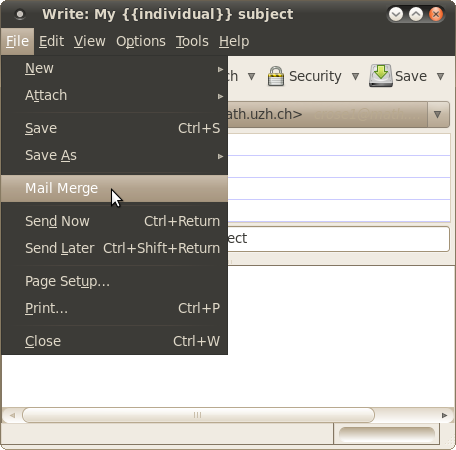
- Finish: Menu
File > Mail Merge.
Mail Merge
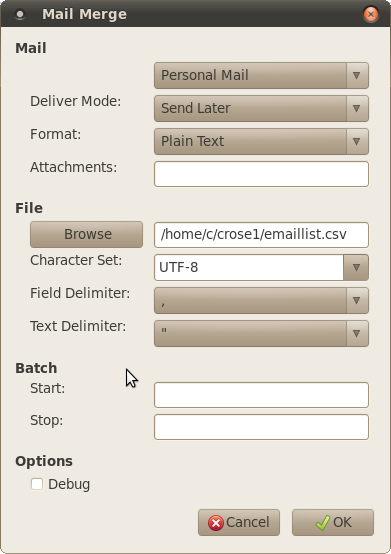
- Choose: Personal Mail
- Deliver Mode: Send Later
- Format: Plain Text
- Browse and select the CSV File (step 1) with all the receiver email addresses.
- Click OK.
- The 'new mail' window disappears.
- All mails will be generated and copied to
Local Folders > Outbox. Here you can check the mails.
Sending Mails
Mails:
- OK: Click on
File > Send unsent messages - Bad: delete all mails of the folder 'Outbox' and start again with writing the mail or use the previously saved draft.
Final
- You'll find a copy of each mail in your sent folder.
office365
Please check: Office365/Outlook
phishing
I received a phishing mail: What to do?
- Delete it.
I received a mail and I'm unsure if it is a phishing mail
- (1) Check our IT news: https://math.uzh.ch/my - we're publishing phishing mails there, as soon as we're aware of it.
- Announcements starting with '[Phishing] ...' means: this is a phishing mail, delete it.
- (2) If (1) does not show the current mail, wait 1 hour, check again - still not listed? Forward the mail to support@math.uzh.ch and ask if it is a phishing mail.
Indicators of a phishing mail
- (3) Does the mail ask you to click on a link and/or to login somewhere?
- (4) Do you requested support from the sender?
- Still wondering if it is a phishing mail? Check the links inside of the supiscous mail.
Links (URL) in the suspicous mail
- (5) Move the mouse over any given URL (don't click, just hover).
- This does not work on a mobile phone. Use a computer.
- In the lower left corner you'll see the real URL.
- Only judge the URL shown in the lower left corner, not the one directly shown in the mail!
- Does the Text (or URL) in the mail and the real URL (lower left corner) match? Yes: that's a good sign.
- (6) For regular users, it's hard to distinguish between good and bad URLs.
- Typical URL: https://wiki.math.uzh.ch/public/books/public-wiki/chapter/email
- Look ONLY on the first part, this means up to the first single '/' (very important!). In this case: https://wiki.math.uzh.ch - is this known to you?
- Example of bad URL: http://3.0.138.238/home... this is not trustworthy.
People recieve mails form me, but I didn't send them
- The email protocol is very insecure - especially regarding the sender address.
- Every person (even you), can configure any address as sender and/or reply-to address.
- This typically does not mean your account has been hacked.
- Instead someone configured your address as sender address. That's all.
- There is nothing you can do against it.
- As a reference: How much SPAM have you already received by real people?
- Often, the shown name and email address is just a random grabbed one.
- Better organized phishing campaign uses sender email adresses from the same organization which will be attacked - this increases the probability that the phishing will be treated as authentic. Meaning: Don't blindly trust
...@uzh.ch-addresses.
What is a phishing mail?
An attacker tries to get your username/password by providing a website with a login box. Such a site will save your credentials. They often look identical to known websites.
What happens if I provided my credentials to a phishing site?
- Thousands of people will receive spam, because your credentials will be misused to send spam. You're reponsible for this!
- The UZH will be marked as 'spammer' - UZH mail will be marked as potential spam or the receiving of UZH mail is completely denied.
- After submitting your credentials, it takes only a few minutes until the SPAM sending process starts.
- If you realize something went wrong - change your I-MATH password immediately and contact us.
I can't open my mails anymore
- If we're seeing too much traffic on an account, we lock the account. This is the only way to securely stop sending further mail by the spammer.
- We won't contact you: because you won't be able to read our mail anymore. You have to contact us (by your private email or via chat https://hello.math.uzh.ch).
'Do not trust any email' means ...
- Do not trust any email address - this is not a joke. Don't do it.
- Do not trust any content - see below 'Personalized...'.
Personalized Spam Mails by Big Data & AI
- An attacker starts some 'big data' algorithm which reads a hacked email inbox, the collected email adresses (auto addressbook) and correlates that with other information like hacked email accounts, computer (incl. PDF, word or excel files saved on the computer) or general public available information.
- A personalized email is built automatically and fits perfectly to your current situation, but it's still a fake.
- With the advent of AI, personalized phishing mails become very easy to generate.
Personalized Spam Mails by a Human Bad Actor
- With the hacked collected information and some creativity: There are almost no limits to creating convincing phishing mails.
- Yes, this is a real problem. Targeted attacks can be very effective.
- Result: Be very suspicious. Ask for help in evaluating an email by forwarding it to us. (support@math.uzh.ch)
Should I stop using email?
- No - Email is by far the most accepted electronic way to communicate - keep it.
- Just be aware that an email behaves like a postcard: everyone can write it, with any sender address, with any information.
Are there alternatives to email?
Yes: use a service which guarantees the identity of a sender.
- Signed email: this is not commonly used but possible. We do not support those.
- I-MATH members: use https://hello.math.uzh.ch - this is our secure chat server.
- Decide on your own to use messengers like Signal, Threema, Telegram, Wire, !WhatsApp
signature
- Formatting of the signature: UZH CD
Zimbra
- Go to
Preferences > Signatures - If you don't have a signature yet, click
Editto write it. - Press the
Donebutton - Click
Save(upper left corner) - Go to
Preferences > Accounts - Now you can choose your signature in the drop-down list at the bottom.
Thunderbird
Directly in Thunderbird
- Go to
Edit > Account Settings - Type / Edit your signature directly in the Window.
- If the input area is locked, please uncheck the "
Attach a signature from a file instead"
- If the input area is locked, please uncheck the "

1.#3 Press OK
Signature in a File
You can still use your .signature file:
- Check the box
Attach the signature from a file instead - Go to the file-location.
- In this case:
/home/c/nem/.signature - Edit the file with your favorite Texteditor. F.e.
nedit
Append a grafic below/as a signature
Zimbra
- Version 7.2: not possible.
Thunderbird
- Edit > Preferences > Composition > Send Options: 'Send the Message in both, plain text and HTML'.
- Edit > Account Settings > > Composition > Compose messages in HTML format: On.
- Edit > Account Settings > <account> >
- Signature Text: Use HTML - ON
- In the signature:
<img src="http://www.math.uzh.ch/..../ ">
<img src="file:///home/a/user/signature.png">
- Deposit the image on the personal homepage.
thunderbird
Setup Outlook Account
- Info: Setup is different for Personal and Shared Accounts
- Personal: follow the Steps below
- Shared: Setup
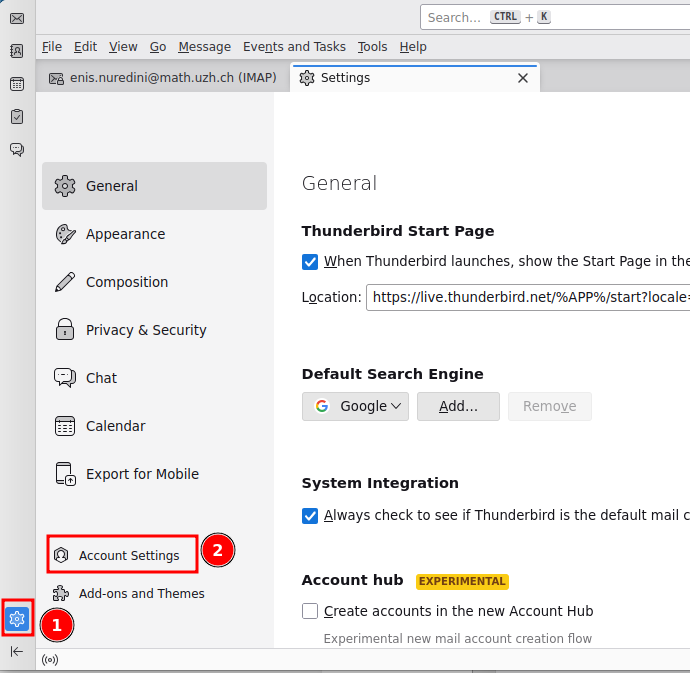
1) Open the Account Settings
Open Thunderbird and click the gear button at the bottom left (1) to open the Settings tab. In the sidebar, click Account Settings (2).
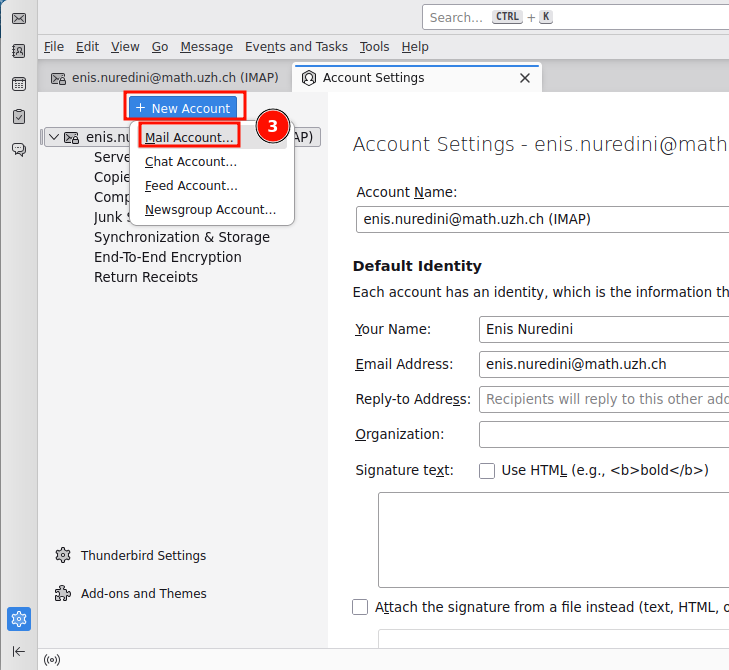
2) Add a new mail account
In the Account Settings tab, click + New Account above the account list and choose Mail Account… (3).
Tip: Give the new account a recognizable name (e.g. «… (Outlook)») so you can tell the two apart.
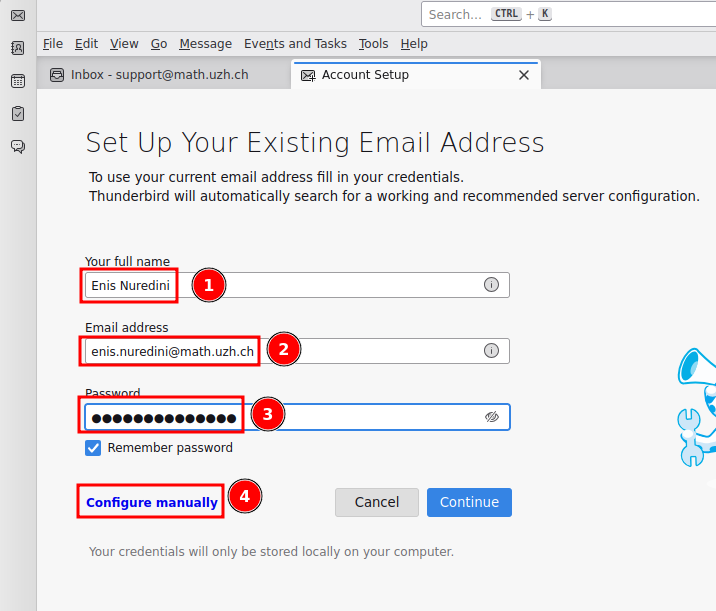
3) Enter your identity
In the Account Setup tab, fill in:
- Your full name — shown to recipients of your e-mails
- Your e-mail address (e.g.
firstname.lastname@math.uzh.ch) - Your UZH password (check «Remember password»)
Then click Configure manually (4) — do not click «Continue», the automatic detection does not find the correct settings.
4) Manual configuration
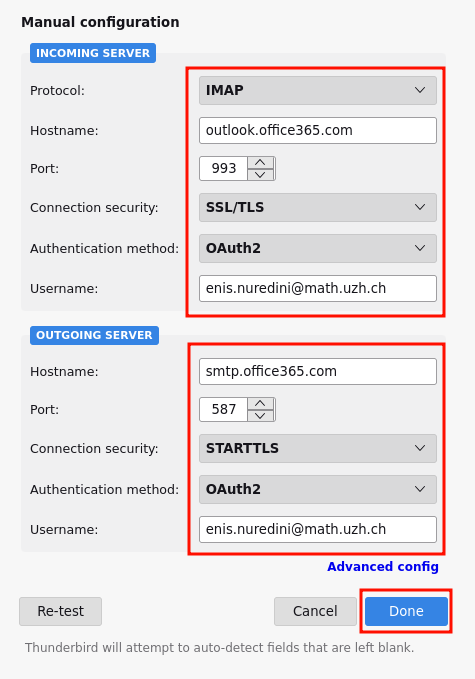
Enter the following server settings:
| Incoming server | Outgoing server | |
|---|---|---|
| Protocol | IMAP | SMTP |
| Hostname | outlook.office365.com |
smtp.office365.com |
| Port | 993 | 587 |
| Connection security | SSL/TLS | STARTTLS |
| Authentication method | OAuth2 | OAuth2 |
| Username | your full e-mail address | your full e-mail address |
Click Re-test and then Done.
5) Microsoft sign-in
Because the account uses OAuth2, a Microsoft sign-in window opens the first time Thunderbird connects. Sign in with your UZH credentials and confirm the multi-factor authentication (MFA) prompt. After that, Thunderbird stays connected for around 10 days.
- Warning: If the Microsoft sign-in window opens as a blank page, save the incomplete configuration and reopen Thunderbird. Then retry the setup, this time it will display the proper page.
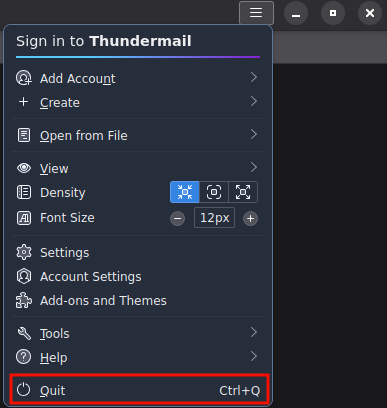
- Make sure to close Thunderbird via "Quit" button, not the "x" in the top right corner in order to kill the program.
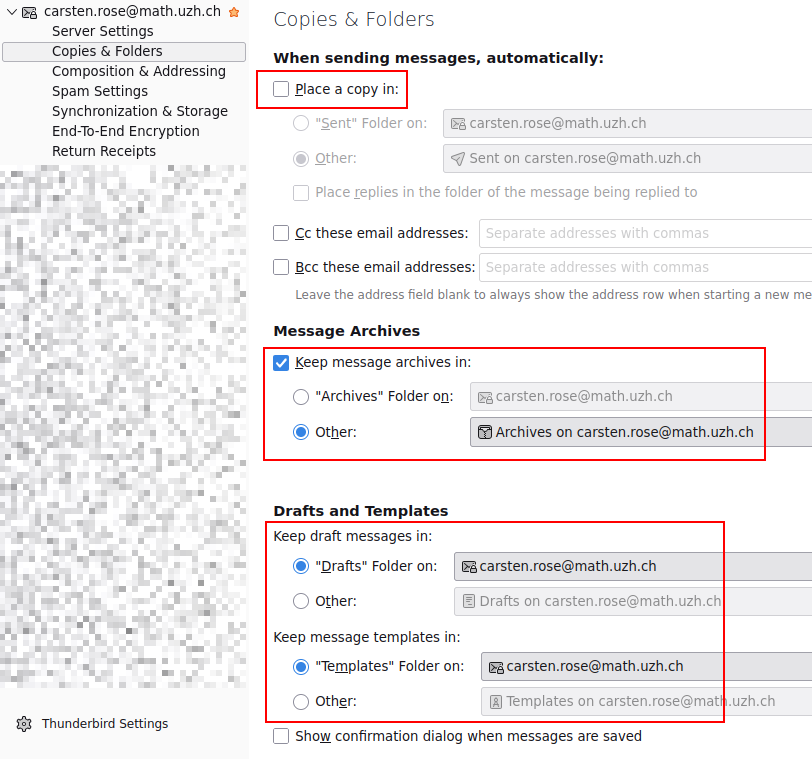
6) Disable: a) copy to send, b) local storage
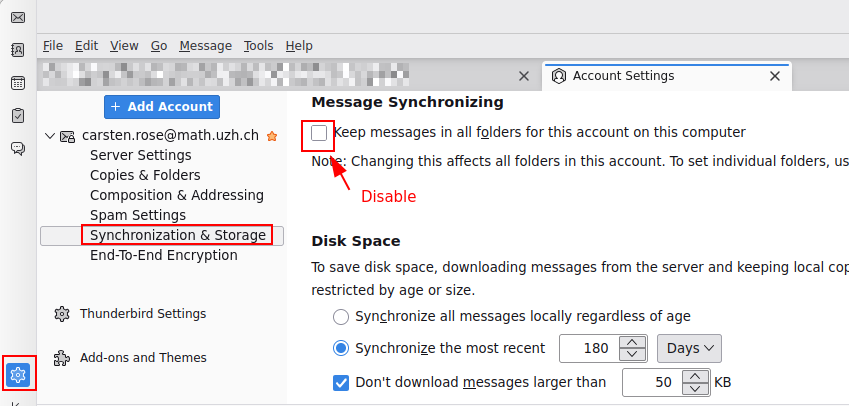
Outlook copies automatically each send mail to folder Send items. Disable Thunderbird to do this as well.
At least for thinlinc: Please disable the local storage - for large mailboxes, this will fill your home directory and gives no real advantage.
Clearing Up Storage
After you disabled "Message Synchronizing" do the following in order to clear up storage in your home-folder:
- Find large folders: In the folder list, click the "⋯" menu at the top and enable "Folder Size". The size is then shown next to each folder.

- Clean up a folder: Right-click the folder → Properties → "General Information" tab → "Repair Folder". Thunderbird discards the local copy and re-downloads only the headers from the server.
- Repeat: Do step 3 for all large folders (typically Inbox, Sent, Archive). Subfolders have to be repaired individually.

7) Folder
Double folder: Sent / Deleted
If you find folders with different names (Sent Items = Sent, Deleted Items = Trash) , but same meaning, best is to merge them.
- In Outlook-Web, move all mails via drag'n'drop from Sent to Sent Items (not vice versa, the term '...Items' is the default in Outlook)
- Delete the old folder Sent.
- Do the same for Deleted Items = Trash
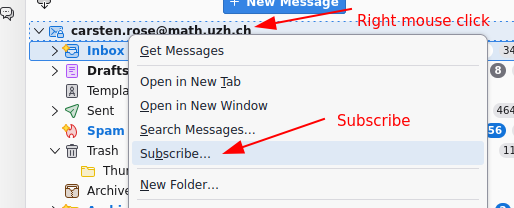
Folder subscribe
Mapping
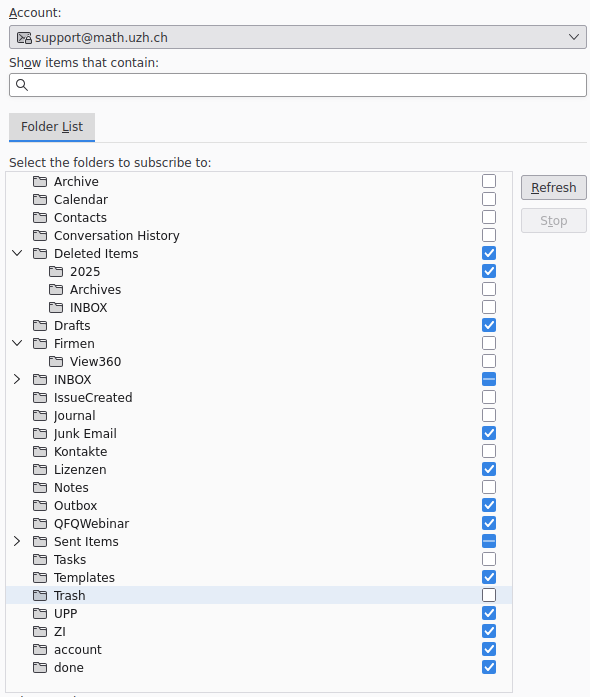
- Important outlook folders are: Sent items / Gesendete Elemente | Deleted items / Gelöschte Elemente | Archive | Drafts
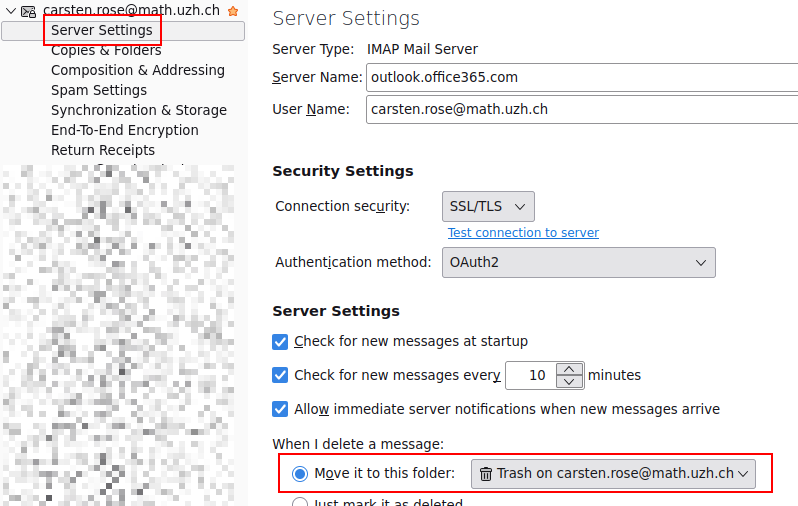
Select the right Trash folder (if Deleted items or Gelöschte Elemente exists in selection then use them):
8) Shared Account
In Outlook, there are no username/password for shared email boxes!
The personal account is granted access to a shared email box. Always use your personal credentials.
- This section describes, what to configure differently for Shared-Account Setup, compared to Personal Accounts.
- Every step that is missing here, do the same as described in the section on top of the page. (for example Step 1.)
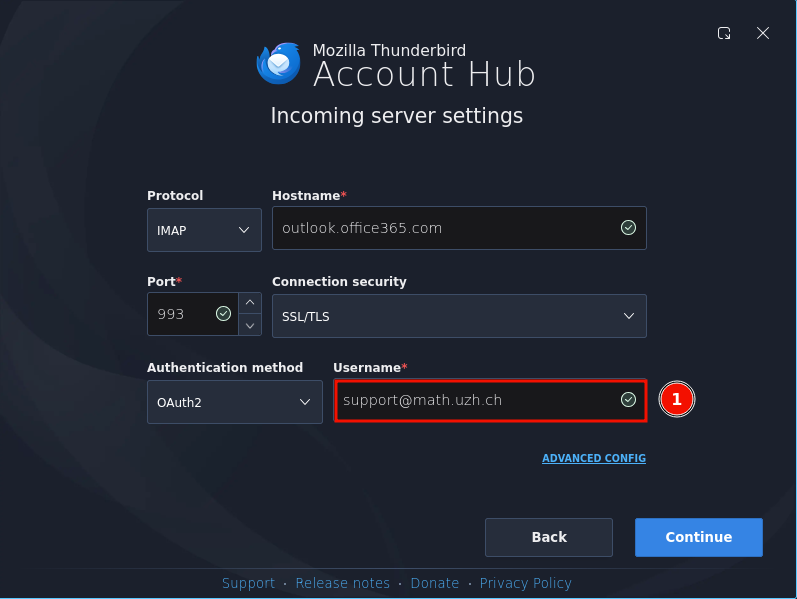
- 1.) Incoming Server: Type the Service Account adress as the username
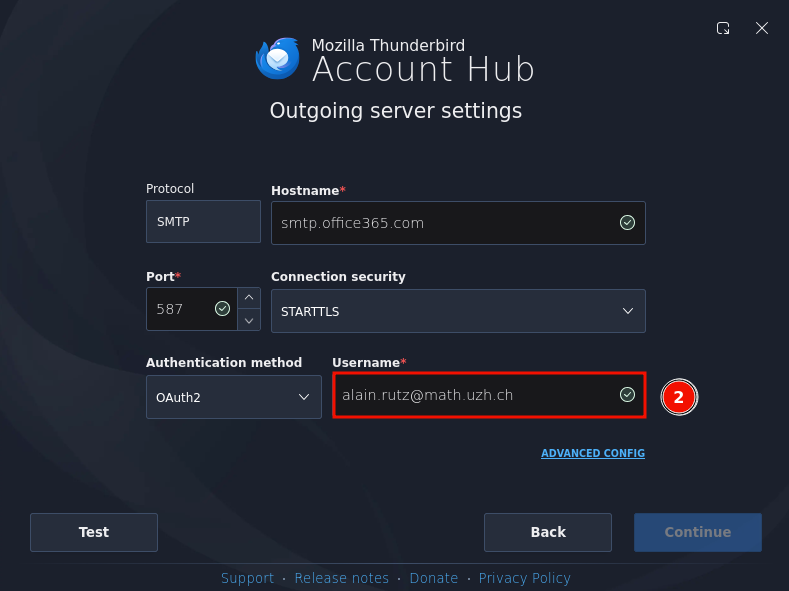
- Outgoing Server: Type your Personal Account adress as the username
- Klick "Test" and then "Continue"
- A Microsoft Sign-In Page will open with the wrong email to authenticate as.
- Click on "choose another account", choose your personal account and type your credentials.


Every week: refresh the authentication

- Clik on OK.
- If the suggested login address is not your personal one, change it to your personal one.
- Sometimes the dialog looks like (no 'Sign in with different account'):

- Just click on 'Forget my password' and than 'Cancel'

- After the login, you'll see:


Account order (left pane)
- Option a - Extension Folderpane Tools
- Option b - prefs.js
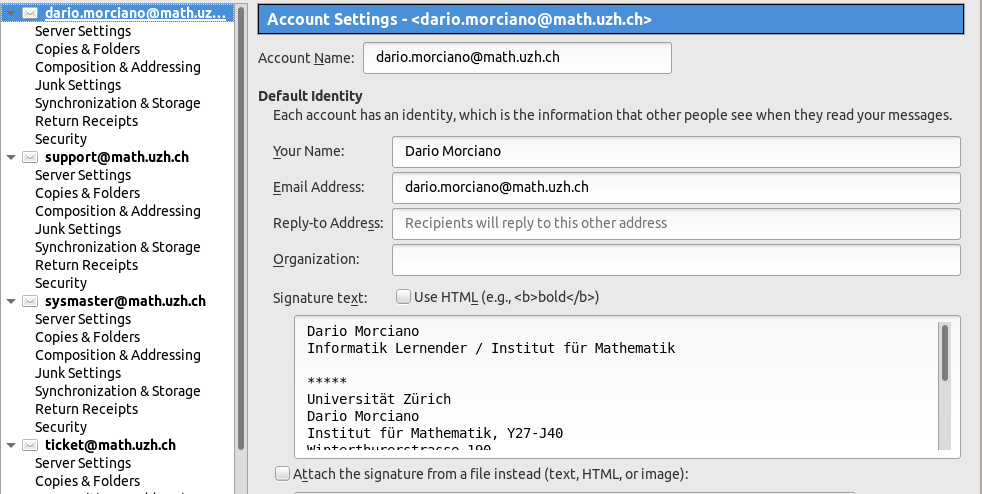
Signature
- Right click your email account and select 'Settings'
- On the right side you can now edit your signature
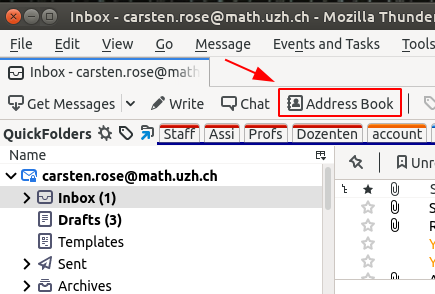
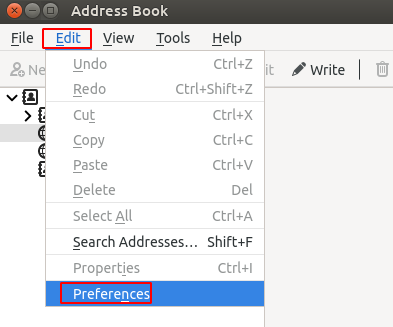
UZH Address Book
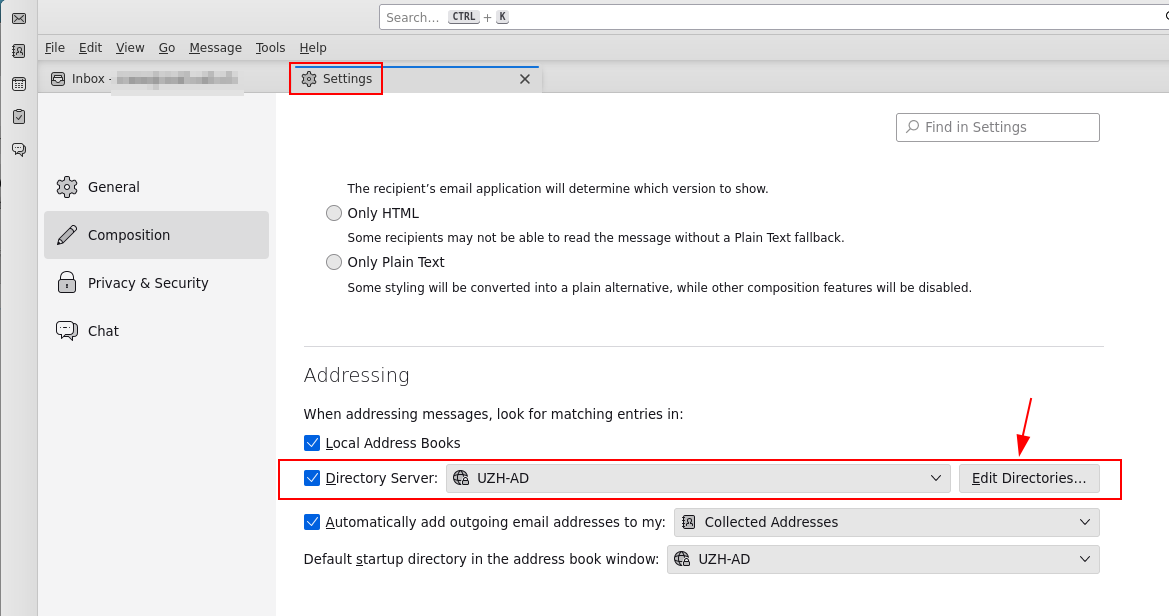
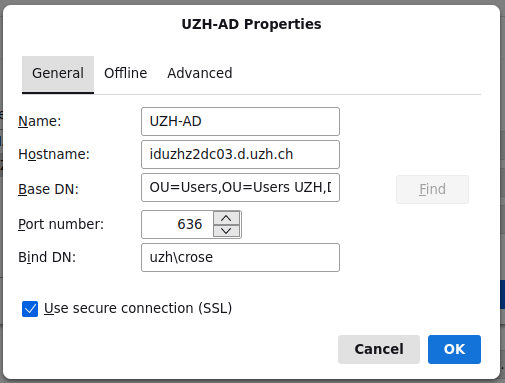
| Name | UZH-AD |
| Hostname | iduzhz2dc03.d.uzh.ch |
| Base DN | OU=Users,OU=Users UZH,DC=d,DC=uzh,DC=ch |
|
Port number |
636 |
| Bind DN | uzh\<your shortname> |
| Use secure connection (SSL) | on |
Shared Mailbox
Login (also ~every 10 days): Forgot my password > Cancel > Select your account > ... login with your personal credentials.
Add-On
Quick Folders
- If you have a lot of folders, it is typically very time consuming to navigate through the tree on the left side, just in order to reach the folder.
- With the Thunderbird Add-On 'Quick Folders' you can configure your personal, most frequently used, folder list.
- For example, if you have to move your incoming mails into different folders, you just drag and drop the mails from the inbox to the configured folders in the 'Quick Folders'-List:

- To use the Add-On 'Quick Folders', you have to download and install it personally: https://addons.mozilla.org/en-US/thunderbird/addon/quickfolders-tabbed-folders/
Shared Mailbox Sent Cleanup
- Thunderbird Add-On: https://addons.thunderbird.net/en-US/thunderbird/addon/shared-mailbox-sent-cleanup/?src=search
- Useful if Outlook Shared mailboxen have been configured.
- Outlook saves each sent mail in the 'Sent Items' folder of the shared mailbox (ok) and in 'Sent Items' of the personal account (fail) - this happens cause the personal account identity is used to sent the mails.
- This Add-On helps to get rid of these duplicates in the personal folder.
Installation: Settings > Add-ons > Find more add-ons: shared mailbox sent > Add to Thunderbird
Configuration:
- Select your personal account.
- Specify the shared mailboxes.
- Deactivate Dry-Run

FAQ
Sent Folder: double mails
Some mails are shown doubled in the Sent folder. This might happen with Outlook and GMail.
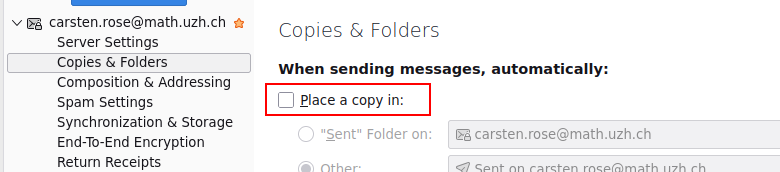
Workaround: Disable in Thunderbird to save mails in the Sent folder (Outlook does it automatically on the server side).Settings > Accounts > <Account> > Copies & Folders > disable 'Place a copy in:'
apple mail
Setup
Add UZH Outlook account
Setting > Account > New Account > Exchange (not 'Outlook')