
|
Size: 2434
Comment:
|
Size: 1792
Comment:
|
| Deletions are marked like this. | Additions are marked like this. |
| Line 3: | Line 3: |
| '''Windows / MacOS / iOS / Android Setup-Guides:''' | == Windows / MacOS / iOS / Android Setup-Guides == |
| Line 5: | Line 5: |
| https://www.zi.uzh.ch/de/support/netzwerk/vpn_ISAC.html | * https://www.zi.uzh.ch/de/support/netzwerk/vpn_ISAC.html |
| Line 9: | Line 9: |
| '''Linux Ubuntu Setup-Guide:''' | == Linux Ubuntu Setup-Guide == |
| Line 11: | Line 11: |
| 1.) Open the UZH-Sharepoint VPN Access folder: [[https://uzh.sharepoint.com/sites/UZHVPNAccess/Shared%20Documents/Forms/AllItems.aspx?csf=1&web=1&e=bnzVtF&cid=fe851a09%2Df3e2%2D4802%2Dbdb6%2D80a5b1234e33&RootFolder=%2Fsites%2FUZHVPNAccess%2FShared%20Documents%2FGeneral%2FVPN%20Clients%20%28Ivanti%29&FolderCTID=0x0120002059A8933D4FFD4E8D6F0CFC0F6C2421|UZH-Sharepoint]] | === Installation === |
| Line 13: | Line 13: |
| 2.) Open the folder with the highest version number (newest) | * Preparation: {{{ # Installing the needed libraries $ sudo apt-get install libnss3-tools }}} * UZH-Sharepoint VPN Access folder: [[https://uzh.sharepoint.com/sites/UZHVPNAccess/Shared%20Documents/Forms/AllItems.aspx?csf=1&web=1&e=bnzVtF&cid=fe851a09%2Df3e2%2D4802%2Dbdb6%2D80a5b1234e33&RootFolder=%2Fsites%2FUZHVPNAccess%2FShared%20Documents%2FGeneral%2FVPN%20Clients%20%28Ivanti%29&FolderCTID=0x0120002059A8933D4FFD4E8D6F0CFC0F6C2421|UZH-Sharepoint]] * Use latest version (newest) |
| Line 17: | Line 24: |
| 3.) Open "Ubuntu - Debian" --> Download the file ending with ".deb" | * Ubuntu - Debian: Download the file ending with ".deb" |
| Line 21: | Line 28: |
| 4.) Now open the Command Line: * Installing the needed libraries: {{{ sudo apt-get install libnss3-tools }}} * Entering the directory where the installer was saved (In this example the installer was saved in /Downloads, make sure to check where you downloaded the installer): {{{ cd ~/Downloads |
* Install Avanti Client {{{ $ sudo dpgk -i pulsesecure_'version'_amd64.deb |
| Line 29: | Line 32: |
| * Installing the Client (here you will need the exact Version of the installer file): {{{ sudo dpgk -i pulsesecure_'version'_amd64.deb }}} |
=== Configuration === |
| Line 33: | Line 34: |
| 5.) The client should now be installed --> start it and set up the VPN-Connection by following these steps: * Press the Plus-Sign to add a Connection * Insert the following information --> then press "Add": |
* Start avanti client. * Press the Plus-Sign to add a Connection: |
| Line 40: | Line 39: |
| 6.) The connection should now be visible under "Connections" --> simply press "Connect" to activate the VPN | * The connection should now be visible under "Connections" --> press "Connect" to activate the VPN |
| Line 42: | Line 41: |
| '''Troubleshooting:''' | === Troubleshooting === |
| Line 44: | Line 43: |
| If you get this Error: ''Chromium embedded browser (cef) is not installed on this machine'' when trying to connect, then try the following steps: * Open the command line and enter the /pulsesecure/bin directory by executing : {{{ cd /opt/pulsesecure/bin |
* Problem: ''Chromium embedded browser (cef) is not installed on this machine'' * Fix: {{{ $ cd /opt/pulsesecure/bin $ ./setup_cef.sh install # Execute this command to verify the installation: {{{ $ ./setup_cef.sh check_installed |
| Line 48: | Line 52: |
| * Execute this command to install the missing program: {{{ ./setup_cef.sh install }}} * Execute this command to verify the installation: {{{ ./setup_cef.sh check_installed }}} * Now retry connecting, it should work. |
* Retry connecting |
| Line 56: | Line 54: |
| '''Verifying if the VPN is active:''' | = Verifying if the VPN is active = |
VPN
Windows / MacOS / iOS / Android Setup-Guides
Linux Ubuntu Setup-Guide
Installation
Preparation:
# Installing the needed libraries
$ sudo apt-get install libnss3-tools
UZH-Sharepoint VPN Access folder: UZH-Sharepoint
- Use latest version (newest)
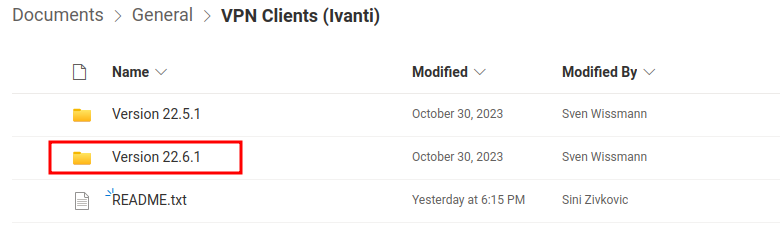
- Ubuntu - Debian: Download the file ending with ".deb"
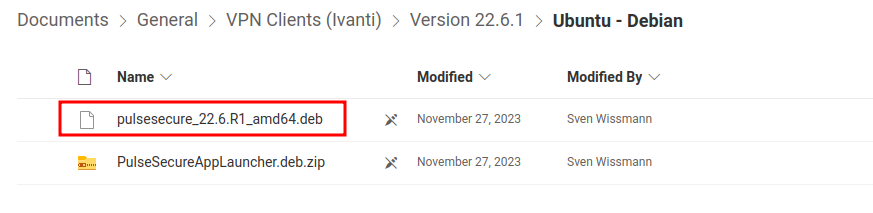
Install Avanti Client
$ sudo dpgk -i pulsesecure_'version'_amd64.deb
Configuration
- Start avanti client.
- Press the Plus-Sign to add a Connection:
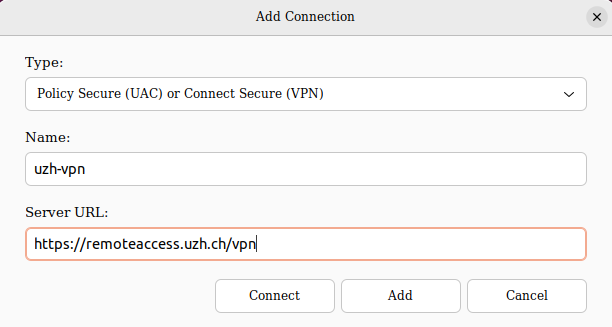
The connection should now be visible under "Connections" --> press "Connect" to activate the VPN
Troubleshooting
Problem: Chromium embedded browser (cef) is not installed on this machine
Fix:
$ cd /opt/pulsesecure/bin
$ ./setup_cef.sh install

# Execute this command to verify the installation: {{{
$ ./setup_cef.sh check_installed
- Retry connecting
Verifying if the VPN is active
Open this page IP-check Before connecting to the VPN --> make a note of the IP shown.
Now connect to the VPN and refresh the page --> if the IP shown is different from the one you made a note of, it most likely means that the VPN is active.