
|
Size: 1522
Comment:
|
Size: 1820
Comment:
|
| Deletions are marked like this. | Additions are marked like this. |
| Line 1: | Line 1: |
| ## page was renamed from RStudio and Git ## page was renamed from git_RStudio |
|
| Line 2: | Line 4: |
<<TableOfContents>> |
|
| Line 5: | Line 9: |
| * Login with your uzh shortname at https://rstudio.math.uzh.ch * From the "File" menu select "new Project..." {{attachment:01_rstudio_file.png}} * In the dialog choose "Version Control" {{attachment:02_version_control.png}} * Next choose Git {{attachment:03_git.png}} * Enter the url of your Git repository and choose a unique name for the project. Change the Project location if you like. Then press "Create Project" {{attachment:04_create_project.png}} * Enter your Git server login in the dialog. Usually this is your uzh shortname and password. {{attachment:05_login.png}} * If the project was created successfully you will now see the project path and the project files in the Files panel (bottom right panel) {{attachment:051_finished.png}} |
* Option "RStudio Web": Log in with your uzh shortname at https://rstudio.math.uzh.ch * From the "File" menu select "new Project...". {{attachment:01_rstudio_file.png}} * In the dialogue choose "Version Control". {{attachment:02_version_control.png}} * Next choose Git. {{attachment:03_git.png}} * Enter the URL of your Git repository and choose a unique name for the project. Change the Project location if you like. Then press "Create Project". {{attachment:04_create_project.png}} * Enter your Git server login in the dialogue. Usually this is your uzh shortname and password. (Reset Password on Windows: [[Git#Windows_Change_Saved_Git_Password|link]]) {{attachment:05_login.png}} * If the project was created successfully you will now see the project path and the project files in the Files panel (bottom right panel). {{attachment:051_finished.png}} |
| Line 15: | Line 19: |
| * From the "Git" menu select "commit" {{attachment:06_commit.png}} * In the newly opened window choose the files that you would like to commit and write a commit message. It won't work if you leave the message empty! Then press "commit" {{attachment:07_choose_files.png}} * Check whether there were any errors and then the close the dialog {{attachment:08_close.png}} * Click on "push" {{attachment:09_push.png}} * Enter your Git server username and password in the dialog. Usually this is your uzh shortname and password. * Check whether there were any errors and then the close the dialog {{attachment:10_push_success.png}} |
* From the "Git" menu select "commit". {{attachment:06_commit.png}} * In the newly opened window choose the files that you would like to commit and write a commit message. It won't work if you leave the message empty! Then press "Commit". {{attachment:07_choose_files.png}} * Check whether there were any errors and then the close the dialogue. {{attachment:08_close.png}} * Click on "push". {{attachment:09_push.png}} * Enter your Git server username and password in the dialogue. Usually this is your uzh shortname and password. (Reset Password on Windows: [[Git#Windows_Change_Saved_Git_Password|link]]) * Check whether there were any errors and then the close the dialogue. {{attachment:10_push_success.png}} |
Use Git in RStudio
Contents
Create RStudio Project from Git Repository
Option "RStudio Web": Log in with your uzh shortname at https://rstudio.math.uzh.ch
From the "File" menu select "new Project...".
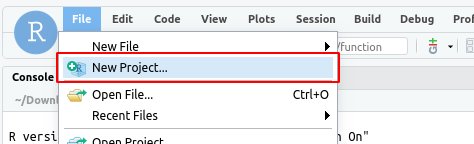
In the dialogue choose "Version Control".
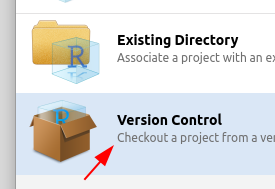
Next choose Git.
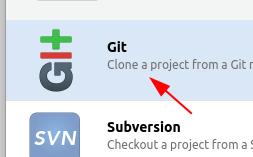
Enter the URL of your Git repository and choose a unique name for the project. Change the Project location if you like. Then press "Create Project".
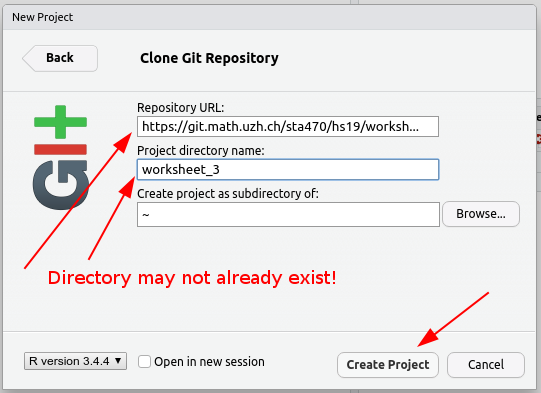
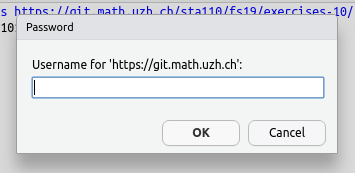
Enter your Git server login in the dialogue. Usually this is your uzh shortname and password. (Reset Password on Windows: link)
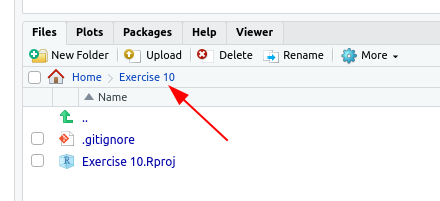
If the project was created successfully you will now see the project path and the project files in the Files panel (bottom right panel).
Commit and Push to the Repository
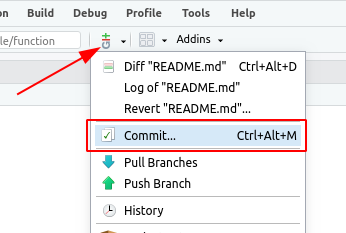
From the "Git" menu select "commit".
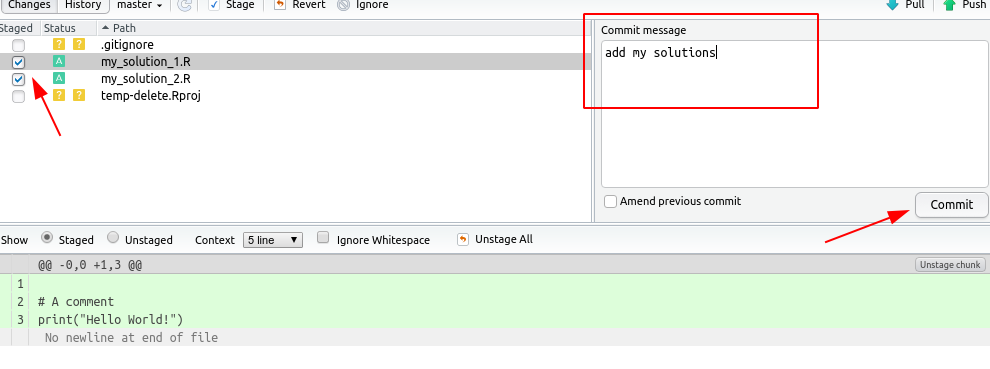
In the newly opened window choose the files that you would like to commit and write a commit message. It won't work if you leave the message empty! Then press "Commit".
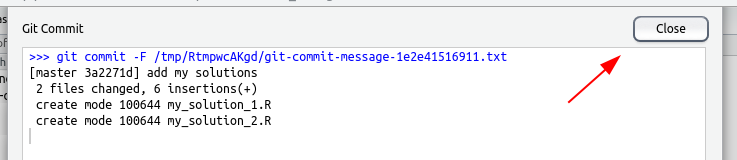
Check whether there were any errors and then the close the dialogue.
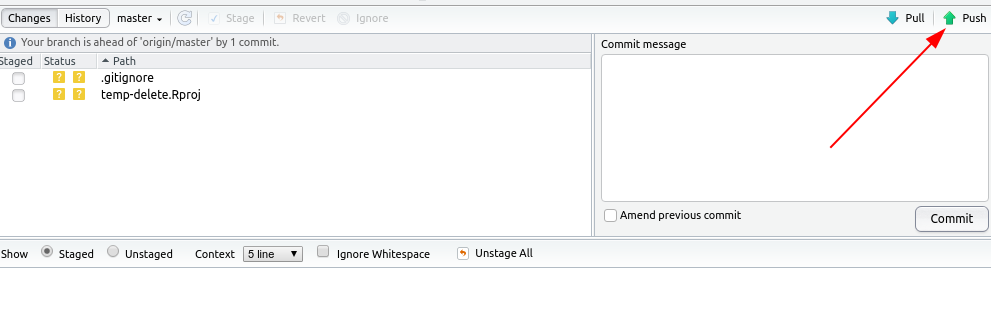
Click on "push".
Enter your Git server username and password in the dialogue. Usually this is your uzh shortname and password. (Reset Password on Windows: link)
Check whether there were any errors and then the close the dialogue.
