
|
Size: 1333
Comment:
|
← Revision 25 as of 2025-10-03 08:58:01 ⇥
Size: 3670
Comment:
|
| Deletions are marked like this. | Additions are marked like this. |
| Line 1: | Line 1: |
| ## page was renamed from Microsoft_Authentication <<TableOfContents>> |
|
| Line 3: | Line 6: |
| <<TableOfContents>> | * Manage sign in options: https://mysignins.microsoft.com/security-info |
| Line 5: | Line 8: |
| {{attachment:mfa-second.png}} | |
| Line 6: | Line 10: |
| = Method = | * MFA (Multi Factor Authentification) can be configured in different ways: |
| Line 8: | Line 12: |
| * MFA (Multi Factor Authentification) can be configured in different ways. | * a) Authenticator App, like [[keepassx|KeePassXC]], MS-Authenticator, Google Authenticator * b) SMS on Mobile Phone, * c) voice computer to classical phone |
| Line 10: | Line 17: |
* But: After choosing 'Microsoft Authenticator App', also an alternative app can be selected (see below). * Disadvantage of Microsoft Authenticator App: it binds to one device. An app registered Office365 account can only be unlocked with the specific device (or by phone call/SMS) - what is if your phone is broken and App and phone is on the same device? |
|
| Line 13: | Line 24: |
| * If you choose 'Phone', enter your mobile or office phone number. | * If you choose 'Phone', enter your mobile or office phone number or private phone number. |
| Line 16: | Line 27: |
| * You can manage the sign in options for your account here: https://mysignins.microsoft.com/security-info | == Add third party TOTP app == |
| Line 18: | Line 29: |
| == Add further authentication ways == | '''Attention''': before you change your second factor: take care that there is always one factor which works! Typically your mobile number is a reasonable fallback during the reconfiguration. |
| Line 20: | Line 31: |
| * https://account.activedirectory.windowsazure.com/securityInfo | Adding and removing factors: the system might ask again for authentication, even if you are still logged in! {{attachment:MS-01.png}} {{attachment:MS-02.png}} {{attachment:MS-03.png}} {{attachment:qr-secret.png}} |
| Line 23: | Line 39: |
| == Recommendation: Additional phone numbers == * You'll need this to login to outlook.com (very seldom necessary), teams.microsoft.com (teams will be more often used), zoom.us, KWF, ... * What happens if you ''forget your mobile at home, or your mobile is not working, or you are at home, ... or whatever''. Our recommendation is to configure several additional ways: * '''office phone number''' (if you don't have access to your mobile phone) * '''personal mobile phone number''' (if you're not in your office) * if exist: '''classical phone''' from at home (if your mobile is broken) * https://www.zi.uzh.ch/en/support/Outlook-und-Kollaboration-Office-365/setup-multifactor-authentification.html == Authentication method == * Authentication methods have fixed priorites (not changeable by user). * The highest priority has 'MS Authenticator'. If this method is configured, this is always the default. * Via "Sign in another way" you can choose TOTP or SMS, ... * If TOTP is not offered, please go to https://mysignins.microsoft.com/security-info, click on 'Change' and select the TOTP or phone method. * To change the the default authentication method, you have to remove methods with a higher priority. E.g. the 'MS Authenticator App'. * in case when you click on 'delete' and you get an error, please change via "Sign-in when most... CHANGE" to TOTP or Phone. {{attachment:ms-delete.png}} |
|
| Line 26: | Line 66: |
* If you lost Access to your Microsoft Account you can contact the ZI Support and ask them to reset your Accounts Authentication settings. |
* If you lost access to your Microsoft Account, you can contact the ZI Support and ask them to reset your Accounts Authentication settings. |
| Line 32: | Line 70: |
| * E-Mail: support@zi.uzh.ch * Phone: 044 63 43333 |
Contents
Microsoft Authentication
Manage sign in options: https://mysignins.microsoft.com/security-info
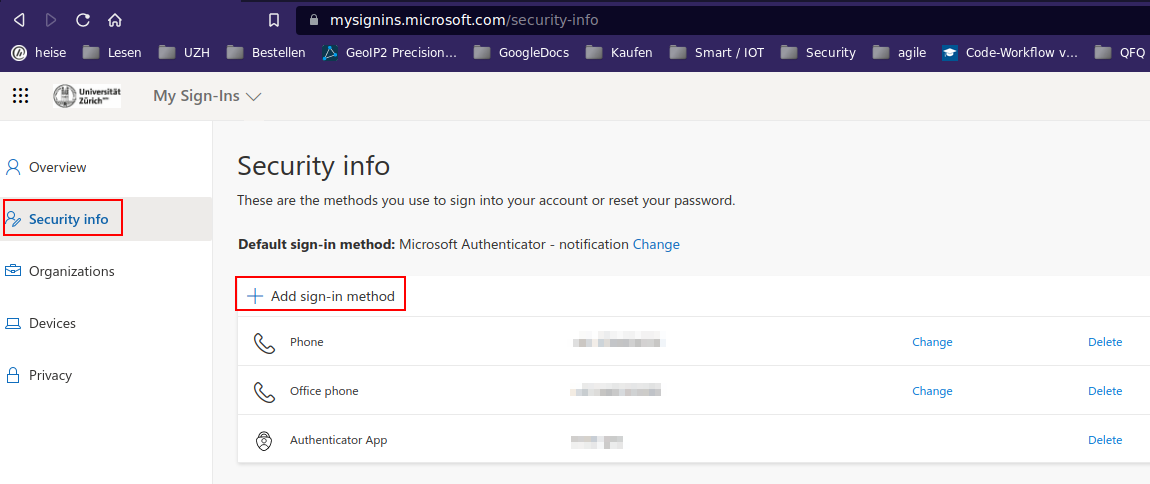
- MFA (Multi Factor Authentification) can be configured in different ways:
a) Authenticator App, like KeePassXC, MS-Authenticator, Google Authenticator
- b) SMS on Mobile Phone,
- c) voice computer to classical phone
- The default way is to use the Microsoft Authenticator App.
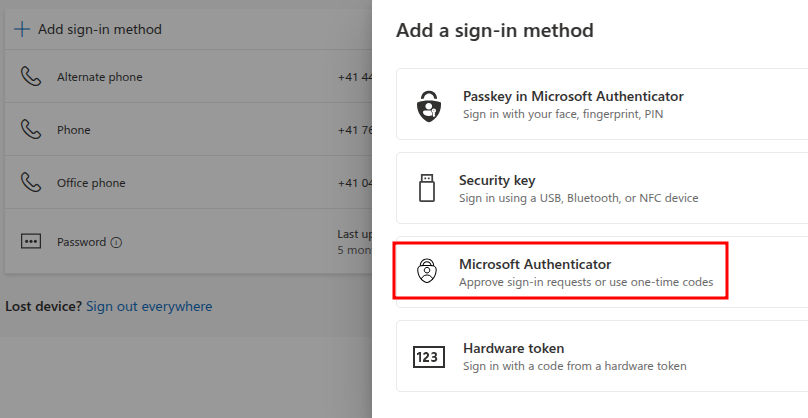
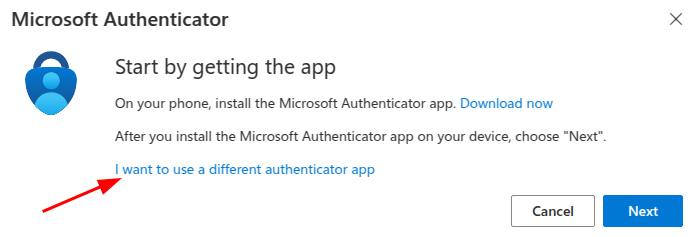
- But: After choosing 'Microsoft Authenticator App', also an alternative app can be selected (see below).
- Disadvantage of Microsoft Authenticator App: it binds to one device. An app registered Office365 account can only be unlocked with the specific device (or by phone call/SMS) - what is if your phone is broken and App and phone is on the same device?
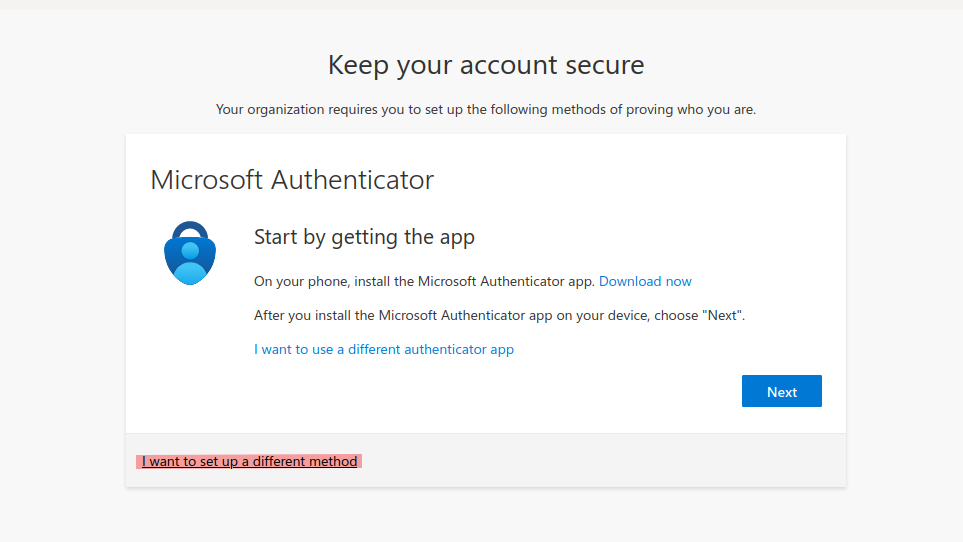
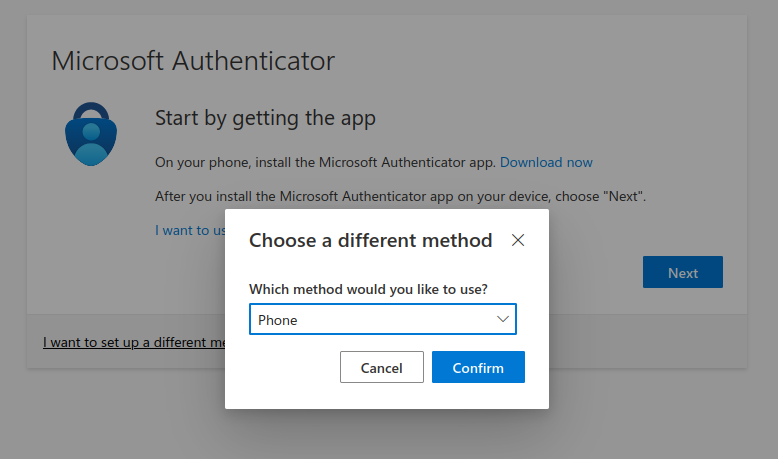
- To use a different method of Authentication, you can choose 'I want to set up a different method' when setting up your Microsoft Account.
- If you choose 'Phone', enter your mobile or office phone number or private phone number.
Add third party TOTP app
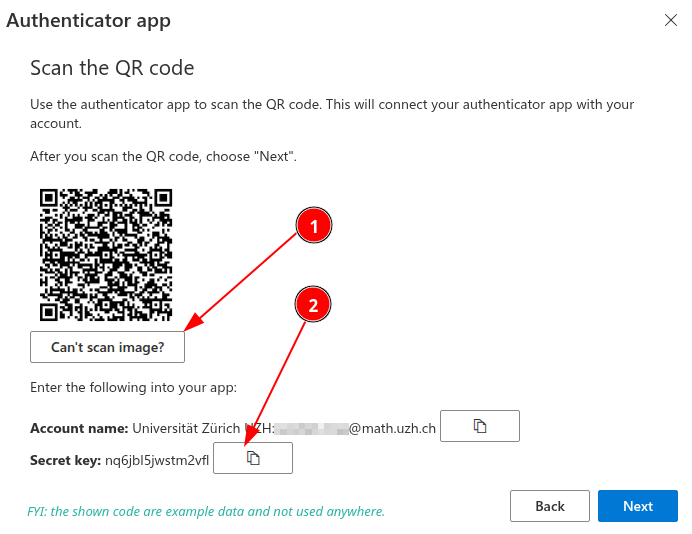
Attention: before you change your second factor: take care that there is always one factor which works! Typically your mobile number is a reasonable fallback during the reconfiguration.
Adding and removing factors: the system might ask again for authentication, even if you are still logged in!

Recommendation: Additional phone numbers
- You'll need this to login to outlook.com (very seldom necessary), teams.microsoft.com (teams will be more often used), zoom.us, KWF, ...
What happens if you forget your mobile at home, or your mobile is not working, or you are at home, ... or whatever. Our recommendation is to configure several additional ways:
office phone number (if you don't have access to your mobile phone)
personal mobile phone number (if you're not in your office)
if exist: classical phone from at home (if your mobile is broken)
Authentication method
- Authentication methods have fixed priorites (not changeable by user).
- The highest priority has 'MS Authenticator'. If this method is configured, this is always the default.
- Via "Sign in another way" you can choose TOTP or SMS, ...
If TOTP is not offered, please go to https://mysignins.microsoft.com/security-info, click on 'Change' and select the TOTP or phone method.
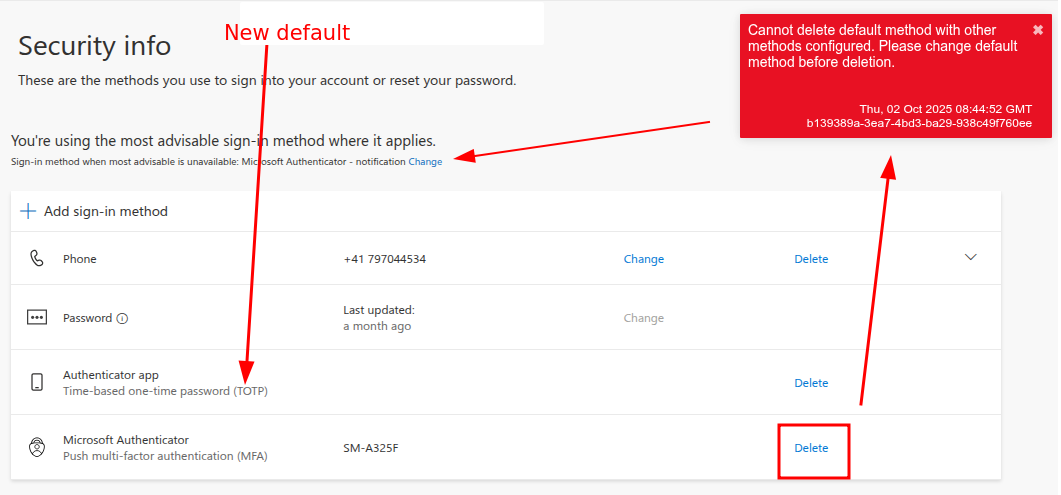
- To change the the default authentication method, you have to remove methods with a higher priority. E.g. the 'MS Authenticator App'.
- in case when you click on 'delete' and you get an error, please change via "Sign-in when most... CHANGE" to TOTP or Phone.
Lost Access
- If you lost access to your Microsoft Account, you can contact the ZI Support and ask them to reset your Accounts Authentication settings.
- ZI Support Contacts:
Self-Service Portal: https://support.uzh.ch/
More Information: https://www.zi.uzh.ch/en/support.html
And for the next time: remember to setup a second way of authentication, before you loose the first one

- After the reset, log in to your Microsoft Account and follow the steps listed under Method to set up your Microsoft Authentication