
|
Size: 455
Comment:
|
Size: 1814
Comment:
|
| Deletions are marked like this. | Additions are marked like this. |
| Line 13: | Line 13: |
== Human readable Matrikelnummern == If you want to generate your myexam.students.tex from the sheet you get by Gerda - here is how it's done: * Open a new Spreadsheet file in OpenCalc * Copy and paste the data (Matr.Nummer, Vorname, Nachname) from Gerdas File into this one. * Select the column Matr.Nummer, use Format > Cells... * Select in the box Category the item Number * Down in the Format-Code box write: 00--000--000 * Hit okay (nothing will change yet) * This column still selected use Edit > Find & Replace... * In Search For give the two characters "^." and in replace with give just an ampersand "&". {{attachment:snapshot.replace.jpeg}} * Then make sure the options "Current Selection Only" and "Regular Expression" are selected and hit "Replace all" * Now the Numbers shut be formatted okay. * Now in a unused column on the row as the first student paste there the formula: =CONCATENATE("\exam{";B2;"}{";TEXT(C2,"00--000--000");"}{";D2,"}{";E2;"}{}") * Change the cell references according to your data! * Hit Enter, select this cell and drag the lower right corner downwards so that every students line gets its copy of that formula. * Save the file. * Select the Column with the formulas and copy it. * Paste it in your favorite text editor and save this as thebestexam.students.tex * That's it. |
OpenOffice
Restore Missing Icons
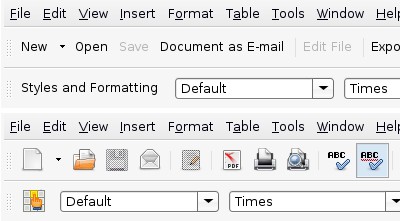
Sometimes, it may happen that OpenOffice's toolbar icons have disappeared. There is an easy fix for this:
Launch OpenOffice and open the menu Tools -> Options.
Select View from the list on the left.
Open the icon theme drop down box under the label Icon style and size and select Human.
Click Ok.
Now, the icons should be displayed again.
Human readable Matrikelnummern
If you want to generate your myexam.students.tex from the sheet you get by Gerda - here is how it's done:
Open a new Spreadsheet file in OpenCalc
- Copy and paste the data (Matr.Nummer, Vorname, Nachname) from Gerdas File into this one.
Select the column Matr.Nummer, use Format > Cells...
- Select in the box Category the item Number
- Down in the Format-Code box write: 00--000--000
- Hit okay (nothing will change yet)
This column still selected use Edit > Find & Replace...
In Search For give the two characters "^." and in replace with give just an ampersand "&".
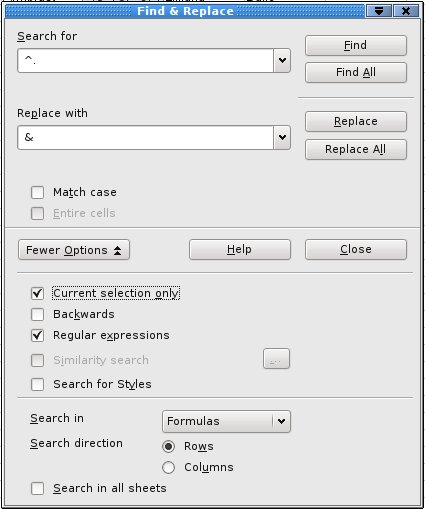
- Then make sure the options "Current Selection Only" and "Regular Expression" are selected and hit "Replace all"
- Now the Numbers shut be formatted okay.
- Now in a unused column on the row as the first student paste there the formula:
- =CONCATENATE("\exam{";B2;"}{";TEXT(C2,"00--000--000");"}{";D2,"}{";E2;"}{}")
- Change the cell references according to your data!
- Hit Enter, select this cell and drag the lower right corner downwards so that every students line gets its copy of that formula.
- Save the file.
- Select the Column with the formulas and copy it.
- Paste it in your favorite text editor and save this as thebestexam.students.tex
- That's it.