|
Size: 986
Comment:
|
Size: 987
Comment:
|
| Deletions are marked like this. | Additions are marked like this. |
| Line 14: | Line 14: |
| 6. In the upper left corner of the screen, right click on the keyboard icon and hover the mouse cursor over `Input Method` and set the current active Input Method. | 6. In the upper right corner of the screen, right click on the keyboard icon and hover the mouse cursor over `Input Method` and set the current active Input Method. |
Chinese Input Methods
Follow these instructions to enable Chinese Input Methods in ThinLinc
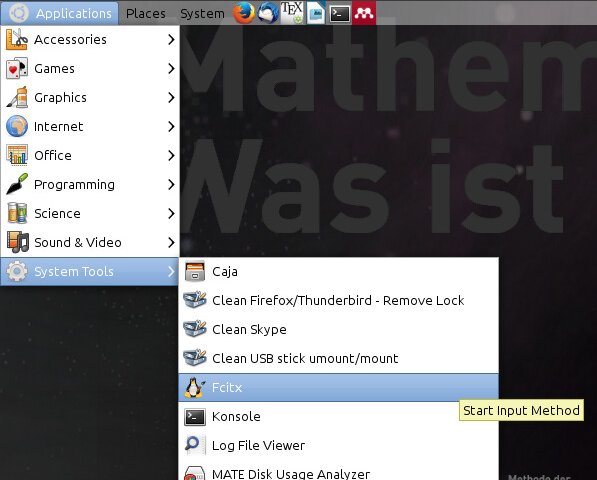
Start Fcitx from the Applications menu
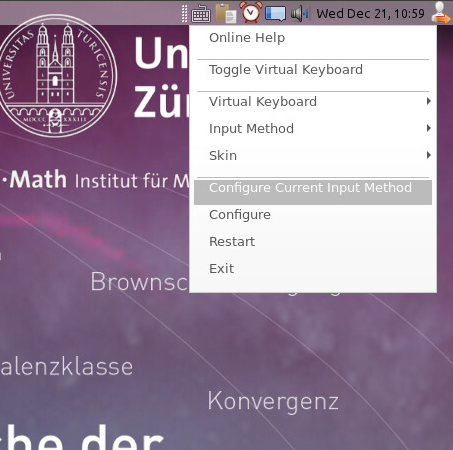
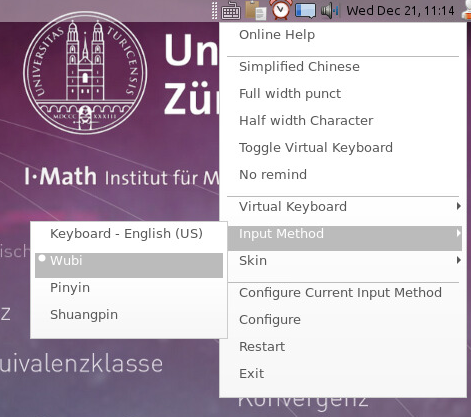
In the upper right corner of the screen, right click on the keyboard icon and left click on Configure Current Input Method
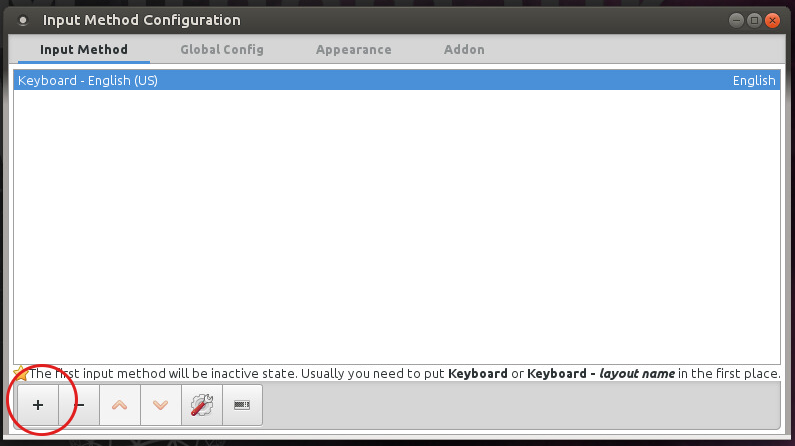
- Click on the plus-sign in the Input Method Configuration window
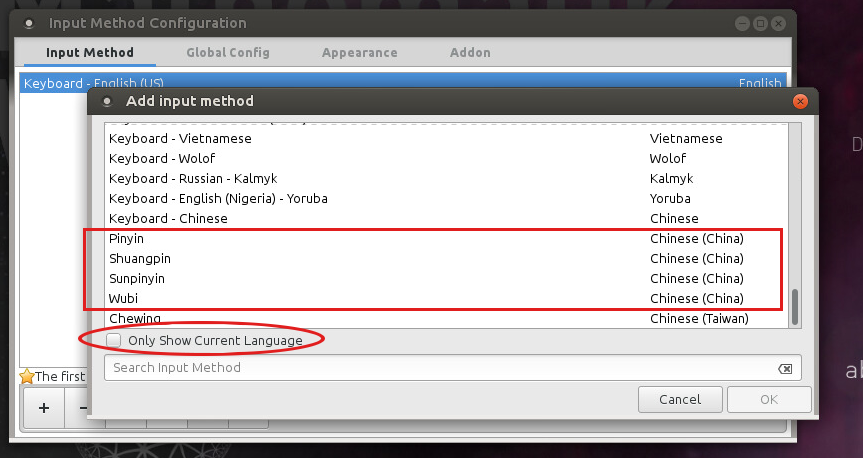
Untick Only Show Current Language and scroll to the bottom of the window. Select the input method you want to use. When done, press OK
Close the Input Method Configuration window.
In the upper right corner of the screen, right click on the keyboard icon and hover the mouse cursor over Input Method and set the current active Input Method.
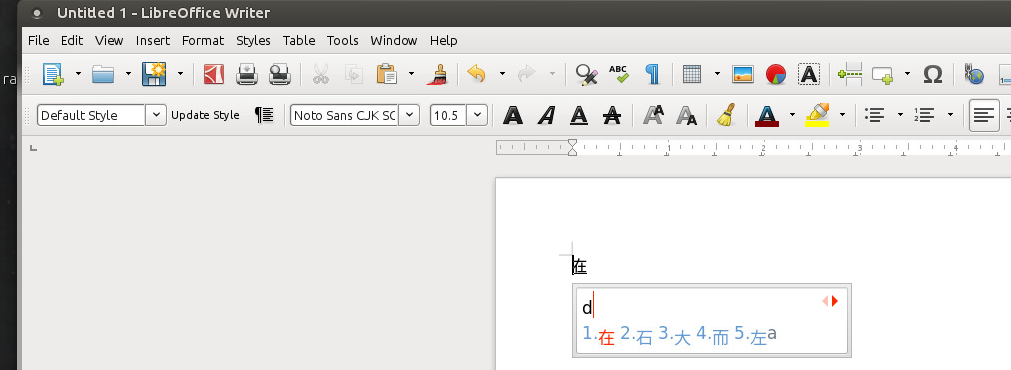
- You should now be able to type Chinese characters