SSH
Server: ssh.math.uzh.ch
Username (<IMATH username>) / Password (<IMATH Password>) / MFA (One Time Tocken) or Private/Public SSH Keys
- Usage
copy files: SFTP
start applications (text based and gui): SSH
Login Method |
Description |
Password only |
Attractive to phisher, disabled at I-MATH. |
Password & MFA |
Fallback, if no private/public keys configured . |
Private/Public Keys |
Recommended. After configuration, easy to use. Check also ssh#ssh-agent. |
Contents
Filetransfer - SFTP
OS |
Application |
Download |
Linux |
Nautilus (Ubuntu), Nemo (Mint) |
built in: sftp://[user]@ssh.math.uzh.ch |
Windows |
FileZilla |
|
MacOS X |
FileZilla |
- Server: ssh.math.uzh.ch
- User: I-MATH account name
- Password: I-MATH password
- Port: 22
Connections problem: Oops! Something wrent wrong
- If the SSH host keys changed, you might see an error during connecting and finaly the connection fails:
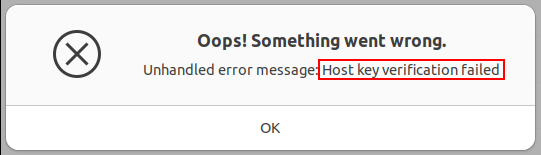
In this case, remove the old SSH Hostkey from ~/.ssh/knownhosts
Jumphost
In some situations (e.g. security reasons) it's necessary to log in on a SSH jumhost first and from there to the final SSH destination.
- Painful
[personal computer] ssh <user>@jumphost.example.com
[jumphost] ssh <user>@sfinalhost.example.com
- Better, but still much to to type
[personal computer] ssh -J <user>@jumphost.example.com <user>@sfinalhost.example.com
- Lazy user solution:
# File `~/.ssh/config` (on personal computer):
Host jumphost
        Hostname jumphost.example.com

Host finalhost
        User <user>
        Hostname finalhost.example.com
        ProxyJump jumphost

# Just type
[personal computer] ssh finalhost
Tip: if a host shows anoying banner on logging, suppress it by:
$ ssh -o LogLevel=error <user>@<host>

# the option can also specified in ~/.ssh/config in general
LogLevel error

# the option can also specified in ~/.ssh/config per host
Host finalhost
  LogLevel error
Shell
OS |
Application |
Download |
Linux |
ssh |
built in |
Windows |
Putty |
http://www.chiark.greenend.org.uk/~sgtatham/putty/download.html |
MacOS X |
ssh |
built in |
Examples for console on Unix(-oid) systems (Linux, OSX, ...):
- Copy the desktop from your math account to the local computer:
scp -r login@ssh.math.uzh.ch:Desktop .
(replace login with your user name)
Copy files from baxter (compute) to your local computer outside the institute. This cannot be done directly, but using an SSH tunnel:
PORT=1234
BAXTER=192.168.133.16
LOGIN=login
ssh -f $LOGIN@ssh.math.uzh.ch -L $PORT:$BAXTER:22 -N
rsync --partial --progress --exclude=.svn -auvz -e "ssh -p $PORT" $LOGIN@localhost:/export/user/login/data .
CMD="ps -eo pid,args | grep 'ssh -f $LOGIN@ssh.math.uzh.ch -L $PORT:$BAXTER:22' | grep -v  'grep' | cut -c1-6"
PID=`eval $CMD`
kill -9 $PID
echo `eval $CMD`
Here, PORT specifies the port number on your system used for the SSH tunnel (any random number larger than 1024 and less than 65535 should do, if not used by another program), BAXTER is the IP address of baxter, LOGIN your math account name, /export/user/login/data is the source directory, . the destination directory. The last four lines kill the SSH tunnel. The option --partial to rsync ensures that if the transfer breaks, you can continue it later.
Working with SSH Keys
SSH Keys are used for authentication to a remote system. Having SSH keys will relieve you from typing in your password every time you log in to a remote system if properly set up.
Quick Start
- If not already done: On your computer or in your thinlinc session, open a terminal and create your personal private/public key pair :
ssh-keygen -t ed25519
ssh-keygen will ask for a passphrase: this should not be the same as your password (in case of a successful phishing attack, the attacker than knows your passphrase as well).
Add the pub key (from your personal computer or thinlinc session) to the $HOME/.ssh/authorized_keys file on your I-MATH account. For Thinlinc:
cat $HOME/.ssh/id_ed25519.pub >> $HOME/.ssh/authorized_keys
chmod 600 $HOME/.ssh/authorized_keys
- If you log in the first time to a new SSH host, you have to accept the host key.
- Now, you are able to log in to host you are granted ssh access without providing a password. For more information, read the sections below.
Private/Public Key Creation
On Unix systems, the command ssh-keygen is used to create the Private/Public key pair, as shown in the example below
$ ssh-keygen -t ed25519
Generating public/private ed25519 key pair.
Enter file in which to save the key (/home/<USER>/.ssh/id_ed25519):
Enter passphrase (empty for no passphrase):
Enter same passphrase again:
Your identification has been saved in /home/<USER>/.ssh/id_ed25519.
Your public key has been saved in /home/<USER>/.ssh/id_ed25519.pub.
The key fingerprint is:
ae:73:55:6a:22:68:2e:1e:10:df:e6:a3:5d:57:07:2a <USER>@<HOST>
$
The output may differ, depending on the system you invoke the command. The example will create a ed25519 private/public key (-t ed25519).
When asked for the file in which to save the key, it is usually safe to go with the default, i.e. just pressing the ENTER key.
When asked for the passphrase, you have two choices:
- just pressing the ENTER key, hence not setting any passphrase, which in turn will leave your private key unprotected
- entering a pass phrase and thus encrypting the private key (see below for a discussion of the pros and cons of setting a pass phrase)
After You need to create the private/public key pair only once.
Using the Private/Public Key Pair for Authentication
After creating the key pair, you have to set up your account to make use of them. This is straight forward by adding your public key you created previously to the .ssh/authorized_keys file, e.g.
$ cat $HOME/.ssh/id_ed25519.pub >> $HOME/.ssh/authorized_keys
You have to make sure this file has the proper permissions, else ssh refuses to authenticate using the private/public key mechanism. Therefore, do
$ chmod 600 $HOME/.ssh/authorized_keys
Now, you are able to login to any system you are granted access without having to type in your password when using SSH. This is especially true if you did not set a pass phrase.
If you have set a passphrase, a dialog will pop up asking you for the pass phrase. You have to enter it only once, and it will be remembered for the duration of your session, thus any further ssh connections will work without the need to enter a pass phrase.
Using Private/Public Key Authentication from Outside Thinlinc
The above is all good and fine if you are using one of the Thinlinc terminals at IMATH. If you want to access the IT infrastructure of IMATH from the outside Thinlinc using SSH, follow those steps
- Create a SSH private/public key pair as described above for your private account (not your IMATH account).
Copy the public key to your IMATH account for example by using scp (yes, OTP is already necessary).
- Log in to the IMATH IT infrastructure and type on in a terminal
cat <filename.publickey> >> $HOME/.ssh/authorized_keys
Where <filename.publickey> is the file name of the public key you copied in step 2.
Why using a Passphrase?
The passphrase is used to encrypt and decrypt your private key. If somehow someone else gets possession of your private key, they will not be able to use it unless they also know the passphrase.
In case the private key is not protected by a passphrase, and the private key gets 'stolen', the thief is able to use the private key in order to log in on any computer you can, with your credentials.
So, the bottom line is to use a strong passphrase (>15 characters) to protect the private key. The security benefit outweighs the discomfort caused by the need to provide the passphrase the first time only the key is used.
ssh-agent
Under Linux: in standard use cases nothing to do here, all runs automatically.
TL;DR
The ssh-agent processes is typically not seen by a user. It will be started in the background. One purpose is to deliver the ssh passphrase on subsequent new ssh connections, so that the user does not have to provide the passphrase on each new connection. This caching stays active as long as a GUI session (=Thinlinc) is running. If a new GUI session is created, the pass phrase has to be given once again.
Storing the passphrase is also often done via a keyring service (keyring) . On Thinlinc: Typically a gnome-keyring-daemon and a ssh-agent is running per user:
$ ps -ef | grep keyring

crose     632315       1  0 Feb09 ?        00:00:00 /usr/bin/gnome-keyring-daemon --start --components=pkcs11
crose     642701  632315  0 Feb09 ?        00:00:00 /usr/bin/ssh-agent -D -a /run/user/10688/keyring/.ssh
- The bourne shell should have the SSH_AUTH_SOCK variable set, to inherit expecially to all child shells.
declare -x SSH_AUTH_SOCK="/run/user/10688/keyring/ssh"
Normally a Gnome/Cinnamon session starts during login the gnome-keyring process.
Manually set for current terminal https://www.commithub.com/add-your-ssh-key-to-the-ssh-agent/
$ eval "$(ssh-agent -s)"
$ ssh-add ~/.ssh/<private_key_file>
keychain: remote connection using ssh-agent
a) [alice@home] > b) bob@ssh.math.uzh.ch > c) charly@compute.math.uzh.ch
In case a remote login via ssh is done (a) and on the target host (b) the local keys should be used, an ssh-agent has to be started on the target host (b) and has to be supplied with the private key.
[alice@home]
$ ssh bob@ssh.math.uzh.ch

[bob@ssh.math.uzh.ch]
$ eval `keychain --eval`
$ ssh-add ~/.ssh/id_ed25519

...

$ ssh charly@compute.math.uzh.ch
MFA (one time token)
Port Forward for license server - Maple
- Via SSH TCP/IP connections can be tunneld=forwarded.
- This behave like a poor man VPN solution.
- Advantage: together with private/public SSH key setup, this is very handy and scriptable.
- Example for using maple with a license server at ZI:
#!/bin/bash
#
# Starts a port forward from localhost:27002 to $LICENSE_SERVER:27002
# Starts maple with a temproray config file.
#

SSH_USER=<your account at IMATH>
SSH_SERVER=ssh.math.uzh.ch
LICENSE_SERVER=<ask IT>
PORT=27002

# Check if there is an old port forward running:
OLD_PID=`ps -ef | grep $PORT:$LICENSE_SERVER | grep -v $$ | awk '{ print $2 }'`
[ ! -z "$OLD_PID" ] && kill $OLD_PID

# Start port forward
ssh -f -N -L $PORT:$LICENSE_SERVER:$PORT $SSH_SERVER

LIC=`mktemp`
echo -e "SERVER localhost ANY $PORT\nUSE_SERVER" > $LIC

xmaple -f $LIC $@
rm $LIC
Copy the content to ~/xmaple.sh.
- Put in your IMATH username in line 3.
Make it executable chmod +x ~/xmaple.sh.
Start it via ~/xmaple.sh.
Problems
no connection/ timeout
The SSH Server is protected with an IP blacklist.
An IP address will show up on the blacklist, if more than 3 logins (with an unknown user id) or 5 logins (with a known user id and a bad password) will occur during 5 days.
A successful login will reset the counter.
If you think your IP address has been blocked (indication: no password prompt appears), you can free your IP address:
http://www.math.uzh.ch/my > Setting (lower left corner) > Bottom: Open Firewall